
Apply different filter values for each selected company
Introduction
When we use SAP Business One, there is a case we want to apply different filter range for each selected company in a query. This post will show you how we can build such query and what we need to do for it here.
Practices
This can be achieved by using [Filter Mapping].
First, let’s look at the design of the base query that uses filter mapping.
We assume that you have SAP Business One datamodel installed and it connects to the demo database which can be downloaded from our web site.
You can open Sharperlight Application Menu and choose Sharperlight [Query Builder].
Select SAP Business One as the product.
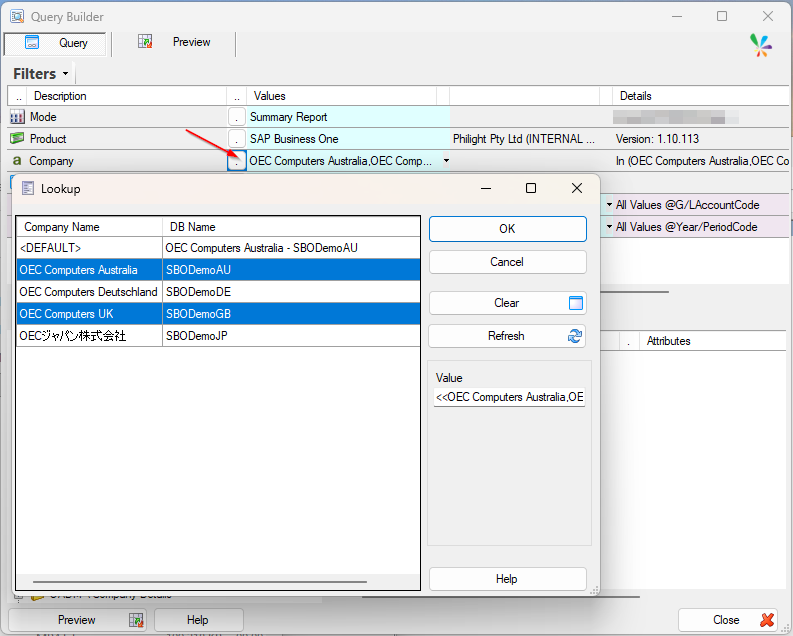
Choose “OEC Computers Australia” and “OEC Computers UK“.
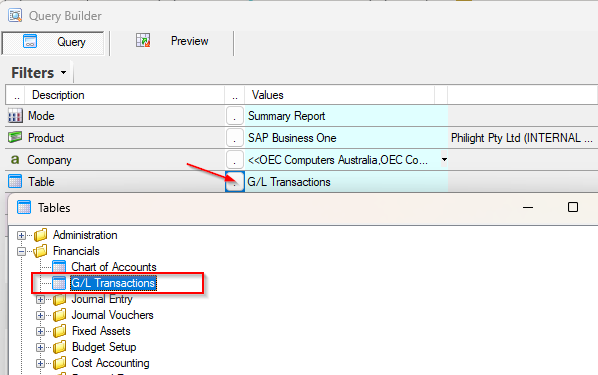
Select “G\L Transactions” table.
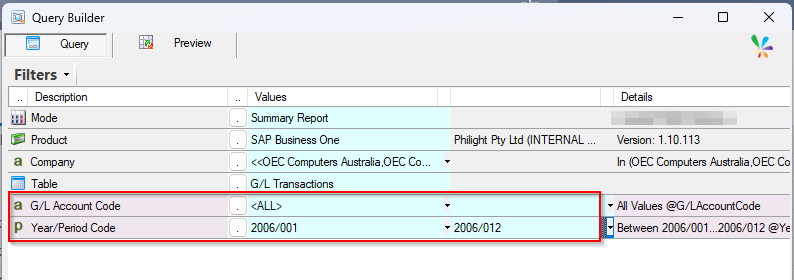
Two mandatory filters are automatically added and set “<ALL>” for G\L Account Code filter. Then give the period range “2006/001” to “2006/012” to Year/Period Code filter as the demo database has data in the period range.
We add one more filter which will works different for each selected company.
Type “Reference” in the search text box and find the Reference 1 field under Miscellaneous Fields folder.
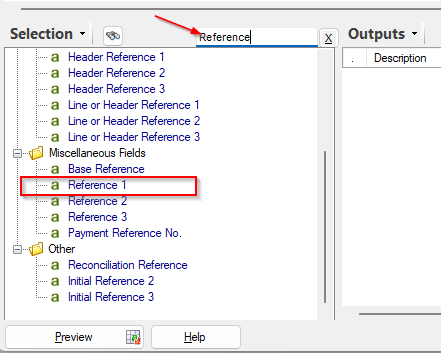
Drug-drop the field to the Filter area.
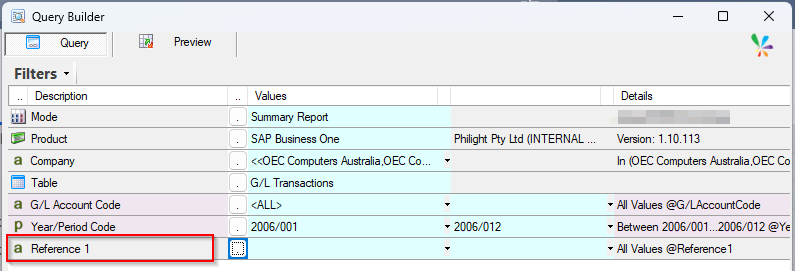
Open the lookup dialog for Reference 1 filter.
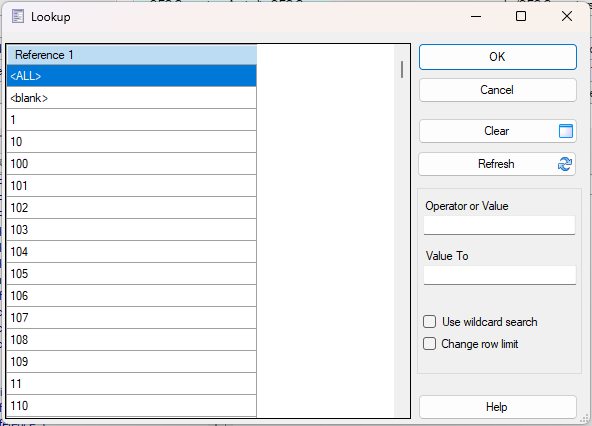
We start creating “Filter Mapping” definition from here.
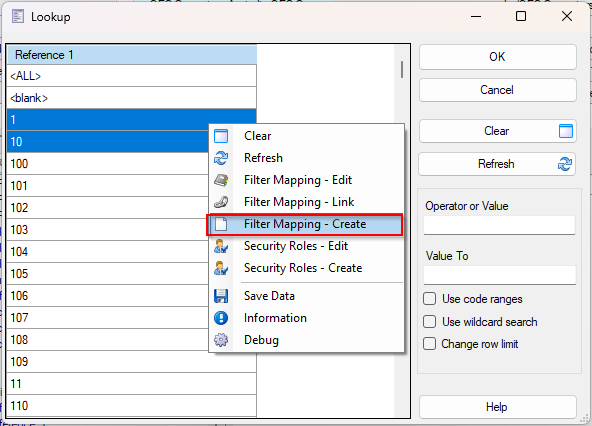
Select a couple of items by using Shift key + Left mouse click and right-click to open a popup menu. Then select “Filter Mapping – Create“.
You would be taken to Sharperlight [Filter Mapping] dialog with the pre-populated values. The Lookup Code Paths is important within the pre-populated values as it shows the engine where this filter mapping should be applied so it shouldn’t be changed.
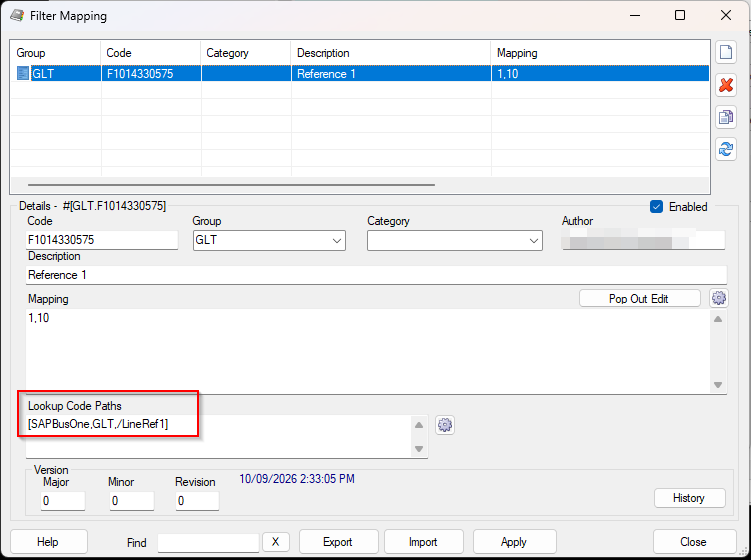
Let’s edit the pre-populated definition.
- Code: “Sample”
- Group: “SAP”
- Description: “Filter Mapping to Reference 1 field in G\L Transactions table”
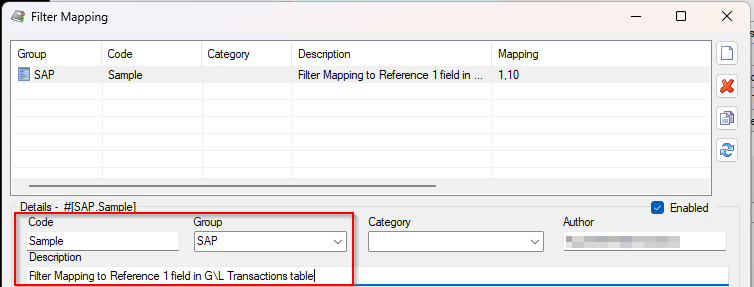
Next, this is one of core logic definition for this filter mapping, i.e. Mapping.
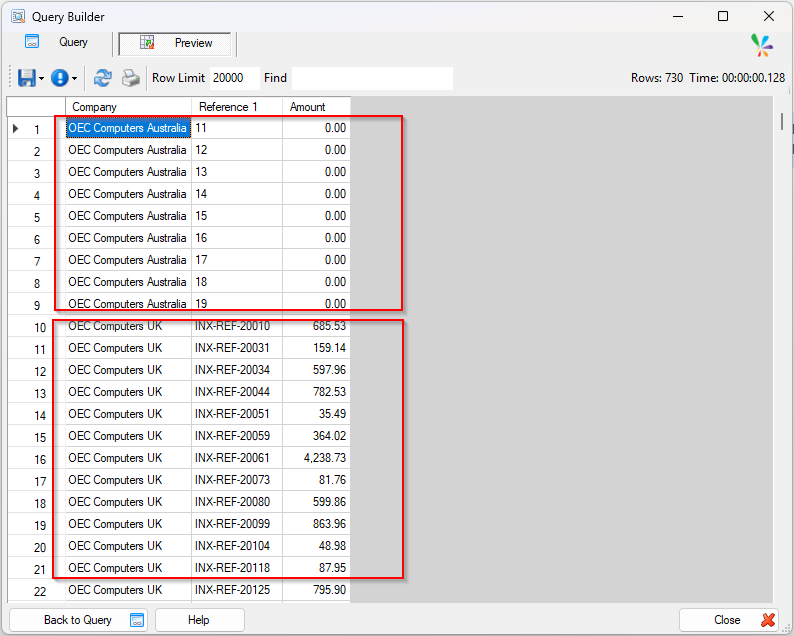
We want to see the records which Reference 1 code is between 11 and 19 for OEC Computers Australia, and Reference 1 code start with “INX-REF” only for OEC Computers UK.
Therefore, the formula should be
[OEC Computers Australia>>11..19]
[OEC Computers UK>><<<like>INX-REF%]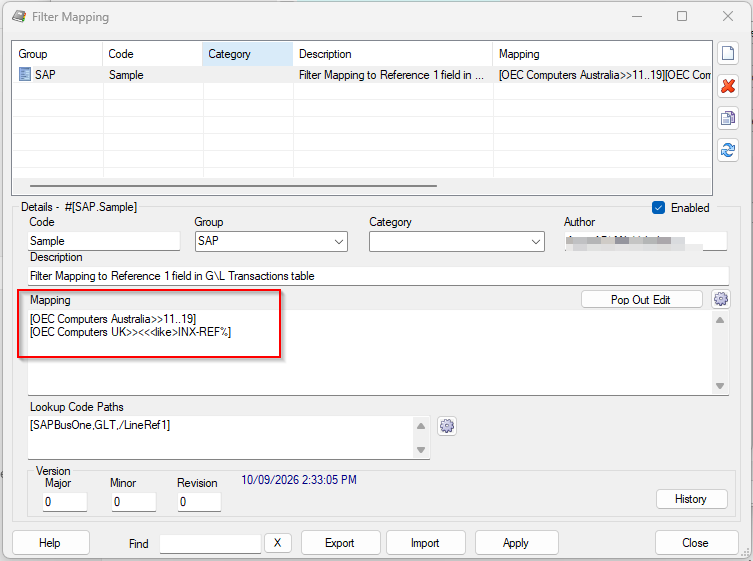
Click Apply to save it and click Close to close the dialog. You would be taken to the filter lookup dialog.
Now you can see the filter mapping just created.
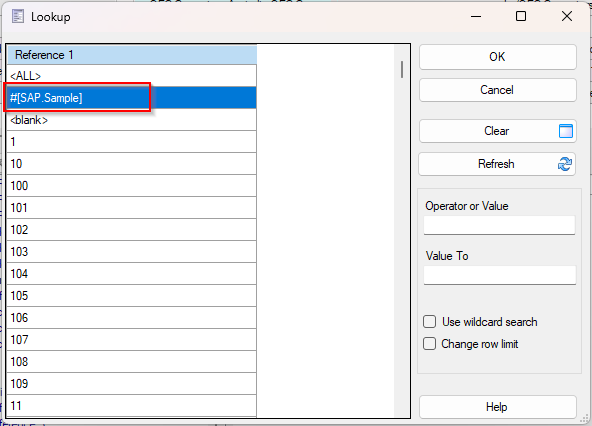
Double-click it twice to set the filter mapping to FROM value and TO value fields.
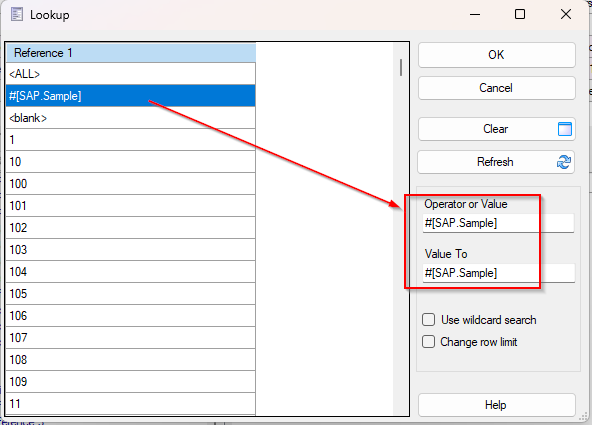
Click OK to save it.
You can see the filter mapping is set to Reference 1 filter now.
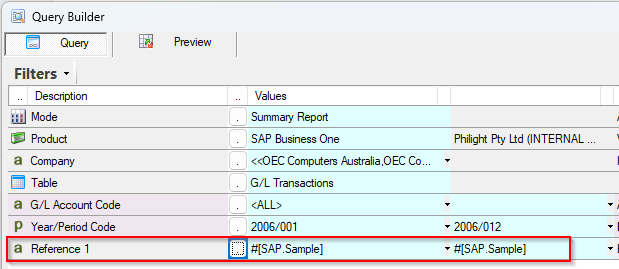
To finalize the definition of the query, set some outputs.
Drug and drop Company in the filter section to Outputs section and Reference 1 field as well.
Find Amount field in the Selection list and set it to Outputs.
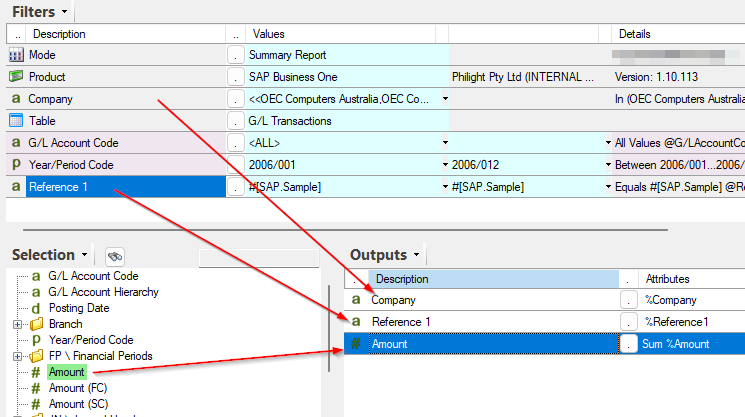
Finally, the query is completed. Let’s see the query result by clicking Preview button.
You should see that different filter values are applied to each company.
Afterword
We now know that those logic can be done by using Sharperlight [Filter Mapping].