
How to create Excel Formula with the query builder
Introduction
When creating a Sharperlight query in an Excel worksheet, you may sometimes want to include Excel formulas. In this section, we’ll look at how to do that.
Practices
Open a blank Excel worksheet and make sure the Sharperlight Excel Add-in is installed and enabled.

Let’s create a table formula so select a cell e.g. B5 and click Table icon in the Sharperlight ribbon.
Once Query Builder opens, select SAP Business One as the product (if it is installed), and retrieve data from the Companies table. Then, display the DB Name and Company Name fields.
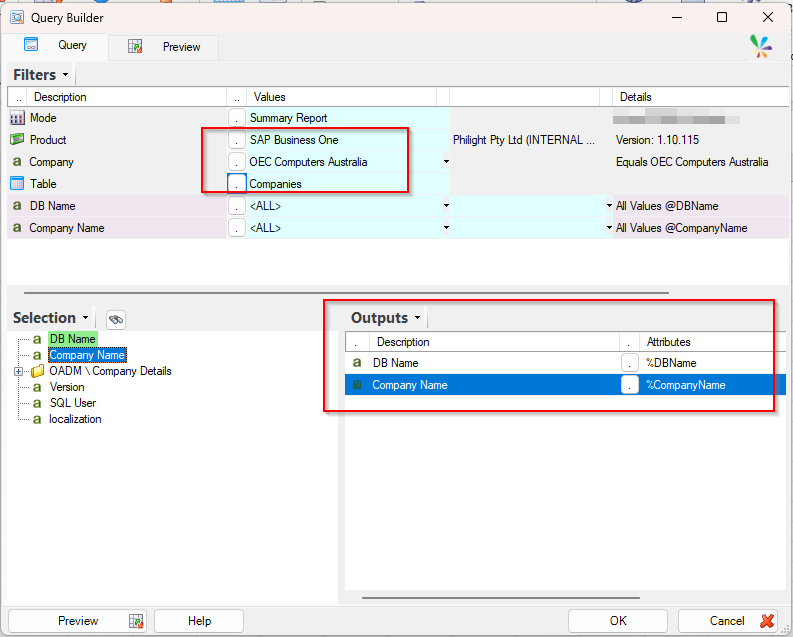
Click OK to populate the worksheet with the table. We should see the following result.
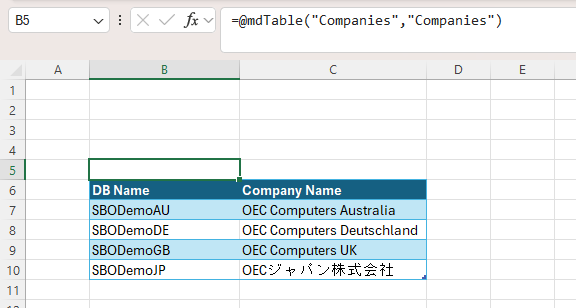
Next, let’s add an Excel formula as the third column.
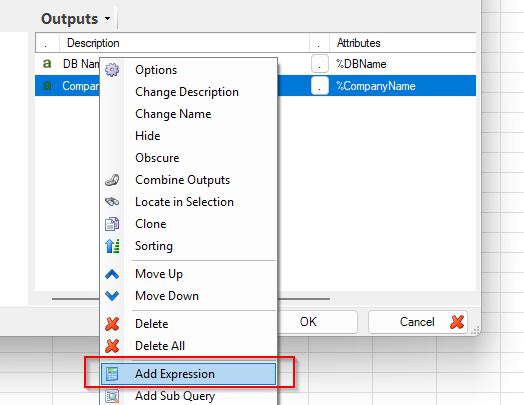
Double-click the cell B5 to open the query definition and add an Expression to the output.
With the expression editor, put the following excel formula.
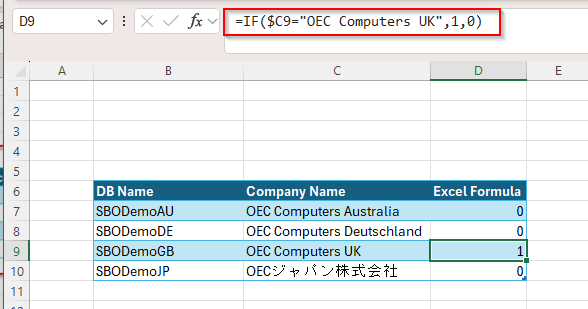
=IF($C7="OEC Computers UK",1,0)Two key points are here,
- The Excel formula needs to be enclosed in single quotation marks.
- Data Type must be ‘URL’ or ‘HTML’.
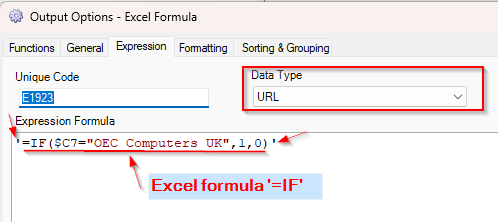
Click OK to save the expression and rename its description with “Excel Formula”.
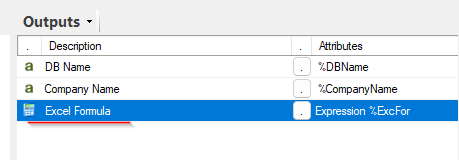
Click OK to run the query, the table is regenerated and we will see the 3rd column now.
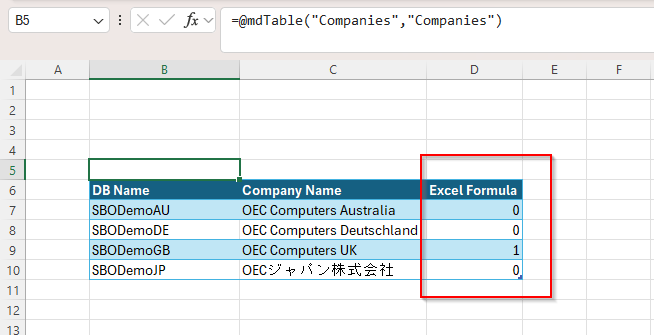
Then they have the Excel formulas.
Afterword
Now that we know how to generate Excel formulas using Query Builder, let’s explore this functionality further and incorporate it into your work.