
Prompt Integration – Dashboard Page
Introduction
I have designed a dashboard report using the Sharperlight Dashboard Page. I would like to use a single prompt to control all the other tiles in the dashboard report.
How can I achieve this?
Practices
Overview
This example is configured with five tiles.
The top tile displaying the list of companies behaves as a prompt and selected company name is passed to other tiles so we call it “Sender” in this post.
The other four tiles are refreshed when receive the company name being sent from “Sender” so we call it “Receivers” in this post.
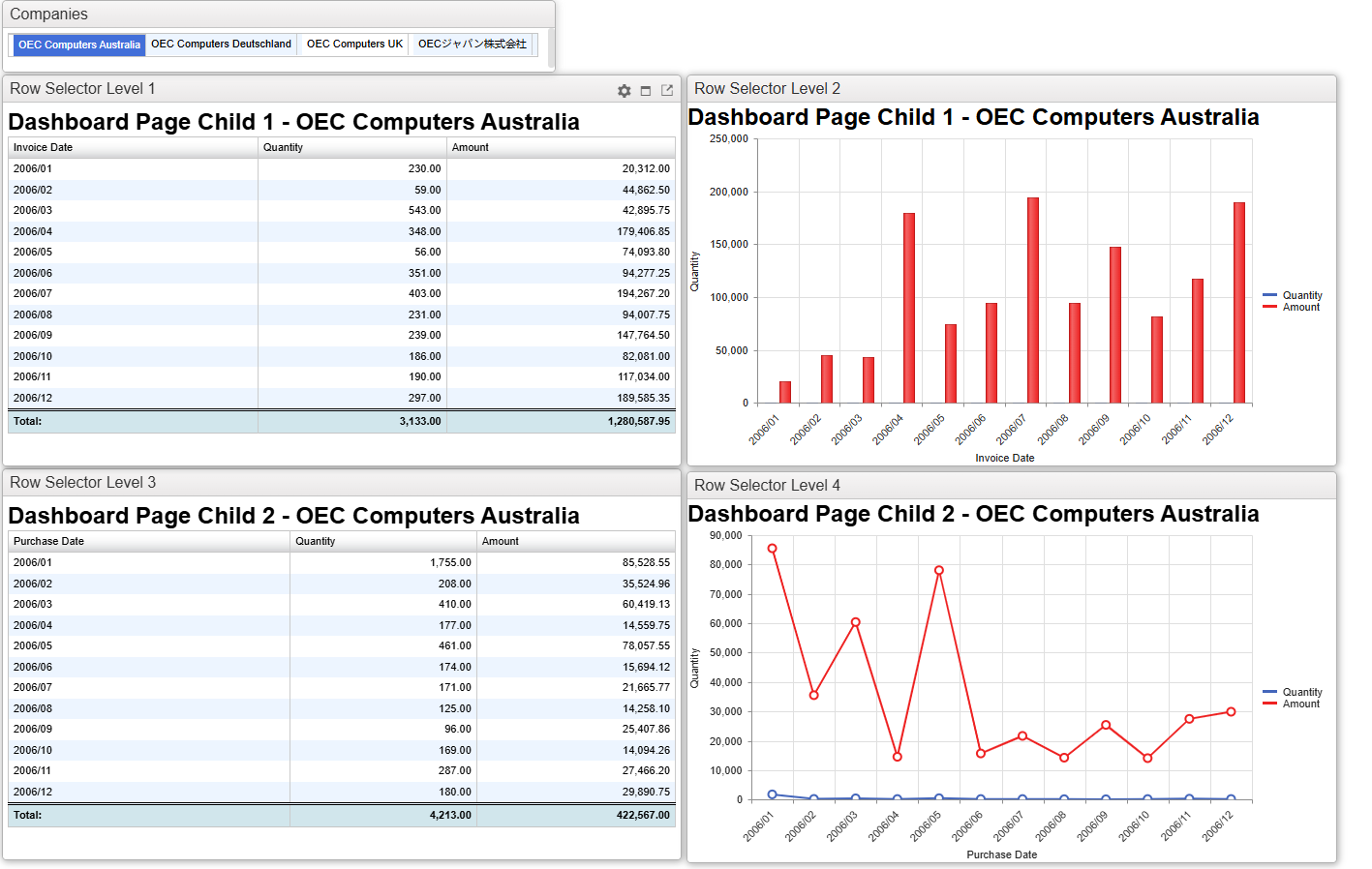
The Settings
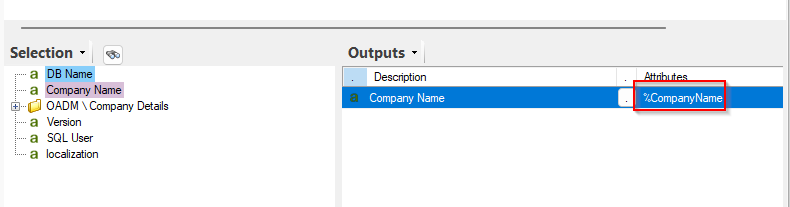
Name of the output and filter: This is the global link code between “Sender” and “Receivers“.
- The name of the output (Company Name) in “Sender“: “CompanyName”
- The name of the company filter in “Receivers“: “CompanyName”

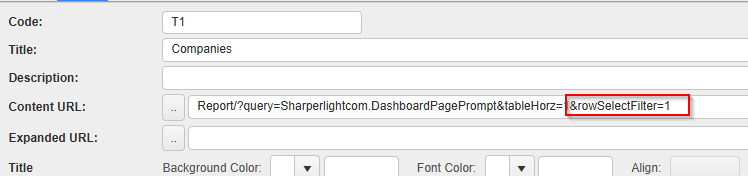
URL option for Sender: The following option need to be added to the report URL to make this integration work.
- &rowSelectFilter=1
Afterword
These are the basic steps for configuring one tile to drive the other tiles using the Sharperlight Dashboard Pages feature.
If you wish to implement the same functionality in a published report using the Layout feature, please refer to “Layout Page – Prompt Integration“.
For more advanced filtering capabilities, please refer to the Filter Pane functionality.
See also;
- Table Outputs Horizontally
- The meaning of the number for &rowSelectFilter=n, refer to “Advanced Prompt Integration – Dashboard Page“