Excel Add-in – Keeps dropping out
When Excel adds the Sharperlight add-in it will record the add-in details in the Windows Registry. If after closing Excel and restarting it you find that the Sharperlight add-in has disappeared, the following may be the cause.
- Excel did not have sufficent permissions to create the Window Registry keys to record the add-in. Please try starting Excel with run as Administrator and re-reference the Add-in. Use the Shift Right Click menu on the Excel icon.
- When Excel adds a Add-in it also auto creates a COM Ribbon Helper that allows the Add-in to be visible in the Ribbon area. If this Ribbon Help is missing or disabled the Add-in will no longer be visible. Try unrefereing the Sharperlight Add-in exit Excel and re-reference it again.
- Your company may have locked down the Windows environment so that it’s impossible for Excel to create the Add-in Windows Registry Keys.
- Your company may be transfering and clearing the Windows User Profile details whenever a User sign-in or out. If they have not included the Excel Add-in registry keys then the Add-in details are lost the next time they sign in or the User Profile details are resynced. Ask that your Excel Add-in details be saved and not dropped.
- If Excel crashes for whatever reason it may decide to disable Add-ins. Ensure you have Sharperlight 3.0.45 or higher and reenable the Add-in (See links below)
Follow up Actions
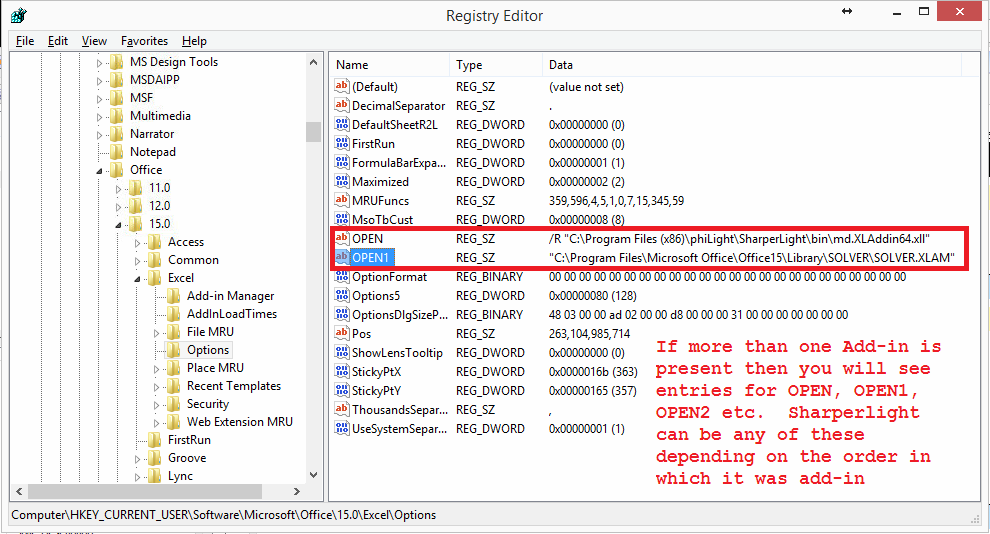
If you have checked the above points and still find the Add-in is being dropped then it is recommended that you check the Registry Keys created by Excel in RegEdit while adding the Add-in and after exiting Excel.
If you have referenced the wrong Add-in, say the 32bit add-in md.XLAddin.dll when it should have been the 64bit Add-in md.XLAddin64.dll for 64bit Office then it’s recommend that you deseletct the Add-in, exit Excel and reference the correct one. Sometimes Excel will refuse to clean out the incorrect Add-in in which case you will need to assist it by deleting the Registry Keys manually in RegEdit.
Create a Add-in Desktop Shortcut
It is now possible to create desktop shortcuts to all the various components of Sharperlight including one that will readd the Excel addin. This shortcut will automatically detect what version of Excel is running and create the required Excel settings. Ensure that Excel is not running when clicking the shortcut. Please note that if the root cause of Add-in dropping out was due to permissions not allowing the settings to stick or your user profile being cleared down everyday then this appoarch will may not help.
Click the Create Desktop Shortcut button then select Install Excel Addin

Add-in Installer
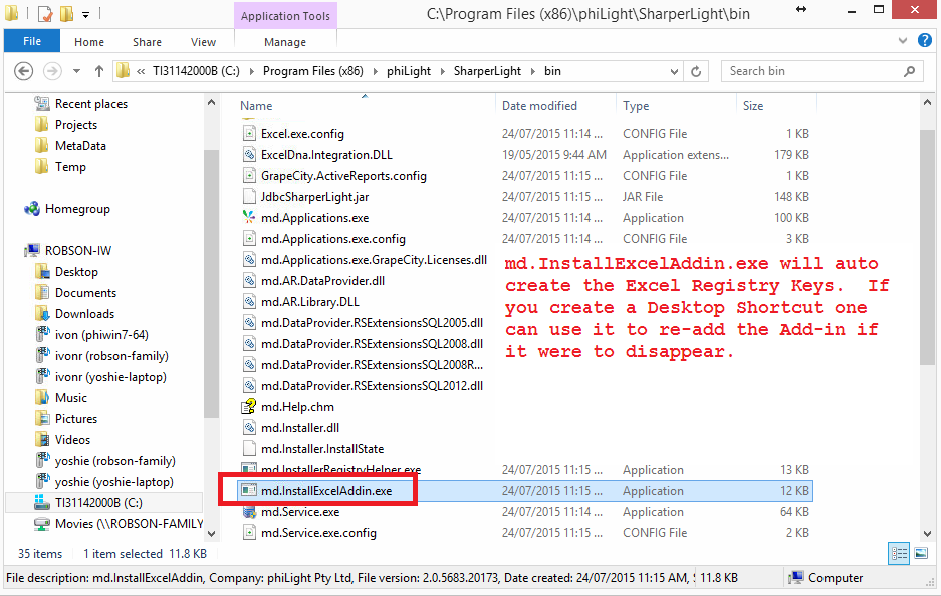
Another approach is to make a Desktop Shortcut to the Sharperlight Excel Install App in folder
C:Program Files (x86)phiLightSharperLightbinmd.InstallExcelAddin.exe
This will add the Sharperlight Add-in back into Excel
In the Sharperlight Application Menu there is also a Desktop shortcut creation button that can auto create a shortcut to the Add-in installer
ERROR:The Ribbon/COM Add-in helper required by add-in
The Ribbon helper is auto created by Excel and maybe disabled by Excel if you force/kill the Excel application. When this happens try enable the Ribbon help again by removing the Sharperlight add-in then exiting Excel and adding it again. If this does not help try the steps below
- *Go to the registry using RegEdit
- *find this folder:HKEY_CURRENT_USERSoftwareMicrosoftOffice15.0ExcelResiliencyDisabledItems.
- *Inside the folder should be placed a single one binary key. Delete it.

References
The Sharperlight Excel Installer automates the install of the Add-in
Excel Add-in when manually browsing for Add-in file

Excel Add-in Options Window when Add-in is present

How to see if the Add-in Registry Keys are present using RegEdit

When more than one Add-in is Present then OPEN, OPEN1, OPEN2 etc will be present