
Sparklines, Bars and Gauges
When Sparklines, Bars and Gauges are required in the Web Channel there are two approaches. One is to use the inbuilt tools in Page Designer and the other is to use Expressions to create the HTML or retrieve a Image based on the parameters passed. This article deals with the Expression approach and shows some of the various Templates that can be found under the HTML folder when building the Expression. Only a subset of the possible Templates are shown and note that it is also possible to call out to online libraries hosted by Google for example as well.
The general steps required are as follows:
- Create a Output New Expression
- Select one of the Templates under the HTML folder for Sparlines, Bars or Gauges
- Depending on the type it may have one or more values to pass in
- Generaly all types will have a min and max parameters so change these to match your data
- If required set a Title
- Check the parameters width and height etc to see if these need to be changed
- Based on the type there may be zone ranges and various colours
- Check the Expression data type is HTML
Example of a Gauge Expression:
“<iframe src='{_System.Rest.URL}Dashboard/?type=gauge7”
+ “&min=0&max=100&width=180&height=110”
+ “&value=” + ({%ProfitPercentage}*100)
+ “&title=” + UrlEncode( “Region ” + {%RegionCode} )
+ “&title2=” + UrlEncode( “%” )
+ “&pointerColor=” + IIF( {%ProfitPercentage}<=0.7,”darkgreen”,”darkred”)
+ “&greyZoneColor=yellow&fontSize=30”
+ “‘ width=’180px’ height=’110px’ scrolling=’no’ allowtransparency=’true’ frameborder=0 ></iframe>”

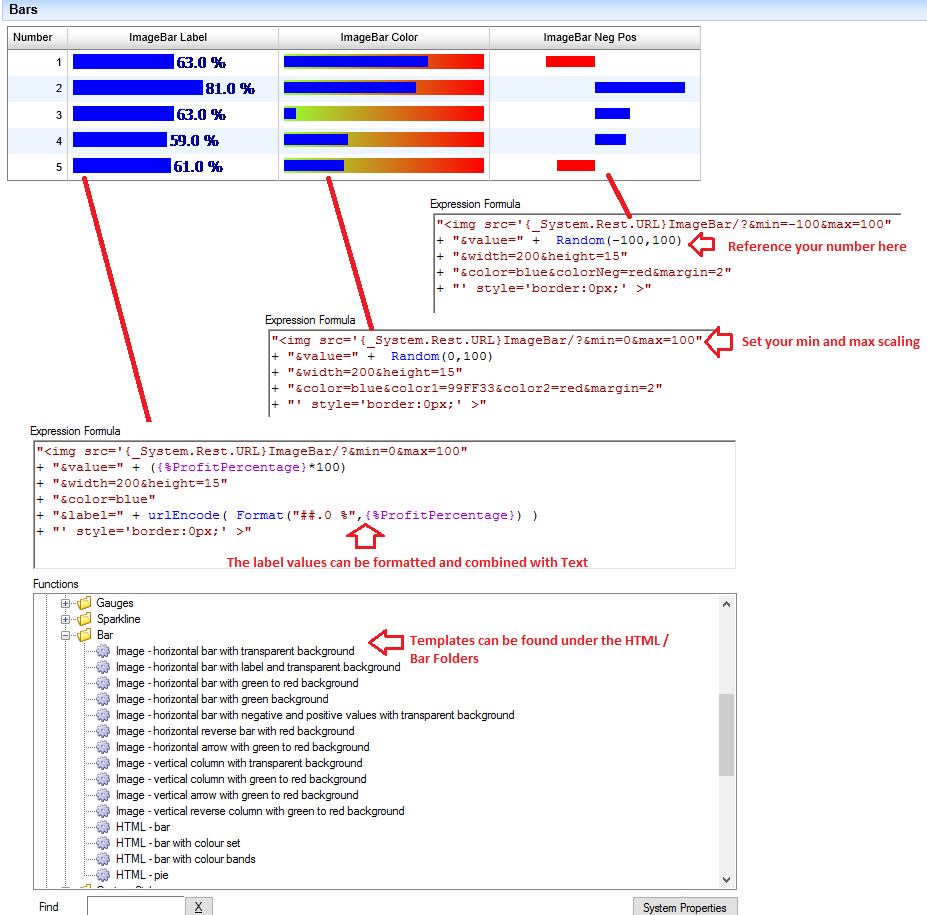
Notice that some of the types below like Bar and Sparkline are pre-rendered images based on the URL parameters. These can be called from any HTML web page and imbeeded
Sparklines

Bars
Gauges
