Page Designer – Invoice and Statement Type Reports
Multiple Queries can be used to build up various datasets to be displayed in different areas of a Report, Chart or Form.
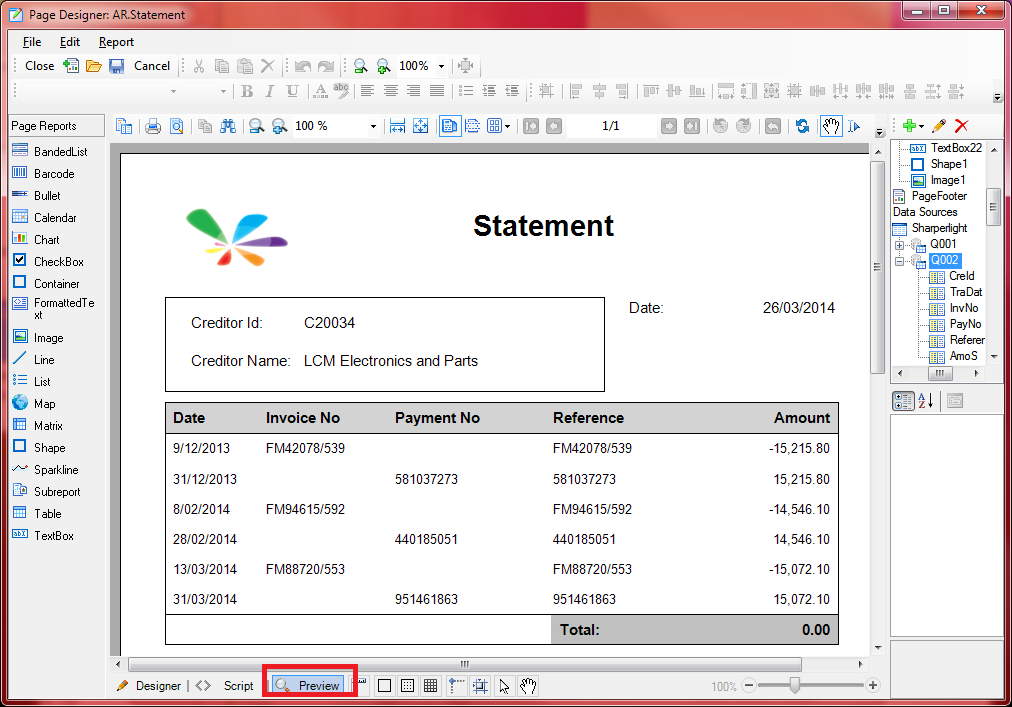
This example shows a very simple Statement layout using just two Queries.
The Statement will have a Main Query to drive the Report Filter Parameters where one selects a single Creditor Id. The Main Query uses this Creditor Id to get their name and address details. The Sub Query is used to get the Transaction Line details of based on the same Creditor Id selected in the Main Query. The way to sync or pass Filter values from the Main Query to the Sub Queries is to give the same name the Filters.
Preview of Statment in Web Channel – The Default Output has been set to Page Pdf

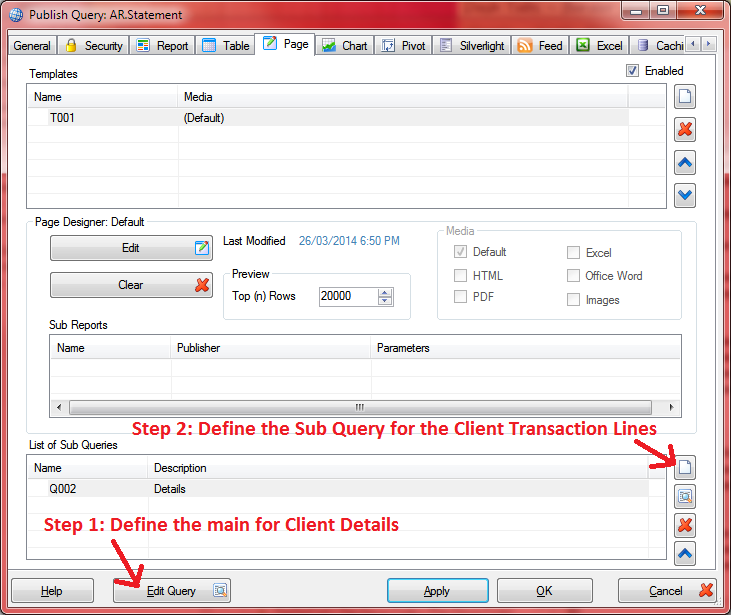
In Publisher Define the Main Query then the Sub Quey and then move onto the Page Designer Edit Button
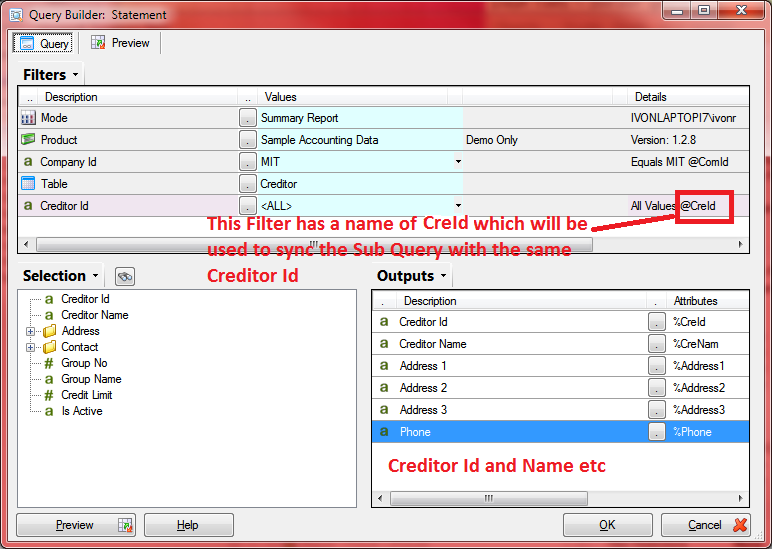
Click Edit Query and Define the Main Query where a Filter is used to target the desired Creditor
Note: The name of the Filter is very important as it will be used to sync the Sub Query with the same values
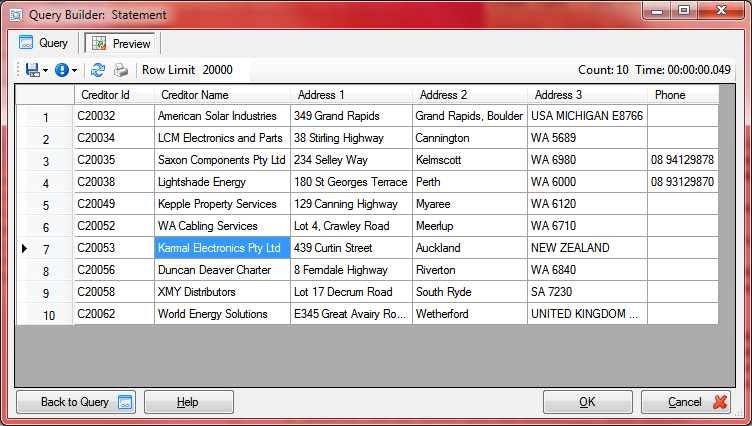
Click Preview of Main Query. Later we will narrow it down to just one Creditor when running Reports
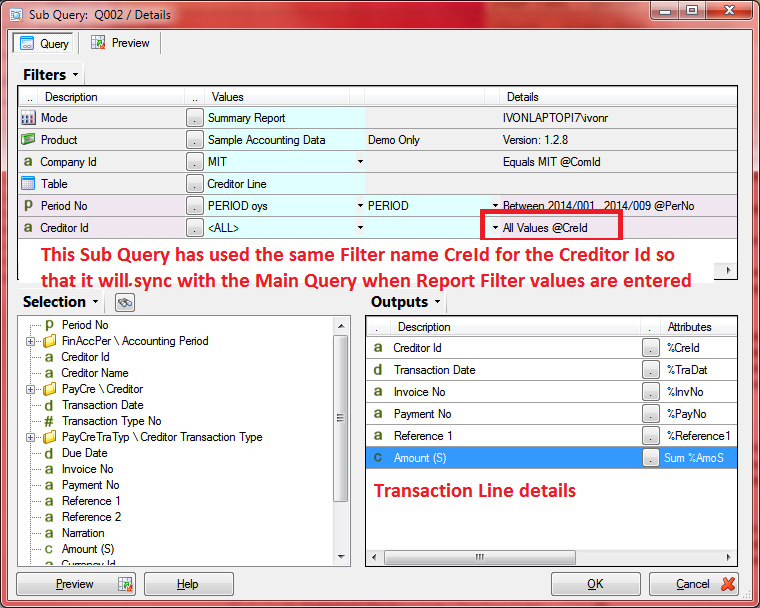
Click new in the Sub Queries section and define the Sub Query to get the Creditor Transaction Lines
Note: The name of the Filter is very important as it will be used to sync the Sub Query with the same values as the Main Query where the names match
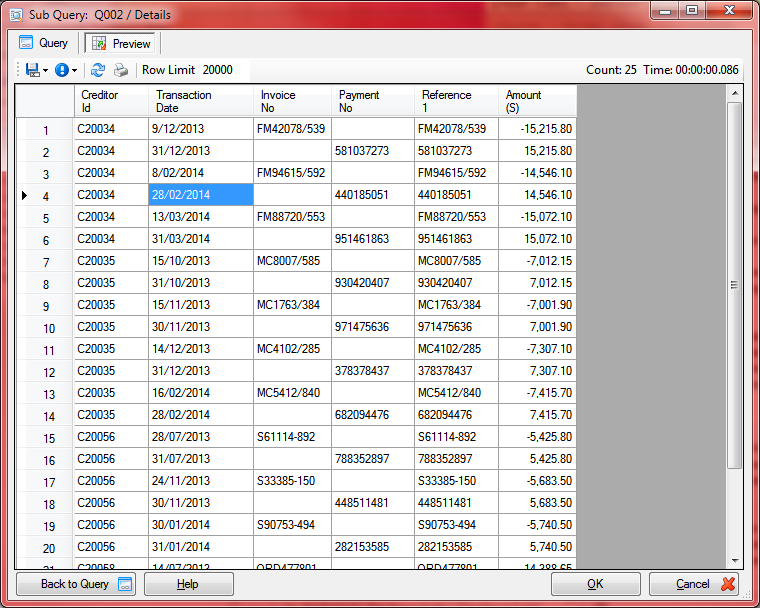
View the Sub Query data by clicking Preview of SubQuery. Later when running the Report the Lines will be narrowed to just the selected Creditor
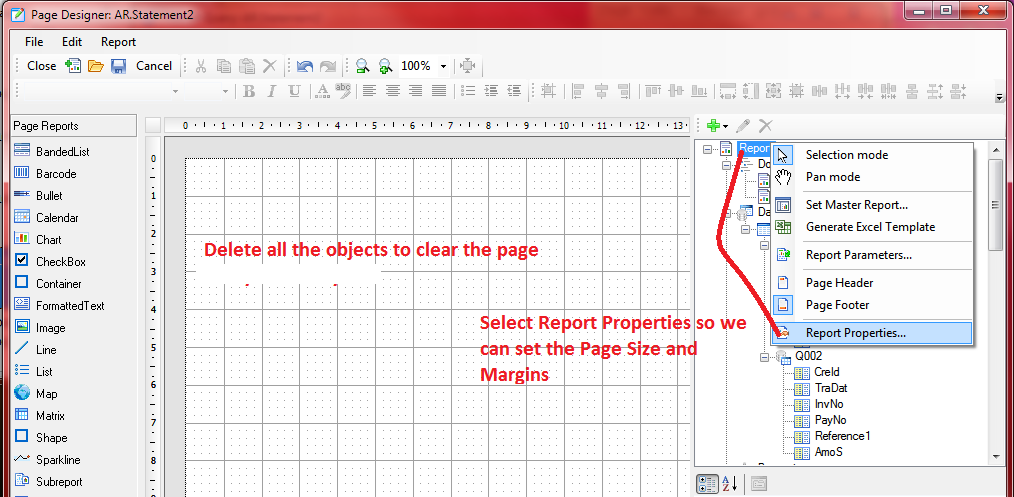
Clear the Layout area by deleting the objects, then select Report / Report Properties formt he Report Menu or Tree
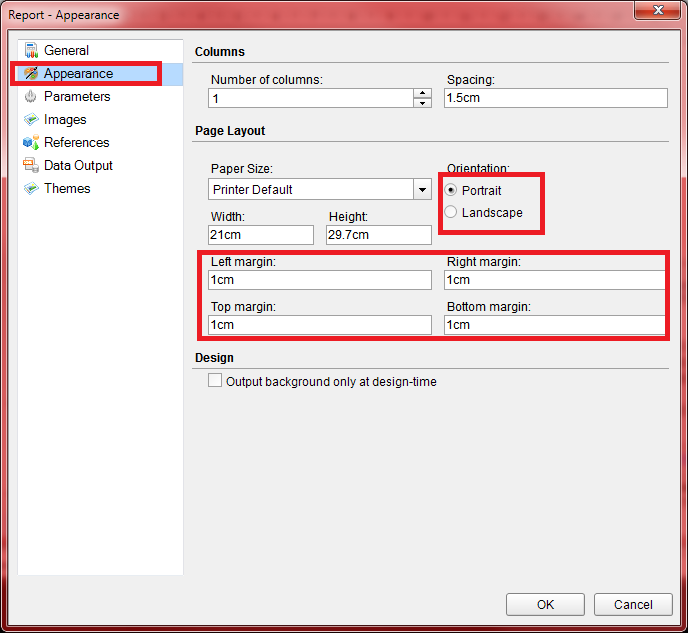
The best Page size for a Statement would be Portrait with margins of your liking
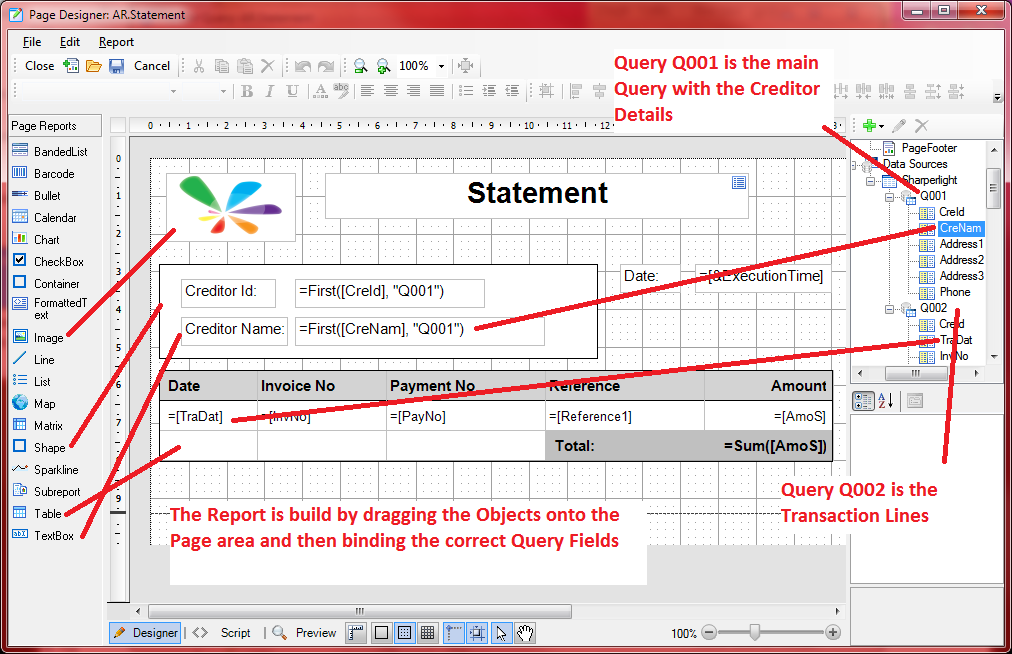
Drag objects from the Left Pane onto the Layout Area then bind these objects to the correct Query Fields
The Main Query Q001 is used at the top and the Fields are display in TextBoxes
The Sub Query Q002 Transaction Lines are displayed in the Table (Top Row is Header, Middle is lines and Bottom is Total row)
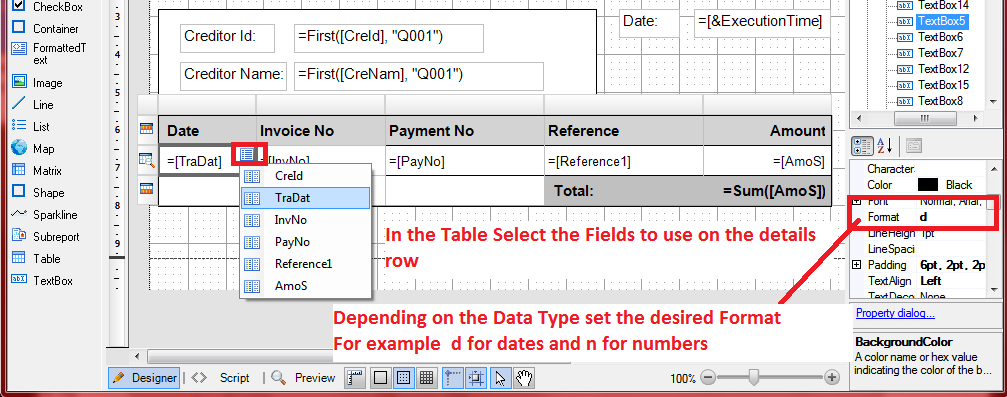
Depending on where you select a dropdown of Fields will appear or you can drag them from Tree Data Sources list onto the Layout Object
Depending on the Field Data Type you may want to set the Format in which to display the values. For example d for Dates and n for Numbers.
For more format values please see these links
 Date Formats Custom Date Formats
Number Formants Custom Number Formats
From the Report menu select Report Properties Images and add a Image file to the Report. (jpeg and png are best)
Onces the Image is imported select the Image Object and change the Properties to suite by setting the MIMEType, Source to Embedded and value to the Name of the Image

When first going into the Page Designer you should have been Prompted to enter a Creditor Id. This is what is being used to drive values read by the Main and Sub Queries