
How to use Local MTQ and Local Dataset
Introduction
In Microsoft Excel, the use of value formulas is extremely popular because they allow cell-based control on the placement of aggregation formulas. The downside to value formulas is that they are self-contained queries that must do individual round trips from the client to server and then a return with the results. This chattiness makes value formulas inherently slower than Table/List/Sheet formulas. The combination of thousands of value formulas and a slow remote connection from the client, can severely impact workbook recalculation times.
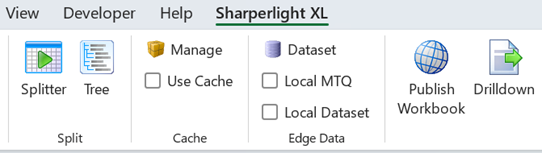
One of the existing strategies to overcome slowly calculating Excel workbooks, is the use of the Cache on the Sharperlight XL ribbon (release in March 2017). When the Cache is enabled, it uses a query plan to send all the queries as one payload to the server and receives the calculated results as a single return payload. It can improve recalculation performance significantly, but the query plan must be built using a normal recalculation run and it only remains valid while the filters stay the same. Financial statements that are recalculated multiple times at the end of the month with the same filters, have always been good candidates for trialling the Cache.
With the growth of cloud hosting, it is becoming very common for customers to be hosting their application databases and the Sharperlight application server in the cloud. This reality has driven further research into methods of improving the performance of value formulas. The simplest solution is to bring the data closer to the client and therefore, the options Local MTQ and Local Dataset have been added to the Sharperlight XL ribbon.
From Sharperlight 7.2.5 onwards it includes the libraries to run SQLite locally on the client, enabling Materialised Queries (MTQ) and/or Query Datasets to be stored on the client in a user specific SQLite session specific database. Local MTQ piggybacks on materialised tables stored on application server and it will automatically sync them locally if query formulas reference an MTQ. Datasets are a new query formula in Excel that defines a dataset that existing query formulas will automatically redirect too.
Local MTQ
There are several use cases for Materialised Query but the most common is the summarisation of transactional records into a materialised balance table. If you can summarise 5 million ledger transactions, into 40 thousand records that are grouped by account, period and analysis dimensions; then the querying of period account balances is going to be significantly faster. However, this does nothing for the latency (the delay or lag experienced when data travels across a network) of lots of value formulas being sent, and results return from the application server.
With the Local MTQ enabled on the Sharperlight XL ribbon, the materialised tables referenced in a query will be replicated in SQLite database on the client computer. The query formulas in Microsoft Excel will then redirect to use the SQLite materialised tables. In the image below, the same aggregation query is shown with the debugging SQL from with the Local MTQ was disabled and enabled. Notice that the ribbon in Preview pane for the enabled Local MTQ, has a lilac background and the SQL has a /*SL-LocalCacheDataset*/ comment.
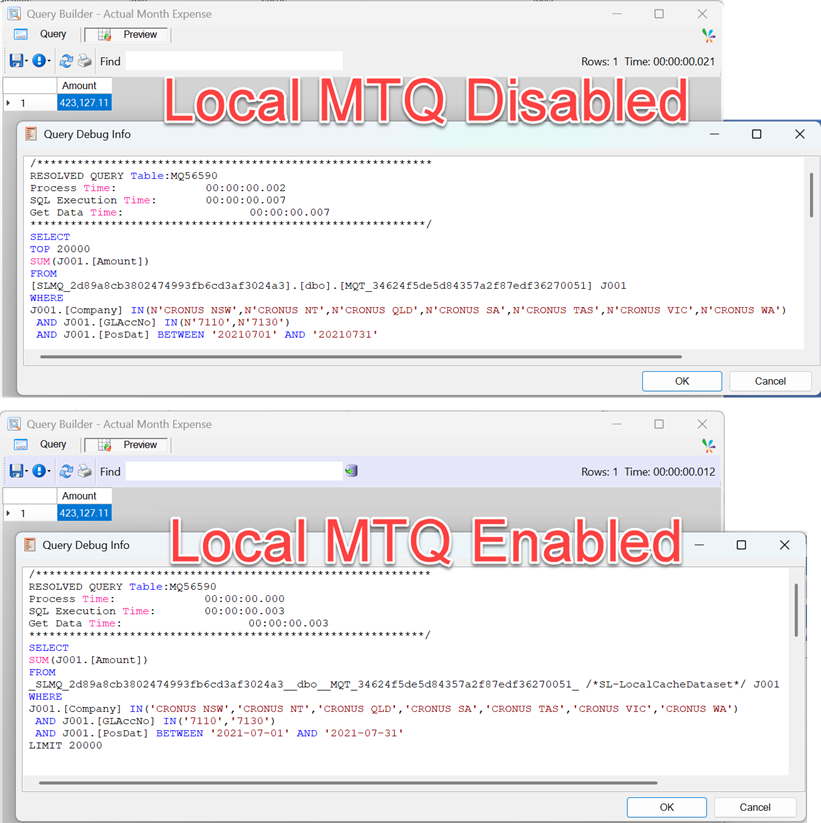
The synchronisation of the materialised tables on the server to the client is initiated on the recalculation of the query formulas and the formulas will be delayed until the local replication is completed. When the Local MTQ setting is enabled and a local materialised table exists, the Sharperlight client will poll the application server every 60 seconds, to see if the materialised table on the server has been refreshed and it has, it will be replicated on the local computer.
You can toggle between using the Local MTQ and the MTQ on the application server by just enabling and disabling the Local MTQ setting on the ribbon.
Local Dataset
Value formulas that directly query an application database cannot use the same concept of just syncing the related database tables locally because they could be querying tables that contain billions of rows. The local alternative with direct query formulas in Microsoft Excel, is to create a Local Dataset query formula, this returns only the required columns and can filter the server data in a reporting subset.
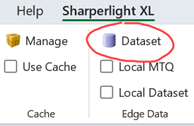
To create a Local Dataset, select the  Dataset option on the Sharperlight XL ribbon. This opens the Query Builder and you use this familiar interface to create a query that can substitute the data from the application server. When complete the cell referenced prior to opening the Dataset query will be populated with an mdLocalDataset() formula. Unlike normal query formulas the mdLocalDataset() does not return the result dataset into Excel, it only returns the last time it was recalculated. Every time this formula is recalculated it will query the dataset from the application server and update the Local SQLite user session database.
To understand how to formulate the Local Dataset for multiple direct value formulas, we take the example below which has three similar queries that calculate the Current Month, Year To Date and Last Year End balances for Profit & Loss accounts. All these queries use the G/L Entry table, aggregate multiple companies together, filter by G/L Account No, Posting Date and Exclude Closing Income Statement Entries.
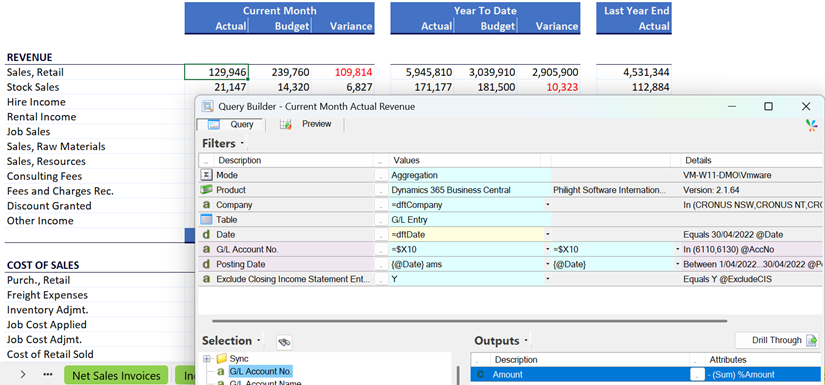
The Local Dataset for these queries needs the filter values and the output amount. Thus the dataset query uses the same G/L Entry table, references the same name range for the list of aggregated companies and has the G/L Account No, Posting Date, Exclude Closing Income Statement Entries and Amount as output columns.
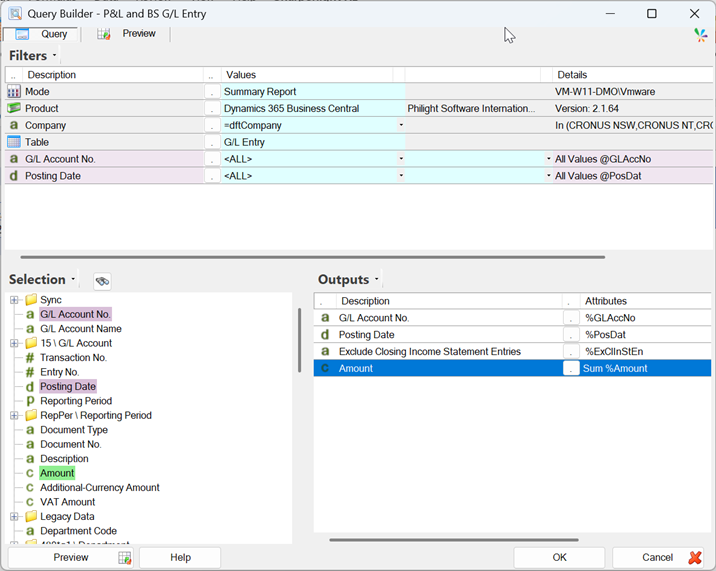
When the Local Dataset is enabled on the Sharperlight XL ribbon, the mdLocalDataset(“P&L and BS G/L Entry”,dftCompany) formula can be recalculated and this will create the Local Dataset. The query formulas in the workbook that are a structural match to the Local Dataset will automatically re-direct to using the local data source. If you look at the Preview pane on a candidate query it has a lilac toolbar to signify a redirect is in force and the SQL debugging window will show /*SL-LocalCacheDataset*/ comments.
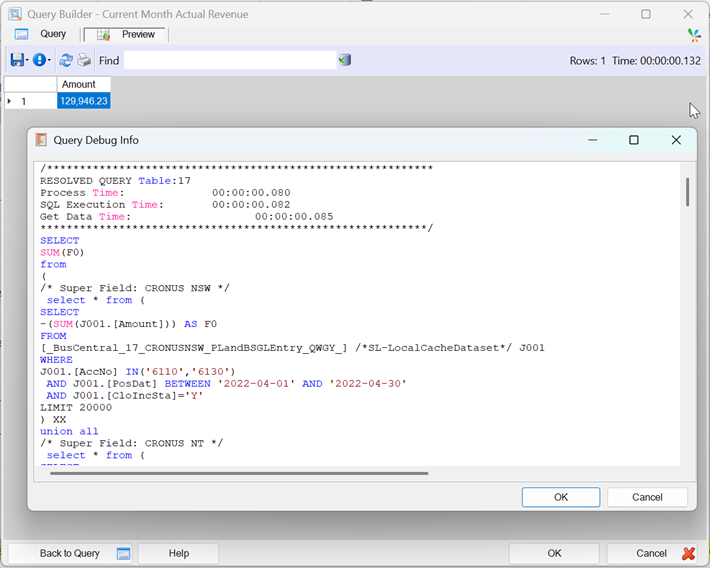
What is interesting about this Local Dataset example is that there three worksheets in the workbook, a Profit & Loss worksheet from this example, a Profit & Loss (12 Months) and a Balance Sheet. All the value formulas in these worksheets which reference the G/L Entry table, now use the Local Dataset instead of the direct query connection to the server.
SQLite User Database
Local MTQ and Dataset table are all stored in the one SQLite database which is created in the users AppData\Local\Temp directory. For example, if the user is logging in as Kevin the full path would be C:\Users\Kevin\AppData\Local\Temp\SL_Temp\SL_Inst_MAIN\LocalQueryCache. The database is session specific and will be deleted after Microsoft Excel is closed.
The SQLite user session database is global to all instances of Microsoft Excel that are open in a users session. Therefore, if the Local MTQ and/or Local Dataset are enabled, any compatible workbook will query the local storage tables.