
Use a checkbox for a prompt filter
Introduction
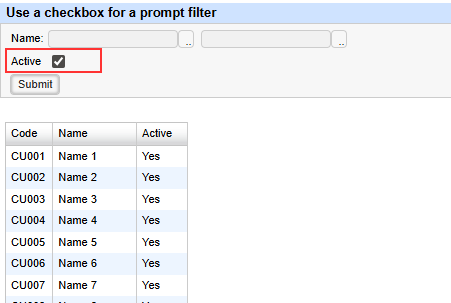
Sharperlight have an option to provide a checkbox for a prompt filter with Web Published Report, and this post will explain how we can use it.
Practices
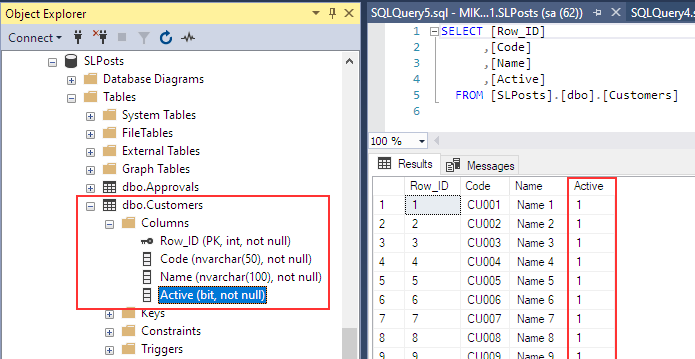
We prepared a published report and it queries the date from this table “Customers” shown below.
The table has “Active” column which is in bit type and 1 represents Yes and 0 represents No.
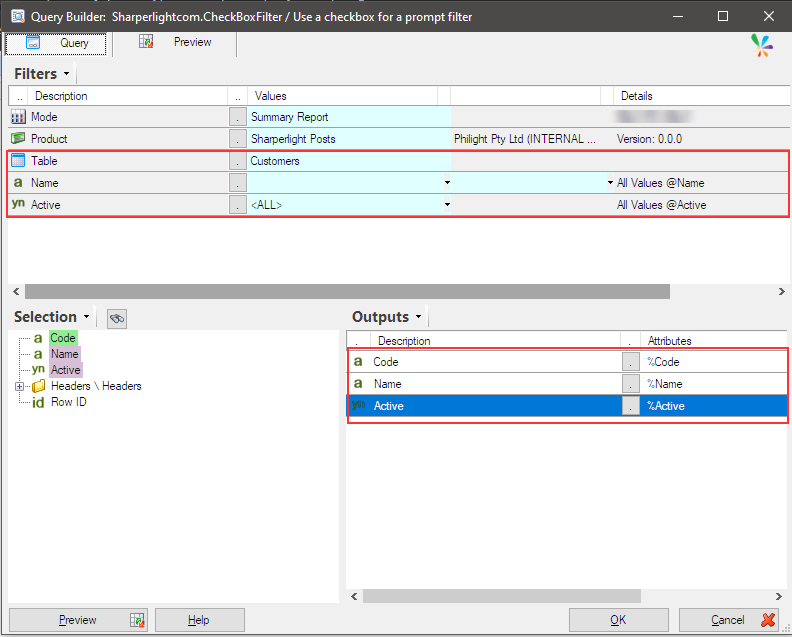
The query of the published report is shown here.
It has two filters (“Name” and “Active”) and outputs data from the three columns (“Code”, “Name” and “Active”) .
We use “Active” filter to display a checkbox when this field is shown on the web.
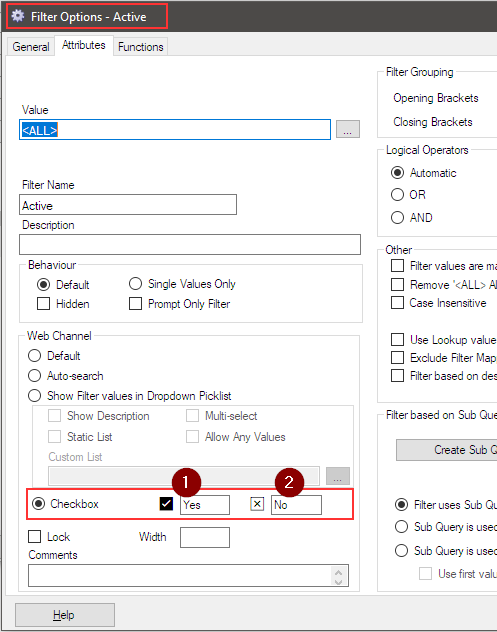
Open the option of “Active” filter and select “Checkbox” option for Web Channel attribute.
Then set “Yes” for the sub-option (1), and set “No” for the sub-option (2).
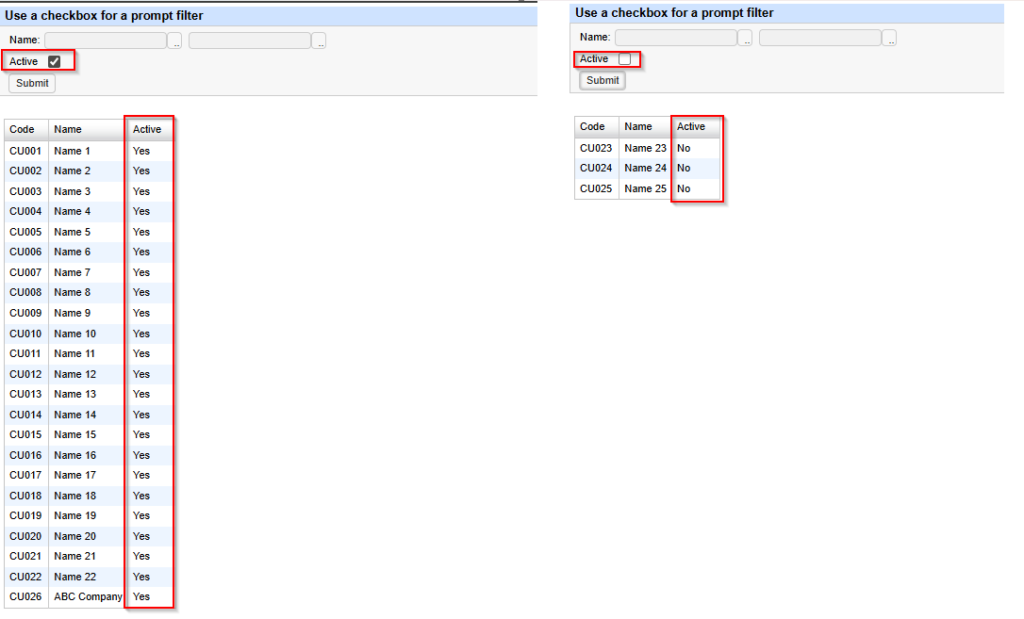
The sub-option (1) means that it use “Yes” to search the value in the “Active” column, when the checkbox is checked.
The sub-option (2) means that it use “No” to search the value in the “Active” column, when the checkbox is unchecked.
The results are displayed as shown below.
Let’s see what happens if we set “<ALL>” for the sub-option (2).
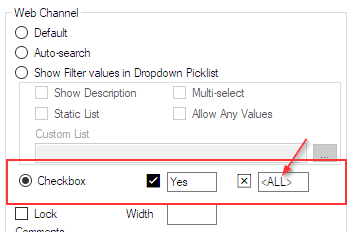
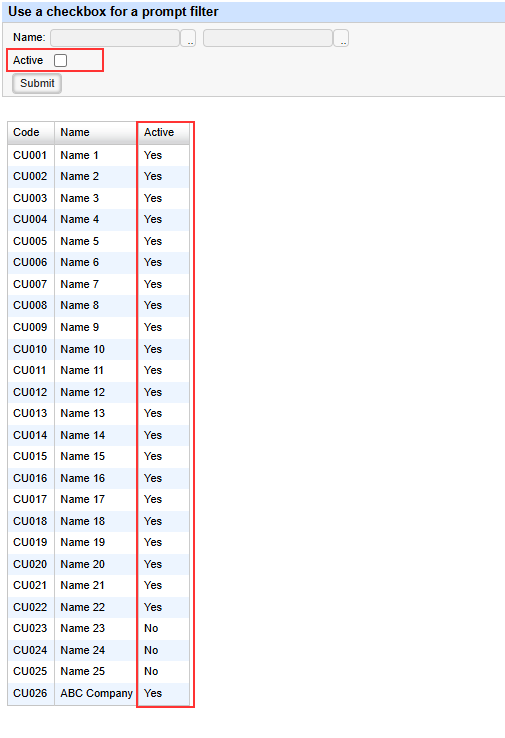
This means that if the checkbox is unchecked, the query will search for records using the “” keyword and return all records regardless of whether the Active column is “Yes” or “No”.
Afterword
Please use it according to the purpose of the report.