
Allow Scheduler Files in Folder
Introduction
This post will explain how to restrict the Sharperlight Scheduler’s access to the application server’s file system.
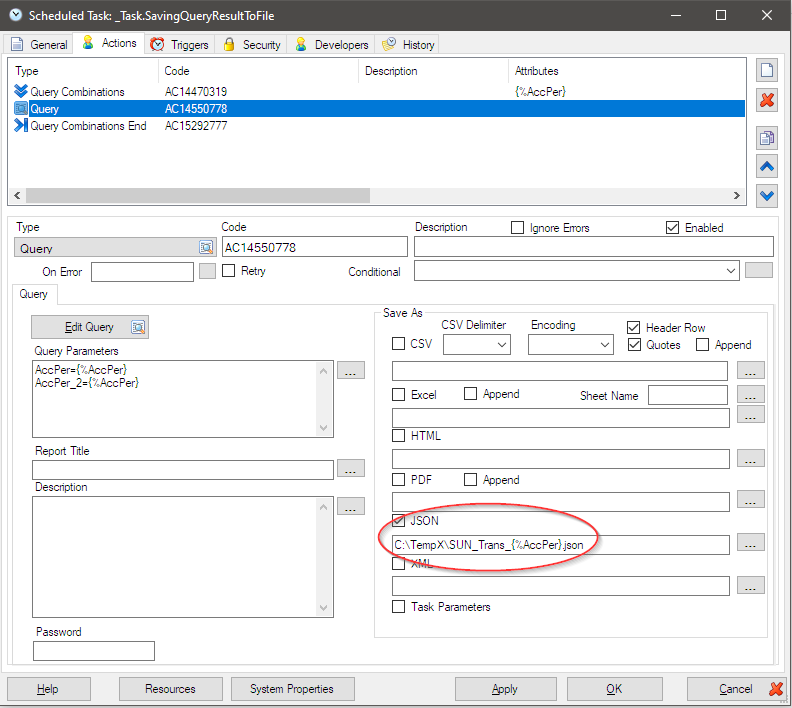
Practices
There may be cases where you want to create a task in the Sharperlight Scheduler to save files.
However, for security reasons, there will inevitably be situations where you do not want to allow the application server’s file system to be freely accessed.
By default, the Sharperlight Scheduler can access any folder specified in the task, but by applying the settings described below, it is possible to restrict this access.
It can be done with Sharperlight Site Setup.
Please open Site Setup from the Sharperlight application menu.
Select the System product in the tree to display its options in the right pane.
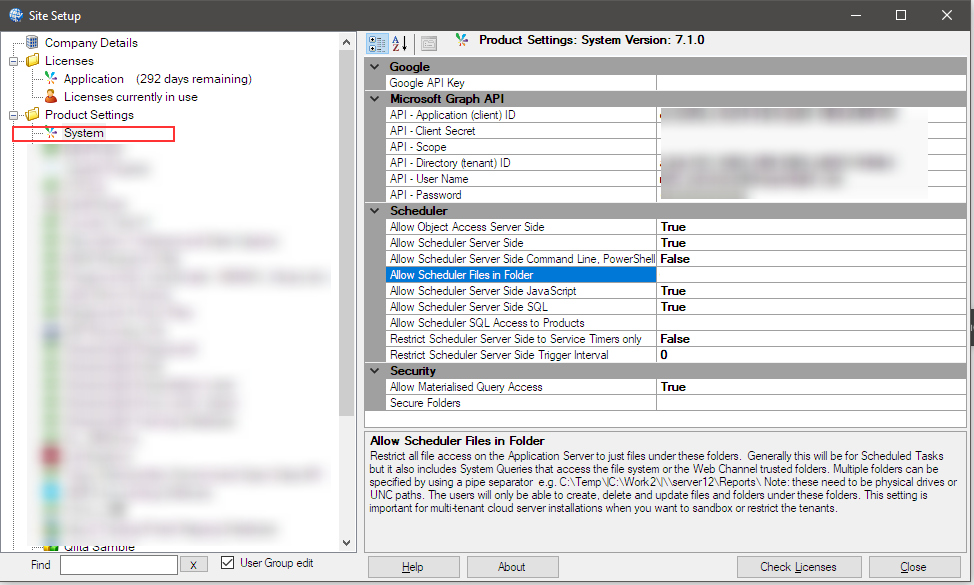
Locate the option labelled ‘Allow Scheduler Files in Folder‘. By default, this option is blank.
This means that any folder on the Application Server can be accessed by the Scheduler.
Type “C\Temp\” to the option.
Once this setting takes effect, the Scheduler can no longer access any folder other than this one.
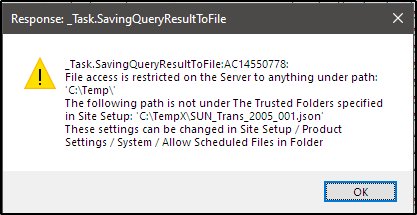
Multiple folders can also be specified using a pipe separator.
C:\Temp\|C:\TempX\When you update this option and apply the changes, the Scheduler application must be reopened if it was already open, and the Sharperlight Service must also be restarted.
Afterword
Security is one of the most important factors, so we recommend using this option.
also “Working with files in the file system and databases” for more about security.