
Admin User – Lost Password
Introduction
The lost of admin password is sometimes a tricky situation so usually we recommend that you have multiple admin Sharperlight user accounts so at least one person can access if another person loses their credentials or at least a Windows user account configured as an admin as a backup.
Practices
Enable Password Reset option
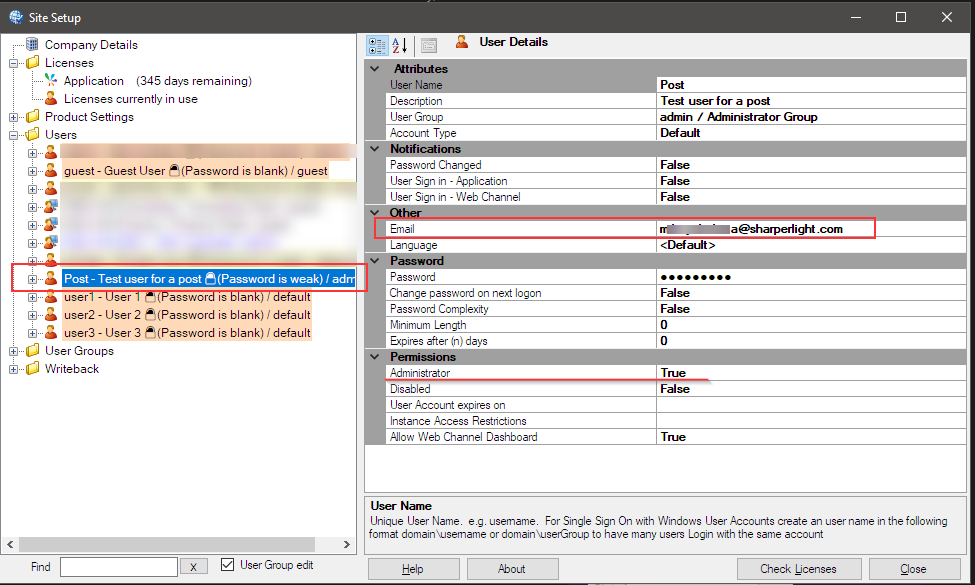
If you have configured a Sharperlight user account with an email address in site setup, then you may reset the password for an account by accessing the Sharperlight web channel Log-In, and clicking on the “Cog” to open the additional options.
A Sharperlight Admin User
Add an email address to the user. The reset confirmation email will send to this email address.
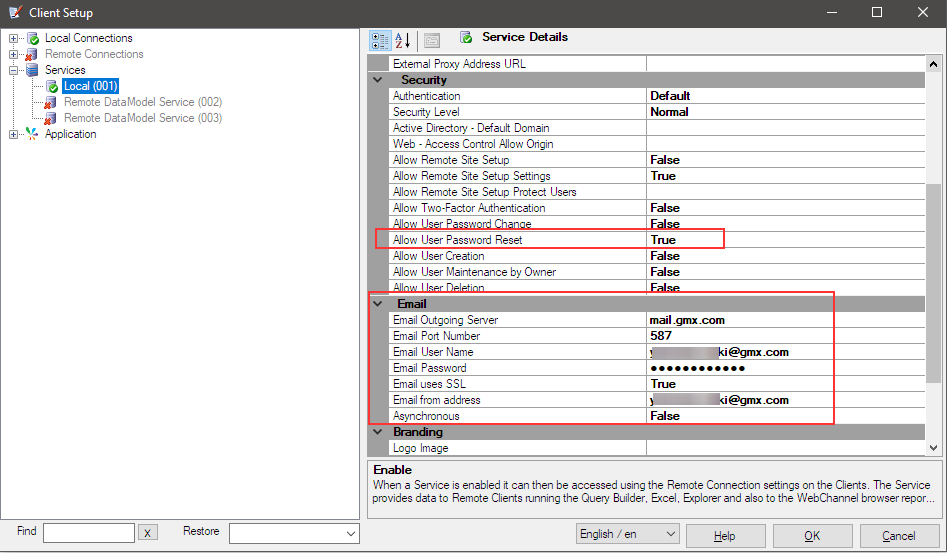
Configuration in Client Setup
Select the active Service definition and set the “Allow User Password Reset” option to True.
Next, configure the email server details to send notifications to the user’s email address.
The other ideas
Unfortunately, if these prerequisites are not met, there are no ‘backdoors’ to enable admin login after all admin user passwords have been lost.
As a general recommendation, we advise configuring a Windows user as an admin to ensure a fallback option is always available.
Checking other admin users
You can check the Sharperlight database to see if there are any other admin accounts that you may have forgotten about.
Use the following SQL query:
SELECT adminRights, * FROM mdUserAccounts
Look for any accounts with admin rights that you might be able to log in with. Hopefully, one of them is a Windows account.
New Sharperlight database
In the event that you are unable to recover any admin logins, and if you do not rely heavily on web reporting, the simplest option may be to create a new Sharperlight database. If you choose this approach, you can export the reports and dashboards first, then import them into the new Sharperlight database once it is set up.
You can export Sharperlight objects such as reports, dashboard pages, etc., using the “Backup” function, which can be accessed from the application menu and does not require admin rights.
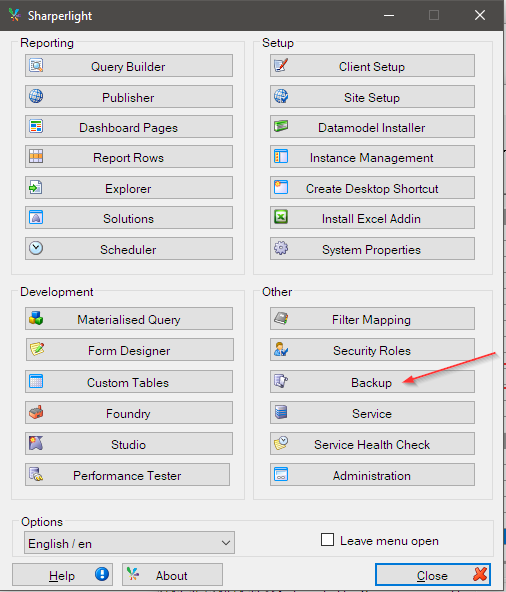
The backup option will generate a ZIP file containing the exported files for Published Reports, Dashboard Pages, and other items.
The ZIP file will also contain the datamodels and client settings.
Afterword
To avoid a tricky situation, please consider configuring at least one Windows user account as an admin as a backup.