
Bulk User Import using CSV list
Introduction
This time, I would like to try a method for adding multiple users to Sharperlight at once. Among these methods, let’s try adding users using a CSV list.
Practices
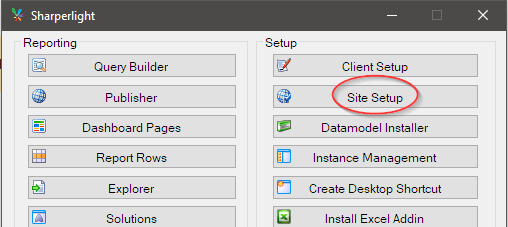
Launch Site Setup from the Sharperlight application menu.
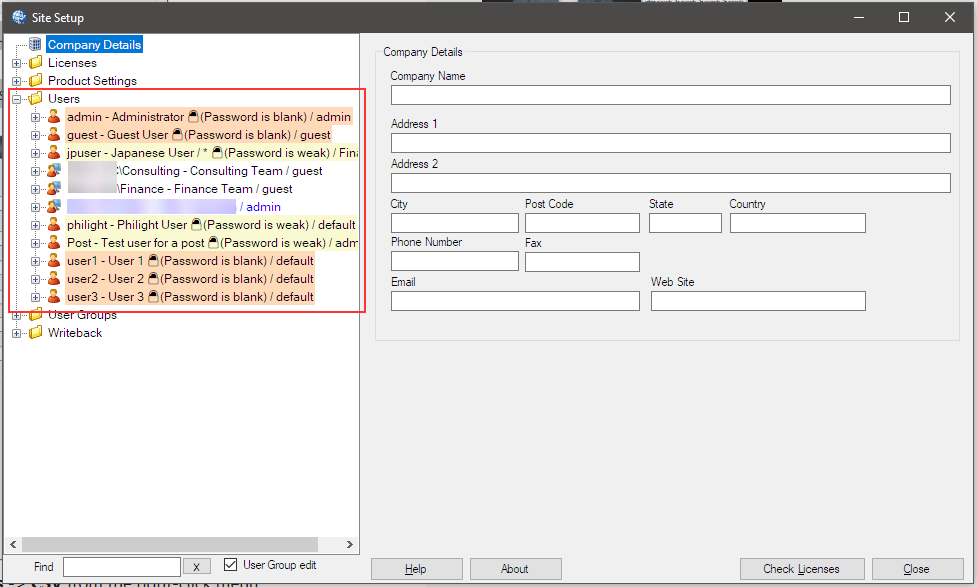
After the site setup window opens, review your existing users and user groups. In particular, check the users in detail. This is important because when adding multiple users, you need to specify which user to use as a template.
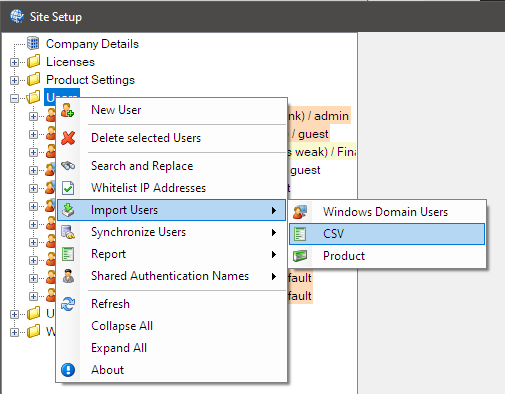
Select the user node and select Import Users -> CSV from the right-click menu.
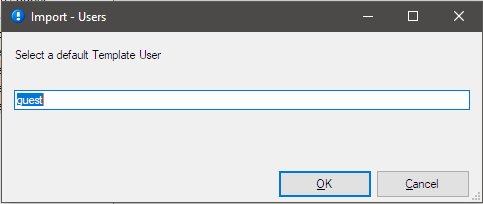
A dialog prompts for user input to be used as the initial setting.
This time, specify the guest user. Proceed with the “OK” button.
A dialog appears describing the list of users to add.
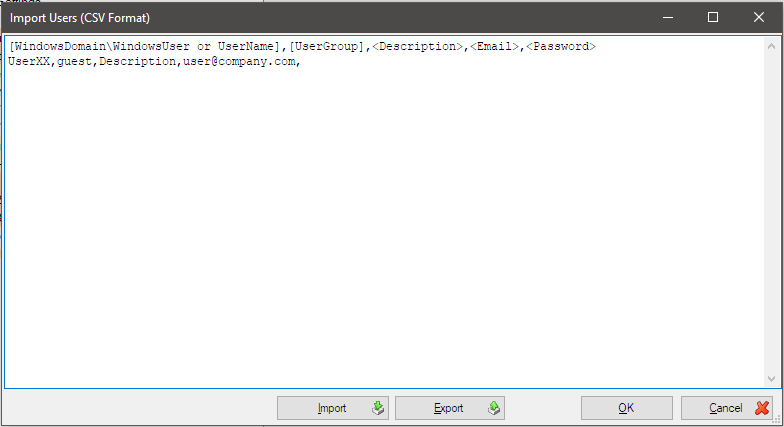
Only one line of the template is displayed, so fill in according to it.
Username and User Group are mandatory fields, “Description”, “Email” and Password” are optional.
I made a user list like this. I tried specifying a template for only one admin user.
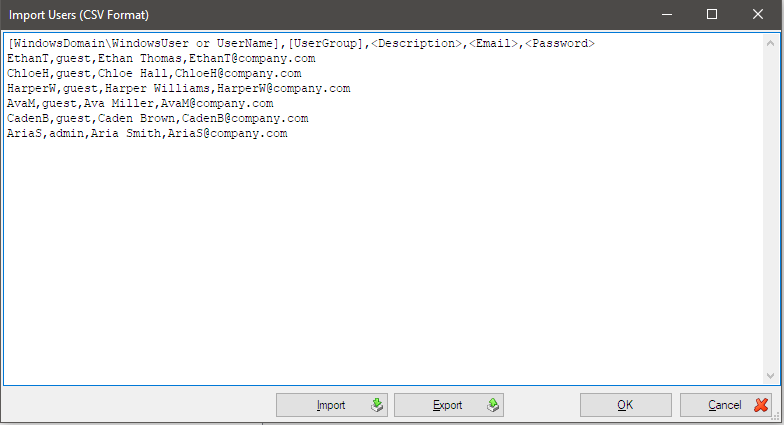
[WindowsDomain\WindowsUser or UserName],[UserGroup],<Description>,<Email>,<Password>
EthanT,guest,Ethan Thomas,EthanT@company.com
ChloeH,guest,Chloe Hall,ChloeH@company.com
HarperW,guest,Harper Williams,HarperW@company.com
AvaM,guest,Ava Miller,AvaM@company.com
CadenB,guest,Caden Brown,CadenB@company.com
AriaS,admin,Aria Smith,AriaS@company.com
Confirm with the “OK” button.
You should see a message that it has been imported.
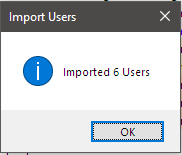
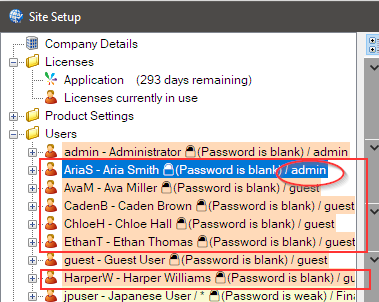
You can see 6 new users in the user node. And “Aria Smith” is properly assigned to the admin user group.
Afterword
That’s all for how to add multiple users at once using a CSV list. Please try it.
If you have any inquiries, please contact us via email – support@sharperlight.com