
SAP Business One – User-Level Security in Company Access
Introduction
User-level security in SAP company access will be explained in this post.
You may encounter a scenario where User A needs access only to the company 001 database, and User B needs access only to companies 002 and 003. In such a case, the following configuration will be useful.
Practices
Configuration
It can be done with Sharperlight Site Setup.
The scenario is that two Sharperlight users, ‘guest‘ and ‘jpuser‘ are used.
The ‘guest‘ user can only access the company ‘OEC Computers UK‘ and the ‘jpuser‘ user can only access the companies ‘OECジャパン株式会社‘ and ‘OEC Computers Australia‘.
Start Site Setup from Sharperlight application menu.
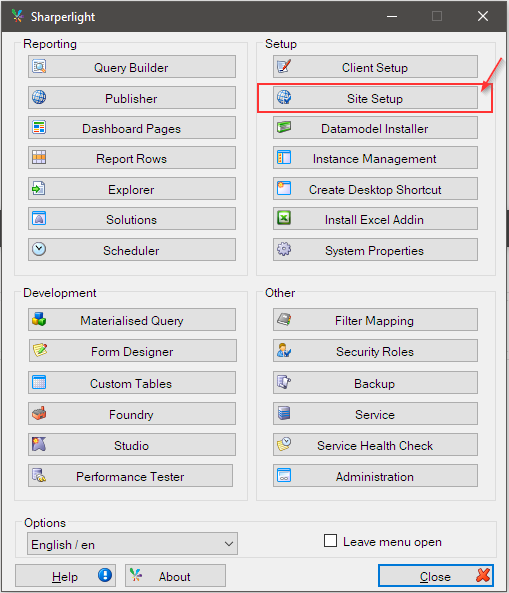
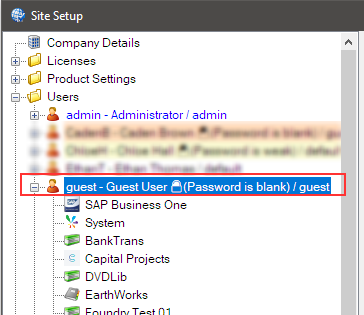
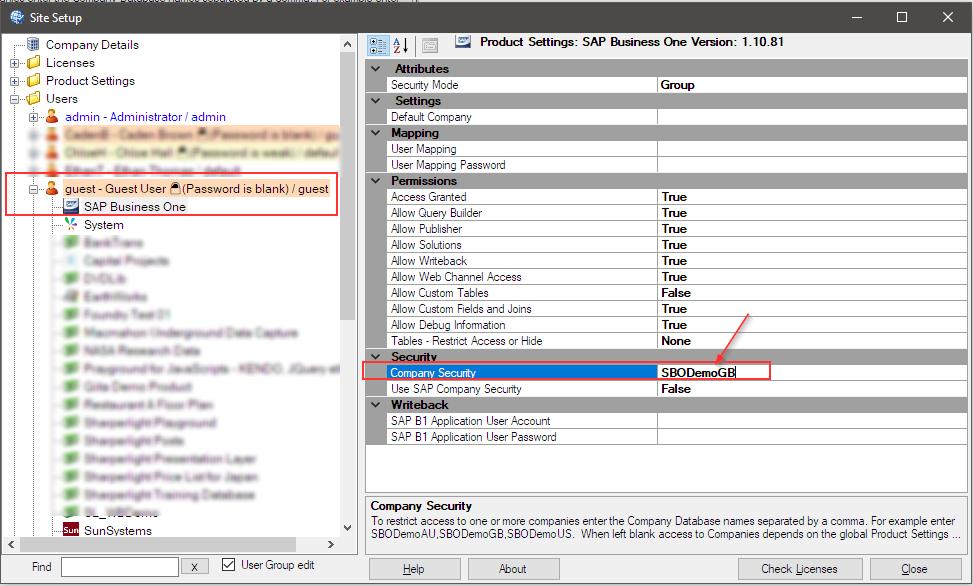
Browse the users and select ‘guest’ user and expand the node.
Show the product settings for SAP Business One by selecting it.
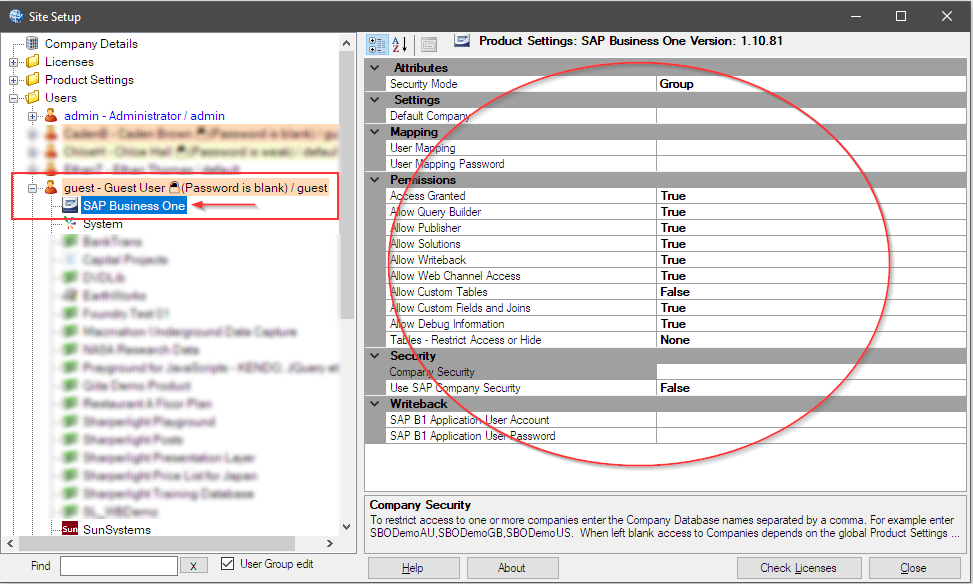
There is a property called ‘Company Security’ under the Security heading.
By specifying the SAP company database names in it, user-level security for company access can be applied.
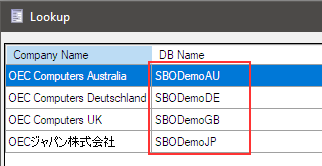
Let’s check the SAP company database names using the Sharperlight Query Builder. It can be accessed from the Sharperlight application menu.
The company lookup shows the following four companies.
Go back to Site Setup and show the ‘guest‘ user’s SAP product settings.
Type ‘SBODemoGB‘ into “Company Security” field. This means that ‘guest‘ user can only see the company ‘OEC Computers UK’.
Let’s set the security to ‘jpuser‘ user as well.
Type ‘SBODemoJP,SBODemoAU‘ into “Company Security” field. This means that ‘jpuser‘ user can only see the companies ‘OECジャパン株式会社‘ and ‘OEC Computers Australia‘.
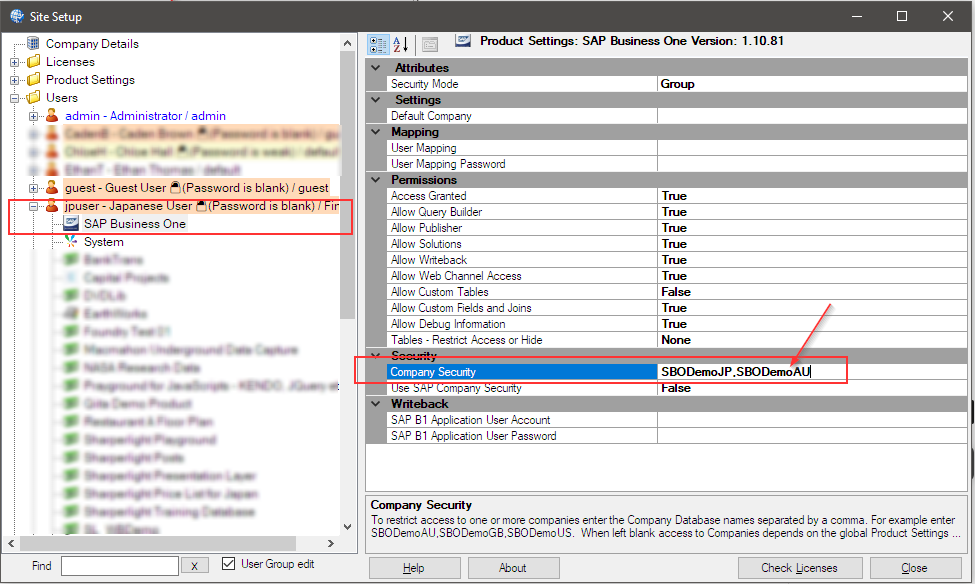
The configuration is complete, so click the ‘Close’ button to save it.
Validation
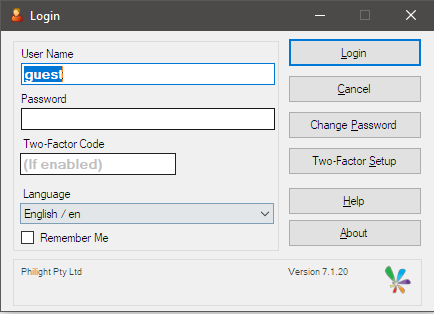
Go to the Sharperlight application menu and click ‘Query Builder’ while holding down the Ctrl key until the login dialog is displayed.
Type ‘guest‘ as User Name, and click ‘Login‘ button.
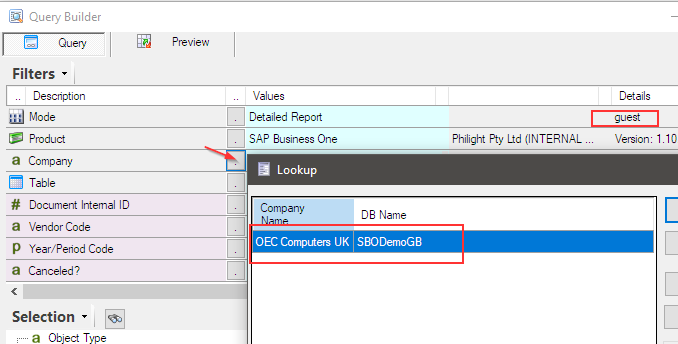
Once the ‘Query Builder’ is started, open the lookup dialog for the company filter.
‘guest‘ user can only see ‘OEC Computers UK‘ company.
Open ‘Query Builder’ while holding down the Ctrl key until the login dialog is displayed.
Type ‘jpuser‘ as User Name, and click ‘Login‘ button.
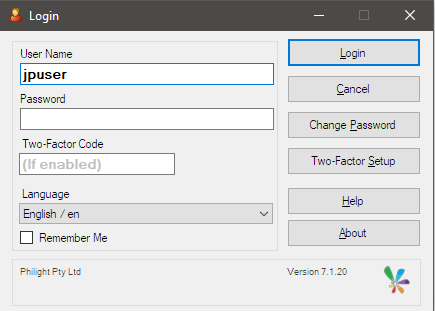
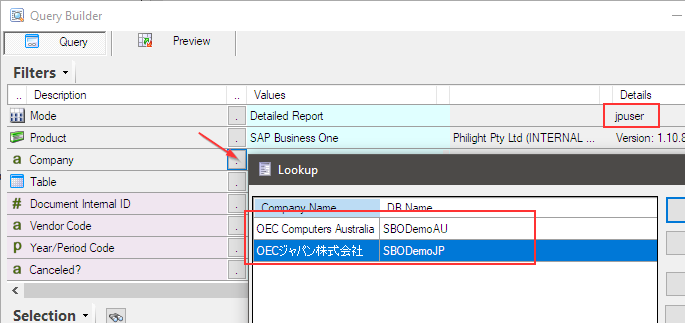
Once the ‘Query Builder’ is started, open the lookup dialog for the company filter.
‘jpuser‘ user can only see ‘OECジャパン株式会社‘ and ‘OEC Computers Australia‘ company.
NOTE
Product-level security for SAP needs to be configured to achieve user-level security for company access, as mentioned.
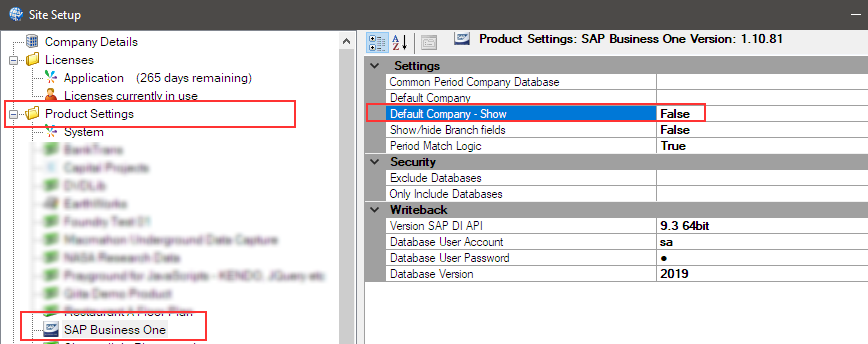
Open Site Setup, go for Product Settings and find SAP Business One.
There is ‘Default Company – Show‘ property and set ‘FALSE‘ for it. It is TRUE as default.
By setting ‘FALSE’ to the property, the company lookup doesn’t show <DEFAULT> company which is normally the first company in SAP if ‘Default Company‘ property is empty.
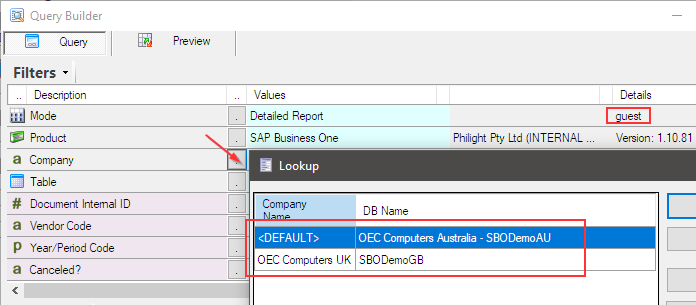
However, when ‘Default Company – Show‘ property is ‘TRUE‘, the lookup dialog is like this for ‘guest‘ user.
Although you have configured user-level security for ‘guest‘ user to have access only to the ‘OEC Computers UK‘ database, ‘guest‘ user will also have access to ‘OEC Computers Australia‘.
Afterword
We hope this will provide you with a more flexible security configuration to meet your business needs.