How to query a SharePoint List
Introduction
Lists can be maintained in SharePoint they can no longer be extracted and refreshed in Office 365 Excel because the native export relies on Microsoft Query which has been deprecated for Power Query. Alternatively, a List can be exported to a CSV file but it must then it must be manually opened and saved in Excel.
The Sharperlight System datamodel has a “Web Page Table, CSV, JSON, XML or ODATA” query object that can directly query a SharePoint List using the Microsoft Graph API. Graph provides a secure web service address (https://graph.microsoft.com/v1_0/) where the path to the SharePoint Site and the list can be uniquely identified using their respective internal ID’s. Identify the Site and List internal ID’s can be challenging because they are not visible within SharePoint but there is a Graph Explorer web site which can assist in the identification. This exercise requires technical skills because it requires running web service queries and analysing the returned JSON payloads. Once the ID’s are identified, the web service call that extracts the List records, is relatively easy to setup in the Query Builder. It will need an App registration in Microsoft Azure because the web service call to the Graph API needs to use a Shared Authentication record.
| Note | The App registration in Microsoft Azure is a mandatory requirement when using the Microsoft Graph API, and the registration will only work on a Sharperlight Service that is configured for https and internet facing. The Sharperlight Service has to communicate with Microsoft and receive an authorisation token; this can only be achieved through the internet, on a secured http connection. |
Identifying the SharePoint Site and List ID’s
To query a SharePoint List using the Microsoft Graph API, you need to identify the Site ID of the relevant SharePoint Site or SubSite where the SharePoint List exists and the ID of the target List. These ID fields are not visible within SharePoint but the Graph Explorer can be used to extract the relevant ID’s. Open the Graph Explorer in a web browser and sign-in using an account in the same tenancy as the SharePoint List. The default Graph Explorer web page uses a Sample Tenant without a user signed in, left mouse click on the user login icon (circled in red below) and sign in using the Microsoft Online login.

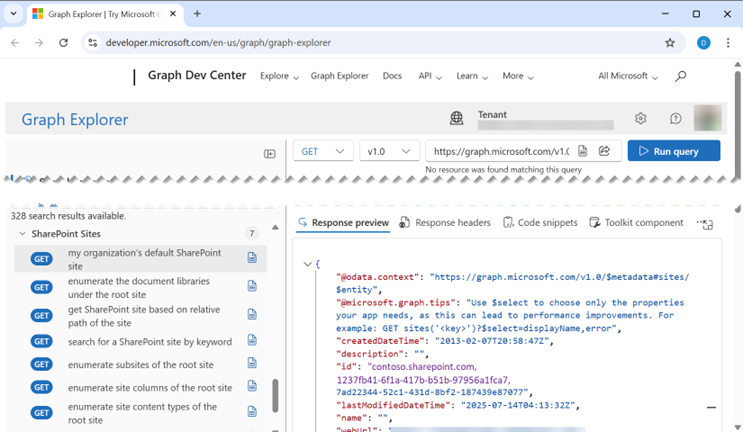
Navigate to the SharePoint Sites folder and double left mouse click on the GET “my organization’s default SharePoint site”; this will copy the https://graph.microsoft.com/v1.0/sites/root command into the query bar and use the Run query button to execute the command. In the Response preview pane it will return a JSON payload contain the ID of the default SharePoint Site. The root site id is the comma delimited string displayed in quotes after the “id”: label. In the illustration below the root Site id would be contoso.sharepoint.com,1237fb41-6f1a-417b-b51b-97956a1fca7,7ad22344-52c1-431d-8bf2-187439e87077 with the delimiting commas included.
If the List was created in the root SharePoint Site, we could jump directly to running another GET that would extract all the Lists and their ID’s which exist in the root site. However, it is more likely that Lists are create in Subsites below the root site. The URL address of the SharePoint List will indicate where it exists. If the URL path to the List was https://contoso.sharepoint.com/TeamSite/Project/Lists/; this indicates the List exists in the Project Subsite which is a child site of the TeamSite Subsite which is a Subsite of the contoso.sharepoint.com SharePoint Site.
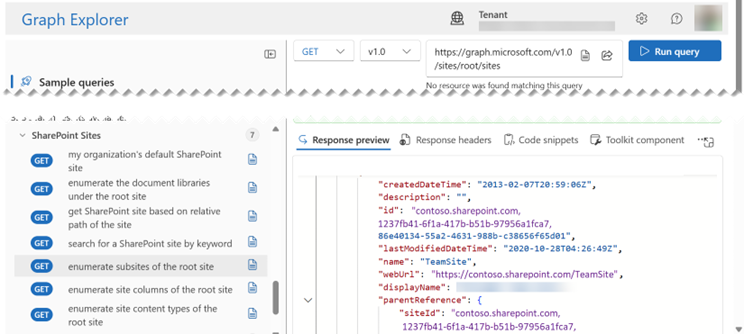
We cannot directly deduce the ID of the Project Subsite but the Graph Explorer has sample GET queries that can be used to interrogate the SharePoint content structure. In the same SharePoint Sites folder, select the GET “enumerate subsites of the root site”, this will copy the https://graph.microsoft.com/v1.0/sites/root/sites command into the query bar and the response JSON payload will contain the ID of the TeamSite, eg contoso.sharepoint.com,1237fb41-6f1a-417b-b51b-97956a1fca7,86e40134-55a2-4631-988b-c38656f65d01
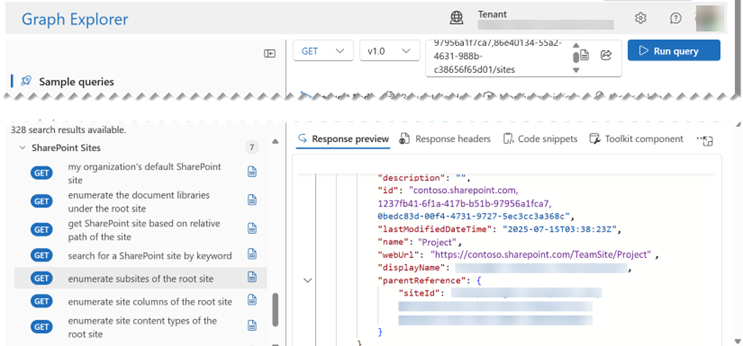
To identify the ID of the Project Subsite we then modify the GET command from about and replace the root placeholder with the Subsite ID of the TeamSite. The new command would be https://graph.microsoft.com/v1.0/sites/contoso.sharepoint.com,1237fb41-6f1a-417b-b51b-97956a1fca7,86e40134-55a2-4631-988b-c38656f65d01/sites with the JSON payload response identify the Project ID as contoso.sharepoint.com,1237fb41-6f1a-417b-b51b-97956a1fca7,0bedc83d-00f4-4731-9727-5ec3cc3a368c
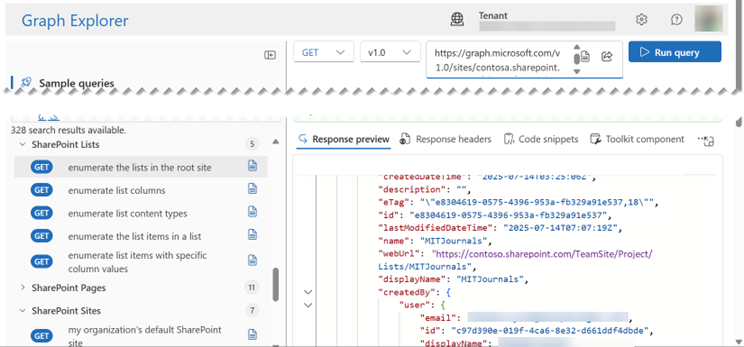
Now we have identified the Project ID we can navigate to the SharePoint Lists folder and use the GET “enumerate the lists in the root site” to create the command to extract the available lists. The default command will be https://graph.microsoft.com/v1.0/sites/root/lists but replace the root reference with the ID of the Project Subsite, making the command https://graph.microsoft.com/v1.0/sites/
contoso.sharepoint.com,1237fb41-6f1a-417b-b51b-97956a1fca7,0bedc83d-00f4-4731-9727-5ec3cc3a368c/lists. The JSON payload response will document all the lists that have been created in the Subsite, showing their unique ID and the List names. In our example we want to query the MITJournals list with the ID of e8304619-0575-4396-953a-fb329a91e537.
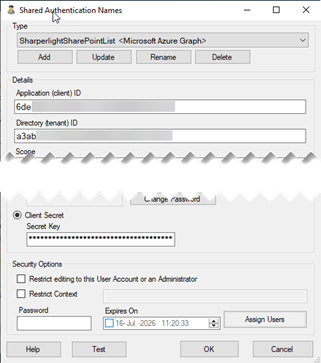
Shared Authentication
To query the Microsoft Graph API in the Query Builder we require a valid App registration with SharePoint Site read privileges. The Application (client) ID, Directory (tenant) ID and the Client Secret Value from the App registration to be added as a Microsoft Azure Graph authentication record in Sharperlight, using the Shared Authentication Names window. This can be accessed from within Site Setup, right mouse click on any username in the Users folder and the pop-up menu has an item for Shared Authentication Names.
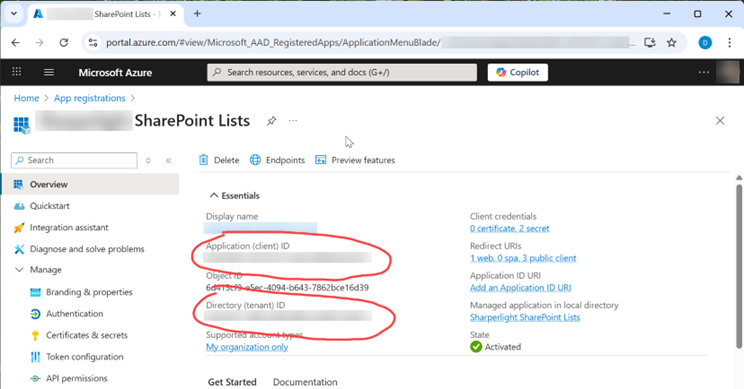
The Application (client) ID and Directory (tenant) ID can be copied from the App registration Overview page.
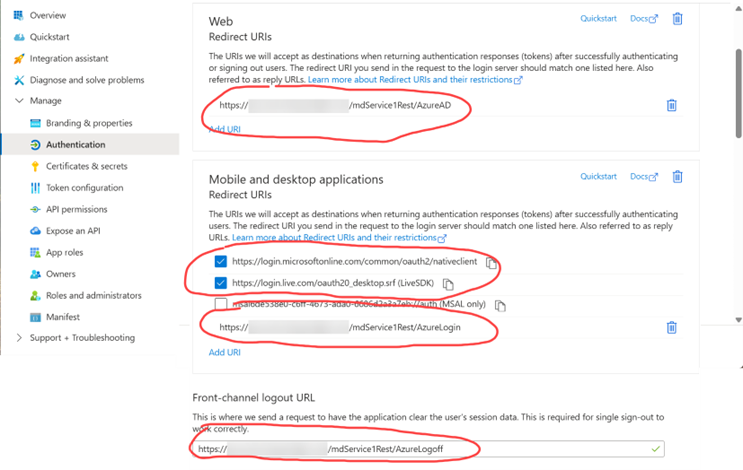
The Authentication for the App registration must include a Web Redirect URI for the Sharperlight Web Service address suffixed with AzureAD. It will also require Mobile and Desktop application Redirect URI enabled for the oauth2/nativeclient and the oauth20_desktop.srf authentications whilst the URI should have an AzureLogin suffix. The Front-channel logout URL should have the same Sharperlight Web Service address with an AzureLogoff suffix.
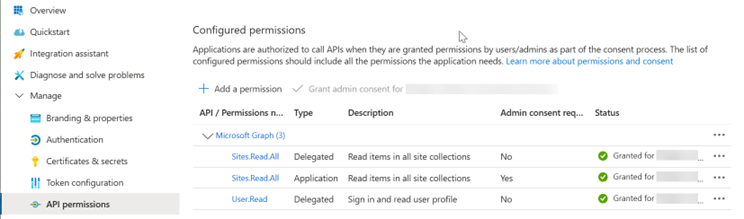
The API Permissions for the Microsoft Graph API include both Delegated and Application Sites.Read.All privileges. Make sure the Status has been Granted (with a green tick box).
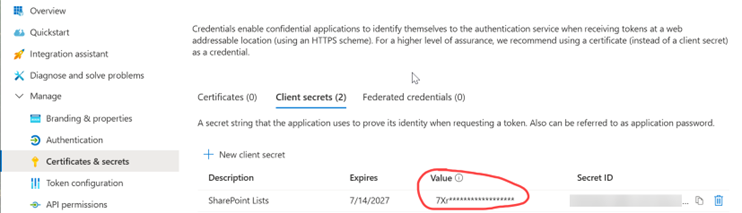
The Client Secret Value needs to be created in the Certificates & secrets section and make sure the Value is copied into a text file on creation. Navigating away from the Certificates & secrets folder will hash the Value with * asterisks.
Web Page… Query
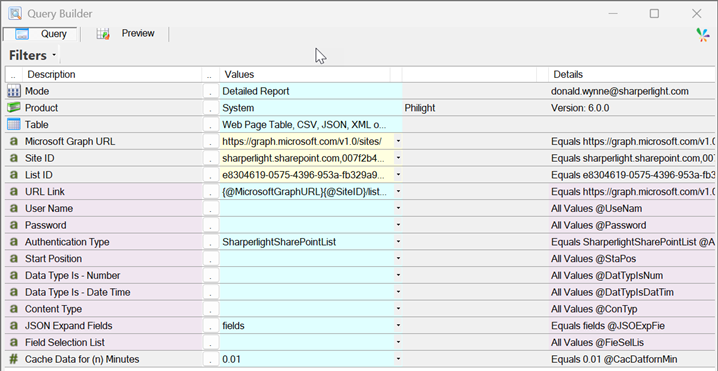
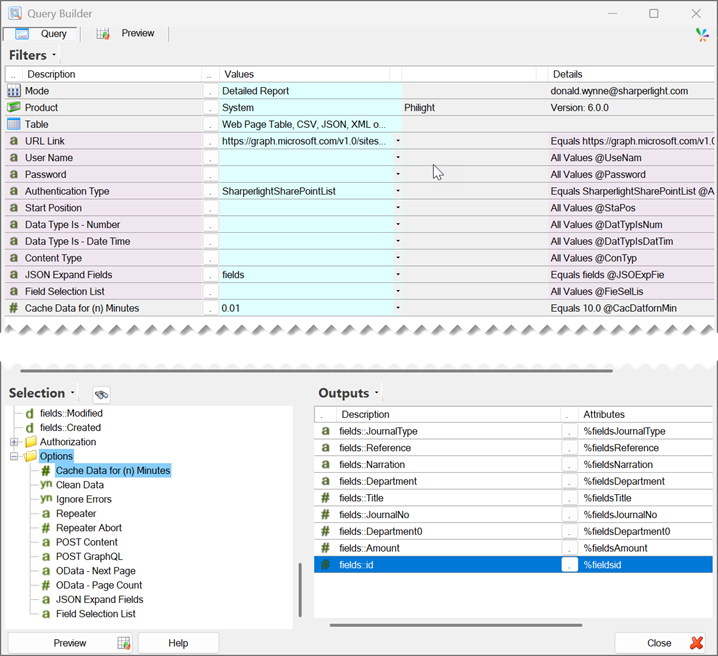
To query the identified SharePoint List, open the Query Builder then select a Detailed Report with the System Product and the Web Page Table… query object. The URL Link will be the lists command used to identify the List ID, with the addition of the ID and an /items?expand=fields parameter. Using the Site address and the ID’s from the previous example it would like below.
https://graph.microsoft.com/v1.0/sites/contoso.sharepoint.com,1237fb41-6f1a-417b-b51b-97956a1fca7,0bedc83d-00f4-4731-9727-5ec3cc3a368c/lists/e8304619-0575-4396-953a-fb329a91e537/items?expand=fields
To provide the authentication credentials, select the Shared Authentication record in the Authentication Type, and add the word fields to the JSON Expand Fields filter. If you don’t want to cache the dataset on the Sharperlight application server, drag the Cache Date for (n) Minutes filter from the Options folder in the Selection pane and set the filter value to 0.01. Output the required fields that are prefixed with the fields:: label; these are the fields in the List.
The URL Link syntax for this query is going to be long and unwieldly. The full URL Link could be broken up into separate prompt only filters (pseudo filters) and then concatenated together in the URL Link using there names. For example, URL Link {@MicrosoftGraphURL}/{@SiteID}/lists/
{@ListID}/items?expand=fields might be easier to manage with {@MicrosoftGraphURL}, {@SiteID} and {@ListID} stored into different filters.