
How to troubleshoot slow Value formulas
Introduction
Using Value formulas to aggregate account balances from an ERP is a very popular benefit of using Sharperlight XL. These self-contained queries can form the basis of the current month, year to date and last year movement values for a Microsoft Excel financial report. Unfortunately, with values formulas, what you gain with flexibility, you may lose in performance. A workbook with several thousand value formulas can be slow to recalculate but there are mitigating strategies to handle very slow workbooks.
Troubleshooting
Step 1 – Identify remote connection speed
The starting point in addressing a slowly recalculating Excel workbook is to verify the connection speed to the application server. Most Sharperlight users in Excel connect to a centralised query engine hosted on an on-premise or cloud application server. They use what we call a remote connection to the server, where queries are sent to the server and results returned by the server.
In Client Setup on the users computer, they can test the performance of their remote connection by using the Test button. The Test will confirm the connection is working and it will then allow a communication performance test. The packets per second rating can make a huge difference on how quickly an Excel workbook can be recalculated.
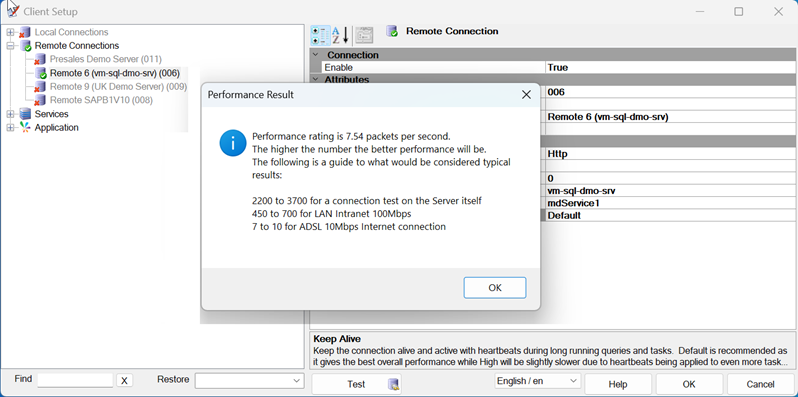
If your application server is on-premise and you are working from the office, and you are using a Gigabit LAN connection to the server, then you might expect a rating of 500 packets per second. Instead of using the LAN connection, if you use WIFI it might go down to 250. If your application service is hosted in Azure, you might be lucky to get 7.5 packets per second.
Being aware of your connection performance rating, can make a big difference to how you address performance problems. If for example, you know your normal connection rating in the office is in range of 300 to 400, if it suddenly drops to 14 you know that something is wrong with the office network. Sudden and dramatic performance changes can happen with remote connections, and it is good idea to benchmark the performance on a regular basis.
Step 2 – Evaluate workbook with Auditor
On the Sharperlight XL ribbon in the Other dropdown menu, there is an Auditor that will analyse the active workbook. The Auditor can identify the workbook recalculation time in seconds, the last time the workbook was recalculation using the Sharperlight workbook recalculate ribbon icon or macro button. It can also show the number of mdValue formulas in the workbook by expanding the Formula node.
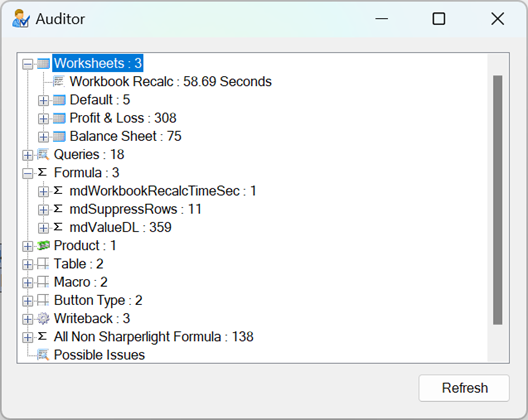
Being aware of the workbook recalculation time and the number of Value formulas in the workbook are a good way to assess a baseline. For example, if the workbook takes 10 minutes to recalculate and you double the number of Value formulas, then you would expect it to take twice as long to recalculate. However, if nothing has changed in the workbook but it is dramatically slower to recalculate, then something must be causing the speed degradation.
An alternative method of counting the number of mdValue formulas in a workbook is to use the Find (Ctrl + F) with the letters mdValue in the “Find what” input box, set the “Look in” to Formulas and the “Within” to Workbook. Then use the Find All button and it will display n cell(s) found at the bottom of the Find and Replace dialog.
Step 3 – Confirm how the workbook or worksheet is being recalculated
It is worth confirming how the workbook or worksheet is being recalculated. Is the user recalculating the workbook or worksheet using a Sharperlight ribbon icon or macro button; or are they initiating a recalculation by editing filter values; or are they using the F9 function key.
The Sharperlight recalculation icon and macro buttons are good because they store the time in seconds, it took to recalculation the workbook or worksheets. These recalculate times can be accessed in the Auditor and they can extracted in the workbook using the mdWorkbookRecalcTimeSec() and mdSheetRecalcTimeSec() functions.
If the end-users is initiating the recalculation by editing filter values, they might be triggering multiple recalculations, if they are changing multiple filter values. If this is the case, get them to change the existing mdValue formulas to the Delayed Formulas, eg mdValueDL() The F9 key can be a problem because the F9 function key recalculates all worksheets in all open workbooks. It is often the cause for workbooks that are sporadically slow due to the number and complexity of workbooks that are open at the same time.
Step 4 – Remove links to other workbooks
Workbook Links have the potential to significantly degrade recalculation performance. To see if a workbook has links to other workbooks, navigate to the Queries & Connections section on the Data ribbon and see if Workbook Links is greyed out. If it is not, then the Workbook Links are enabled, and it can be used to open the Workbook Links task pane. To evaluate the impact of the links, save a copy of the workbook into another name and then Break all the links. Test the workbook recalculate time, with and without the links; are the links slowing down the recalculation?
Step 5 – Remove hidden worksheets that contain query formulas
Hidden worksheets with active query formulas are a classic gotcha, the assumption that hidden worksheets are excluded from the workbook recalculation is completely wrong. Detach the Sharperlight formulas on the hidden worksheets if they cannot be removed.
Step 6 – Are volatile formulas used in filters
Volatile and calculation dependent formulas like TODAY() and VLOOKUP() can force multiple recalculations, avoid using them for filter values and if they are absolutely necessary, consider converting the Value formulas to Delayed formulas.
Step 7 – Are cross-worksheet name ranges used for filtering
Referencing the same filters on multiple worksheets to use a name range on a Default worksheet is a common practice, eg Current Date located on the Default worksheet that is then referenced by the Profit & Loss and Balance Sheet. The problem with this pattern is that the normal Sharperlight workbook recalculation will recalculate the Default worksheet and this will in turn recalculate the referenced other worksheets. Then the other worksheets will be recalculated in their own right. Effectively, it creates a duplicate recalculation scenario. To avoid this situation, add a mdRecalcActiveWorkbookExCurrent macro button to the Default worksheet and use this special workbook recalculation button. It will not recalculate the current worksheet and just recalculate all the other worksheets.
Step 8 – Rationalise the filtering in the Value formulas
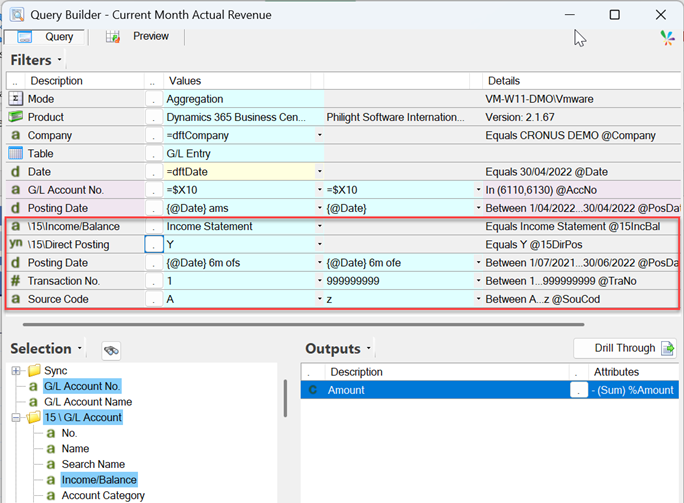
A query in a Value formula may return the correct result but the additional filters my degrade the response time. Take for example the query below which is returning the balance of two accounts (6110,6130) from the CRONUS company, for the Posting Date range 1/4/2022 to 30/4/22. The other five filters (in the red box) won’t change the query result but they add more complexity to the query, and they slow down the query execution time. It may only be a faction of a second but the net effect on thousands of queries can be significant.
Step 9 – Database Table Indexing
Table indexing speeds up the data search for query results, without an index most database engines will do a full table scan which can become excruciatingly slow. Indexing may not be suitable for some application databases because the software vendor will not allow custom indexes. However, it is worth raising the subject with your application vendor and it will require technical expertise to create efficient indexes. The benefit from indexing can be significant and once an index is in place, exponential data growth has a lesser impact on query performance.
Step 10 – Try to use Cache or Edge Data
The Sharperlight XL Cache and Edge Data are two different strategies for handling slow remote connections. The Cache avoids the chattiness of Value formula queries by creating a query plan which is sent to the application server as a single payload and all the results are returned in a single result payload. This pattern works well if the worksheets are recalculated multiple times with exactly the same filter criteria (like end of month financial reporting) but if the filters keep on changing then the cache adds no benefit.
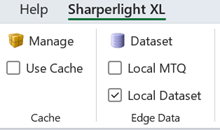
Edge Data is another type of caching where the query dataset is synchronised locally into a SQLite database. Local MTQ (Materialised Query) will automatically synchronise the MTQ tables referenced in the workbooks query formulas. Recalculating the query formulas will redirect to the local SQLite tables. Local Dataset will work with any query formula but the dataset has to be defined using an mdLocalDataset formula; the dataset needs to use the same table and have output fields that combine both the filter and output fields of the target query formulas.
Setup 11 – Consider converting query formulas to use a Materialised Query
If the query formulas in the workbook are targeting a very large transactional table but they are only interested in a subset of the data; then a Materialised Query (MTQ) might prove more efficient. A MTQ table is summarised copy of a dataset materialised into a physical table with its own indexing. For example, the General Ledger transaction table in an ERP might have 30 million records spanning 10 years but the Profit & Loss reports are only focus on the current and prior year. Two years of financial data for the Profit & Loss accounts summarised down to Accounting Period, Amount and a few Dimensions could be a significantly smaller dataset to work with.
Unfortunately, existing query formulas do not magically redirect to the MTQ equivalent, the queries have to be converted because they are treated as a separate virtual datamodel with its own table and field structure. There is a conversion wizard in the Query Builder to assist with the field remapping.