
How to use Cache with Value Formulas
Introduction
Sharperlight Value formulas in Microsoft Excel are a self-contained cell formula that returns the query result in the formula cell. They are popular for financial reporting and financial statements because they give the user maximum control on formula placement and overall worksheet layout. When used with an on-premise application server and database they can recalculated very fast but connecting to an application server in the cloud can introduce performance issues due to internet speed and higher latency.
When dealing with cloud servers and slow running value formulas, it is worth trialling the Cache on the Sharperlight XL ribbon. Caching will work with all value formulas, even if they are delayed, and it can deliver significant performance improvements due to how it batches the queries.
Sharperlight XL Ribbon
The Cache section of the Sharperlight XL ribbon contains a tickbox to enable/disable the caching and a Manage icon that will open a user interface that displays cache information per worksheet and selections to clear the cache. This Query In-memory Cache window can be set to open when the workbook is opened by using the “Show Dialogue on Workbook Open” tickbox.

Enabling the Cache
The Cache is by default disabled and state of the Cache tickbox will be remembered and maintained after Microsoft Excel is closed and reopened. When using the Cache it is important to understand what it is doing because it does have some idiosyncrasies.
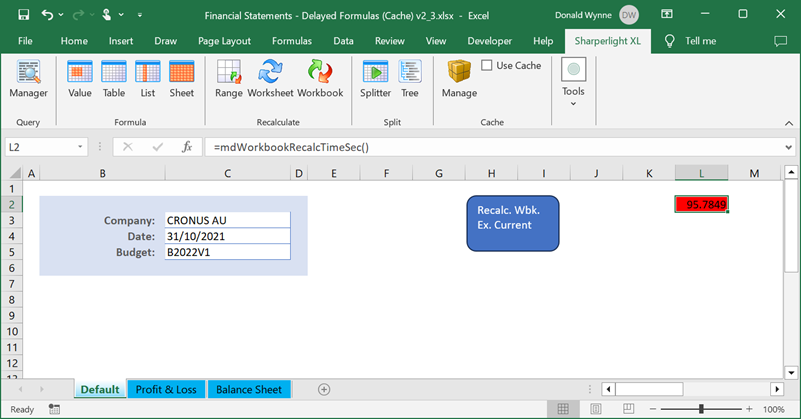
To explore the inner workings of the Cache the example workbook below will be used as a practical illustration. The workbook has three worksheets (Default, Profit & Loss and Balance Sheet) with the Default worksheet holding the global filter values for Company, Date and Budget Name. The Profit & Loss and Balance Sheet worksheets have 295 and 64 value formulas respectively. For testing purposes the Sharperlight installation has been configured for a Remote Connection to an application server in Azure. The Test button in Client Setup gives it a 7.52 packets per second performance rating.
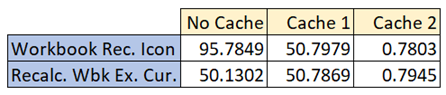
Using the Workbook recalculation icon on Sharperlight ribbon it takes 95.78 seconds to recalculate the workbook with its 359 value formulas. Then the Cache is enabled and the workbook is then recalculated twice using the Workbook recalculation icon on the ribbon. The first time the workbook takes 50.79 seconds to recalculate and the second time it takes 0.78 seconds to recalculate. The performance improvement from 95.78 seconds to 0.78 seconds sounds amazing but it needs a level of awareness on how to maintain this performance going forward.
The secret to the Cache is that it builds and stores a query plan of all the value formulas that have been recalculated. It has these in-memory and when the workbook is recalculated the second time it sends the entire query plan to the application server as a single payload. The individual queries in the query plan are then processed on the server, just like normal but all the results are then returned in a single payload to Sharperlight XL. The results are then passed to the originating value formulas. Instead of lots of chatty calls to and from the application server, this batching significantly improves performance.
Each query plan is worksheet specific, so the batching works at both the worksheet and workbook level. If a new account row is added to either the Profit & Loss or the Balance Sheet, it will need to be recalculated which adds it to the query plan but from then on it will be included. If the workbook is then saved, the query plan is stored in the workbook.
Managing The Cache
In the Financial Statements workbook above the Date would obviously be changed every calendar month and the workbook would be recalculated for the new financial reporting period. Changing the date means the existing query plan is no longer relevant but it is not immediately cleaned up. Recalculating the workbook will send the existing query plan to application server and then the individual value formula queries will be run like normal with the new Date filter from the Default worksheet. In this situation, it is obviously inefficient to request the calculation of a query plan that is irrelevant and thus, the cache should be cleared prior to changing the Date filter using the Manage icon on the ribbon to the open the Query In-memory Cache window.
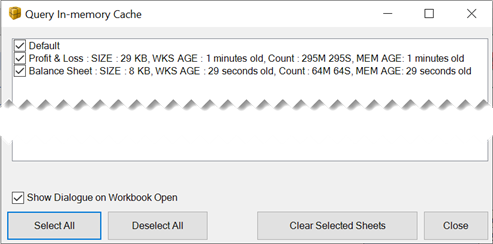
Manually clearing the Cache and its query plan is the main overhead of using the Cache. The inbuild mechanism for cleaning up redundant query plan records in the Cache is more conservative and relies on the workbook being saved and then re-open. When a worksheet is recalculated the records in the query plan are flagged when their query results are returned into the worksheet. Query plan records that were queried at the server but never returned into the worksheet are excluded from the stored Cache that is maintained when the workbook is saved. When the workbook is next opened, it will only contain the Cache records that were last used.
Global Filters and Cache
Locating global filters on a Default worksheet makes sense because the filter values can be maintained in one place and all the value formulas throughout the workbook can reference the same input values. Unfortunately, cross-sheet workbook references have the potential to kick-off duplicate recalculations. In the example workbook mentioned above, all the value formulas reference the Default worksheet for the Company in cell C3 and the Date in cell C4.
If we use the Workbook recalculation icon on the ribbon or a Workbook recalculation macro button, the Company and Date filter values on the Default worksheet will trigger the value formulas on the other sheets to be recalculated. The same value formulas are recalculated again when the workbook recalculation moves focus to Profit & Loss and then the Balance Sheet.
The duplicate recalculation can be avoided if you use a Recalc. Wbk. Ex. Current macro button on the Default worksheet because it excludes the current worksheet from the workbook recalculation. Look at the table below, the 95.78 seconds (No Cache) it takes to recalculate the workbook is almost twice the time it takes to recalculate the workbook when the Default worksheet is excluded. This disparity in the workbook recalculation time, disappears when the Cache is enabled. The Cache stores the query plan and the latest results in memory, if a query with same unique signature is called in the same recalculation run it will use the cached value and not re-query the application server.
It is recommended that workbooks that have a global filter worksheet, always use the Recalculate Workbook Excluding Current Worksheet macro button which can be added from the ribbon using the Buttons – Recalculate – mdRecalcActiveWorkbookExCurrent item. This is the preferred recalculation macro for workbooks with global filters, irrespective of whether they use the Cache or not.