
How to use Sharperlight XL Writeback – Business Central
Introduction
The Sharperlight XL ribbon in Microsoft Excel is predominantly filled with the tools and utilities for reporting and analysis but the Writeback ribbon icon is the odd one out. Writeback allows end-users to bulk upload reference records, journals and Sales/Purchase documents into Business Central using data stored in a workbook. Writing to Business Central is only possible on tables and fields that are configured for writeback in the datamodel, they can’t be read-only and the Business Central web service enforces data integrity.
Writeback Interface
The Writeback form is tailored towards creating writeback templates that can be re-used. The top half of the form has the Product/Datamodel connection, the Company, the target Table and the Writeback Template Name. The bottom half has three tabbed entry panes for the Fields, Options and Processing Options. The bottom of the form has buttons to Preview, Validate, Execute and Close the Writeback interface.
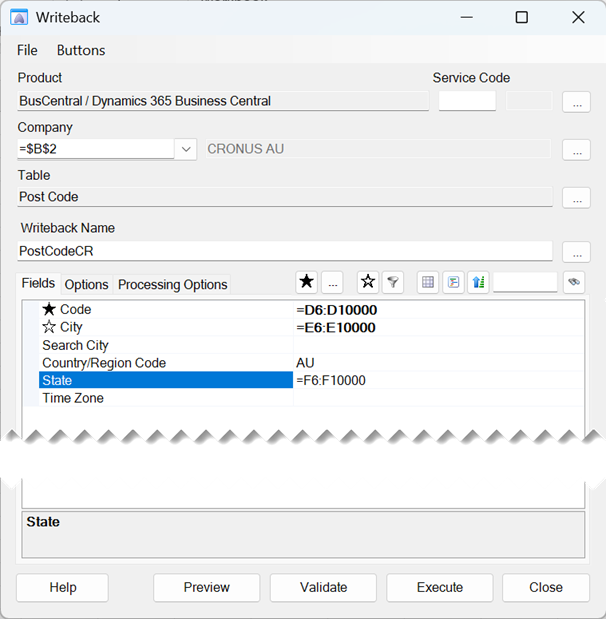
The Options for a table will vary depending on the complexity of the writeback. Journal Lines usually have several Options whilst reference tables usually have none. Some tables may have a Force Sync option for syncing the reporting database prior to the writeback upload.
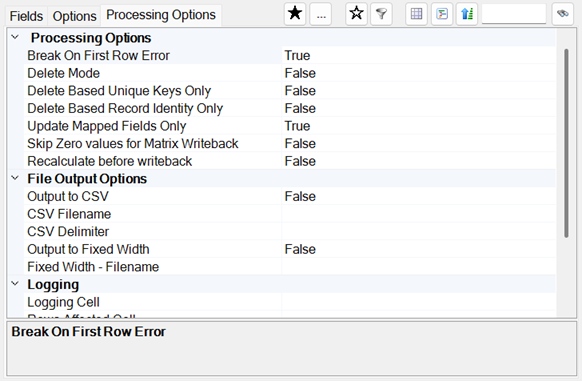
The Processing Options are generic for all writebacks, they include Break on First Row Error, Skip Zero values for Matrix Writeback, Recalculate before writeback and a Logging Cell reference.
Field Mapping
The datamodel determines which tables and fields are writeback enabled, some fields are mandatory and these are identified with a white star prefixing the field name. One field is automatically assigned as the Driver field, it will determine if the row is skipped. Blank cells in the Driver cell referenced range will trigger the entire row to be excluded from the writeback payload. The Driver can be any cell referenced field and it will default to the first mandatory field.
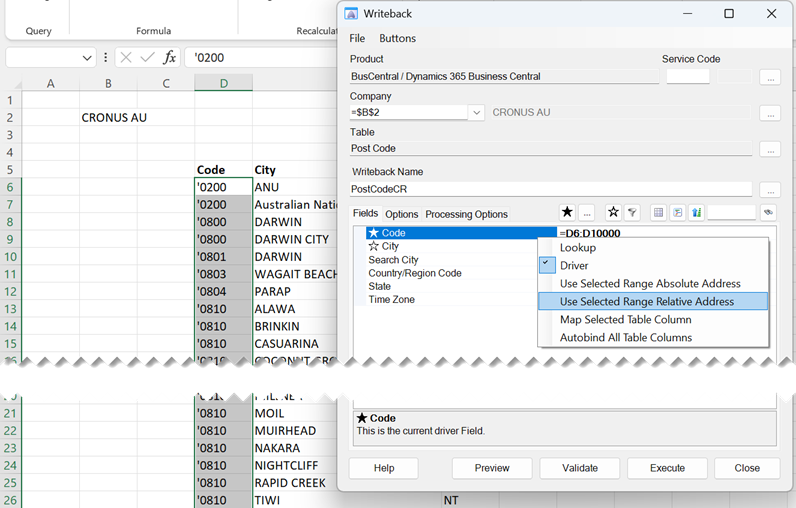
The referencing for a writeback field can be a single cell reference, a range, a table reference or a static value. Cell references can be typed in directly but prefixed with an equals or the range selected in the worksheet and the field updated with the Use Selected Range Absolute/Relative Address menu options from the right mouse click menu on the field name.
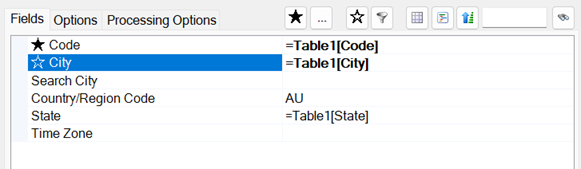
Table references can auto-bind to the column names of a table or selected individually. Provided the Excel table has matching column names to the field names, the user need only double left mouse click anywhere on the table while the Writeback interface is open and it will open a message dialog “Do you wish to autobind the Table to the Writeback?”. If the user selects Yes, it will map the column names to the fields that are NOT currently mapped or hard-coded.
The Close button in the bottom right of the Writeback interface will open a message dialog to confirm if the user wants to save the writeback template. If the Writeback Name has not been filled, it will prompt for a name and if the template has been changed, it will prompt “Do you wish to save this before exiting?”.
Writeback Buttons
Writeback templates are commonly used without opening the Writeback interface by running macro buttons. When a template is opened in the Writeback form, the Buttons menu can be used to create Edit, Validate and Execute macro buttons bound to the template name.
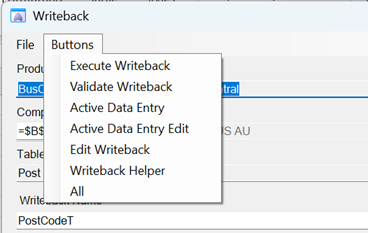
Execute Writeback
The Execute button on the Writeback interface and the Execute Writeback macro button will action a writeback where the data ranges reference in the template will be scraped from the worksheet and the dataset will be evaluated for consistent data types and basic referential integrity. For example, a date field will not accept a text value, and some code values will be compared with referential lookup values in the reporting database.
If the dataset passes the simple checks, it will be converted into a payload of PATCH or POST statements that are then sent to the Business Central web service. Errors returned from the web service will be displayed in Excel, in a Writeback logging message. If uploading thousands of records, it will take a while because the payload is broken into hundred record blocks and after each block, a result set of what has been changed is written into the reporting database.
Logging Writeback Messages
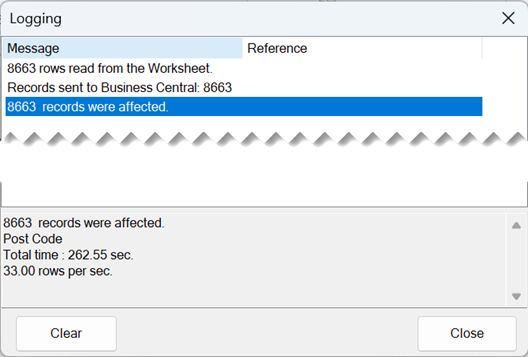
The Logging window below is an example of the information that is returned by a successful writeback. It shows the 8663 Post Code records read from a worksheet; it took 262.55 seconds to process them which equates to 33 rows per second. The Logging window is the default message dialog for writeback information (confirmations and error messages) but there are alternatives to a pop-up window.
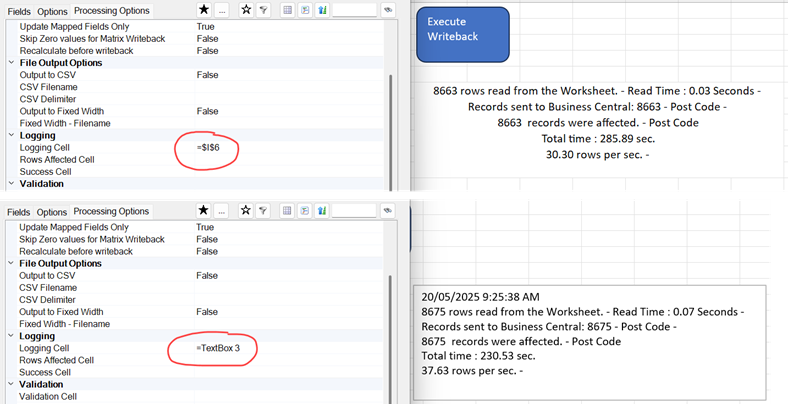
The Processing Options on the writeback template has a Logging Cell option that will accept a worksheet cell reference or a Text Box reference. To properly display a multi-line writeback message in a cell, it is recommended that a range of cells is selected (6 rows and 8 columns across) and merged, then cell reference to the merged cell reference, e.g. =$I$6. Text Boxes are often more versatile because they can be easily resized and moved around the worksheet. Insert a Text Box using the icon on the Insert ribbon and use its name from the Name Box to update the Logging Cell option, e.g. =TextBox 3
Writeback Examples
End Of Month Journals
For organisations that have numerous end of month standing (recurring) journals which rarely change except for the date; then a single writeback template could be used for multiple worksheets.
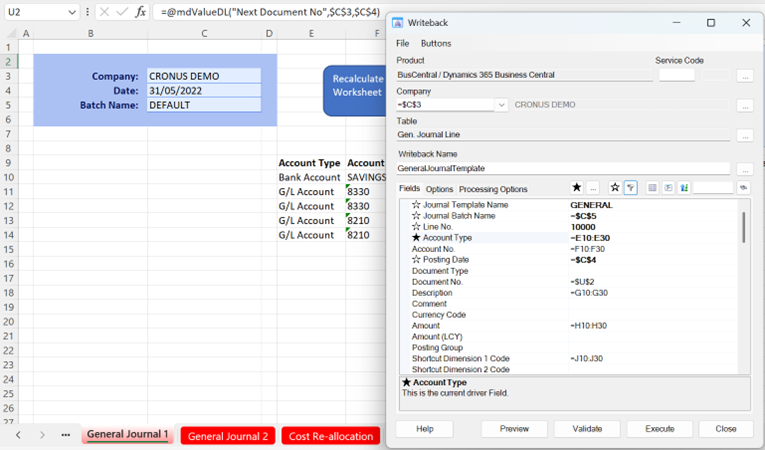
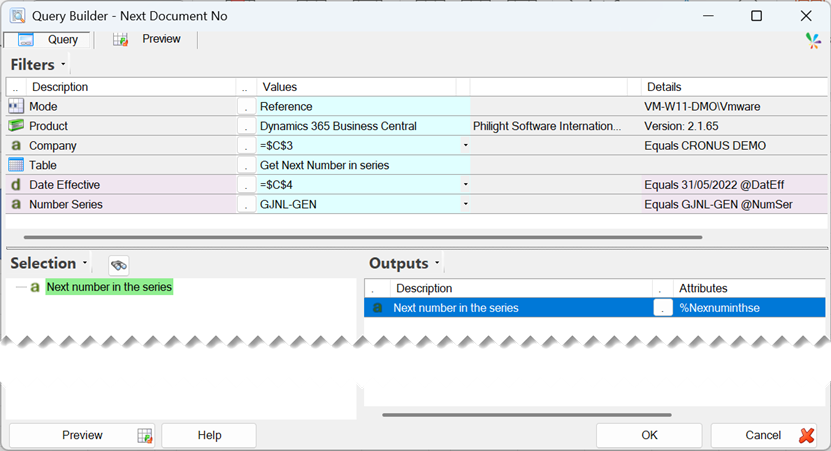
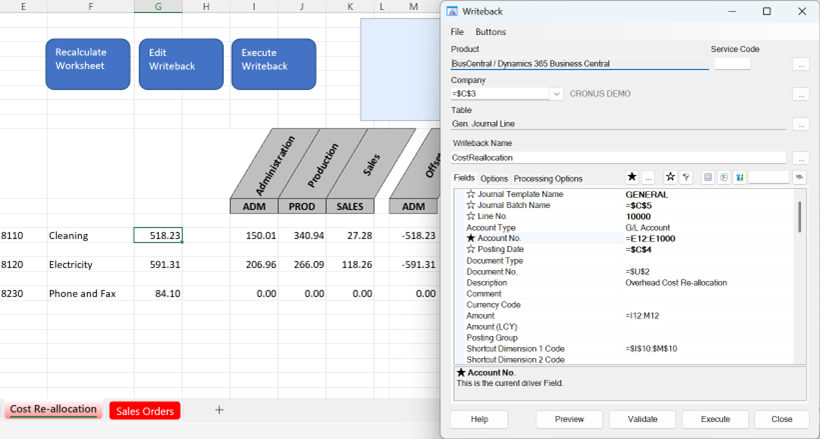
The Gen. Journal Line table is more complex than most other writeback tables. Journal lines need a line number so the Line No. field defaults to 10000 and it will automatically increase the line number by increments of 10. The Document No. can be left blank and updated in the General Journals page in Business Central using the Renumber Document Numbers. However, in the example above it is using the query below to get the next number in the Series returned into cell =$U$2. To ensure the Document Number is properly incremented, the “Recalculate before writeback” has been set to True in the Processing Options. This means that just prior to reading the dataset from the worksheet the writeback will be recalculated the sheet and thus, refresh the Value formula containing the Next Document No query.
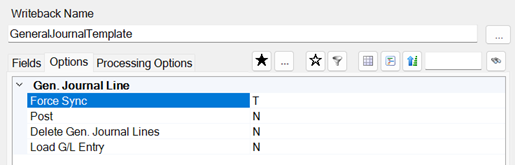
The Gen. Journal Line writeback has four writeback Options. The default T – Truncate and Load on the Force Sync ensures that existing lines in General Journal page are mirrored in the reporting database and treated appropriately in the writeback. The Post option is a Y/N Boolean where Y will attempt to post the journal. The Delete Gen. Journal Lines options is an alternative to the Force Sync where existing lines are deleted prior to the writeback. The Load G/L Entry option is a Y/N Boolean where Y will force a load on the G/L Entry table on completion of the writeback (assumes a Post set to Y).
End Of Month Adjustment Exchange Rate
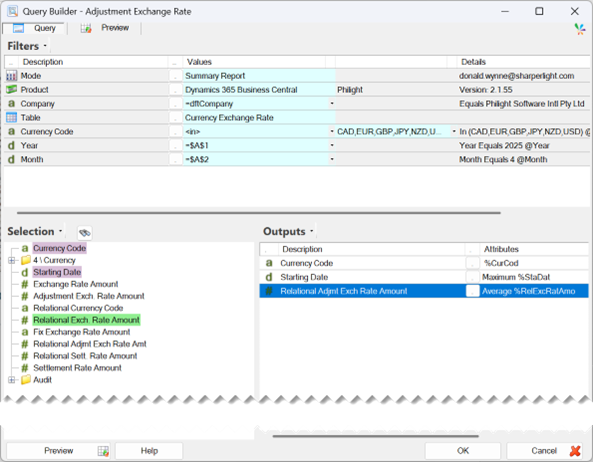
If the organisation must run the Adjust Exchange Rates process in Business Central, then a Table formula in Excel could be used to calculate the average end of month rate, as per below.
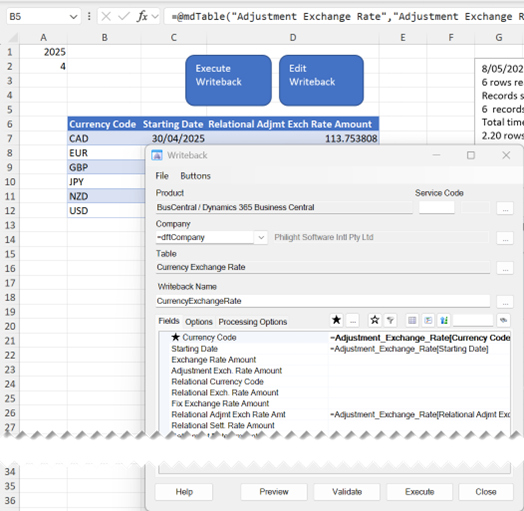
Then a writeback template can be used to update the Relational Adjmt Exch. Rate for the last daily rate in the month. The Relational rate will then be used in the Adjust Exchange Rates procedure to recalculate the Customer, Vendor and Bank currency transactions.
Cost Re-allocation
Value formulas can be used to extract account balances for the month (column G below) and normal Excel formulas can then be used to apportion the balances across different dimensions. In the example below, the writeback looks relatively simple but the Amount field and Shortcut Dimension 1 Code are referencing a single row and a range of columns. This is a matrix style writeback where the intersect of columns and rows will create separate records for the upload.
The Shortcut Dimension 1 Code cell reference of =$I$10:$M$10 sets the columns to read across and the Amount cell reference of =I12:M12 will read down for the individual amounts. The Account No. field is the Driver, so the writeback will only read the rows with an Account No. in the range =E12:E1000. There are three Account rows and four Shortcut Dimension columns (it automatically skips the blank column L); it would normally create nine writeback rows but the Skip Zero values for Matrix Writeback has been set to True in the Processing Options and thus, the zero values will be skipped.
Stock Reorder
In this example a Custom Table query is being used to calculate stock reorder values, and it is making recommendations in column O and P. The user can manually adjust the reorder values and add/remove order lines by adding or removing the Item Line Type (the Driver field in the Purchase Documents writeback is the Line Type field). Interesting enough the Stock Reorder worksheet would work equally well in the Web Spreadsheet as it does in Microsoft Excel. In the Web Spreadsheet the Edit Writeback button would disappear because it does not have an equivalent Writeback interface but otherwise everything else would work the same in a web browser.
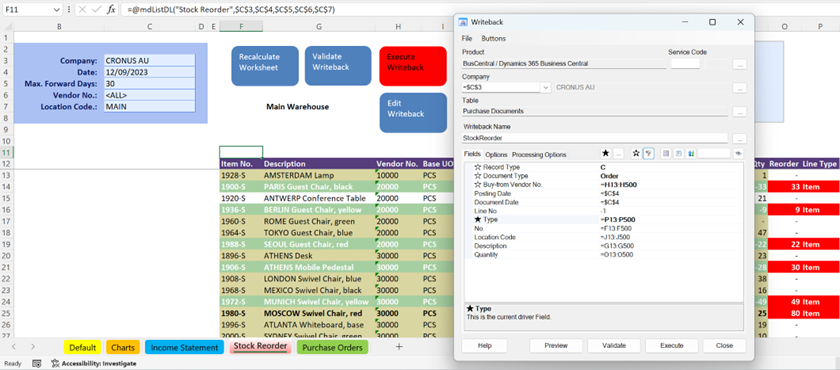
The Record Type in the writeback has been set to C – Combined, it will use fuzzy logic to combine consecutive rows with the same Purchase Header details to a separate Order record and then create a new record if the details change. Only the mapped columns are being displayed and ALL the unmapped fields have been hidden.