How to schedule and email reports
Introduction
The Sharperlight application suite includes a Scheduler for automating tasks. For a site to create and execute scheduled tasks, it must have at least five full user licenses or the Scheduler feature key in their license (in Site Setup). If Scheduler is not fully enabled, a red message box appears in the bottom right corner of the Scheduler list view, with the text “Product License Details – Limits Apply”. Some datamodels rely on Scheduler to automate their data processing, the scheduled tasks that are imported from these datamodels, are not constrained by Scheduler licensing, eg Dynamics 365 Business Central datamodel. An unlicensed Scheduler will allow scheduled tasks to be created but they will not execute.
This document uses the scenario of running Scheduler to refresh a query, saving the query results to an Excel and PDF file, and then attach the Excel document to an email. Instead of just generating a single output file and sending one email it uses a Query Combination to identify and iterate through multiple recipients with their own filtered query results. The scenario shows three different actions with the query stored in the schedule task, in a Published Query and in an Excel Workbook.
Scheduler
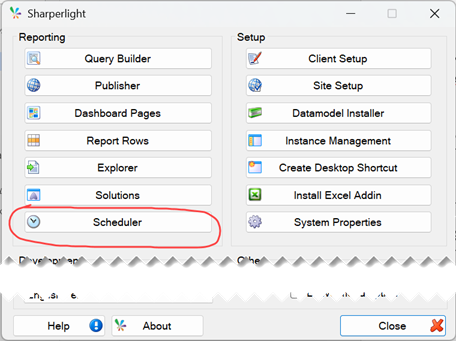
Scheduler is added to the Windows Start Menu Sharperlight folder when the Complete setup type was selected in the software installation. The Scheduler can still be accessed on a Client Only installation by opening the Sharperlight Application menu and using the Scheduler button. The Create Desktop Shortcut button can be used to create a desktop shortcut to the Scheduler.
Scheduled tasks can be created and maintained on the client and on the server, and the tasks can be executed on the client or the application server. Generally, tasks are executed on the server because the application server is always running, and the scheduling of tasks will continue to run, at the required time and frequency. However, scheduled tasks can be created and manually executed without relying on schedule; these can be useful for end of month or weekly activities that are repetitious but do not have a fixed schedule time.
Each scheduled task can consist of multiple actions which can conditionally run based on the prior actions. The description details, default directory paths, parameters, actions, triggers, security and logging are all unified into a single scheduled task.
General
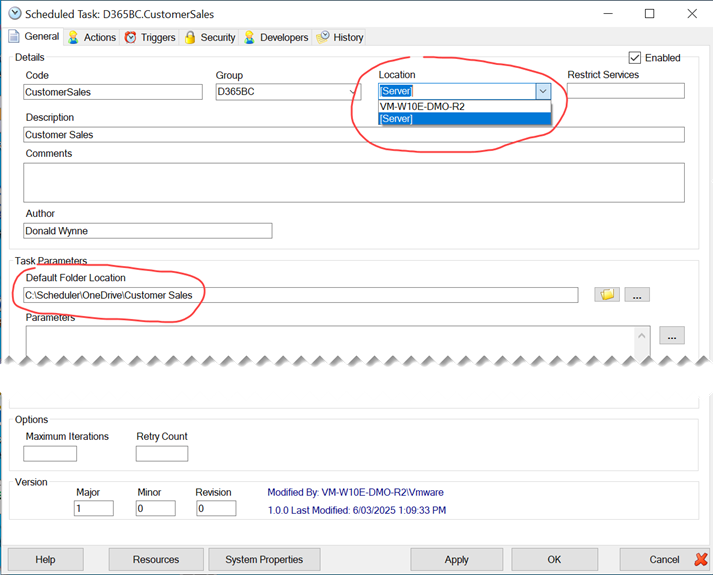
The General tab in a scheduled task has the Code, Group and Description for the task. More importantly it has the Location where the task is mean to execute. [Server] is the application server, and tasks that need to execute on the server should be set to [Server]. Client specific tasks should be set to the client computers name. The Default Folder Location is required if the actions are going to interact with files.
Actions
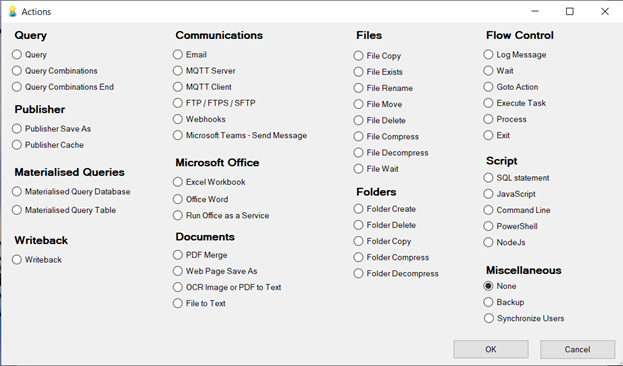
There are numerous actions in Scheduler, to query and email out reports, this document will focus on File Delete, Query Combinations, Query, Publisher Save As, Excel Workbook and the Email action. In normal practice, this type of task would use either Query or Published Save As or Excel Workbook. The example below will include all these combinations but only one of these would be enabled at one time.
File Delete
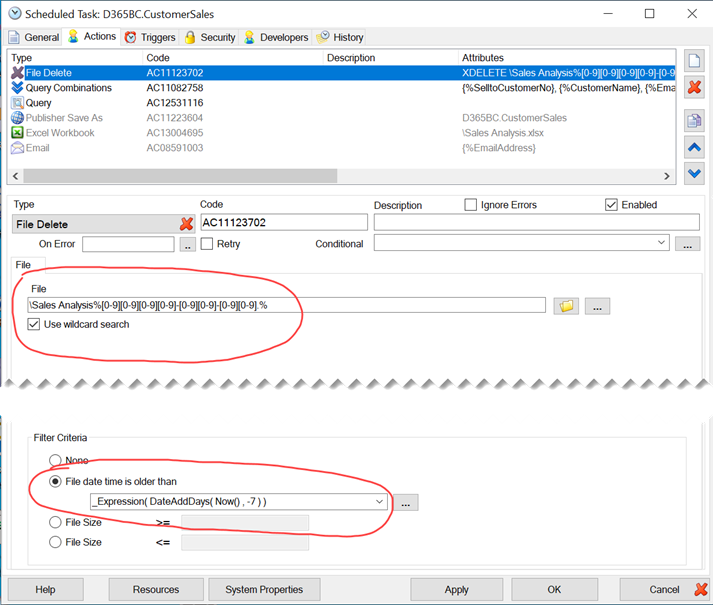
The File Delete action is used to clean up the work files that are generated. The output files all include the tag {_Date} at the end of the filename, this is a placeholder for the date in yyyy-mm-dd format. The wildcard search will examine the Default Folder Location from the General tab, looking for files that match the wildcard combination \Sales Analysis%[0-9][0-9][0-9][0-9]-[0-9][0-9]-[0-9][0-9].%
The expression in the Filter Criteria means that only files older than seven days will be deleted if they full fill the wildcard search combination.
Query Combinations
The Query Combinations action is an iterator that forces the subsequent actions to be repeated for each row returned from the specified query.
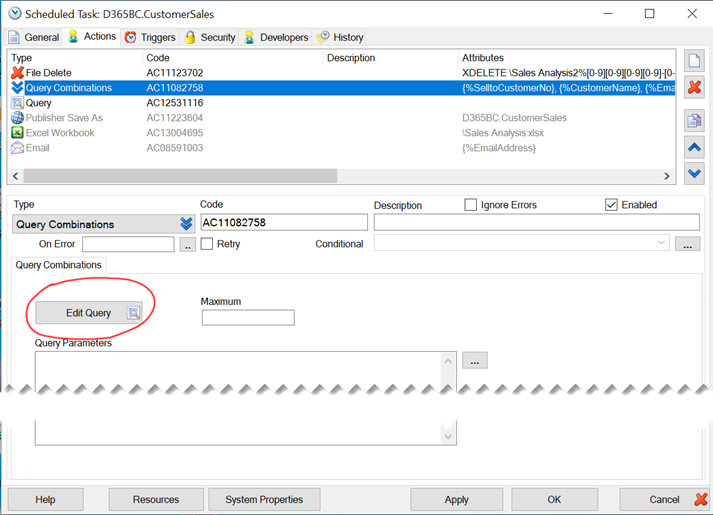
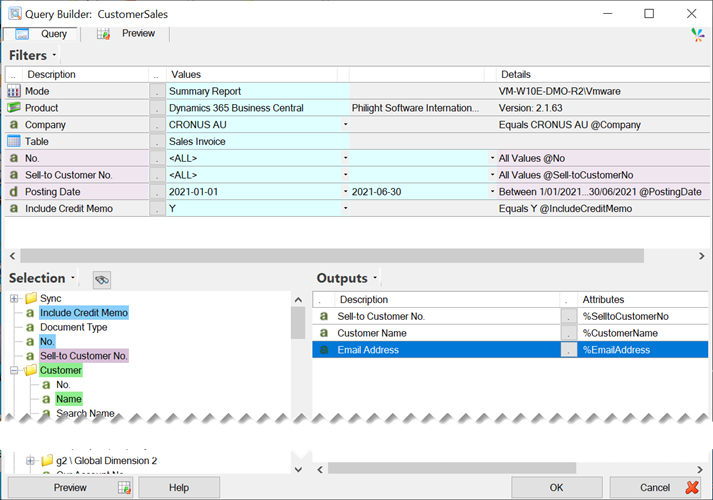
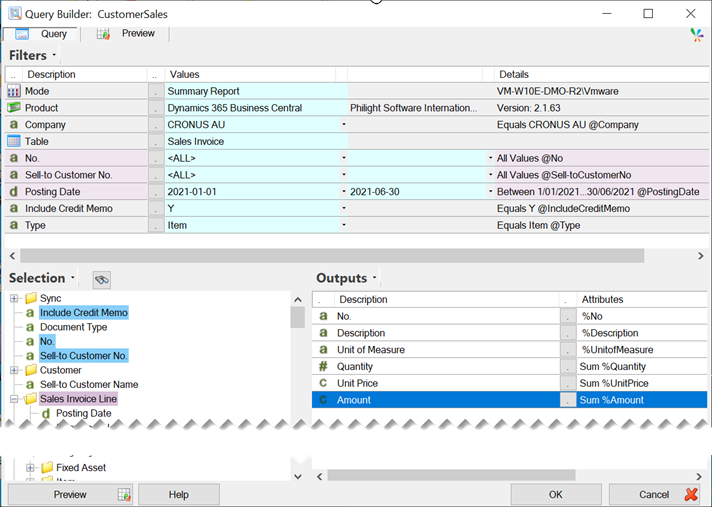
The Edit Query button on the Query Combinations action is for creating and maintaining the iterator query. In the example below, it is a Dynamics 365 Business Central query on the Sales Invoice table which returns the Sell-to Customer No, Customer Name and Customer Contact Email Address. The Sell-to Customer No is used to filter each iteration to a specific Customer No, the Email Address and Customer Name is used in the Email action. For demonstrational purposes the Posting Date has a fixed date range but in practice it would be a relative date using date offsets and options.
Query
The Query action is enabled whilst the Publisher Save As, Excel Workbook and Email have the Enable setting unticked. These disabled actions are greyed out and will be ignored by the Query Combinations iteration.
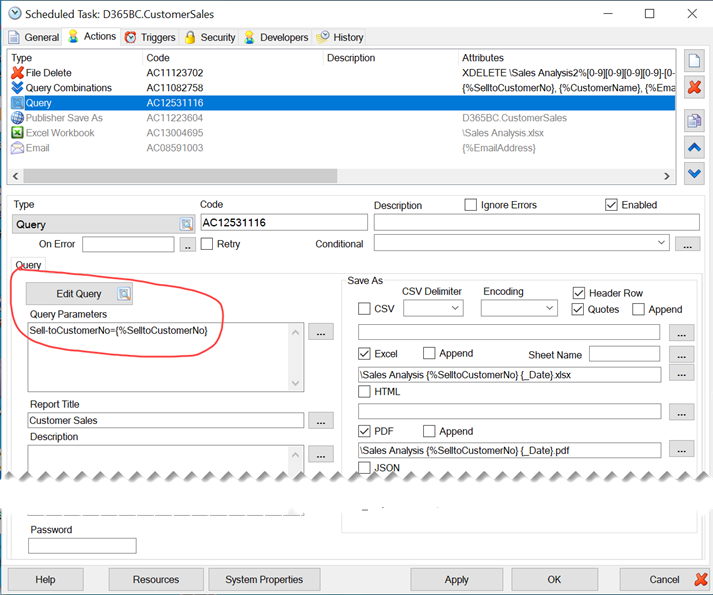
The query attached to the Query action, outputs sales item information summarised by Quantity, Unit Price and Amount. The Sell-to Customer No filter in the query is updated at runtime with the Query Combinations {%SelltoCustomerNo} value, using the
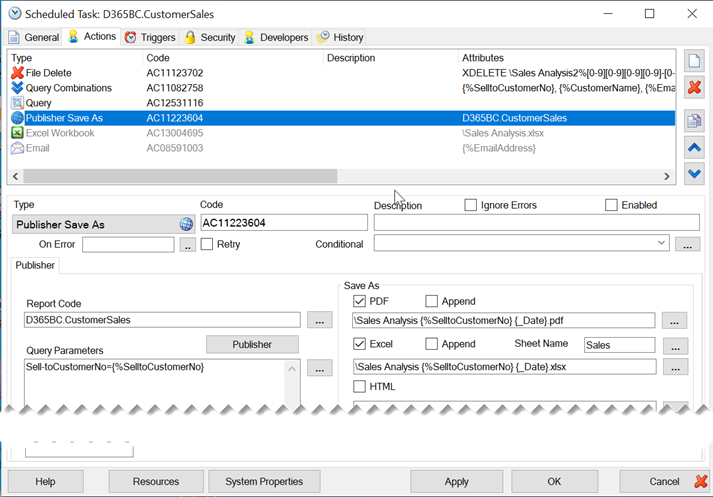
Sell-toCustomerNo={%SelltoCustomerNo} command in Query Parameters. The Query results will be saved to Excel and PDF using the specified filenames. Notice that the filename includes both the {%SelltoCustomerNo} value from the Query Combinations and the date placeholder, eg \Sales Analysis {%SelltoCustomerNo} {_Date}
Publisher Save As
The Publisher Save As action is almost identical to the Query action, except that it references a copy of the query that exists in a Published Query, eg D365BC.CustomerSales
Excel Workbook
Excel Workbook actions are supported if they are manually executed on the same computer where the scheduled task Location is set, eg the task is run locally, and it is not being run on another computer or via a scheduler trigger. To manually execute a scheduled task the user selects the task in the Scheduler list view and uses the Execute item from the right mouse click menu.
In prior versions of Sharperlight, it attempted to automate Microsoft Excel with it autonomously recalculating workbooks on the application server on a schedule, this has proved to be extremely hard to configure and maintain. Excel is designed to run interactively in a user session and trying to automate Excel in a non-interactive (headless) mode is fraught with challenges including file access rights, workbook security, successfully loading and logging into the Sharperlight XL add-in, how to handle unexpected user dialogs and cleaning up resource hungry Excel session that don’t want to close. Even Microsoft does not support Excel being run in a headless mode because it requires an interactive user session. Inline with the Microsoft stance we no longer support Excel automation in a non-interactive headless mode.
Manually running an Excel Workbook from a scheduled task means it would not use a Trigger to schedule the refresh and the Location on the General tab is the current user’s computer name. Microsoft Excel must be installed on the user’s computer, Sharperlight XL needs to be loaded into Excel and Sharperlight must use single sign-on authentication to log into the XL add-in.
Executing the Excel Workbook action manually does not require all the complex configuration settings listed in the pink “Note: Excel Requires configuration” because it runs the task in the context of the current Windows session. Just to mention, Workbook recalculation is significantly slower than refreshing a Query or a Published Query, be prepared that it will take longer to process query combinations.
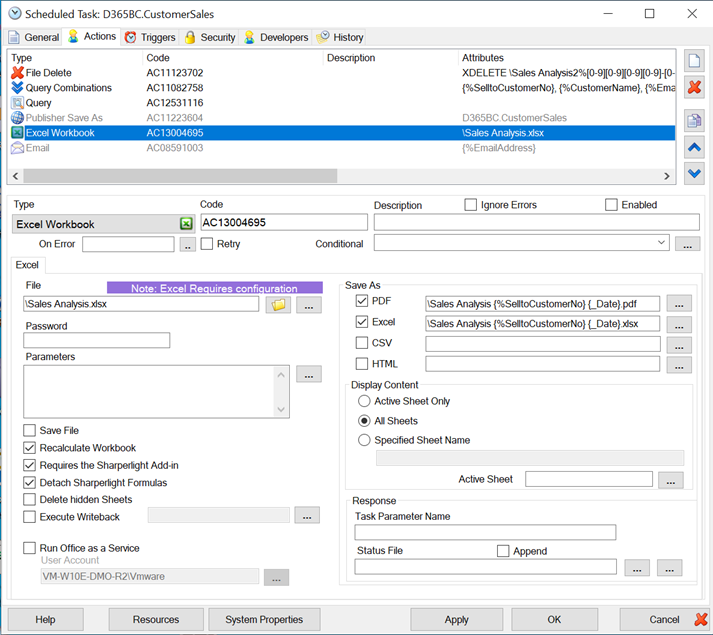
The Detach Sharperlight Formulas option will convert all the Sharperlight formulas into the workbook, to the cell values and this will not affect Excel formulas.
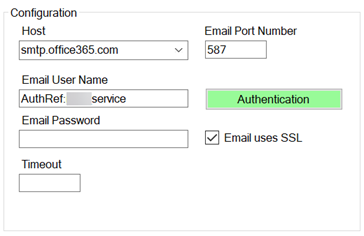
The Email action requires an SMTP email server with the email settings in the bottom left and the email message in the bottom right. The Email To address can be hardcode or as in this example, the email address is being mapped to the {%EmailAddress} value from the Query Combinations. Notice that the {%CustomerName} from the Query Combinations is being added to the Subject line. The attachments uses the same reference for the Excel workbook output filename.
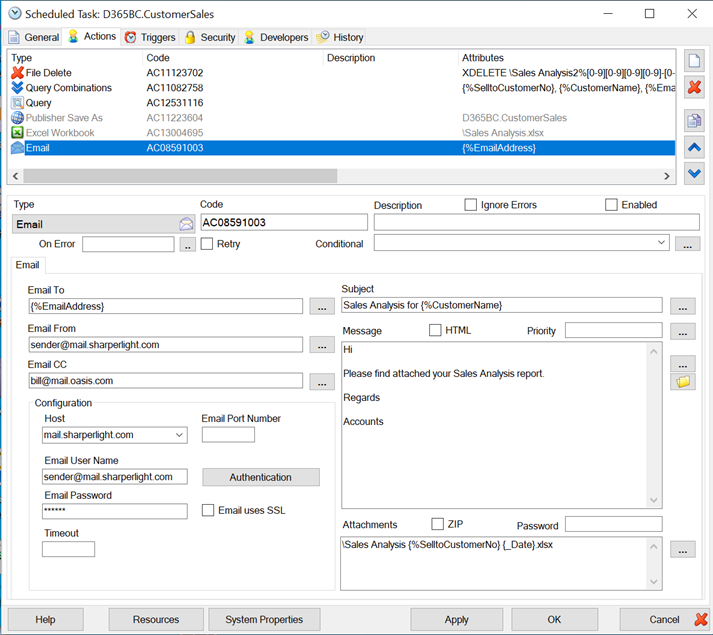
The email user name and email password in the email server configuration can either be hardcoded in the action (like above) or using an authentication reference. Using the Authentication button will open an Authentication window where credentials can be stored and reused across multiple scheduled tasks.
Triggers
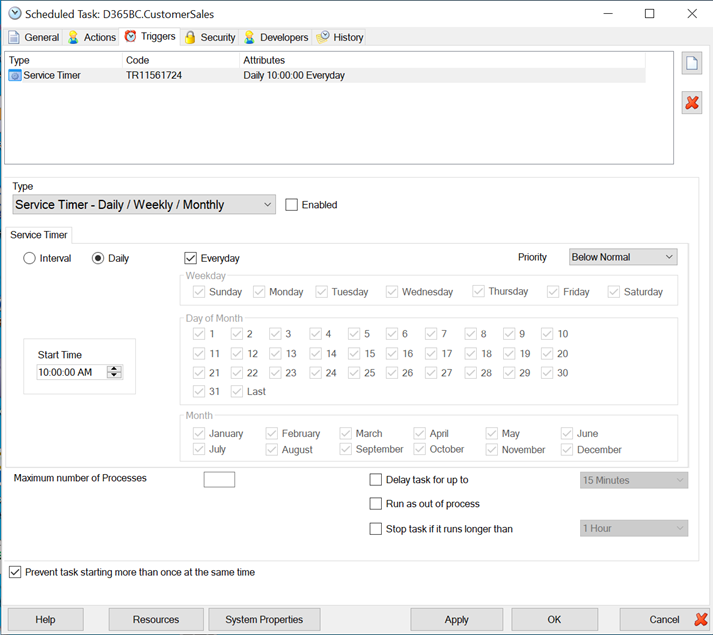
The Triggers tab maintains all the scheduled execution plans that will execute the scheduled task. The default trigger is a Service Timer which is used exclusively for computers running the Sharperlight Service and the Location of the scheduled task should be set to [Server]. The alternative is to use a Windows Task Scheduler Daily / Weekly / Monthly / On Time trigger.
Security
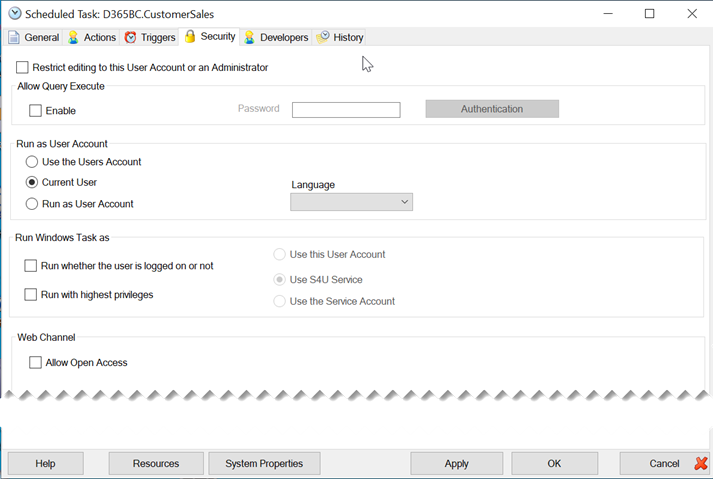
The default settings on the Security tab are to use the Current User who modified or created the scheduled task. All the other settings will be disabled.
History
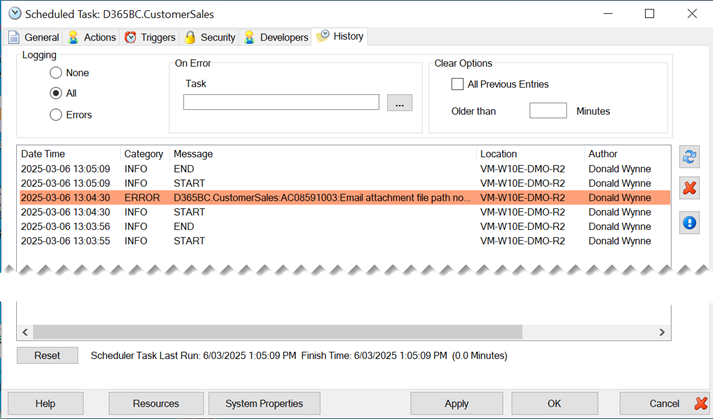
To closely monitor scheduled tasks, change the Logging on the History tab to All to see a complete execution history. The red X button on the right will clear the log history and the refresh button will load the latest log entries.