
Sharperlight with PostgreSQL Database
Introduction
This post shows you how to register the servers and create the database with pgAdmin tool and use them for Sharperlight.
Practices
We will set up Sharperlight environment for XERO datamodel and the system database and XERO database will use the PostgreSQL database server.
Server and databases
Prior to set up Sharperlight environment, we prepare two empty databases, one is for Sharperlight system and the other is XERO datamodel.
Please check here for more information about postgreSQL.
Assuming that the PostgreSQL environment is already set up, start pgAdmin.
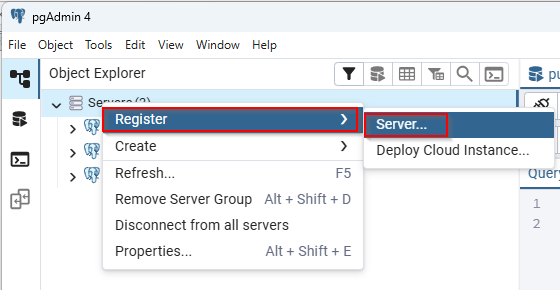
Let’s create a server. Right-click on “Servers” node to show the popup menu, and select “Register” -> “Server…”.
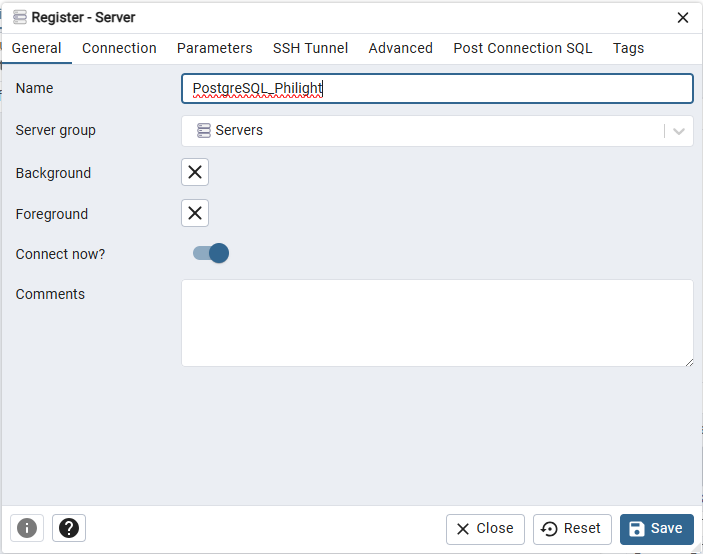
Type appropriate server name on “General” tab.
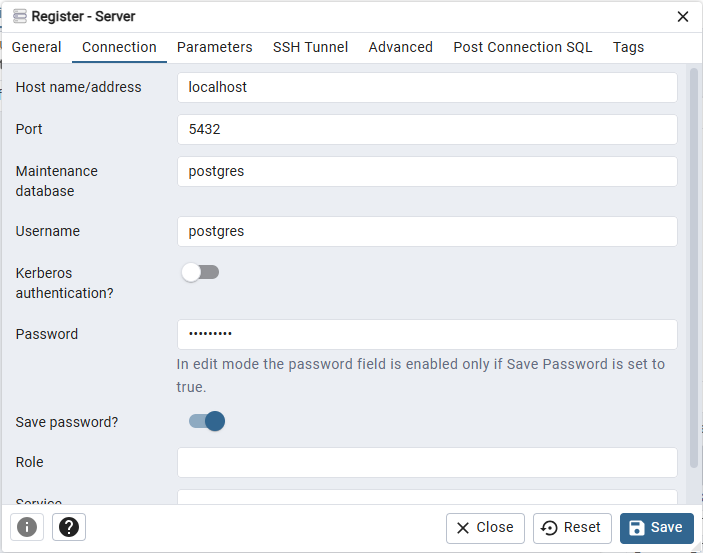
Fil the host name and password on “Connection” tab, then click Save button.
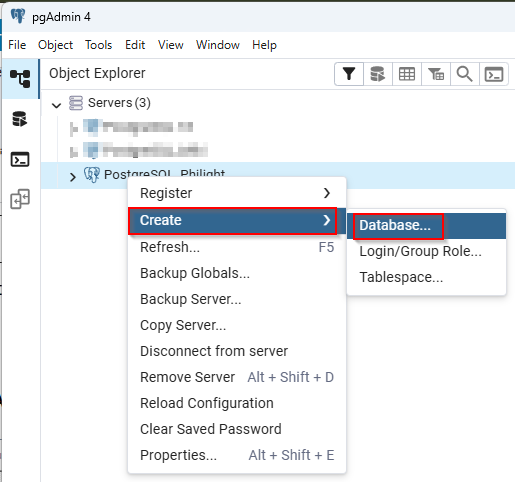
Creating two databases next, right-click on the server we just created to show the popup menu, select “Create” -> “Database…”.
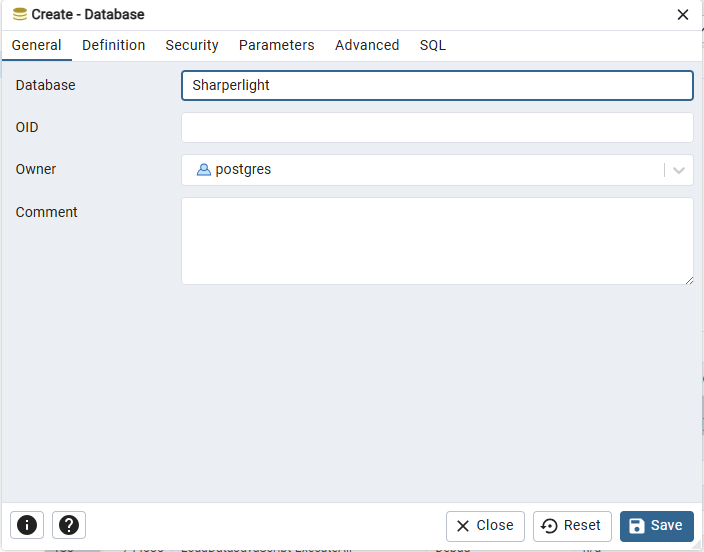
Type “Sharperlight” to Database field on General tab and click Save. This is the Sharperlight system database.
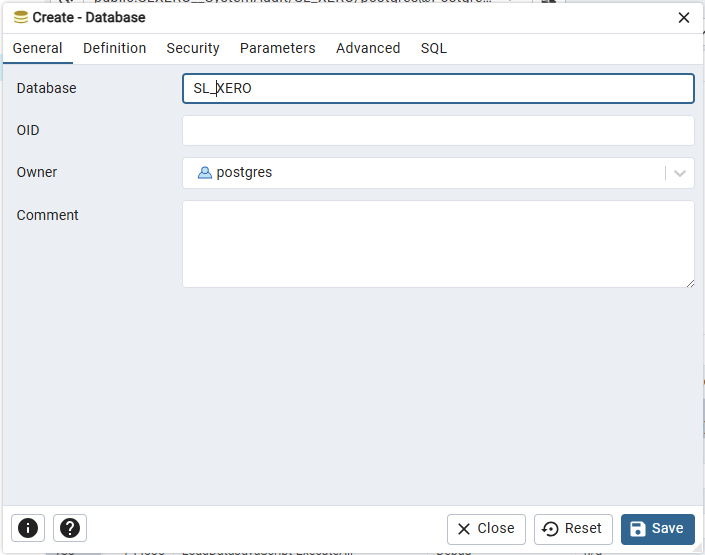
Create another database and type “SL_XERO” to Database field on General tab and click Save. This is the database for XERO.
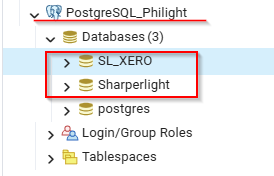
Now you have two databases under “PostgreSQL_Philight” server.
Datamodels and Database Connections
When you install Sharperlight, the Sharperlight system data model is installed, but the XERO data model we will use this time must be installed.
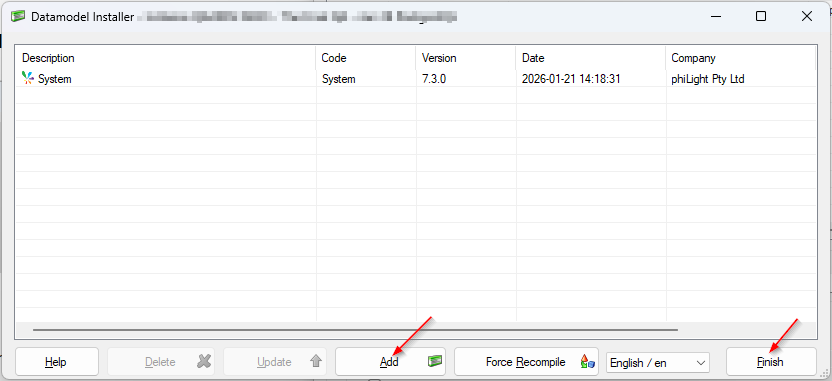
We use Datamodel Installer to do it so start Datamodel Installer from the Sharperlight application menu.
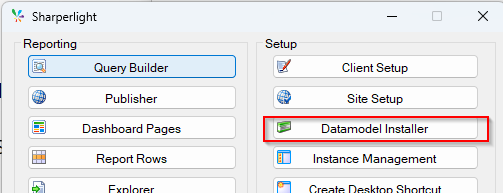
Click Add, choose XERO datamodel (SLXERO.meta) downloaded from Sharperlight.com, and click Finish to compile and save it.
Once the data models get be ready, the database connections need to be defined.
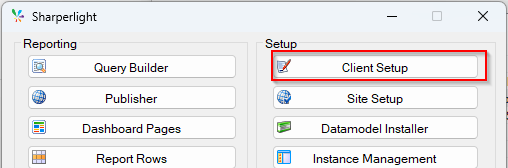
Open Client Setup from the Sharperlight application menu and set the their connection details and click Test for making sure the details are correct.
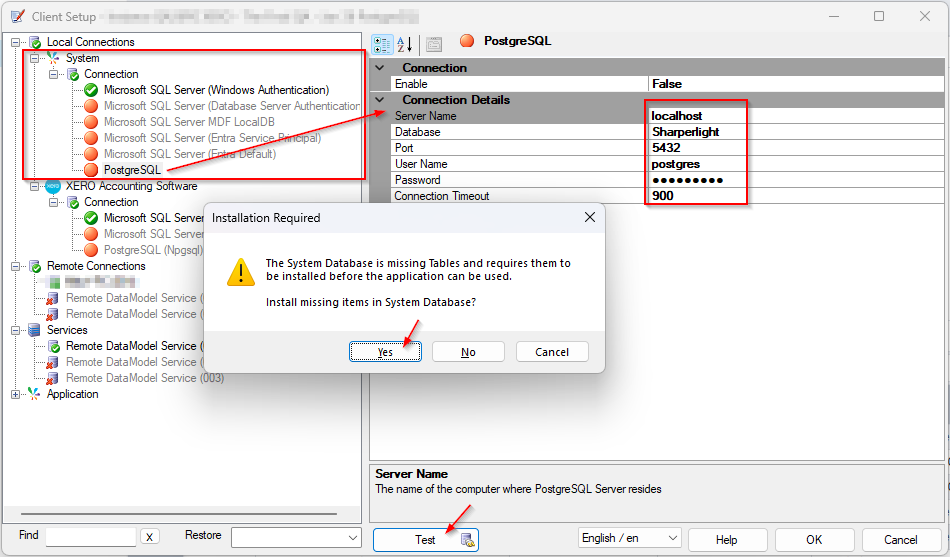
Select “PostgreSQL” connector for the Sharperlight System, fill the details and click Test button.
Sharperlight will create the system tables required in the database. Click Yes to proceed.
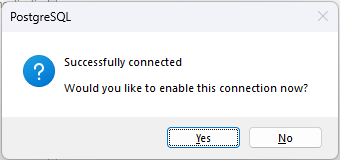
Then click Yes to enable the connection.
Select “PostgreSQL (Npgsql)” connector for XERO, fill its details and click Test button.
Click Yes to enable the connection.
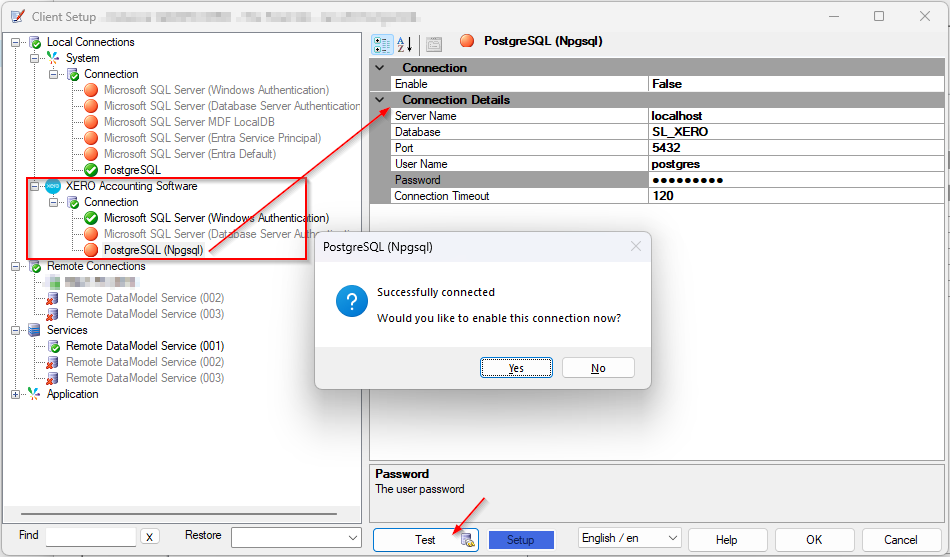
Click OK to save the established connections.
Now, the Sharperlight its self and XERO datamodel got the connection to their databases held in a PostgreSQL database server.
They are ready to be used with PostgreSQL database server.
Afterword
Sharperlight System, XERO and Dynamics 365 Business Central datamodels now support PostgreSQL database sever.