
How to enable Menu Editor
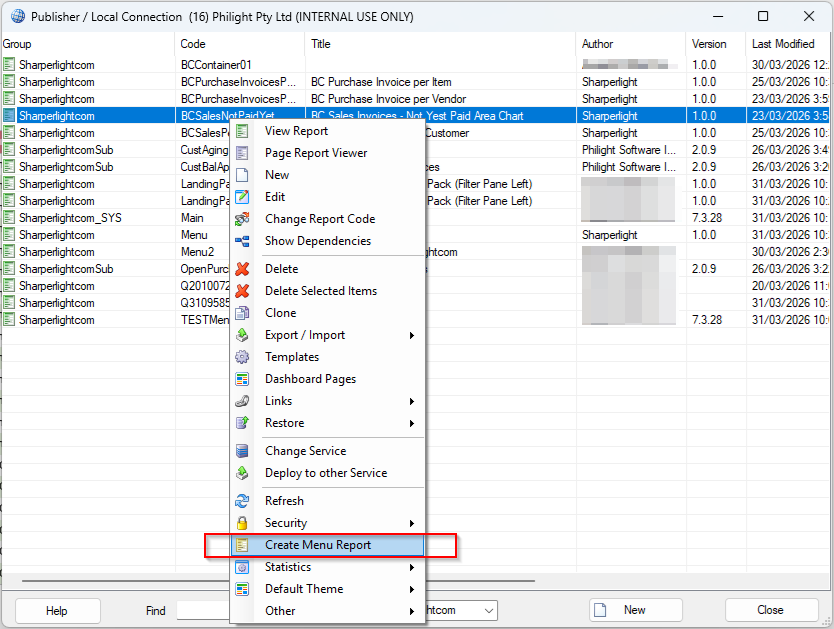
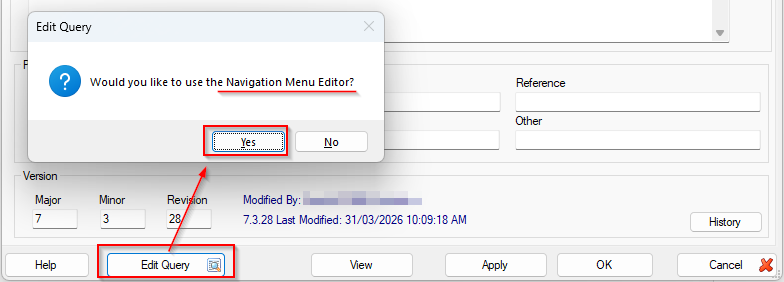
Creating a report menu via the Sharperlight Publisher popup menu allows you to enable the Menu Editor. Once enabled, you can access the editor by clicking the ‘Edit Query’ button and selecting ‘Yes’ at the prompt.
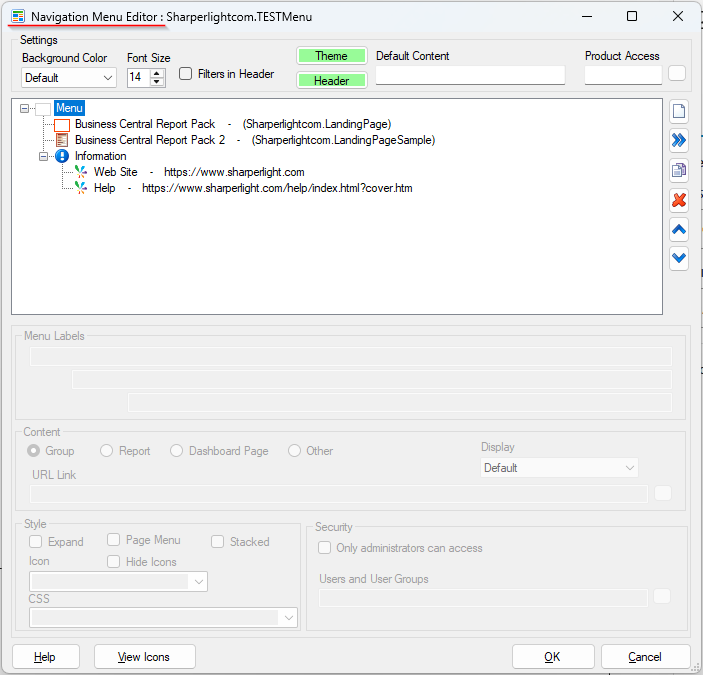
However, when transitioning an existing report to a menu report via the Default Type dropdown on the Options tab, the Menu Editor option is not available initially.
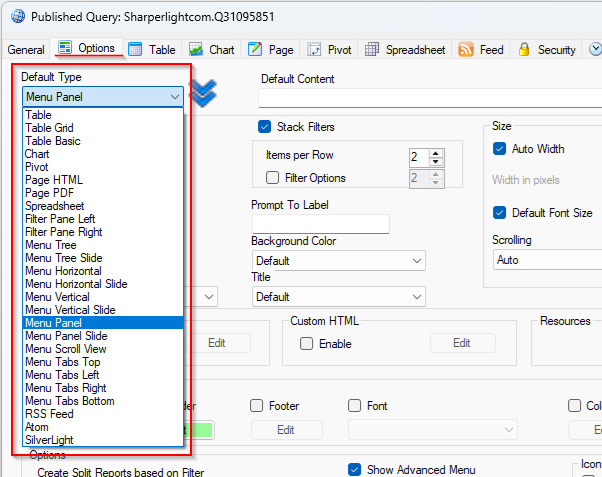
Therefore, the Query Builder opens immediately upon clicking the ‘Edit Query’ button.
To enable the Menu Editor, you need to create the special type of query for the menu.
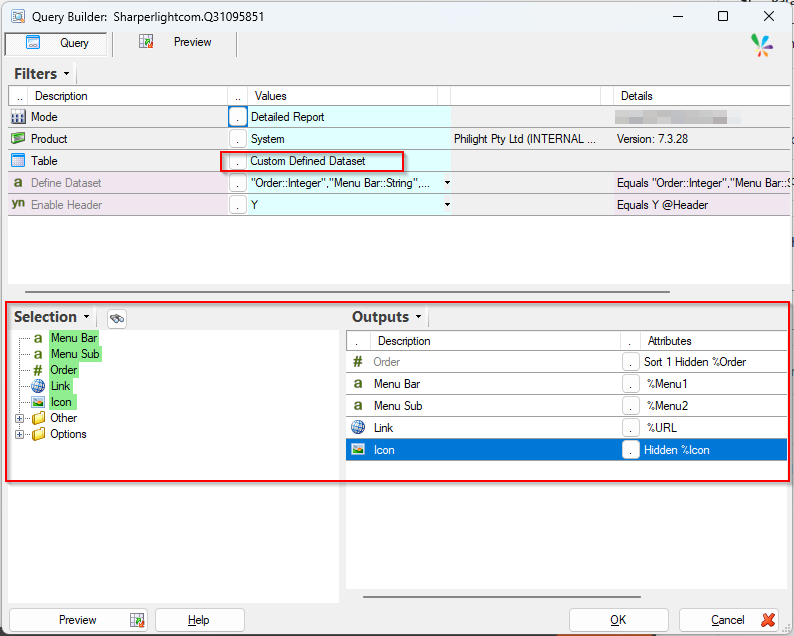
It uses the Custom Defined Dataset option and the dataset is like this shown below;
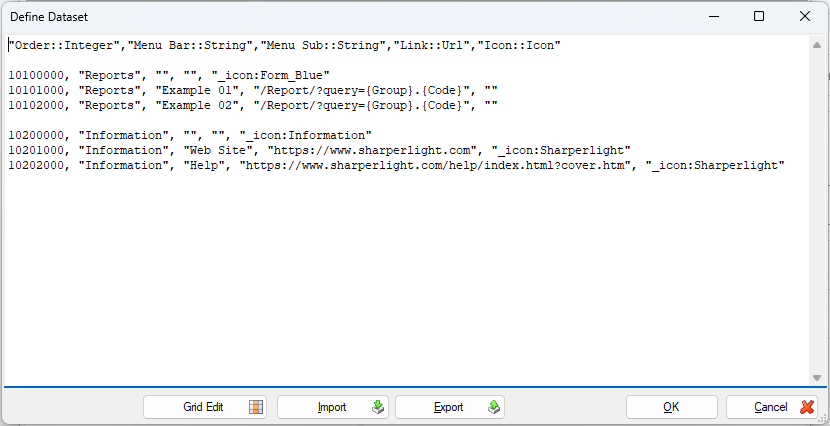
After you create and save it, the Menu Editor will open when you click the ‘Edit Query’ button and select ‘Yes’ at the prompt.
We have provided a Menu Query template here. You can download and import this into any menu report converted from a standard report to enable the Menu Editor.