Merging Column Headers
Introduction
This post explains how to merge header columns in a published report when working with the type of dataset shown here.
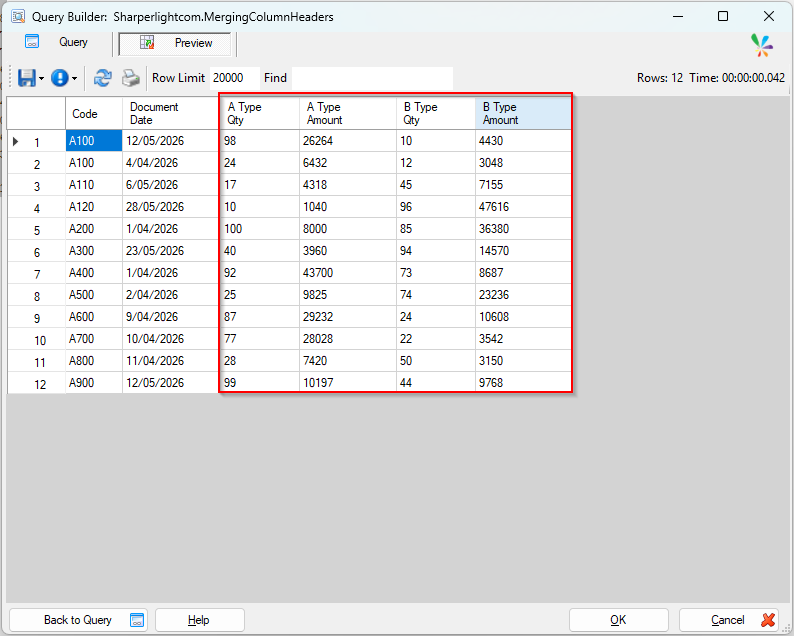
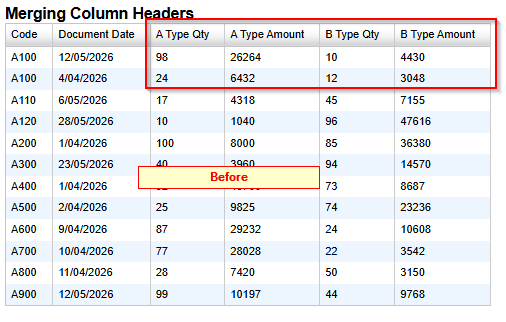
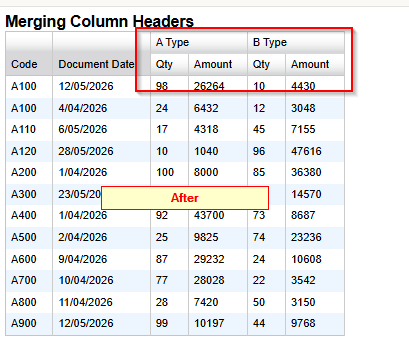
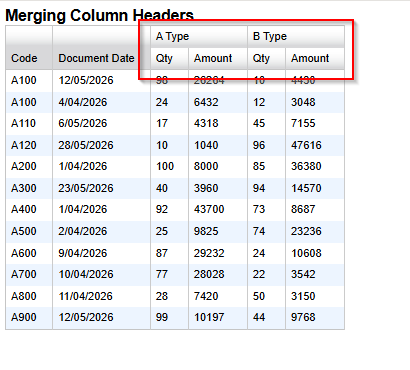
Here is a comparison of what the published report looks like before and after applying the header merge.
Practices
Open the Query definition of the published report.
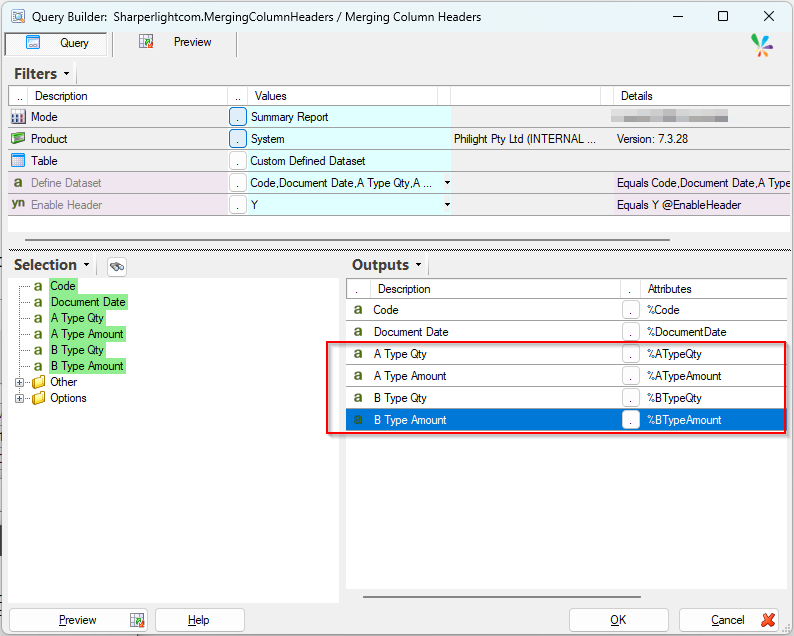
We want to merge the headers for the ‘A Type Qty’ and ‘A Type Amount’ columns, as well as the headers for the ‘B Type Qty’ and ‘B Type Amount’ columns.
We can achieve this by using the special keyword ‘Group=’ within their description.
Let’s edit the description for ‘A Type Qty’ output item.
Open the ‘Rename Output Description‘ dialog via the right-click menu.
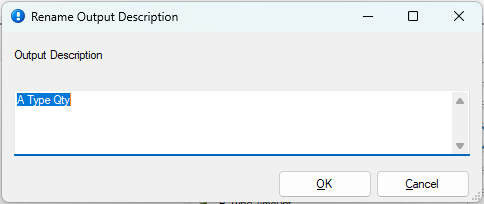
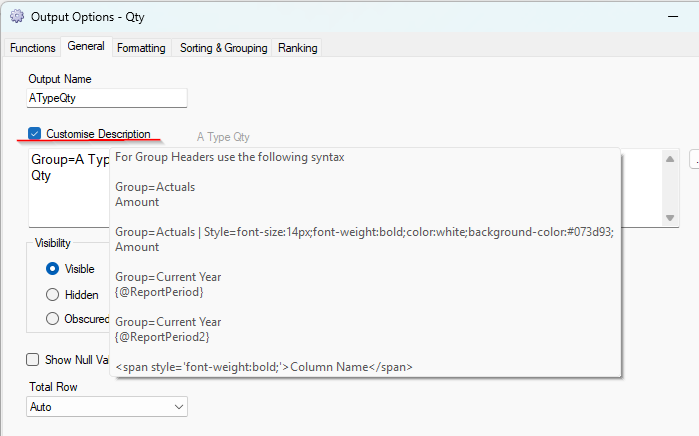
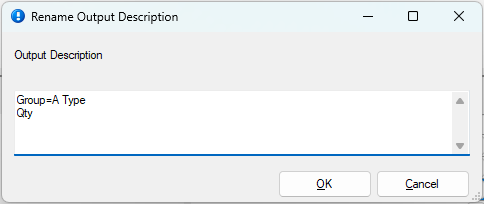
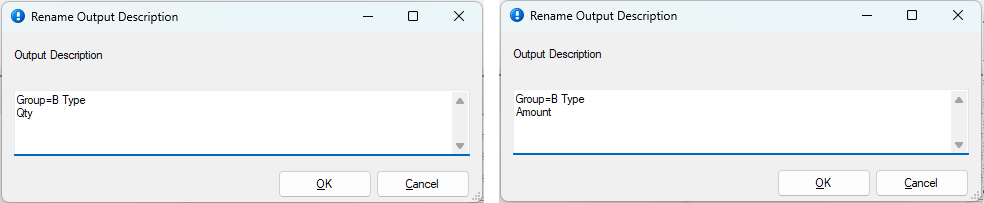
Set the description to ‘Group=A Type’. This ensures that all columns sharing the ‘Group=A Type’ keyword will be merged under a single header.
Then place ‘Qty‘ on the next line.
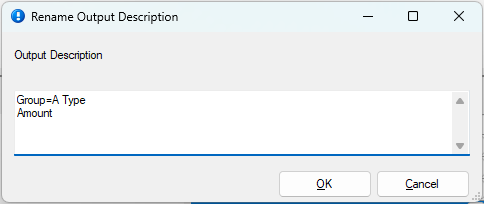
Apply the same configuration for ‘A Type Amount‘ output item.
Do the same for the ‘B Type Qty’ and ‘B Type Amount’ output items.
That’s it! Save the query and the report, then open it in your browser. It should now look like this:
Afterword
This is explained in the tooltip that appears when you hover over the Customize Description checkbox as well.