
Prompt Integration – Layout
Introduction
I have designed a dashboard-style report using the Layout option in a published report. I would like to use a single prompt to control all the other reports within the layout.
How can I achieve this?
Practices
Overview
This example is configured with three published reports.
The first report at the top of the layout is referred to as the “Sender” in this post. It sends the selected value of the Company filter to the other reports in the layout.
The second and third reports are referred to as “Receivers” in this post.
When a company is selected using the prompt, the selected company is passed to the two Receiver reports, and their figures are automatically refreshed based on the selected company.
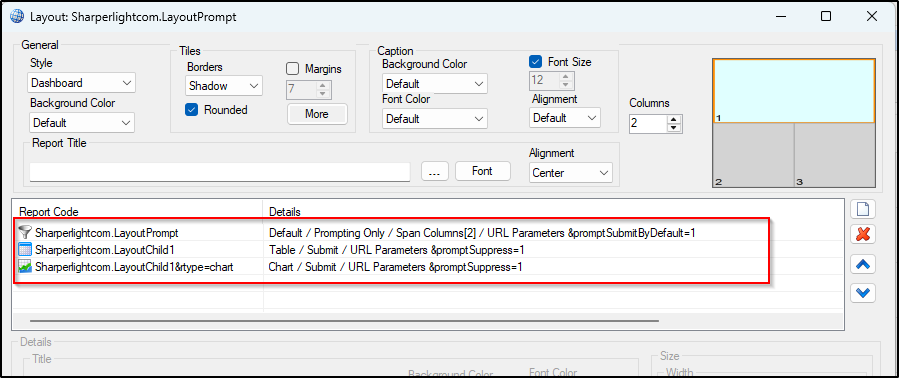
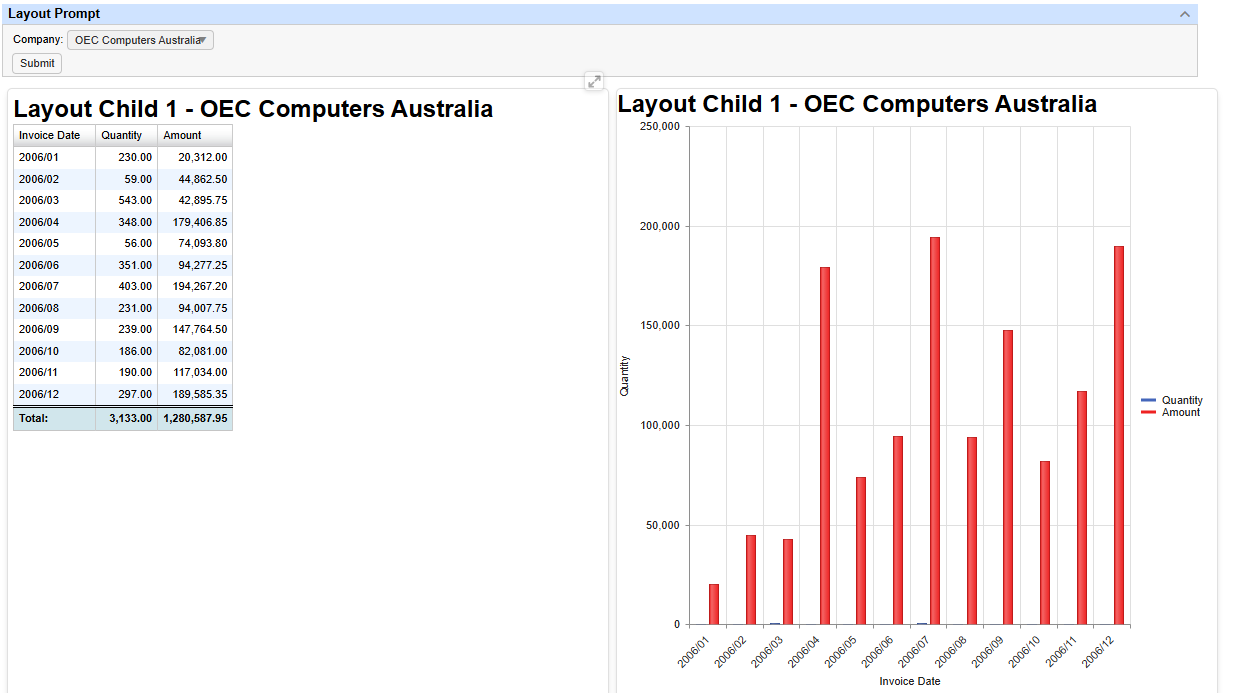
The Settings
Name of the prompt (Filter): This is the global link code between “Sender” and “Receivers“ and the names should match, the company selected in the prompt (Sender) is sent to both child reports (Receivers) by using the name.
- The name of the company filter for “Sender“: “Company”
- The name of the company filter for “Receivers“: “Company”

Layout options for Sender: The following options need to be ticked to make the report as “Sender” report.
- Submit by Default: Ticked
- Prompting Only: Ticked
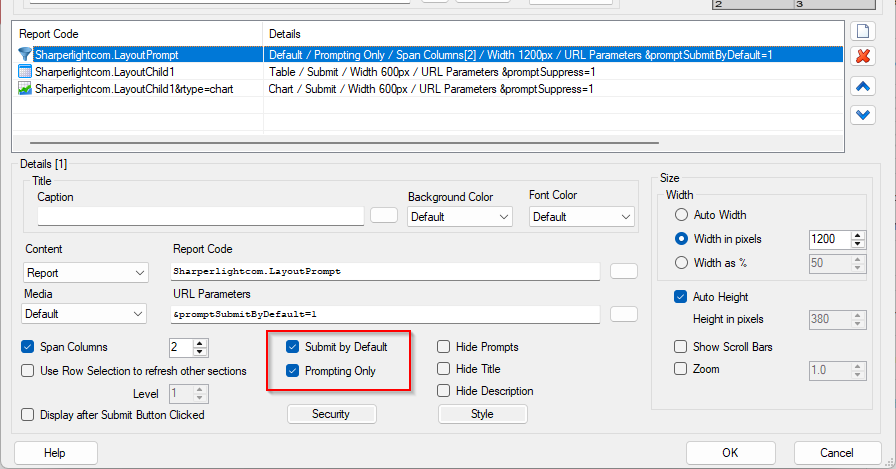
Layout options for Receivers: The options mentioned below need to be ticked. (These are the common settings for each receiver)
- Hide Prompts: Ticked
- Display after Submit Button Clicked: Ticked
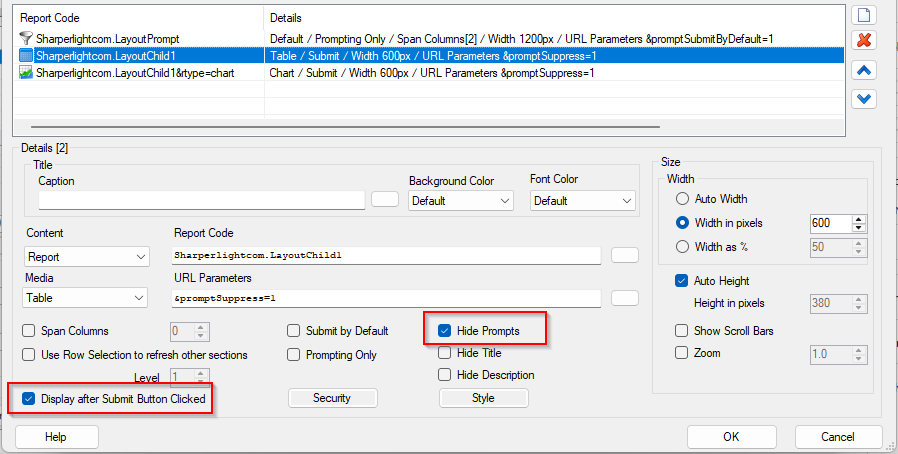
Afterword
These are the basic steps for linking prompts across multiple reports arranged using the Layout feature. If you wish to implement the same functionality on a dashboard page, please refer to “Dashboard Page – Prompt Integration“.
For more advanced filtering capabilities, please refer to the Filter Pane functionality.