Print and Download Buttons on Reports
Sharperlight Web Channel Published Reports allow for custom HTML to be placed in many different locations of the Reports. The most commonly used locations would be the Header or Footer but HTML can be also placed inside the report as well. In this example a Print and Download button is placed at the top of the report by using the Publisher / Report / Header Edit Button.
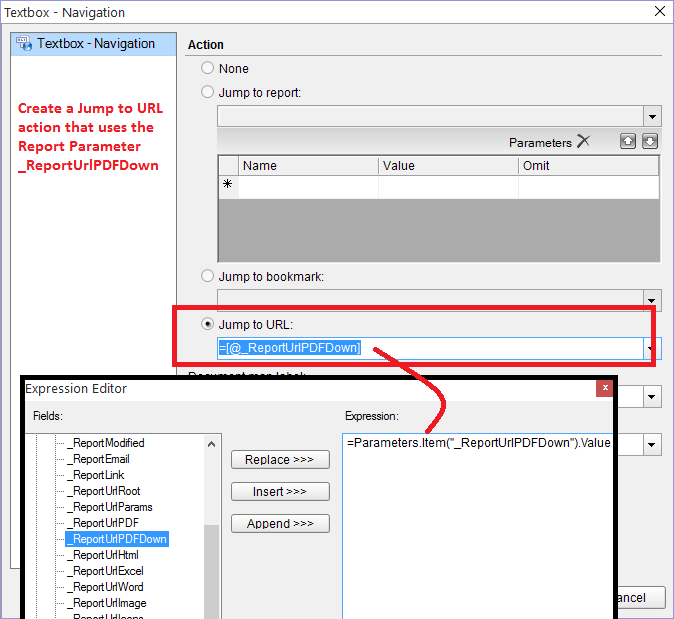
The second part of the article shows how to add actions to the Page Designer Report to do things like link to other reports or download the current PDF report
Download Published Report (Use Open in Publisher)
 Test.PrintOrDownload.pbq
Web Channel Published Report showing the Print and Download Buttons

Publisher Showing the Report Tab Enabled Header Button where the HTML for the Buttons can be pasted in

The Custom HTML in the Header of the Report showing the two Buttons and their onClick event javascript

<div style=’position:absolute;top:4px;right:30px;padding:0;margin:0;font-size:11px;’>
<button onclick=”
var report = document.getElementById(‘reportArea’);
report.focus();
report.contentWindow.print();
”
>Print</button>
<a href=” id=’forceDownload’ style=’visibility:hidden;’ target=’_blank’></a>
<button onclick=”
var url=$(‘#reportArea’).attr(‘src’);
if(url==”) return;
url= url+’&filename=MyFile.pdf’;
$(‘#forceDownload’).attr(‘href’,url);
document.getElementById(‘forceDownload’).click();
”
>Download</button>
</div>

Set the Jump to URL action on the TextBox object to reference the Sharperlight Report Parameters