Page Designer – Sub Reports
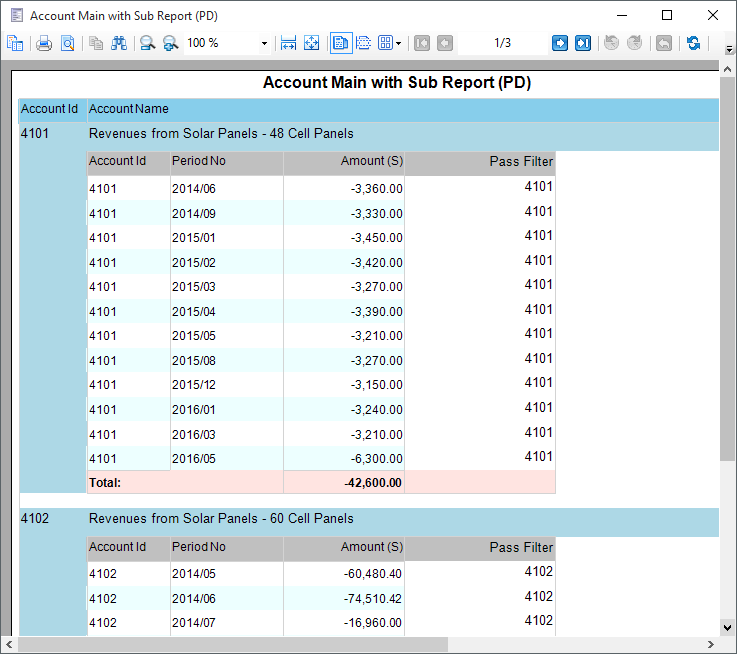
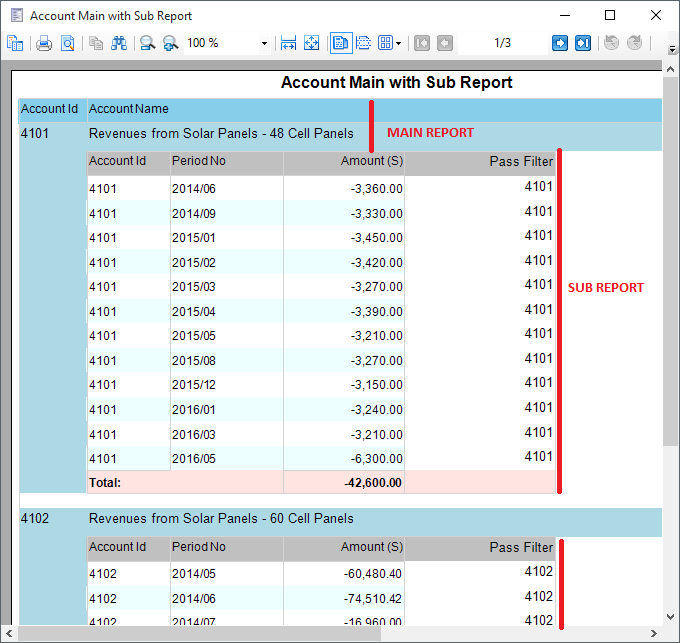
Publisher Page Designer can use multiple Queries to feed different sections of the Report Layout. However on occasions you may want to call out to another Published Page Designer Report and pass it a number of parameters. This Sub Report is reported for each group in the main report and can contain data rows and even charts. This article will give a very simple example where the main report will show an Account code and name and then call out to a Sub Report to show the Journal Balances by Period for that Account.
Note:
Care should be taken when creating Sub Reports over large datasets because the Sub Report is repeated for every record in the Main Report. If mistakes are made when linking the Sub Report filters to the outputs of the Main Report then many thousands of report pages may be created. For this reason the example use default filter values in the Sub Report in case the Main Report does not override then correctly during the testing phase.
Download Publisher Examples
 TestSubReport.pbqlist
Report Preview – Data based on Sharperlight Sample Accounting Data Database
The Basic steps can be summerized as follows
- Main Report – Define the Query data that will return the Account Id and Name.
- Main Report – Create a basic Page Designer Layout using a Table and Groups based on the Account Id
- Main Report – Set the Published Group to Test and Code to AccountsMain
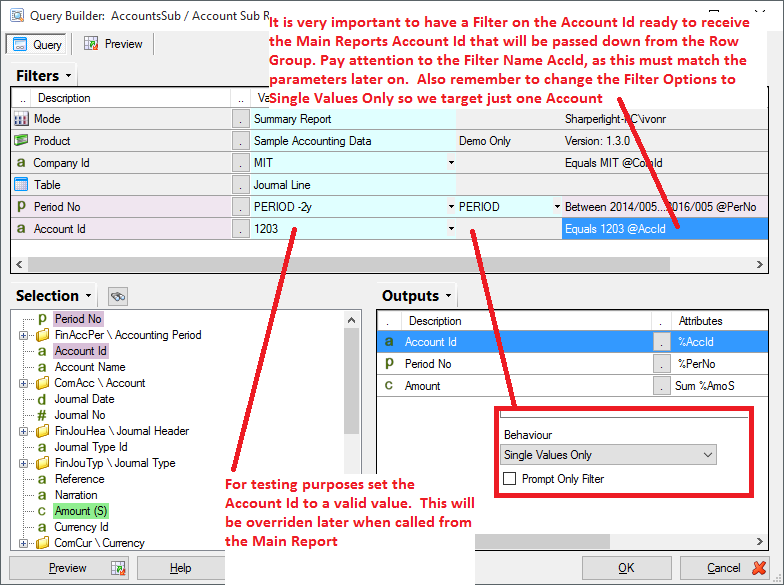
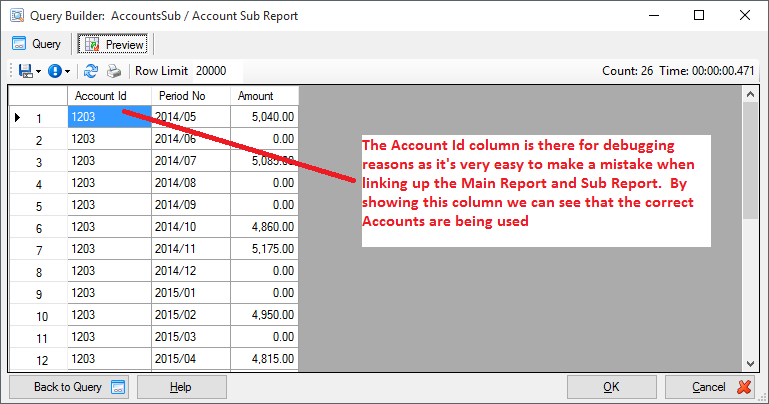
- Sub Report – Define the Query data that will return the Journal Balances by Period
- Sub Report – Ensure there is Filter on Account Id with a Name of AccId and it options have been set to Single Values only. This is very important.
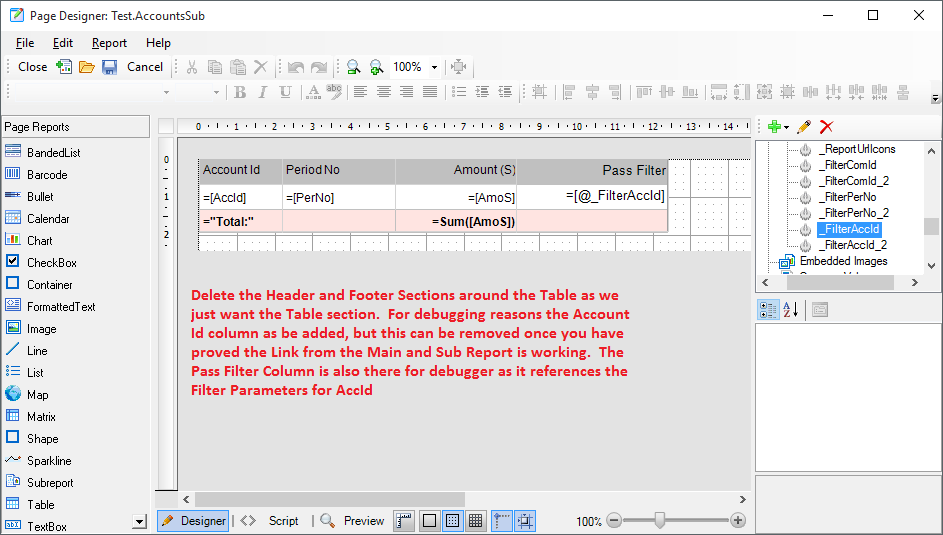
- Sub Report – Create a basic Page Deisnger Layout using a Table. Remove any header and footers
- Sub Report – Set the Published Group to Test and Code to AccountsSub
- Main Report – Drag and Drop the Subreport object into the Table Detail Row
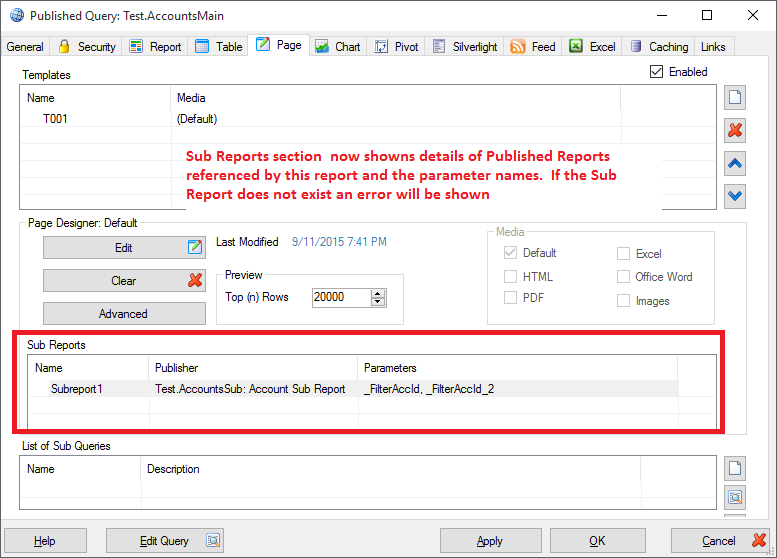
- Main Report – Link the Sub Report Object to the Published Sub Report by setting the ReportName property to the Sub Report Code. For example Test.AccountsSub
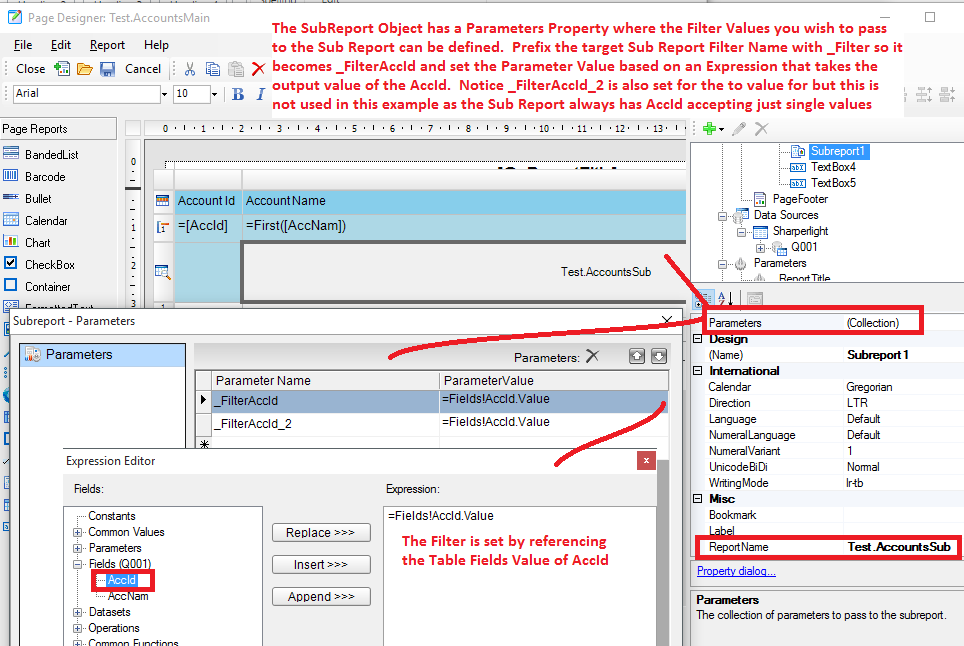
- Main Report – On the Sub Report Object create the Filter Parameter that will be passed to the Sub Report. Since the Sub Report has a Account Id Filter with the Name AccId these parameters will be named _FilterAccId with a Parameter Value set to equal the row data value for AccId =Fields!AccId.Value
- Main Report – Close Report
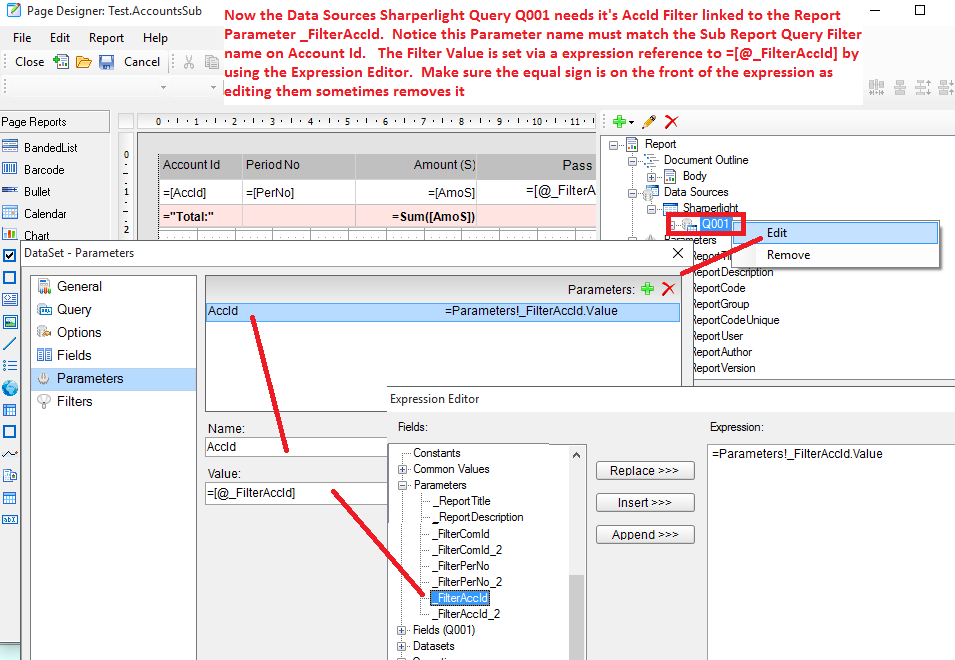
- Sub Report – Data Sources – Right Click the Sharperlight Q001 Query Data and select Edit
- Sub Report – Select Parameters and Add a parameter that matches the Account Id Filter name. For example AccId and set the value to reference the Parameter list for _FilterAccId =Parameters!_FilterAccId.Value. This will override the Account Id with the one passed down from the Main Report.
- Sub Report – Close
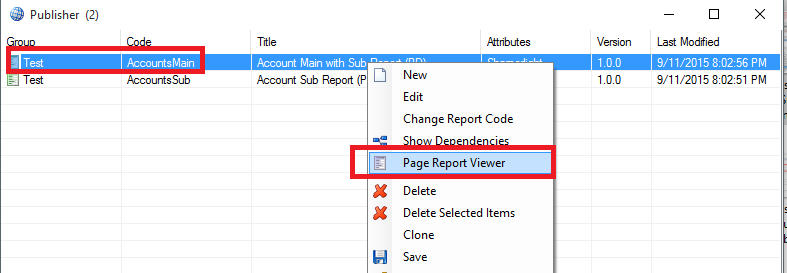
- In Publisher select the Main Report, right click and select Page Report Viewer to view and test the report
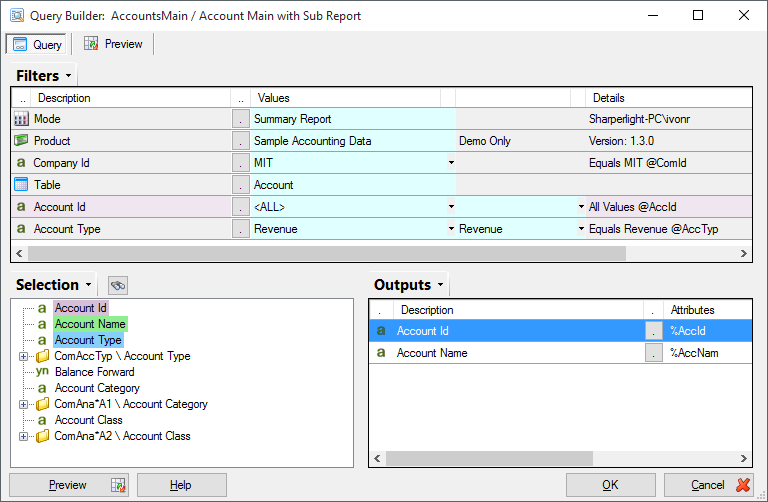
Main Report – In Query Builder define the Account Details
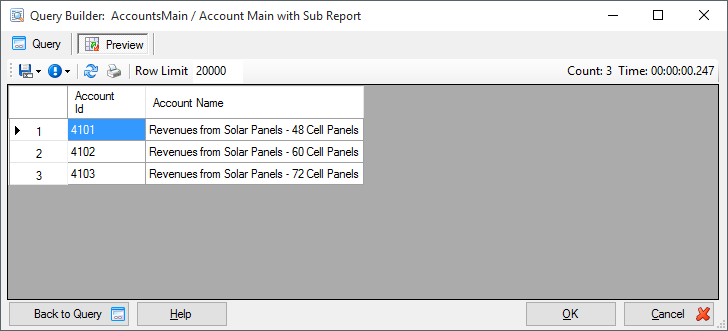
Main Report – Create a basic Page Designer Layout using a Table and Groups based on the Account Id


Sub Report – Define the Query data that will return the Journal Balances by Period


Main Report – Drag and drop in the Subreport object into the Table Detail Row
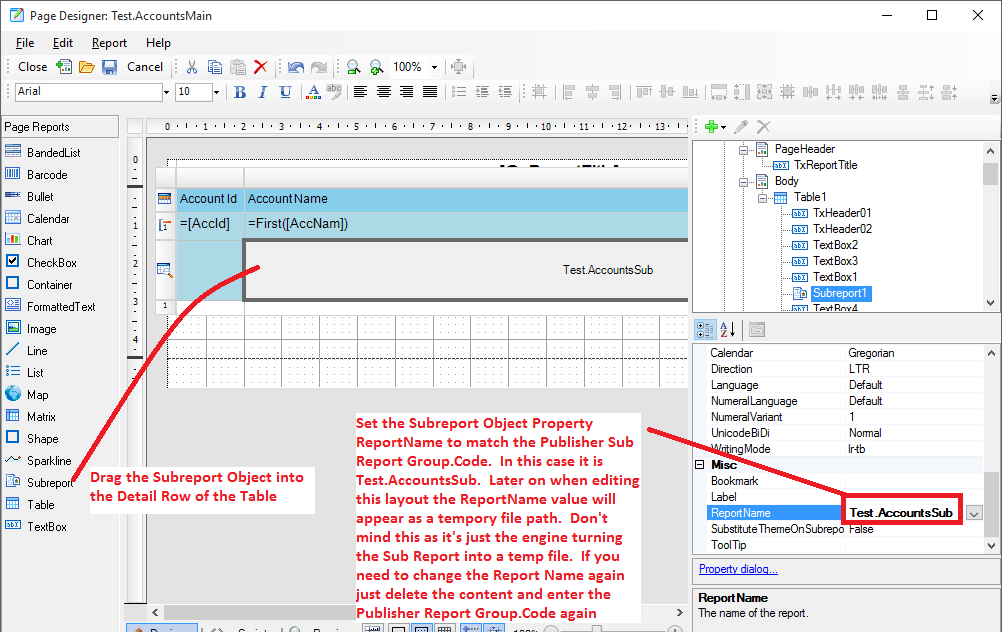
Main Report – On the Sub Report Object create the Filter Parameter that will be passed to the Sub Report. _FilterAccId
Sub Report – Edit Data Sources Q001 and add Parameter to override the Query Filter named AccId with the Report Parameter _FilterAccId
In Publisher select the Main Report, right click and select Page Report Viewer to view and test the report