
Page Designer – Vertical Text in Report Header
Page Designer is quite flexable but when rendering the design to various formats some of the layout features may not appear correctly. Vertical text is an example of this where it can appear correctly in PDF but not in any other formats. This is because not all document formats support rotated text and also the preview will size the text based on it’s horizontal width instead of it’s vertical height. As a work around this artical will explain how we can use an image instead in the Report Header to always get the correct format no matter the document type.
Note:
The image object will use a url address generated by the script function Code.VertText(..). The url address points to the Sharperlight Web Channel to return the png image of the rotated text so you will need the Sharperlight Service to be running for this to work.
Steps:
1) Create your report as you normally would
2) Copy the VB.NET Script below into the Script tab
3) Replace the TextBoxs in the Report Header with Images where required
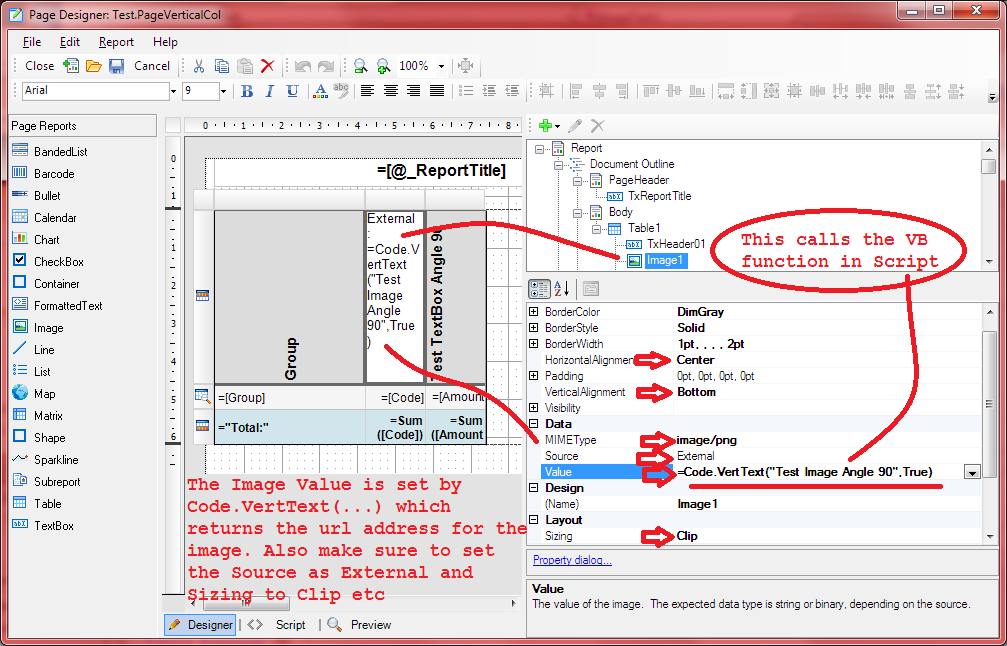
4) Set the Image properties as per the screen shots and set the image value to call =Code.VertText(“My Column Label Goes Here”)
5) If a background colour is required on the Header section use the main table BackgrandColor property not the Header row BackgrandColor

The screenshots below show how both TextBox and Image compare when viewing the report in various formats.
Notice that only Image works in all formats while TextBox only works in PDF

The following VB.NET Script is required to generate the Image URL address that will point to the Sharperlight Web Channel. The Web Channel will return a png image of the vertical text. The Function VertText is called as a Expression on the Image Value

Screenshot of the Image and it’s properties. Set the image value to call =Code.VertText(“My Column Label Goes Here”)
Notice that Code.VertText(… ) has various parameters such as text, bold, fontSize, fontColour, backColour, wrapLength
Download Publisher Example (Use Publisher Import)
 TestPageDeisgnerVerticalText.pbqlist
Paste this Script into the Script Tab in Page Designer
Public Function VertText(text As String) As String
Return VertText(text, True, 0, “”, “”, 0)
End Function
Public Function VertText(text As String, fBold As Boolean) As String
Return VertText(text, fBold, 0, “”, “”, 0)
End Function
Public Function VertText(text As String, fBold As Boolean, fSize As Double) As String
Return VertText(text, fBold, fSize, “”, “”, 0)
End Function
Public Function VertText(text As String, fBold As Boolean, fSize As Double, fColor As String) As String
Return VertText(text, fBold, fSize, fColor, “”, 0)
End Function
Public Function VertText(text As String, fBold As Boolean, fSize As Double, fColor As String, bColor As String) As String
Return VertText(text, fBold, fSize, fColor, bColor, 0)
End Function
Public Function VertText(text As String, fBold As Boolean, fSize As Double, fColor As String, bColor As String, wrapLength As Integer) As String
”Use the Sharperlight Web Channel to create Image or vertical text (The Service must be running)
”return URL address for a Image value of MIMEType=image/jpeg Source=External
”http://localhost/mdService1Rest/ImageText/?text=SharperLight Test&fsize=12&fName=Arial&fRotate=90&fColor=Black
If fColor.Trim().Length = 0 Then fColor = “Black”
If fSize < 3 Then fSize = 11
Dim urlAddress As String = Report.Parameters!_ReportUrlRoot.value.ToString() _
+ “/ImageText/” _
+ “?text=” + UrlEncode(text) _
+ “&fsize=” + fSize.ToString() _
+ “&fName=Arial&fRotate=90” _
+ “&fBold=” + IIF(fBold, “1”, “0”) _
+ “&fColor=” + UrlEncode(fColor)
If bColor.Trim().Length > 0 Then
urlAddress = urlAddress + “&bColor=” + UrlEncode(bColor)
End If
If wrapLength > 0 Then
urlAddress = urlAddress + “&maxLength=” + wrapLength.ToString()
End If
Return urlAddress
End Function
Public Function UrlEncode(b As String)
Return b.Replace(“%”, “%25″).Replace(” “, “%20”).Replace(“&”, “%26”).Replace(“=”, “%3D”).Replace(“/”, “%2F”).Replace(“#”, “%23”).Replace(“+”, “%2B”)
End Function