
Applying Expressions to Sub-Total and Total Rows
By default columns in reports can use the output attributes to apply a Sum, Average, Min, Max or Count of the values above on the Sub-Total or Total rows.
Sometimes you may want to take control over the way the Total is calculated and use an Expression on the Total row instead. In the example below the Percentage was averaged by default based on the values above. We would rather divide the two amounts on Total row to get a more accurate percentage. To do this we will need to wrap the current expression in a function called IncludeTotalRows()

Change the existing Expression
DivSafe({%TotalTonnes},{%HMTonnes})
Wrape the IncludeTotalRows function around the existing Expression
IncludeTotalRows( DivSafe({%TotalTonnes},{%HMTonnes}) )

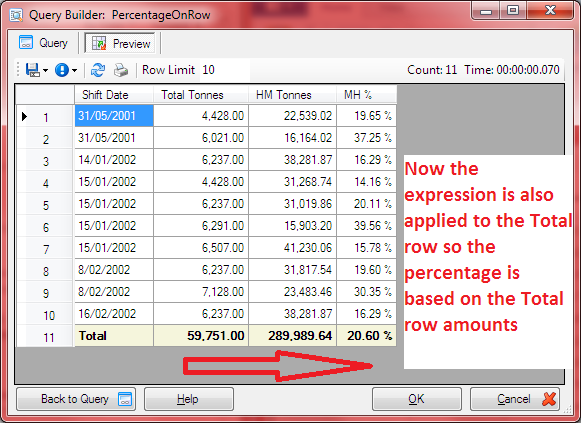
See now the Percentage Total is based on the two other columns on the Total Row instead of the values above
Related Functions are
TotalRowLevel()
This Function will tell you what type of row it is. It returns 1 for a Total row and 0 for a details row. If sub-totals are present then it will return 2,3,4…. etc as the sub-totals become deeper. If used with a IIF( ) statement you can change the expression results depending on the row type.