
When using a DateTime filter value in a filter subquery
Introduction
This article will share some tips on creating a list of search values for a Batch Number filter based on specified date and time values.
Here is the following dataset, which contains batch numbers. This batch number is populated with a datetime value.
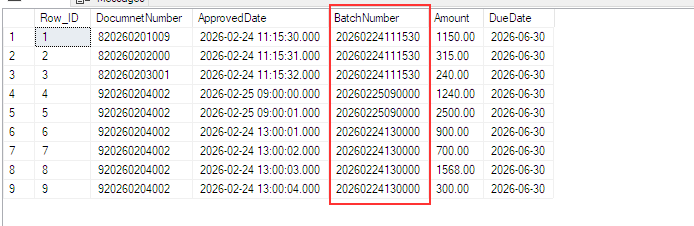
When creating filters for a query that uses this dataset, we want to generate the dropdown list of batch numbers for the Batch Number filter after the user selects a value in the datetime filter.
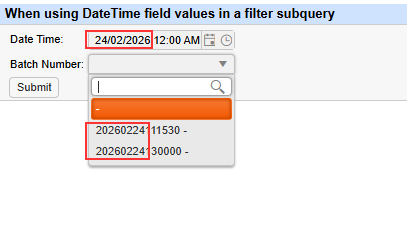
The Batch Number filter is implemented using a subquery that generates the list of batch numbers according to the value selected in the Date Time filter.
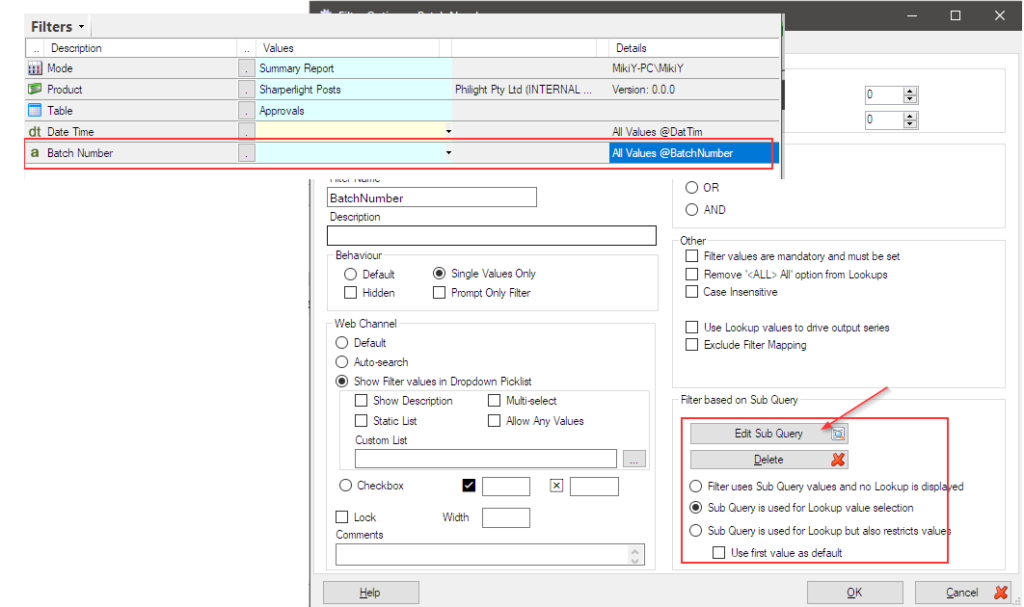
This subquery operates on the dataset shown above and applies the filter condition LIKE ‘{selected datetime value}%’ (e.g. LIKE ‘20260224%’).
A Sharperlight expression is used to construct this dynamic LIKE condition.
The details of the Sharperlight expression are explained below.
Practices
There is one thing to be careful about when creating the formula with the Sharperlight expression.
It is the value type passed from the Date Time filter to the expression.
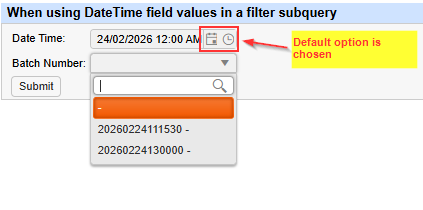
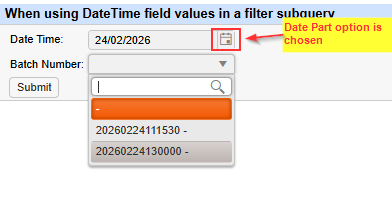
When the Default option is selected, the value is of DateTime type. However, when the Date Part option is selected, it is treated as a String type.
Therefore, the expression must be built in a manner appropriate to its data type.
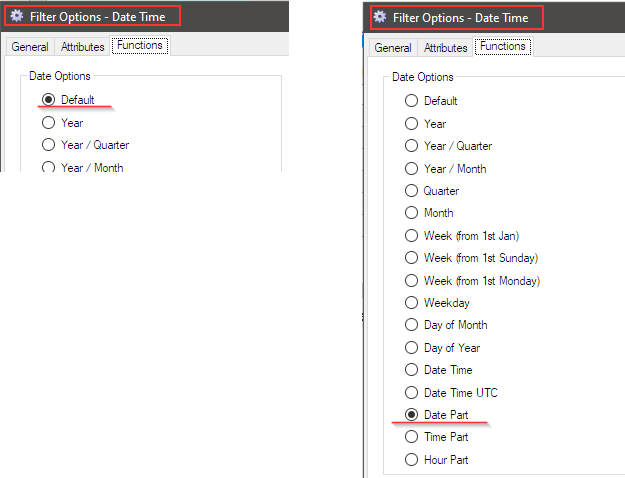
When the data type is DateTime
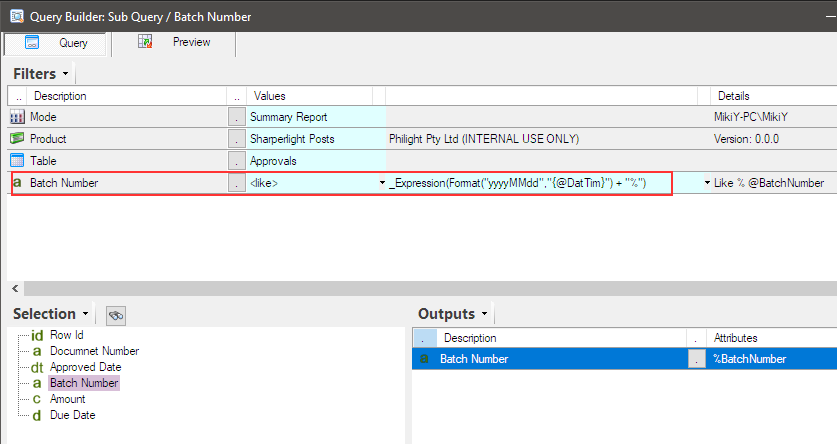
The Default option returns a DateTime value, which we need to format as “yyyyMMdd” to create the LIKE condition value, for example “20260224%”.
The expression can be use “Format( )” function;
_Expression(Format("yyyyMMdd", "{@DatTim}") + "%")“{@DatTim}” represents the value selected in the Date Time filter. It is used to create the LIKE condition value — for example, “20260224%” — based on the selected DateTime value.
When the data type is String
The LIKE condition value needs the Date part only basically so there is the option “Date Part” for the Date Time filter.
The Date Part option returns a String value and we cannot directly use the string value with the “Format( )” function.
The string value such as “24/02/2026” needs to be converted to DateTime type first for the “Format( )” function.
Therefore, we can use “DateTime( )” function and we can specify the parameter “en-GB” or “en-US” to support UK format or US format.
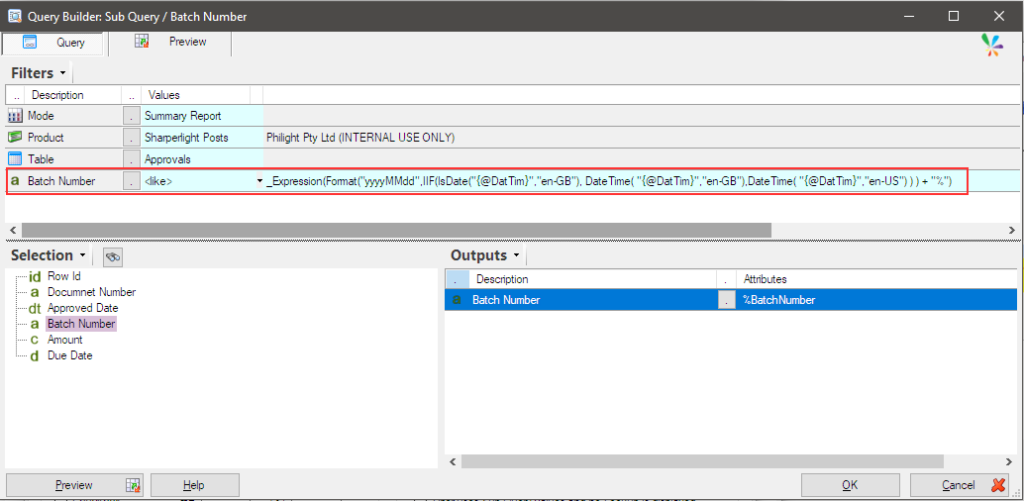
The final expression will look like this:
_Expression(Format("yyyyMMdd",IIF(IsDate("{@DatTim}","en-GB"), DateTime("{@DatTim}","en-GB"), DateTime("{@DatTim}","en-US") ) ) + "%")It uses an IIF statement to first determine the format of the value, then applies the appropriate format keyword — “en-GB” or “en-US” — to convert the string value into a DateTime value.
Afterword
This was just a small tip, but I hope it will be helpful when you are creating your reports.