Defining a Custom Sort Order
SharperLight relies on the Relational Database to sort the output Columns of the Report. When no sorting is defined the first three output columns are automatically sorted in ascending order. Occasionally the sort order of a Report column may have to be reordered into a sequence that is incompatible with the usual ascending or descending sort.
If your desire is to sort an Expression then this is not directly supported but is handled by creating Custom Fields based on SQL so that the Database Server can deal with the sorting.
Custom Fields and Joins – Basics
To solve this issue a special Expression exists that allows the order of values in a column to be listed in the desired sequence.
Based Steps
- Create the basic Report in Query Builder
- Determine the values of the target column that require attention with regard to their order
- Create an Expression and Open the Sorting Folder
- Select the Sorting template that best fits your requirements
- Change the 1st parameter of the SqlOrderrideSort( ) to match your target column
- Change the 3rd parameter to match the values and their custom order sequence
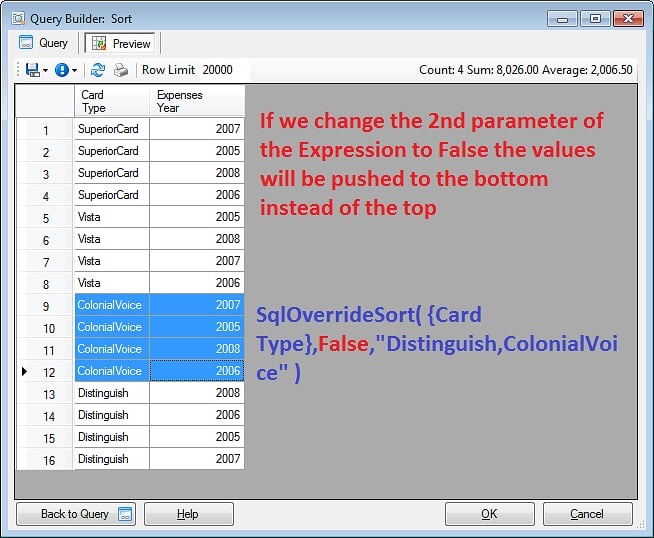
- The 2nd True, False parameter is used to push the custom sequenced values to the top or bottom of the Report.
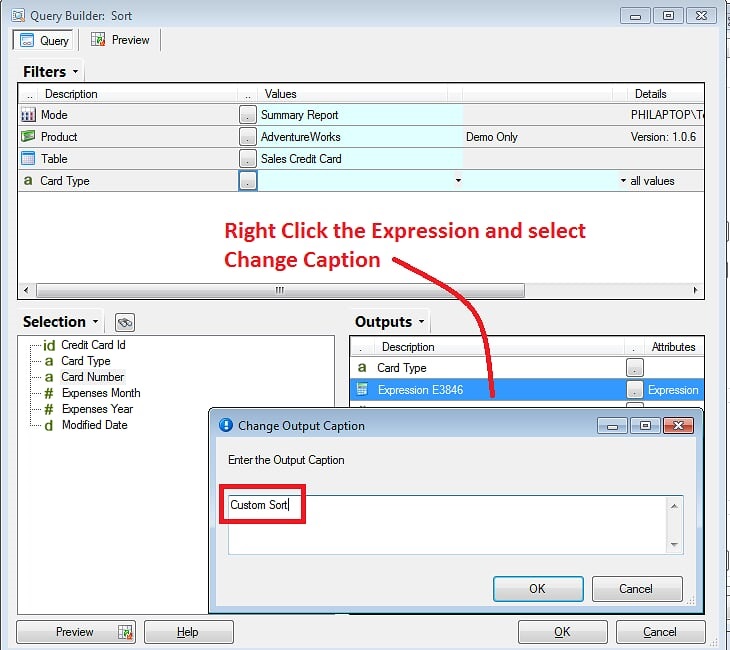
- Rename Custom Sort Expression
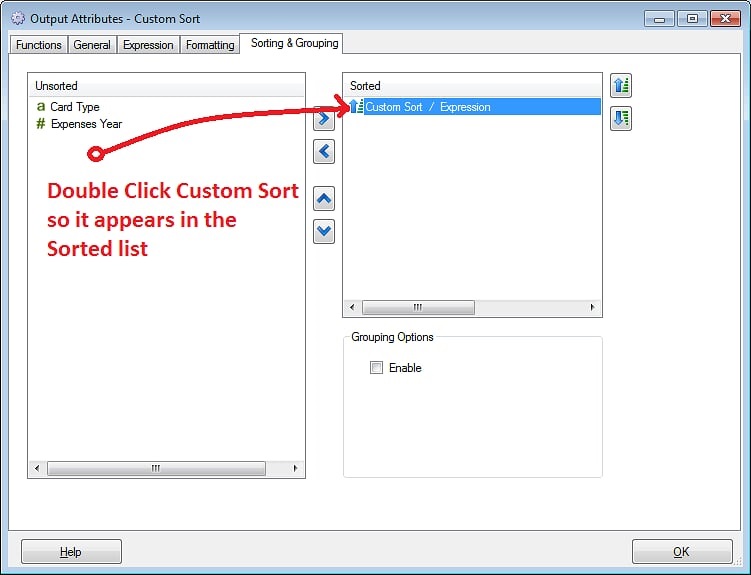
- Select Output Options and go to the Sort Table
- Put the Custom Sort Expression into the Sorted list
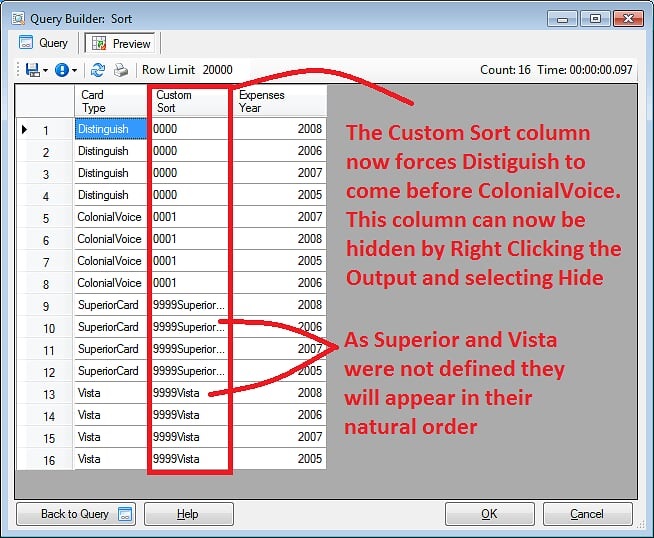
- Preview the Report Data
- Hide the Custom Sort Expression by selecting the Output field and selecting Hide
Note:
- It is possible to get SQL errors if the Custom Sort Expression is defined incorrectly or the Data Type does not match the data being sorted.
- Normally Expression will not appear in the Sortable list on the Sorting & Grouping Tab as they are calculated after the data is returned from the database. The only exception to this rule is the SqlOrderrideSort() expression
- The target column of the SqlOrderrideSort() expression cannot be another Expression but should be a SQL column of some form
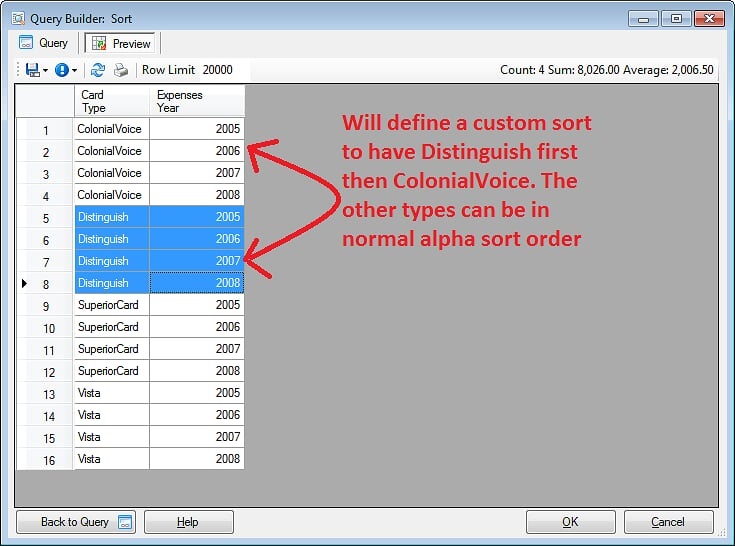
For this example we will reorder the Card Types Column
Before reordering
ColonialVoice,Distinguish,SuperiorCard,Vista
After reordering
Distinguish,ColonialVoice,SuperiorCard,Vista
Expression example
SqlOverrideSort( {Card Type},True,”Distinguish,ColonialVoice” )
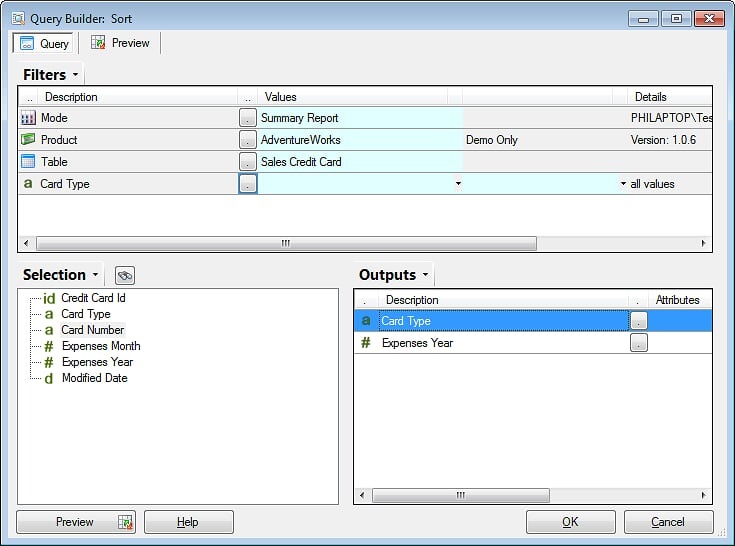
Create the basic Report in Query Builder
Preview the Data and determine the column values that require reordering
Create an Expression that will override the normal sorting order on the target column
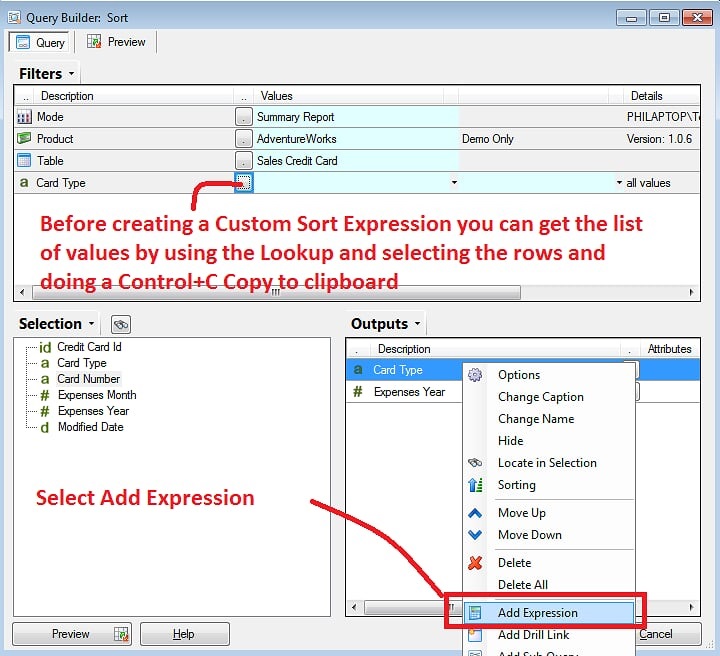
Use the Sorting Folder templates to start building the Custom Sort Expression
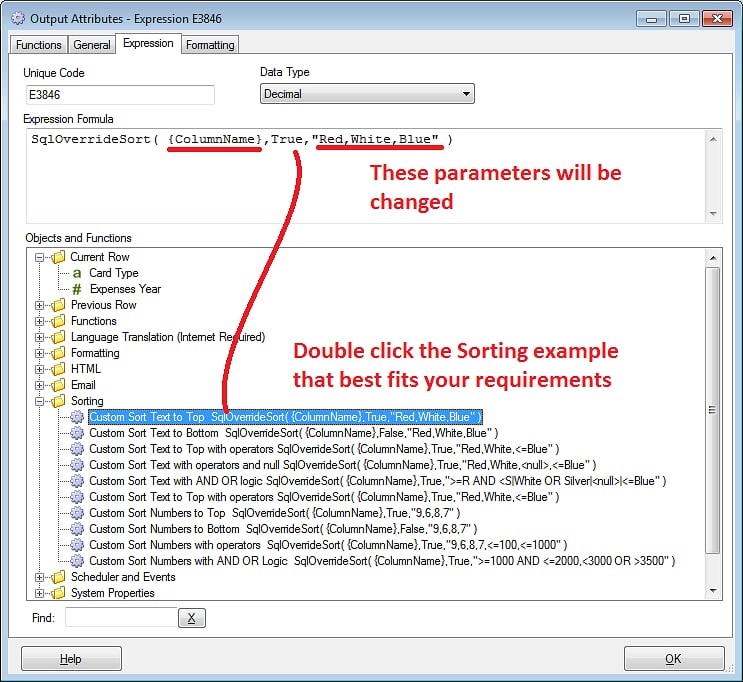
Change the Expression parameters to suit and set the Data Type to text in this example

Rename the Custom Sort Expression to Custom Sort.
Set the Expression as a Sorted output by selecting Options and selecting the Sorting & Grouping Tab
Preview the Data to check that the Custom Sort Expression has order the values into the correct order. The column can be hidden later by right clicking on Custom Sort output field and selecting Hide
By changing the 2nd parameter to False the values can be pushed to the bottom on the report instead of the top