
Tables
Tables are the central query object that end-users interact with in the Query Builder and they control the available fields and joins in the Query Builder Selection pane. To display a Table select the Tables item in the Element menu and then double click on the Table description in the Element pane. The selected Table will then be displayed in the Object pane. The Properties pane is context sensitive, so it shows the Table properties when the Table node is selected, it shows the Field properties when a field is selected and it shows the Join properties when a Join is selected.
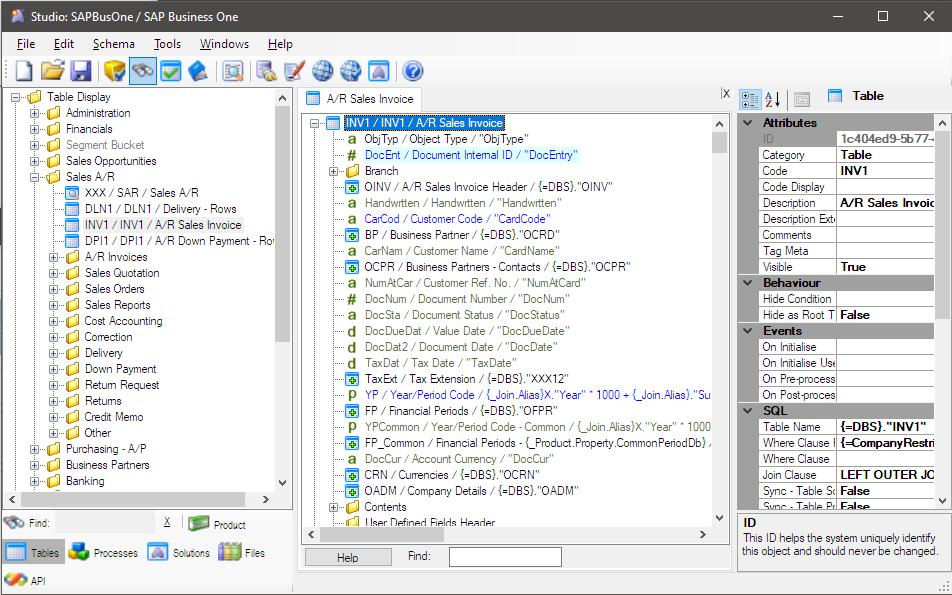
Sharperlight uses the term Table to generically describe a query object that end-users can access through the Query Builder. It does not have to be a database table and so for non-relational data sources the query object could be an in-memory object or a web service, and for a SQL compliant data source it could be database view, function, stored procedure or even a virtual table that is constructed on the fly.
| Item | Description |
|---|---|
| Attributes | |
| Code | This is an alphanumeric code that uniquely identifies this table in the Datamodel. It will be auto generated during a schema import and shouldn’t be changed once the Datamodel is in use. |
| Code Display | If this code is set it will over-ride the code displayed in the Query Builder. This code can be changed without affecting the existing saved queries. |
| Description | This is the table name displayed to the end-user, it is normally a Dictionary key but the description can be detached from the Dictionary and hardcoded. |
| Description Extended | This is an alternative description or descriptive sentence that explains what the table is meant to do and how end-users should use it. Extended descriptions are displayed in the Information window from the Query Builder Selection List. |
| Visible | Toggle between True and False to control whether the Table is displayed in the Table tree. |
| Behaviour | |
| Hide Condition | This is a conditional expression that uses Control Logic to decide if the Table should be hidden or shown based on the some conditional event or state. For example, the expression {?Filter.Mode}<>”Writeback” will evaluate to True in the Query Builder but evaluate to False in the Excel Add-in Writeback Solution. Thus, the Table will be hidden in the Query Builder but it will be shown and available for write-back in an Excel Writeback. |
| Hide as Root Table | Toggle between True and False to control whether the table is just displayed in joins and not displayed in the Table tree. |
| SQL | |
| Table Name | This could be something as simple as a database table reference like [dbo].[GL_SJHDR] or it could include Control Logic to inject references. For example, the expression [{?Filter[1].Database[1]}].[dbo].[GL_SJHDR] will add the Superfield reference to add the database to the table name. |
| Where Clause Root | This expression will be added to the generated SQL statement where clause but only when it is accessed from the Table tree and queried directly. For example, the expression deleted_at IS NULL is all that is needed to display records that have a NULL deleted_at date. The WHERE command is automatically added to the expression. |
| Where Clause | This expression works similar to the root clause above but it will be added to every query statement irrespective of whether the table is being queried through a join or directly as a root table. |
| Join Clause | SQL Join clause to be always applied whenever the Table is directly queried or linked to as a sub Table. |