
Query Builder – Annotations
The annotation feature within Sharperlight allows users to add annotations to reports that other users can see in real time. Annotations can be bound to the report as a whole, all the filters or a custom selection of filters and fields. It is live and acts similar to a chat feature. Annotations that are made can be seen by anybody who has access to that report, or filter/field values, depending on the mode selected. Annotations are linked to their code, which means that annotations are not limited to just one report. If the annotation code for one report was used in a different report, then all the annotations made previously will be visible and interacted with in the new report. All annotations made from then on will be visible in both reports.
Annotations work both in published queries (web) and in Excel and the annotations are carried across both platforms.
Setting Up
There are a couple of ways to enable Annotations.
- Both published query (web) and Excel: In the query builder, right click the outputs section or click on the dropdown menu and select Annotations.

- Published Query (web) only: In the published query Options, click on Annotations. This method also has a checkbox to the side that creates a button on the report when viewed in the web. This button will bring up the annotations for the report.

Whichever method is used, the Annotations screen will be as follows.

Unique Code
The unique code that the annotations for this report are bound to. This allows multiple reports to reference the same set of annotations. If there are two different reports with the same annotation code, these annotations will be displayed together. It is important to note that since the annotations are bound to the code, if the code was changed, only the annotations for the new code will be seen.
Mode
- None: Annotations are not enabled for this report
- Report Level: The annotations are specific to the whole report.
- All Filter Values: The annotations are specific to all filter values. The annotations are bound to the different combinations of filter values.
- Selected Items: Similar to the All Filter Values option, except users are able to select a custom set of filters and/or output filter values to bind the annotations to.
Options
- Clear Options: This allows old annotations to be cleared. There are 2 ways of clearing annotations, either by the age or by the row limit.
Selected Items
This is only available when the Selected Items mode is selected. This is where users are able to select the filters and/or outputs to use.
Buttons
- View: Displays all the annotations that are linked to that unique code.
- Delete All: Deletes all the annotations for that unique code.
Once these settings are filled out, Annotations will be enabled and fully functional. Right clicking (double clicking in Excel) a row, field, or report will bring up a menu where Annotations can be selected.
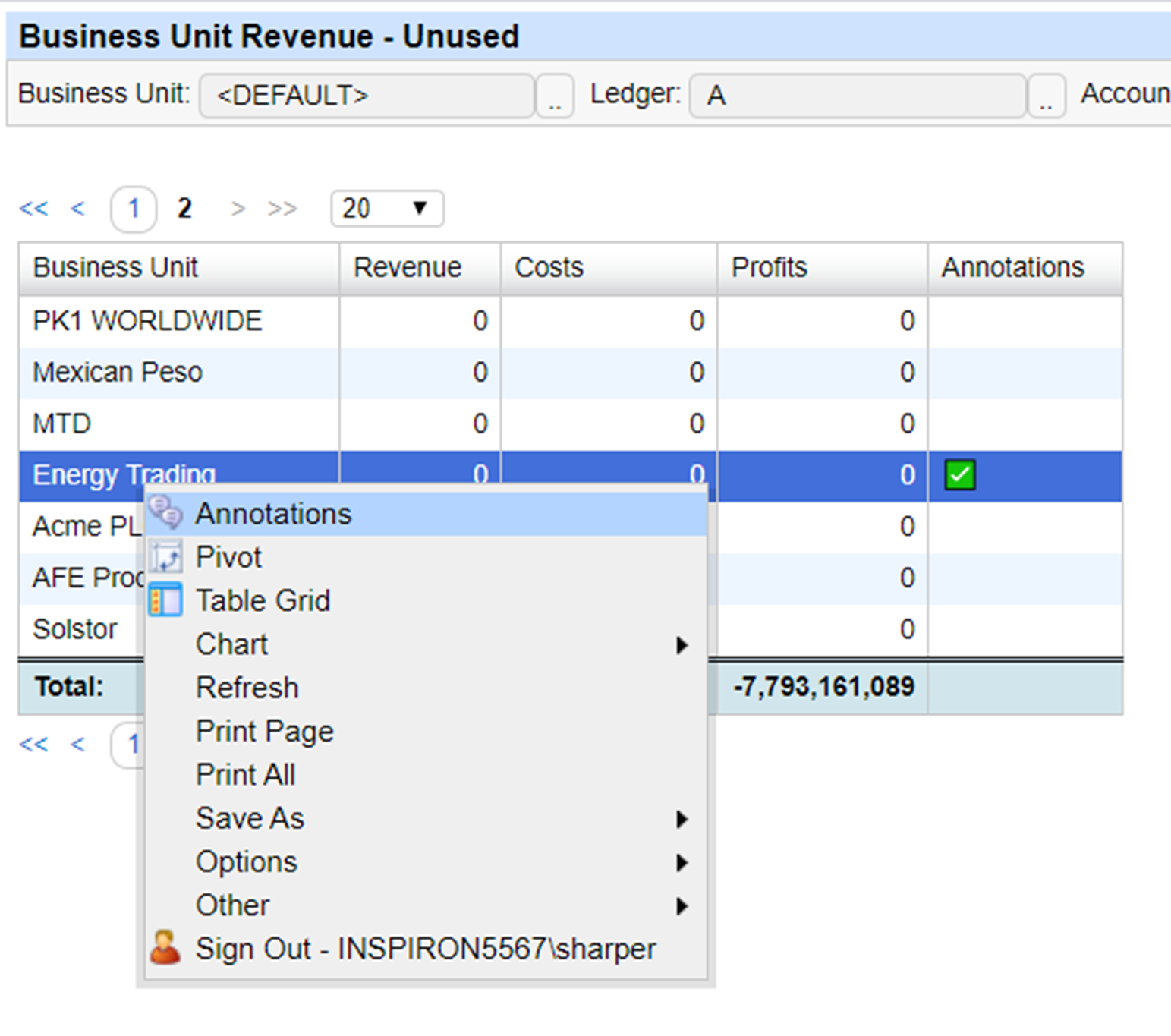
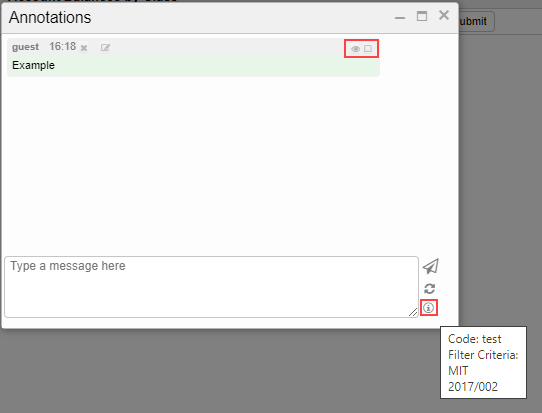
This will bring up a chat like interface where users can enter and receive annotations live. There are 3 buttons next to the text box: submit, refresh and info. Info will bring up a tooltip that shows the scope of the annotations. If the web interface is used, annotations can also be marked as seen or checked off. Annotations can be edited within 1 minute of posting and deletions can be done up to 30 minutes after posting.
Annotation Expressions
With annotations enabled, users can easily tag parts of reports and communicate with each other. However, there is still no indication on which areas of the report (if any) have an annotation attached to it. This is where an expression needs to be added to the query. There are many different options available, with the most common being icon/symbol. The icon/symbol allows users to see which areas of the report have annotations added to them. If using in Excel or PDF, please use the Excel and PDF friendly options. This is because the Annotations Icon for the web interface uses HTML, which is not available in Excel. Clicking the icon in the web will bring up the annotation, while in Excel, double clicking the row will have a similar effect.
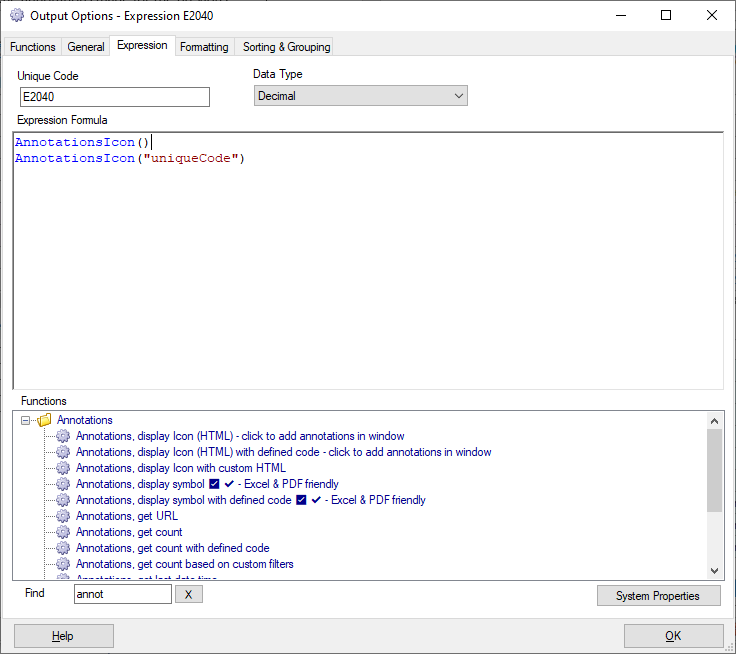
The Annotation functions can be set to reference a particular Annotation code, if left blank, it will default to the current annotation code set in this report.
Another useful function is the AnnotationsLastDateTime() which retrieves the date time of the most recent annotation. This allows users to determine how old the annotations are without opening the interface.
Query Annotations
Users are also able to query annotations, instead of manually looking through all filter/output field combinations. This allows users to quickly see all the annotations made for that unique code and all its details. The query also has fields which separate the unique code into group and code, which means that if all the unique codes follow the naming convention of putting the group at the start of the code (i.e. Group.Code), this will allow for more reporting capabilities, as the user can now see all the annotations made for the whole group. Filtering by Author or Date time is also extremely useful, as it allows users to find all the annotations made by a particular user or all the annotations made in a certain time frame.
