Google Docs Spreadsheets – Report Integration
Google Doc Spreadsheets are a great way to create datasets in the Cloud that can then be reported over in their own right or be used to extend reports over other Products with addition information. The Spreadsheet data can be filtered, aggregated and grouped as if it were coming from a Database just like any other Table. The data held in the Google Spreadsheet can be updated by selected users through the Browser. Reports created in Excel, Explorer, Reporting Services or the Web Channel can all reference and share the Google Docs Spreadsheet data in a speedy fashion as the data is automatically cached by SharperLight
Extending existing Products
Sometimes the Product that you are reporting over is missing additional attributes such as a Currency rate, Budget Costs or a rating of a Custom Code for example and there is no way to add and store these inside the original Product. Google Spreadsheet can be used to create a Lookup Table that SharperLight can reference using Sub-Queries from the Main Report. For example the main report is over an Accounting System and lists most of the Account Code details. The main report Query also has a Sub-Query that matches up the Account Code with a Google Doc Spreadsheet Account Code column and then retrieves the additional column attributes that we need in the report.
The basic steps for using a Google Doc Spreadsheet as a Report Dataset is as follows
- Ensure you have a Google Docs Account
- Log into the Google Docs web page
- Select Create Spreadsheet
- Enter data into the Spreadsheet in Table form with Column Names on Row 1
- Save the Spreadsheet
- Start Query Builder using Publisher, Excel, Explorer or directly
- Select Summary Report and the Product System
- Select the Table called Google Spreadsheet Tables
- Enter your Account Details
- Enter or Select the Spreadsheet unique key
- Dragon the Speadsheet Fields into the Output and Filter sections to create a Qieru
- Preview the Data
- Setup Sharing options with other users so they can also have read or edit access to the data
Notes:
- Sharperlight will cache Spreadsheet data to improve performance
- Query Builder allows the Spreadsheet to be sorted, grouped and aggregated etc, as if it were in a Database Table
- You can merge the Google Doc Spreadsheet with other Product Table Reports by using Output Sub-Queries
- If a report requires a Sub-set or group of Filter values to drive a report that changes over time it is possible to create a Filter Sub-Query that gets the list of codes/values to filter on from a Google Docs Spreadsheet. One simply edits the Google Docs Spreadsheet when the codes need to change and all the Report referencing it will change accordingly when they are needed to be recalculated
- If you publish a report you can hide your account details, also your password details are encrypted by using the Filter hide option
Create a Google Docs Spreadsheet
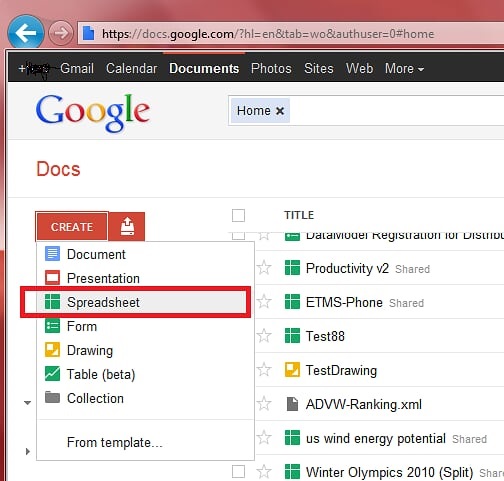
On the Google Docs web site select Create Spreadsheet
Add data to Spreadsheet
As we would like to use the Spreadsheet to feed reports, the data should be organized so it resembles a Table with the first Row being reserved for the names of Fields and the row under containing the values. The values can also be based on formulas
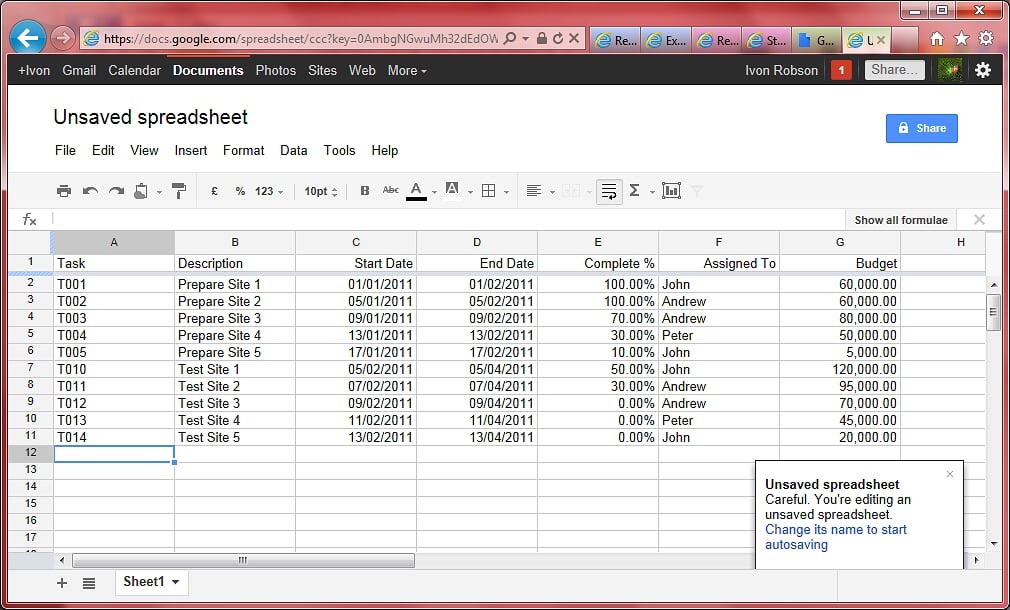
Task Description Start Date End Date Complete % Assigned To Budget
T001 Prepare Site 1 01/01/2011 01/02/2011 100.00% John 60,000.00
T002 Prepare Site 2 05/01/2011 05/02/2011 100.00% Andrew 60,000.00
T003 Prepare Site 3 09/01/2011 09/02/2011 70.00% Andrew 80,000.00
T004 Prepare Site 4 13/01/2011 13/02/2011 30.00% Peter 50,000.00
T005 Prepare Site 5 17/01/2011 17/02/2011 10.00% John 5,000.00
T010 Test Site 1 05/02/2011 05/04/2011 50.00% John 120,000.00
T011 Test Site 2 07/02/2011 07/04/2011 30.00% Andrew 95,000.00
T012 Test Site 3 09/02/2011 09/04/2011 0.00% Andrew 70,000.00
T013 Test Site 4 11/02/2011 11/04/2011 0.00% Peter 45,000.00
T014 Test Site 5 13/02/2011 13/04/2011 0.00% John 20,000.00
Save the Spreadsheet
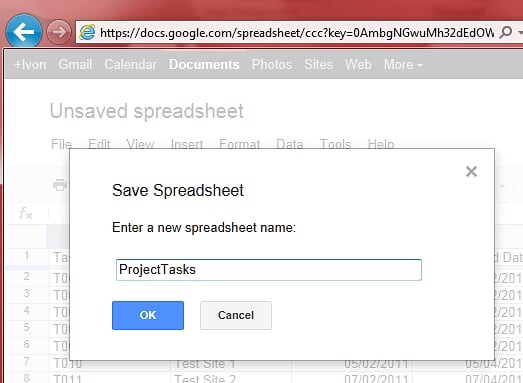
Give the Spreadsheet a name and Save it. Google Docs will allocate the Spreadsheet a unique key that we will reference in SharperLight later
Start SharperLight Query Builder
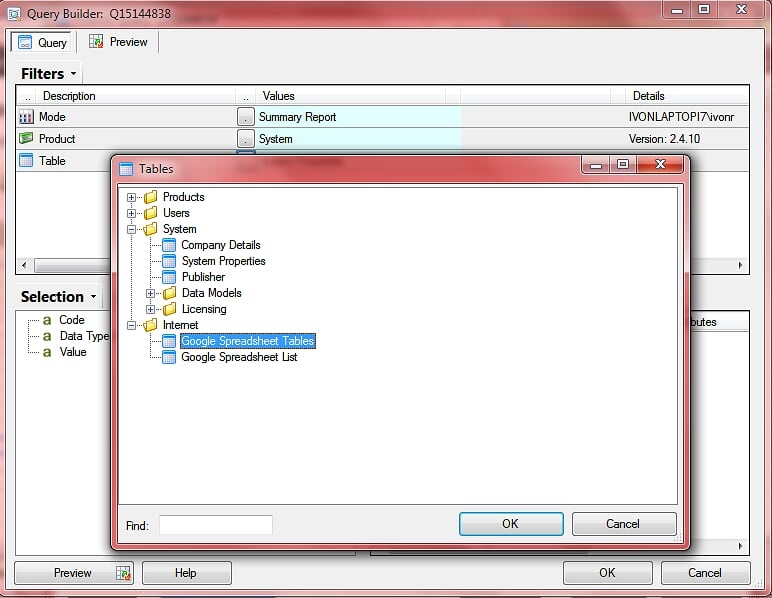
Launch Query Builder from Excel, Publisher or Explorer and select the Query Mode Summary, Product System then the from the Table Lookup select Google Spreadsheet Tables
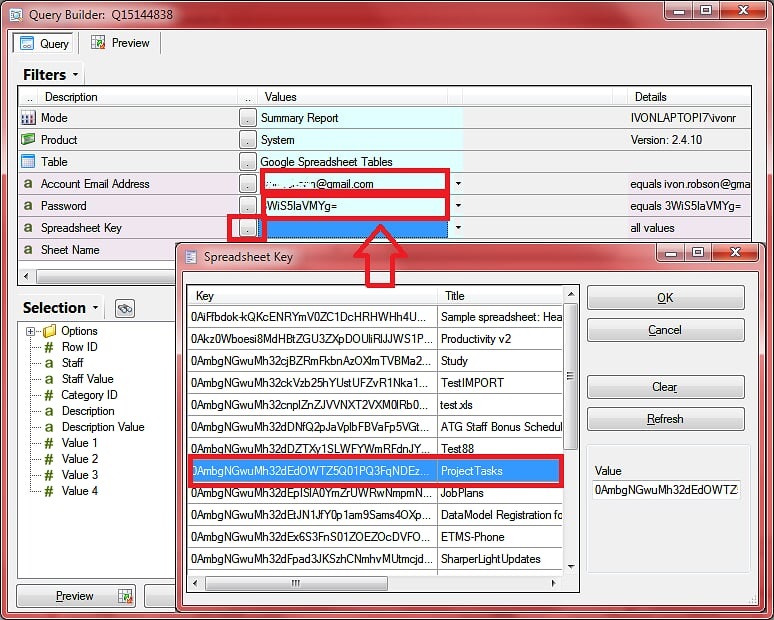
Enter the Account details and the Spreadsheet Key
Enter your Google account email address and password. Use the Lookup button next to the Password to enter your password. The password will be encrypted to protect it. Note that if the Spreadsheet has been made public by sharing then the email address and password is not required. Next use the Spreadsheet Key Lookup button to select the unique key that Google have assigned your Spreadsheet
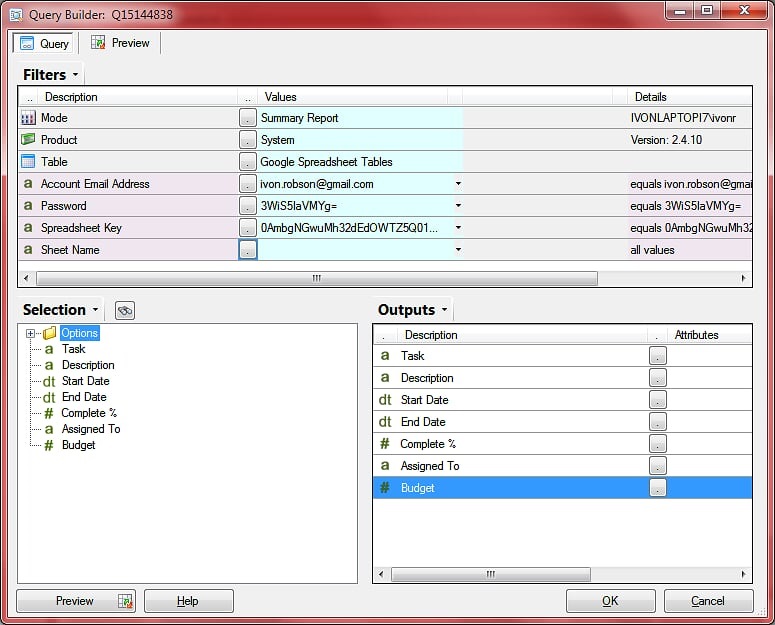
Select Fields to Filter and Output
If there is more than Sheet in the Spreadsheet you can use the Sheet Name to select the Target Sheet. Once all the details have been selected the Fields that are available in the specified Sheet or default Sheet Name will appear. You may now Filter and Output the Fields as you would with any other Table.
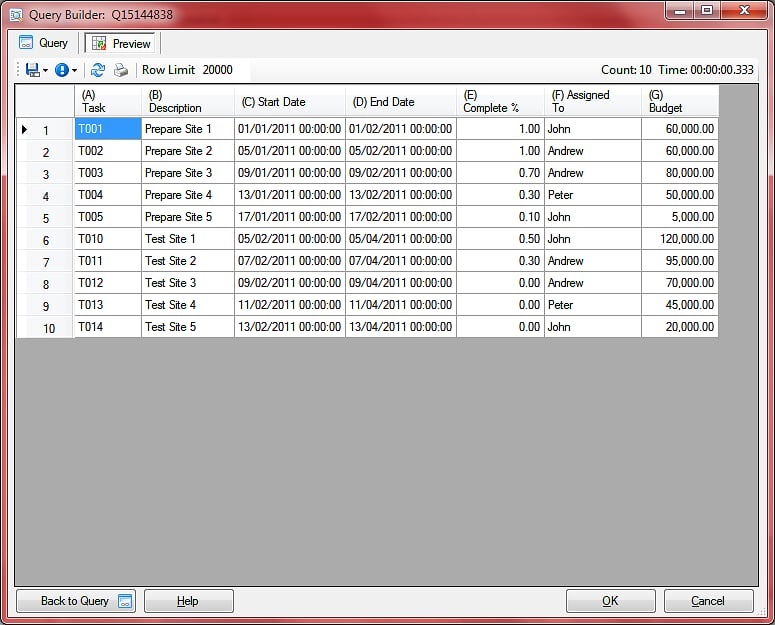
Preview the Data
SharperLight will automatically cache the data and will only refresh the cache if the Google Spreadsheet is modified to improve performance.
Modify the Query to Aggregate the Values
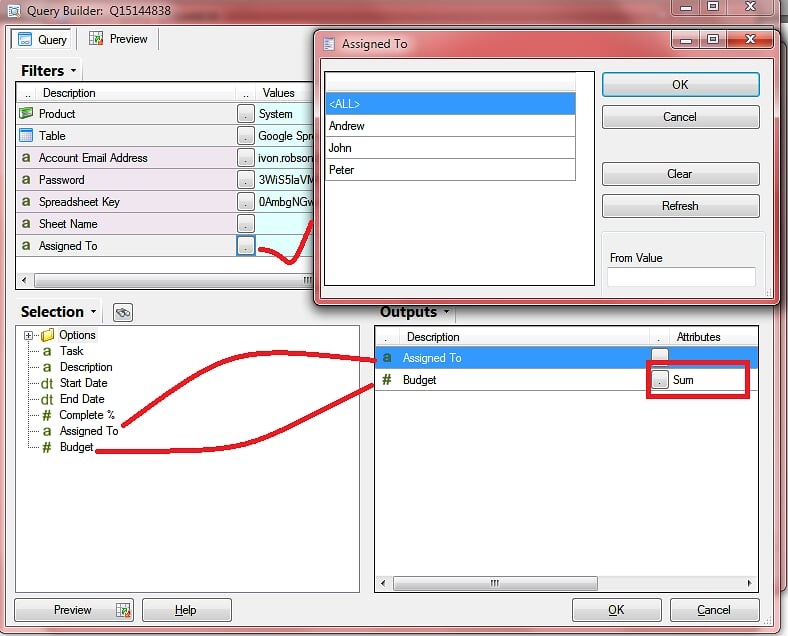
Modify the Query to show Total Budget by Assignee. Filter on the Assignee, notice the Lookup picks up the distinct list of Assignee names from the Spreadsheet. Output the Budget field and Double Click it so that if Function can be set to Sum() . The Data may be Filtered, Sorted and Expression added just like you would with any Table that is read from a Database
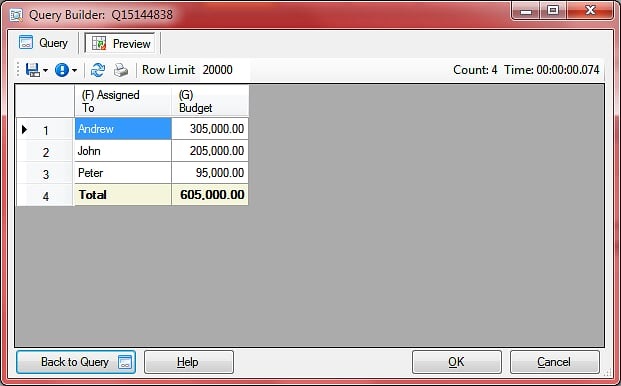
Preview the Aggregated Data
Noticed the Budgets have been Summed by Assigned To
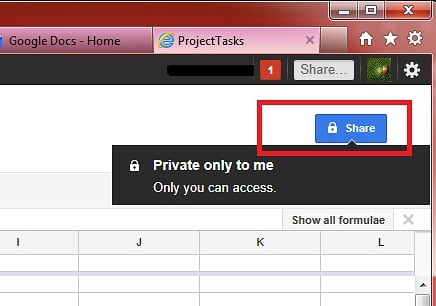
Google Docs Sharing Options
You may want to restrict the Google Doc to a select list of Accounts or even make the Sheet freely available to those who you give the unique Spreadsheet key to
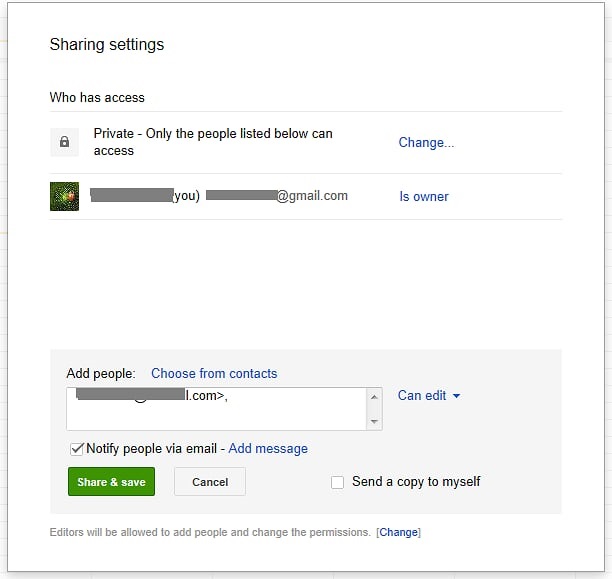
Share with selected Users
Add people with whom you wish to share the Spreadsheet. They will then be able to use their own Google Account to read your data or if you give them edit permissions they can also update the Spreadsheet.
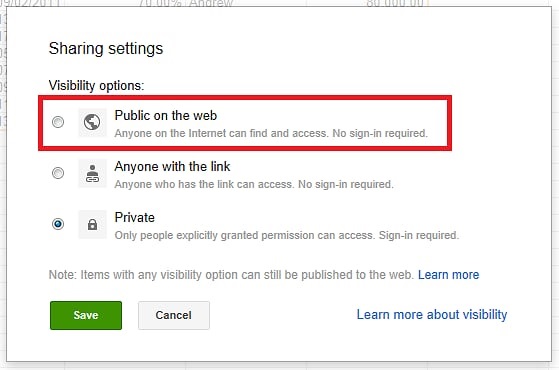
Make Public if Required
If the Spreadsheet is made public then no Account details are required to access the Spreadsheet data just the unique key
How to find the Spreadsheet Unique key
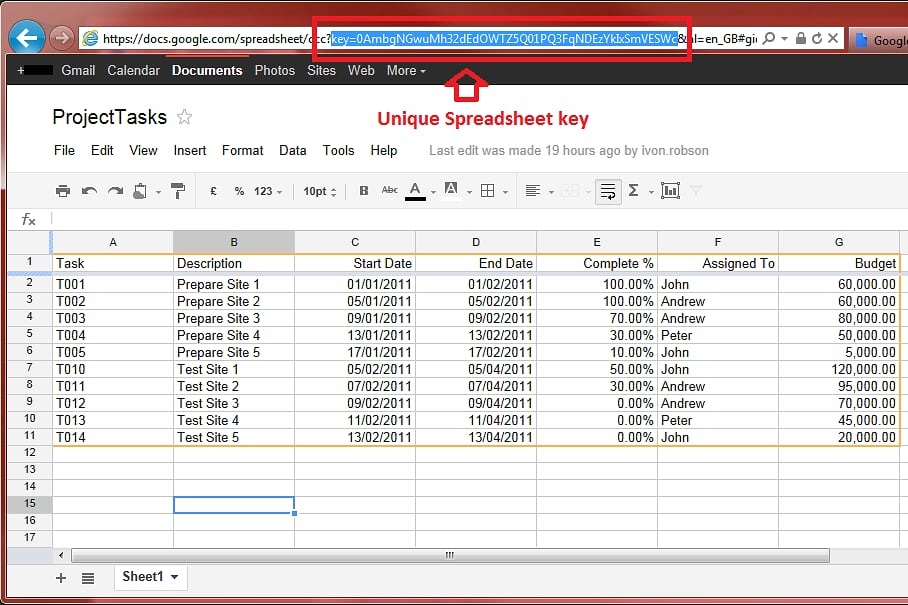
Normally you could enter your Account details and select the Lookup button to select from all the Spreadsheet keys your account has access to. However, if someone has made a Spreadsheet public and not directly shared it with your account you will need to copy and paste the Spreadsheet key into the Query Builder filter. The screenshot below shows the unique key on the URL address &key=0Amxxxxxxxxx& The key is between the ‘=’ and ‘&’ characters
https://docs.google.com/spreadsheet/ccc?key=0AmbgNGwuMh32dEdOWTZ5Q01PQ3FqNDEzYkIxSmVESWc&hl=en_GB#gid=0