
How to use Excel as a Datasource for Reporting
This article covers the topic of using Excel workbooks as a source of data for other Sharperlight reports which could be in the Web Channel or even another Excel workbook. This situation comes about when the data can only be found in an Excel Workbook instead of a Database because that was the only way the author could collect and calculate the data.
There are two approaches to using Excel workbooks as a Data Source.
System Table Excel Workbook
The first is a quick and agile method using the Excel Workbook table under the Other Data Sources in the System Product. This allows you to enter the Excel Workbook file location and Sheet Name or Named Range to target. This method works well when the number of rows is under 4000 but will start to error if the row number exceeds this. Data can be aggregated and grouped just like any other Query and there is even options to cache the data set to improve performance. Excel workbooks can also be referenced via a URL address if stored in the cloud or FTP site
Build an Excel DataModel in Studio
Sharperlight Studio can build a DataModel based on an Excel Workbook. When creating a DataModel you will have more control over what and how the Tables appear. It is also possible to add joins between the tables, define Lookups and other business rules that may include object or row level security. Unlike the first method there is no restriction on the number of rows in a Table.
Setup
Sharperlight uses the Microsoft.ACE.OLEDB.12.0 driver to access Excel workbooks which comes bundled with Microsoft Office or it can be installed separately. When Clients Remote Connect to a central Sharperlight Application Server the drivers will need to be present on that Server. To avoid 32bit and 64bit problems on the Server always install Office/Excel 64bit to match Windows 64bit or if no Office is present on the Server download the 64bit version of the driver to match Windows.
https://www.microsoft.com/en-au/download/details.aspx?id=13255
Excel restrictions and usage notes
A number of restrictions and best practices should be kept in mind when reporting on data in Excel workbooks
- Make sure that cell data is in a nice clean table format with a Header row on the first row and data below. Try and avoid having calculated cells and other data around the main table of data otherwise these will be picked up as another column unless you use Named Ranges or Excel Tables
- If the Data is held in a Excel Table object make sure you turn off the Total Row otherwise it will get into the dataset and cause issues like invalid dates
- In Excel set each column so that its data type is uniform for the whole column otherwise it will default to Text. For example if you have dates set the Format type to Date and for number set it to Number. Excel will only support basic data types of Text, Number and Date. If Periods are required then you will have to create a DataModel and convert the data using SQL into a Period.
- Excel Workbooks are reference by their file location and the Sharperlight Application Server will need access to the same file location otherwise it will not see the file. For this reason it is recommend that network shared folder be used so both the Client and Application Server can see the same folder structure.
- Be disciplined with the file naming and editing as changing file names or locations will break reports that depend on the file being where it was originally created
- Be careful when editing data in Excel as changing Sheet names, Named Ranges may break a report that references that object name.
 PurchaseInvoices.xlsx
 P090046.meta (Studio Datamodel Example)
Creating a Shared Network File Location

Excel Workbook Sample

System Table Excel Workbook Method
Using System Project and Excel Workbook under the Other Data Sources Folder

System Table Excel Workbook showing Query Definition

System Table Excel Workbook showing Query Data Preview (Limit is around 4000 rows for this method)
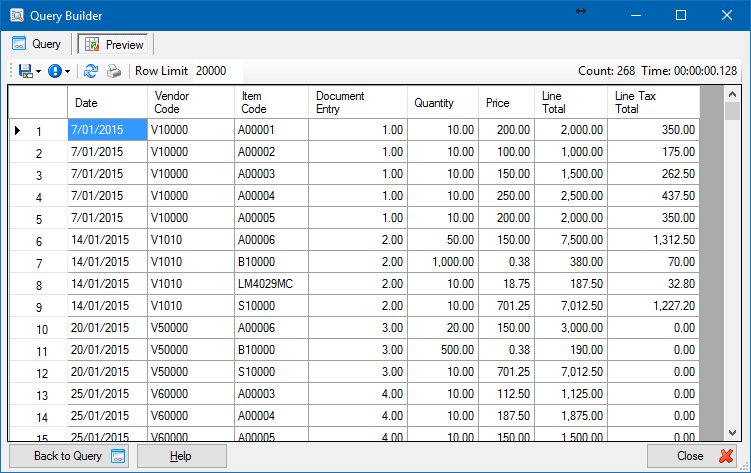
Build a Excel Datamodel in Studio Method
Create a New Datamodel in Studio over Excel

Studio Excel Connection Details that point to the network shared file location

Studio Import Objects where you target the worksheets
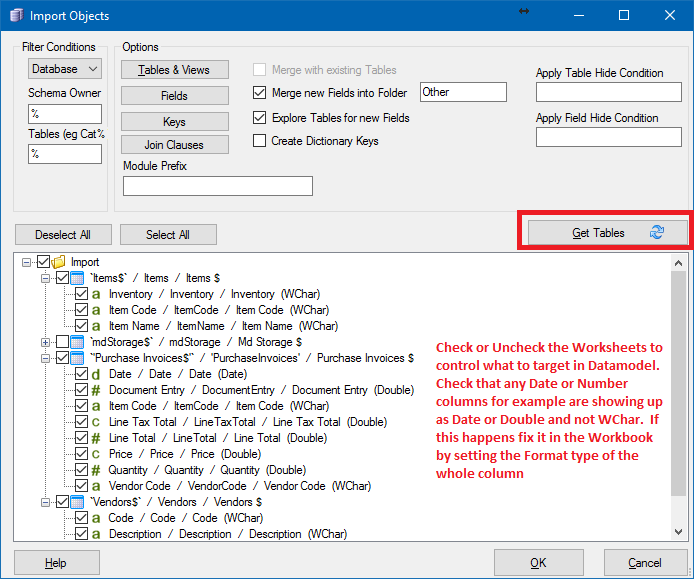
Create SQL Joins between the tables and adjust other things Descriptions and Lookups
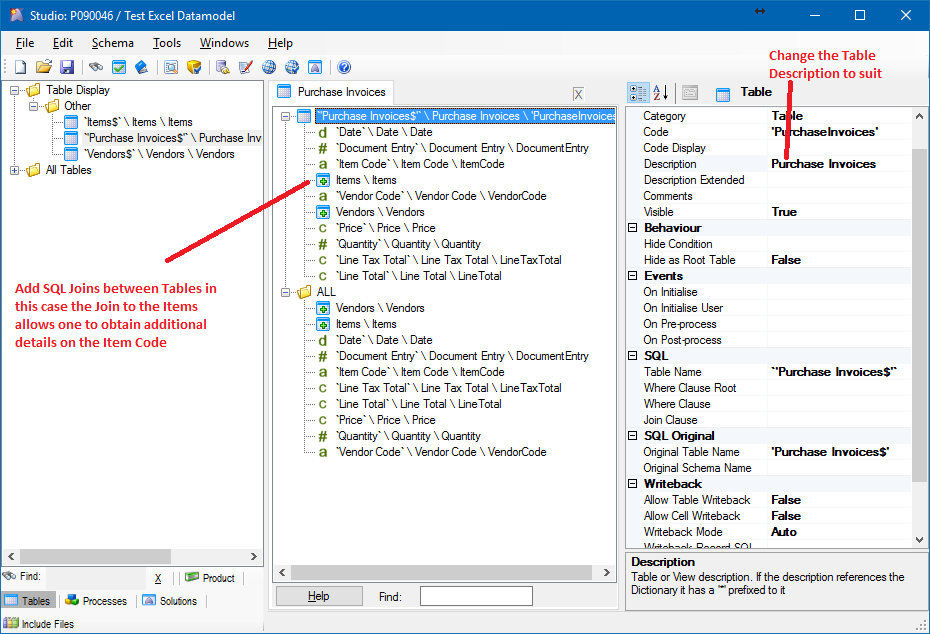
Once the Datamodel is setup and connections defined in Client Setup, Queries can be created in Query Builder

Query Builder Data Preview showing Excel SQL debug
