Instance Management Setting up multiple Service Instances
Instances allows Sharperlight to run multiple times with different Client Settings and Datamodels on the same computer or VM. This is most often setup on a Sharperlight Application Server where the Clients then use Sharperlight Remote Connections to access one or more of the Service Instances for applications like Excel, Publisher and Scheduler. If the Clients are just using the Web Channel then no Remote Connections are required just a Browser and the URL address. Instances allow the separation of each Client/Company/Department so that their connection details prevent cross access to areas outside of their Instance. The Instances can be stopped, changed and started without affecting other Instances which is important when one has many clients or one is testing new reports before deploying into Production.
Also see the post on Instance Management Automation and the Instance Monitoring
Multi-tenancy
Multi-tenancy in the cloud on for example Azure or AWS would be another example where Instance Management would be used. Each Client Instance would have their own unique Database connections to prevent cross instance access unless it is intentional. There have been cases where cross Instance Access was required due to a Client having multiple accounts (Instances) one for each Company they control. Normally just having multiple Remote Connections to these Instances is enough but it is possible to say multi-select the Companies and have Sharperlight union the results across Databases if setup to allow this.
Example A
You could have on the same computer a host Development, SIT, UAT ,PROD, Demo1 and Demo2 environments that all have their own separate connections and DataModels
Example B
One VM hosting an External Web Site, Time Sheet System, Internal Accounts and Demo environments that all have their own separate connections and Datamodels
Example C
On a SAAS Application Server you can setup a Instance for each Client/Company. They could share the same Sharperlight database if setup to do so, but have separate connections to the Datamodels. If the hosting is for Clients that must be separated then ensure each Client Instance has it’s own unique Sharperlight Database so that they can have their own users, reports and other details separate to the other Instances.
Notes
- Use Instance Management to launch Query Builder, Site Setup, Client Setup start stop Windows Services. The Instance details will appear in the Title of the Windows
- SharperLight applications can be started to target an Instance by using the command line /instance:idOrCode (must be first parameter)
- The Web Channel and Remote Connections can inherent the Instance Code and Description without the need to set them Client Setup
- It is possible to have a Instance turn off either the Web Channel or Web Service API (Used by Excel, Query Builder, Publisher) if they are not required
- Click on the Apply Button to trigger the syncing of the Instance Datamodels with the Master. This depending on how the option Use Master Datamodel is ticked or not
- The Instance settings are held in the following file C:\ProgramData\SharperLight\ClientSettings\_instance.xml
- On the master/primary Instance one can Query all the Instance details in the Query Builder using the System \ Instance Management Table.
- If the Instance is exposed to the Internet it is recommended that it be setup to run on https/SSL. You will also need acquire a public domain name (www.mycompany.com) which is then set in the Client Setup / Services / External Base Address URL section
Getting Started
Application showing Instance Management Button

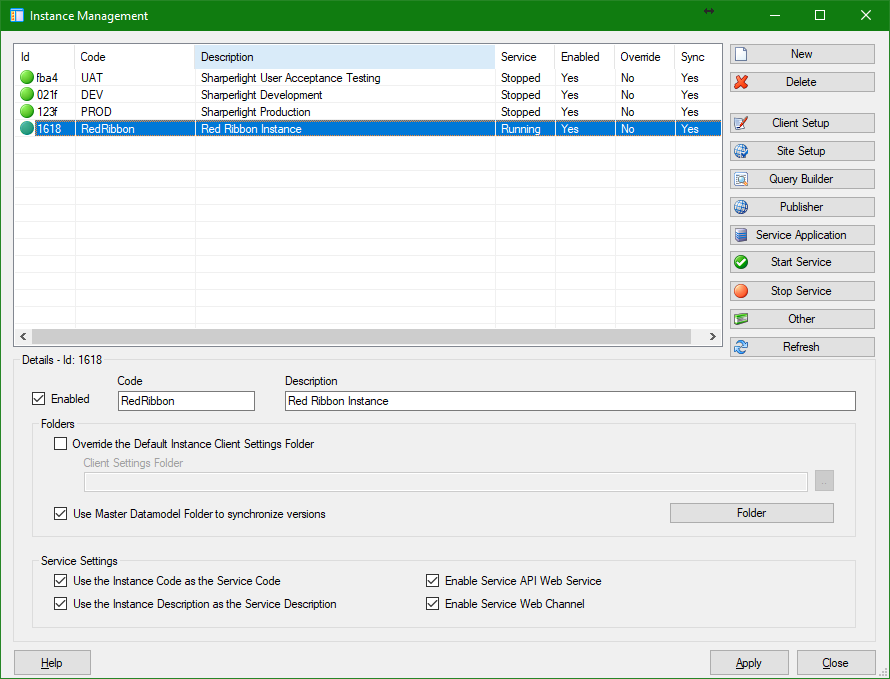
Instance Management Application
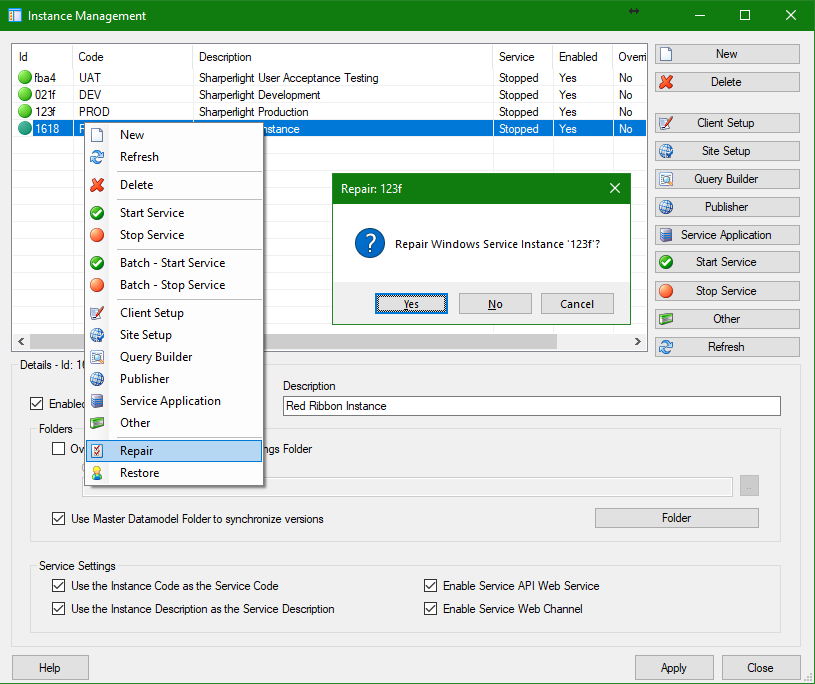
This application allows one to create, delete, start, stop and change Instances. There is a right click menu to Starting and Stopping the Service
- If the tickbox the sync with the Master/Primary Datamodel is enabled you still need to click the Apply button to kick of the sync process.
- The Web Channel and Remote Connections can inherent the Instance Code and Description without the need to set in Client Setup
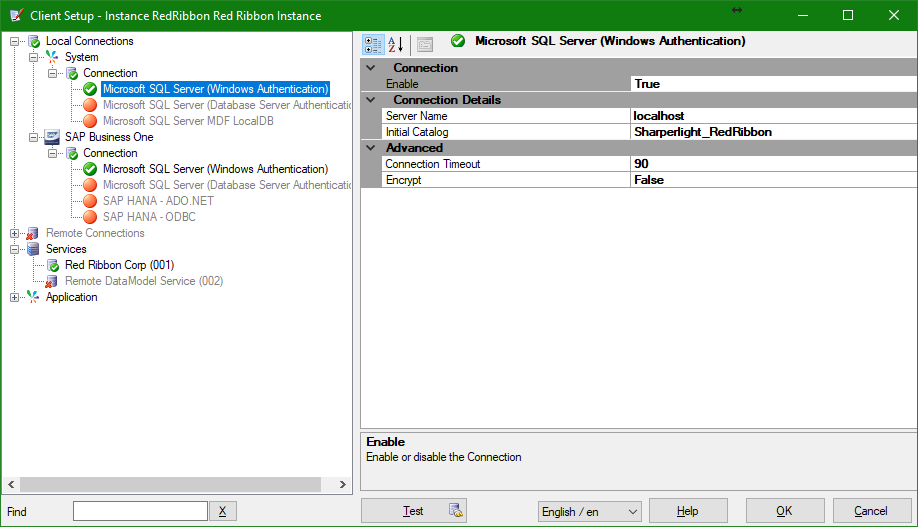
Application Server Client Setup for the Instance
Client Setup Title bar shows the Instance details as would other windows
- If the Instance is exposed to the Internet it is recommended that it be setup to run on https/SSL. You will also need acquire a public domain name (www.mycompany.com) which is then set in the Client Setup / Services / External Base Address URL section
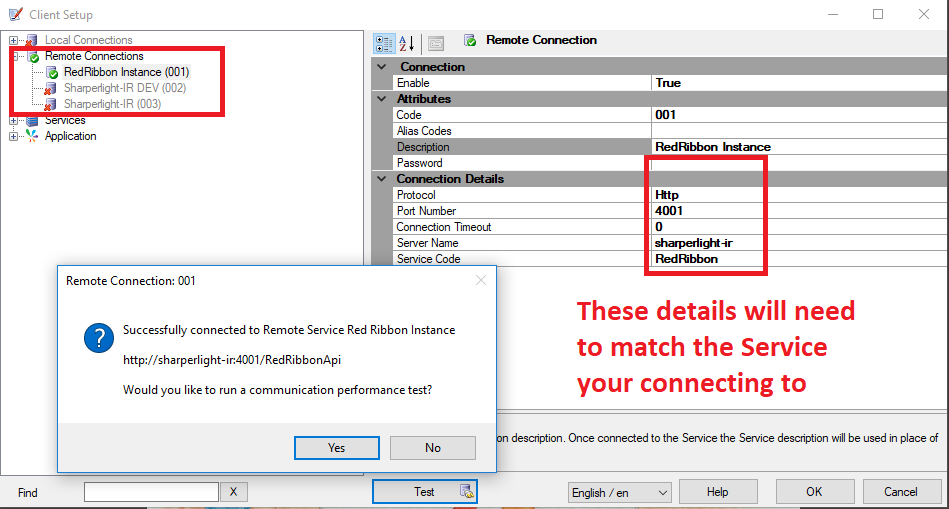
- In most cases Port 443, 80 will not be blocked but if your using port 4001 for the Web Service API make sure it’s not blocked on the Server and also the Client Side. You can change the port to something else but if you say set it to port 443 or 80 make sure the .Net Port Sharing Windows Service is running.
- The Service will inherent the Instance Code and Description if setup to do so (This is the default)
Client Remote Connections to a Instance in Client Setup
Clients using applications like Excel, Publisher and Scheduler can remote connect over the intranet or internet to the Instance. The connection is set in Client Setup in the Remote Connections section of the tree. Make sure the Local Connections are disabled unless they are using hybrid hosting and require direct Database Connection over a Remote Connection to the locally hosted Instance.
Windows Service
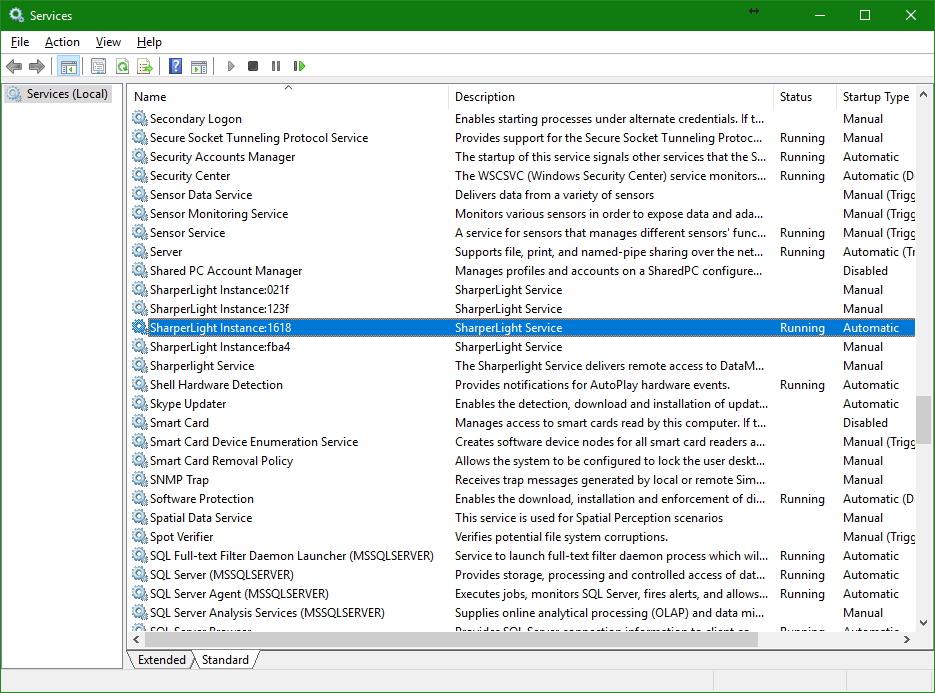
Windows Service showing Instance details. These can be started and stopped using Instance Management. It is recommended that you set the Service to Automatic and run the Service as using a Service Account with the level of permissions required. For example this Service Account requires access to the Databases if one uses Database connections based on Windows Authentication.
Web Channel
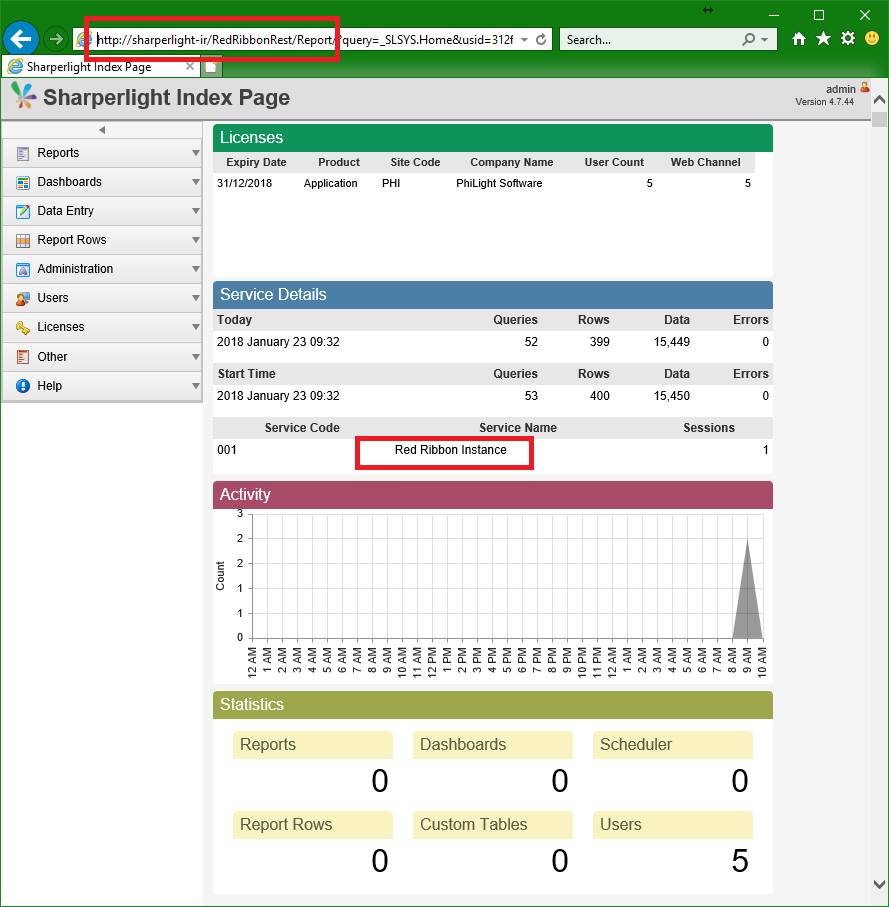
The Service Code which will be normally inherent from the Instance Code becomes part of the URL Address. In these examples the Service Code is RedRibbon
http://sharperlight-ir/RedRibbonRest/Index
or for https/SSL
https://myDomainName.com/RedRibbonRest/Index
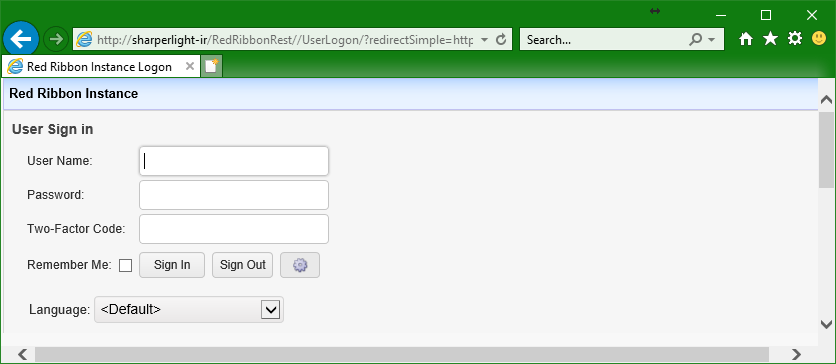
Web Channel Sign in
The Web Channel User Sign In and other pages will show the Instance Description
Instance Data Locations
The Master or Normal Folder details are used as the Template for new Instance.
When a new Instance is created the following occurs
Copies the Master Client Settings folder into the /ProgramData/SharperLight/Instance/### folder
Copies the Master Datamodel folder into the /ProgramData/SharperLight/Instance/### folder
Creates a new Windows Serviced called SharperLight Instance:####
C:\ProgramData\SharperLight\Instance\
The Instance ID is used as the folder name and under these folders you will have the Client Settings, Datamodels etc.

Resources and Memory
Examples of Memory usage per Sharperlight Windows Service Instance
SunSystems DataModel which has about 350 tables and 73000 fields
Web Channel Only – Working Private Set Memory 75M
Web Channel + API -Working Private Set Memo 96M
Shared Memory 25M
Adventure Works DataModel
Web Channel Only – Working Private Set Memory 58M
Web Channel + API -Working Private Set Memo 82M
Shared Memory 25M
Basically we are looking at 100MB per Instance required for an average System and 150MB for a very large System
Given 1G of free ram we can run 10 to 12 Instances
Given 2G of free ram we can run 20 to 25 Instances
Remember that Windows will cache out the memory of inactive Instances so the number of Instances can larger than these guidelines as long as not all the Instances are competing at once.
These estimates do not include the Publishing of Excel content through the Web Channel. If Excel content is also being scheduled for recalculation and publication then also enough memory for the execution of Excel is required. 500MB of memory in Total should be enough for Excel content recalculation in addition to the Instance requirements.
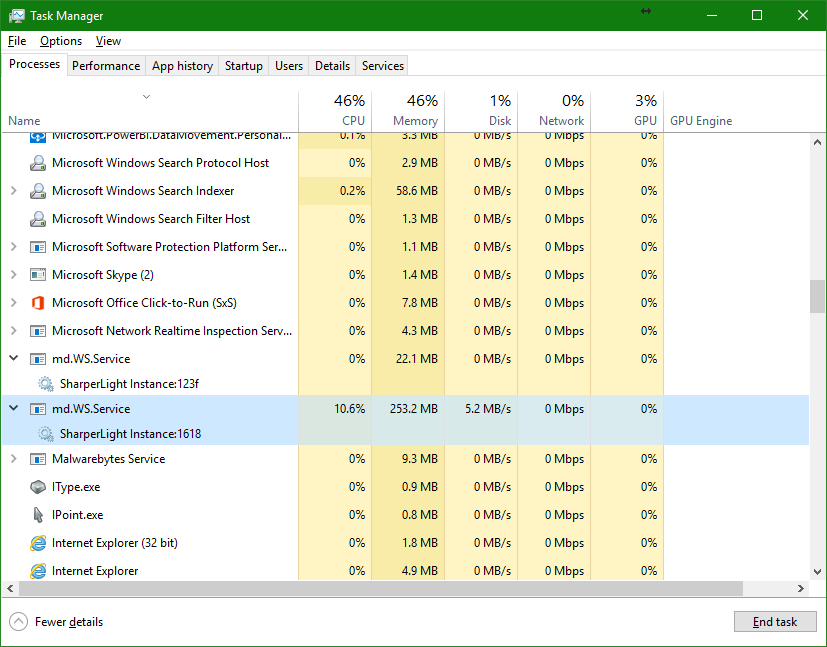
Use Task Manager to view the memory usage of each Instance. The service will show as md.WS.Service while the application will show as md.Applications. This screenshot shows a Instance running SAP Business One which is a very large Datamodel of over 400 tables with writeback logic. Remember you can save on memory by disabling the Remote Connection Server or Web Channel Service.
Instance Maintenance and Repair
For whatever reason it’s possible that a Windows Service entry for an Instance may need repair. Instance Management will try and auto if a Instance is missing it’s Windows Service and Repair it. It is also possible to select the Repair menu option to auto repair all Windows Services if required. Broken Services can happen if you upgrade Sharperlight and install it to a new Location. In this case the Windows Services will still be pointing to the old location and will need repairing.
Each Instance has it’s own folder based on the Instance ID. If the folder existing but is not visible in the Instance Management list it can be restored using the Restore menu item. You will however need to reset the basic Instance code and description details. This might be used if you just want to copy the folder to a new server.
/ProgramData/SharperLight/Instance/###