Page Designer – Display drill links in Window Overlay
Publisher Page Designer allows you to create Jump actions on any element in the report. Sometimes these Jump actions will jump to a bookmark location within the report. Actions can also open up a web page with the specified Jump Action URL link to provide a type of drill through to related details. When creating links based on URLs you will find that the link will always be opened in a new tab in the browser. In this article we will explain how to open an URL address in a Overlay Window which will be displayed over the top of the Page Designer report in the same tab. The overlay windows can be used to show drill through details related to the location clicked in the report. For example, clicking on the account balance may bring up a overlay window showing the transaction details for that balance. The overlay windows will only work if the Page Designer report is rendered as HTML not PDF. You can still place a download the PDF button at the top of the report.
Reports that do not use Page Designer can display drill content in overlay windows quite easily using the Drill To wizard on the Query Builder Output right click menu. However these types of reports will usually be a simple table while the Page Designer can be used to design complex layouts.
Simple example
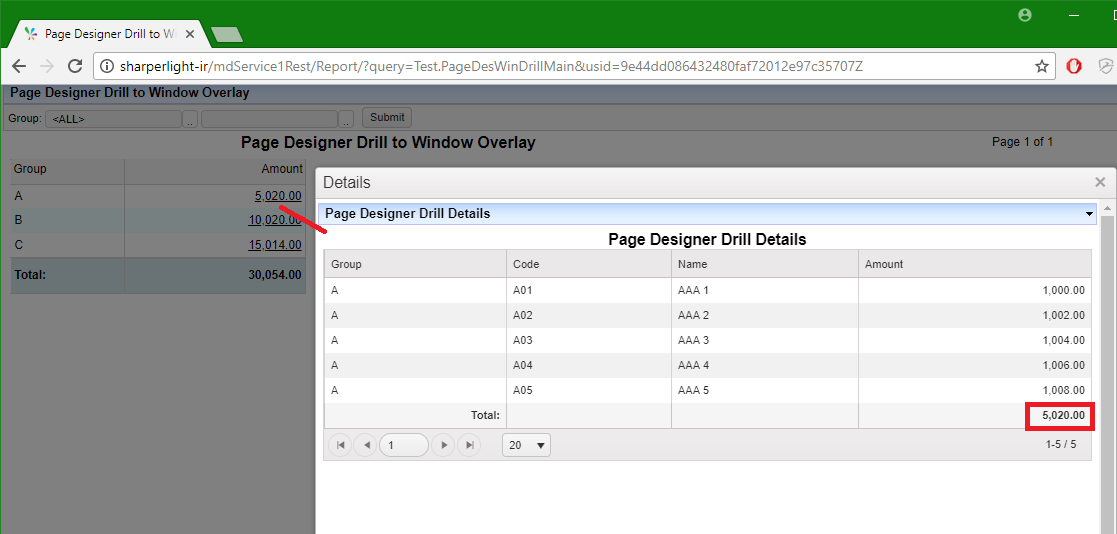
This example shows a Page Designer report as HTML with overlay window appearing with drill details when the link on the main report is clicked. Normally the link URL would be opened in a new tab.
Download Publisher Example (Import into Publisher)
Page Designer and the Jump to URL Action
Create a Jump to URL Action on the field you would like to click on to show the drill details. This will usually be something like the customer code or even the amount. You can create the drill URL in the Query Builder dataset as an output expression with the target report URL details and filter parameters ready to go. In this case the target report is passed &fltGroup=XX&fltGroup_2=XX as it will show all the transactions for this group. The target report that used for the drill through has a filter with the name Group otherwise this would not work.
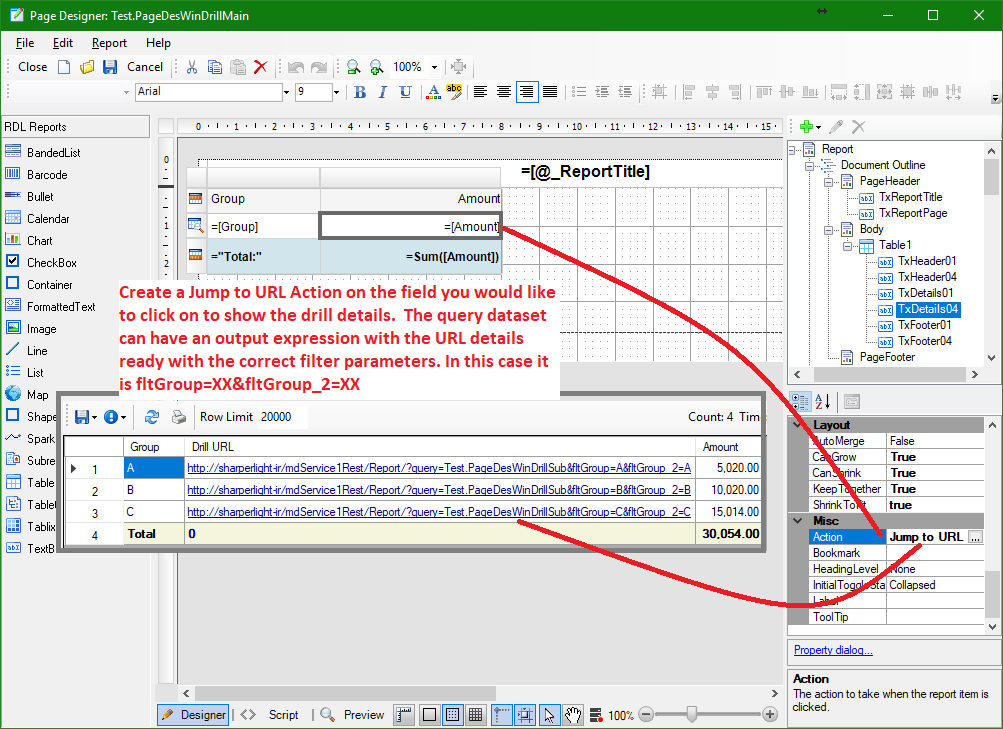
Set the Jump to URL

Insert the JavaScript into the Report Footer
Copy and paste the JavaScript code into the report Footer section. You may want to change the Window default title, height and width.
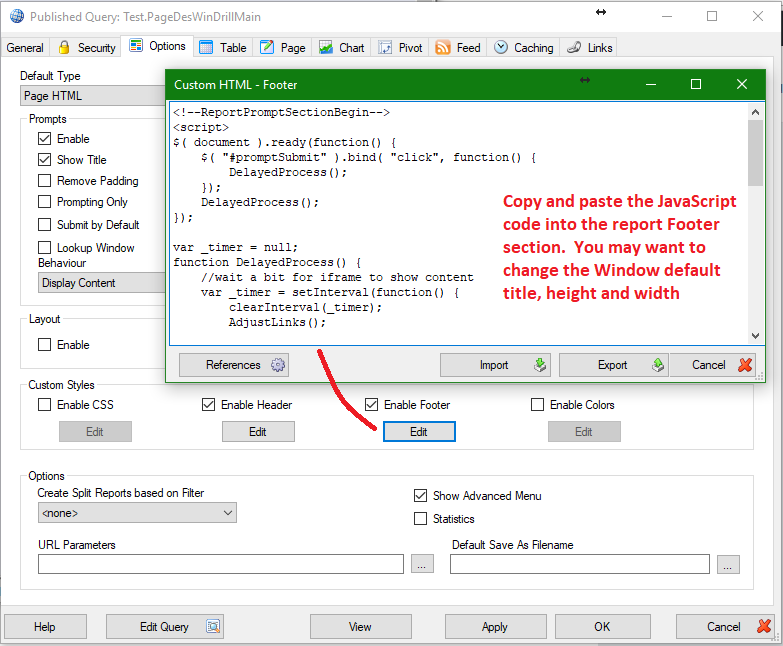
JavaScript – copy and paste this section into the Report Footer
You may want to adjust the Window Title, Height and Width in the code. Basically the code will redirect all the links in the report to the overlay window. The timing for this adjustment is 2 seconds after the Submit button is pressed or if not prompt area is present then 2 seconds after the page is loaded. The reason for the seconds delay is to give the browser time to get all the content. The 2 seconds is shown as 2000 milliseconds in the code.
<!--ReportPromptSectionBegin-->
<script>
$( document ).ready(function() {
    $( "#promptSubmit" ).bind( "click", function() {
        DelayedProcess();
    });
    DelayedProcess();
});

var _timer = null;
function DelayedProcess() {
    //wait a bit for iframe to show content
    var _timer = setInterval(function() {
        clearInterval(_timer);
        AdjustLinks();
    }, 2000);
}

function AdjustLinks() {
    try {
        var ifr= $("#reportArea").contents().find('body');

        var list = $(ifr).find('a');    //get a list of links in iframe
        for( c=0;c< list.length;c++ ) {
            var a = list[c];
            var href = $(a).attr("href");
            if( href.indexOf("PagePdf")>0 ) continue;   //avoid download PDF links
            //$(a).css("background-color","yellow");  //debug show links in yellow
            $(a).bind( "click", function(o) {
                //Display url in overlay window using parent function
                var url = o.currentTarget.href;
                if( url == null || url.length==0) return false;
                //alert("link clicked " + o.currentTarget.href)
                var title = "Details";
                var height = 700;
                var width = 800;
                parent.WinOverlayExtShow(url,title,height,width);
                return false;
            });
        }
    }
    catch(err) {}
}
</script>
<!--ReportPromptSectionEnd-->
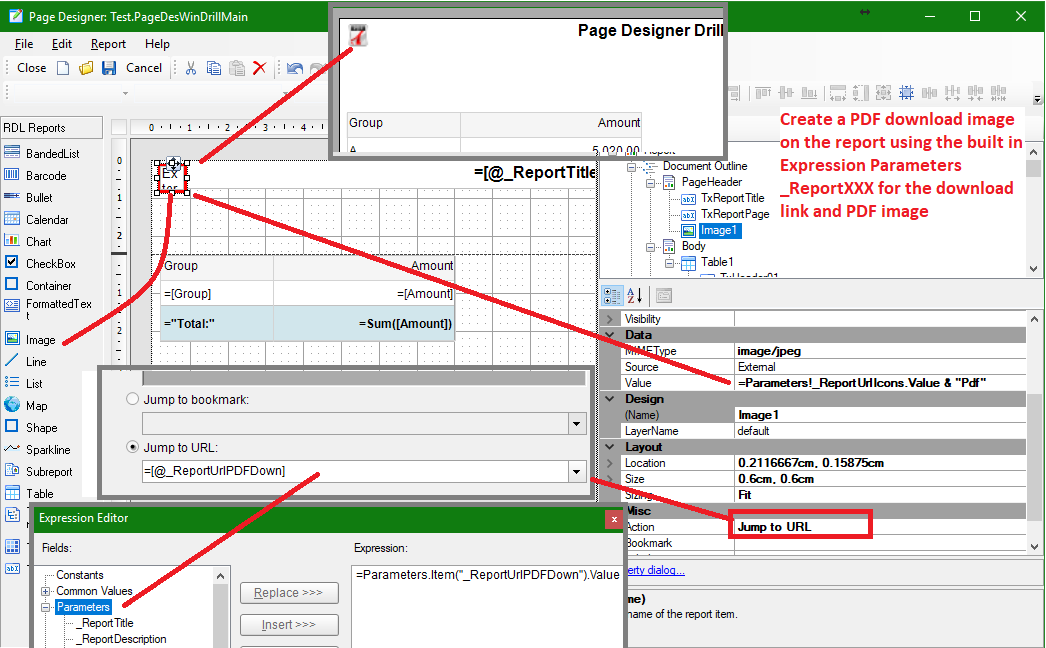
Create a PDF download Image on the report
Drop the Image control into the header section of the report. Then set the MIMEType to image/jpeg and the Value to an expression that references the report parameter that is the URL link to all the icons. Append pdf to this parameter as follows
=Parameters!_ReportUrlIcons.Value & “Pdf”
Then set the Action to be a Jump to URL the references this reports URL address but as a PDF format as follows
=[@staging-sharperlight-com.stackstaging.com_ReportUrlPDFDown]
Now the user can click the icon to download the report as PDF. The filename will default to the report group and code unless you override this by setting Options / Default Save As Filename