
Page Designer – Query and Table
Introduction
This post will talk about Page (Page Designer) in Published Report and explain that how the dataset returned by the query is presented in the page designer.
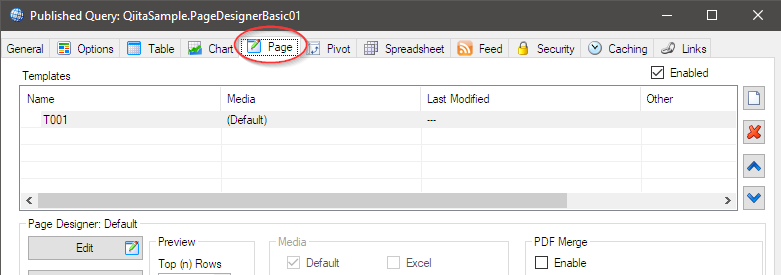
Practices
Query Definition
A published report must have a query definition.
Let’s prepare a query.
I use the query definition here for this post.
Page (Page Designer)
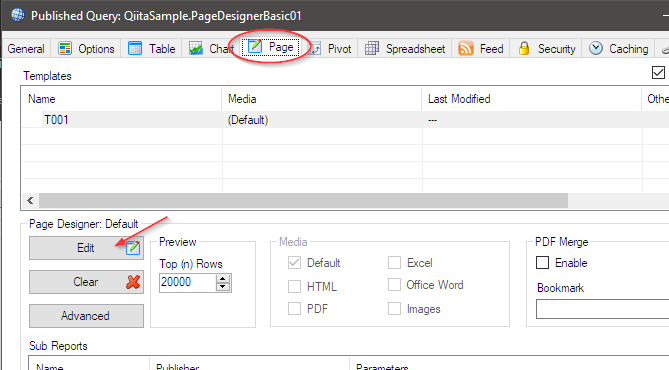
Click Edit button to open the designer.
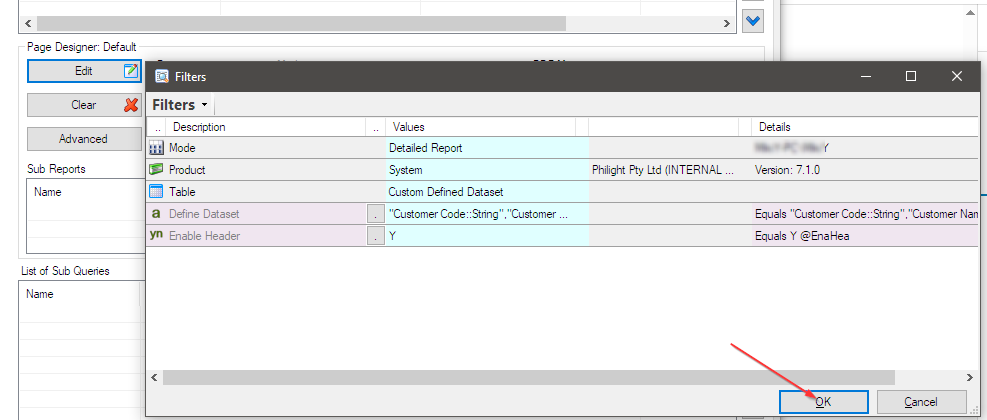
The filters part of the query definition is displayed and just click OK to proceed.
The Default Minimal Configuration
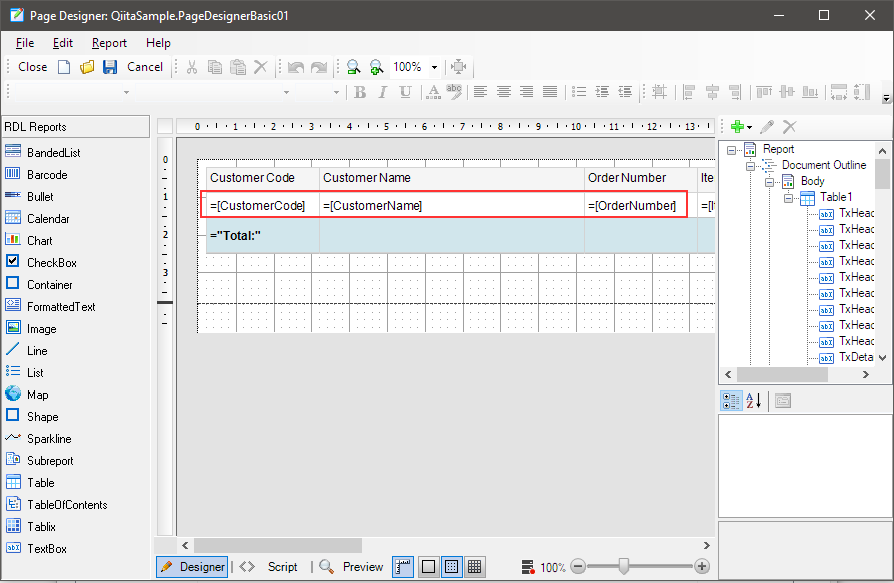
The page designer is opened and it has a table object with the default configurations.
The 1st row is the header row, and the 3rd row is the total row.
The middle (2nd) row is the data row and we can see the query outputs are already linked to the row.
Let’s preview it by clicking Preview button at the bottom of the designer.

The preview result is shown like this.
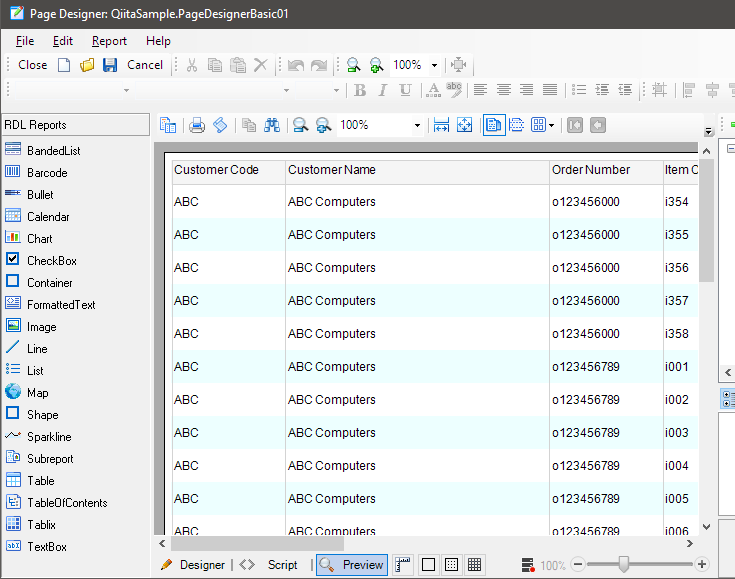
By clicking the Designer button, you return to the designer.

The link between the query and the table
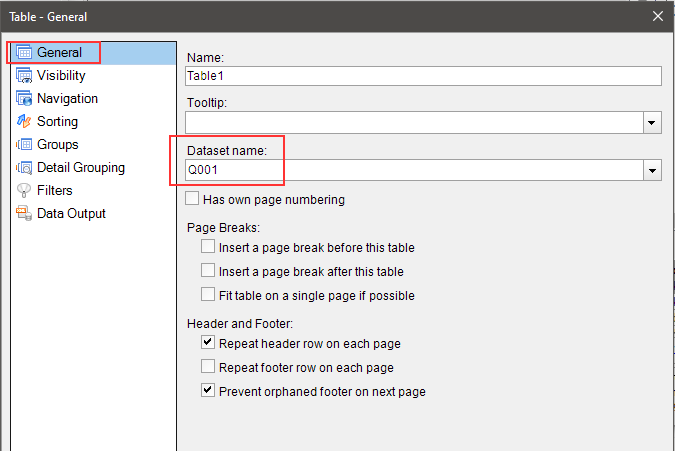
You can see why the query (we can call it the main query: Q001) dataset is linked to the table with the properties for the report.
Select ‘Table1’ in the navigation tree on the right, and open its property dialog by clicking the link at the bottom.
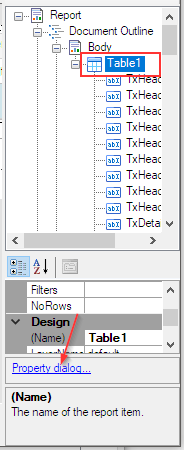
With ‘General’, the Dataset Name property is set to ‘Q001‘, which means the main query provides the dataset for this table.
Reference to the output field of the query
You can see the reference with the data row of the table.
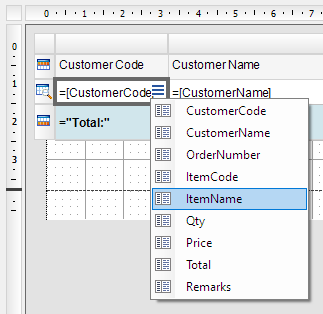
The name of the outputs ‘%CustomeCode’, ‘%CustomeName’, ‘%OrderNumber’ … are used to refer to the output fields.
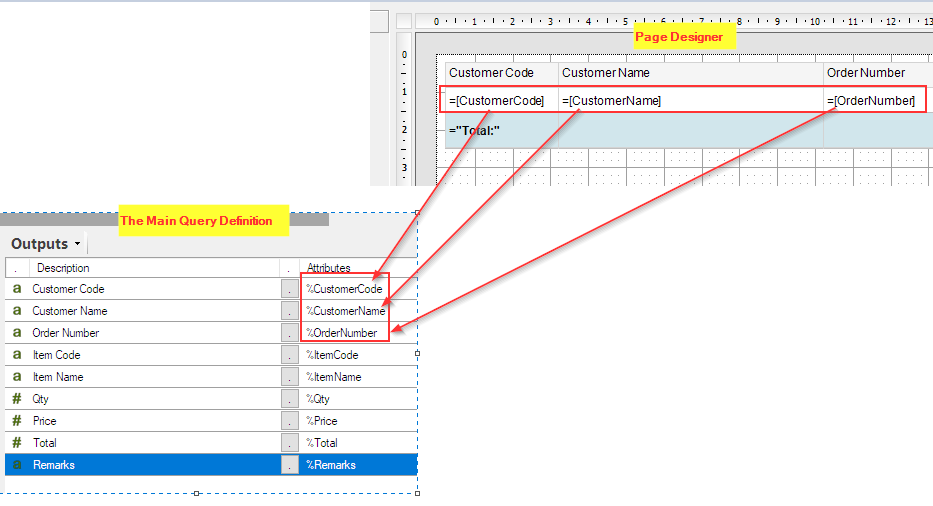
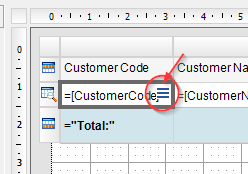
Click on a cell of the data row in the table, a three-lines icon is displayed and you can choose one of output fields from the drop down list.
Afterword
This post introduces the starting point for designing a report with the Page Designer, and we hope it helps you understand the link between the main query and the table within the Page Designer.
Download the published report with the page design.