Filter Panes – Advanced
In this article some more topics will be covered that weren’t in the previous post.
To start we’ll show a Filter Pane report that is used to push filter parameters for a second report.
In this example we’ll have Article.FilterPanM01 as the Filter Pane report, and Article.FilterPaneM02 as the report which has it’s filter parameters updated.
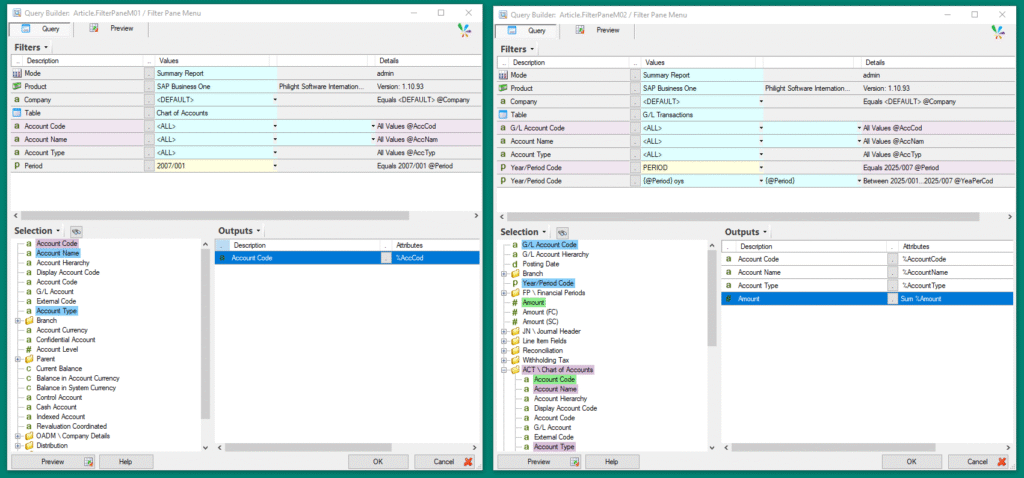
You can see from the screenshot:
– The queries can use different tables
– The filter codes all match (with the exception of Article.FilterPaneM02’s last Year/Period Code filter
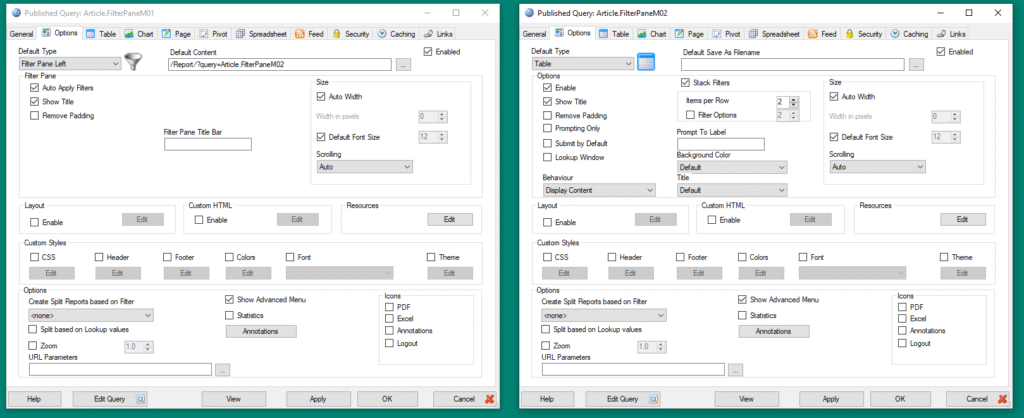
Now we’ve set it up so that Article.FilterPaneM01’s Default Content is the report for Article.FilterPaneM02.
Also we changed Article.FilterPaneM01’s report type to be Filter Pane Left.
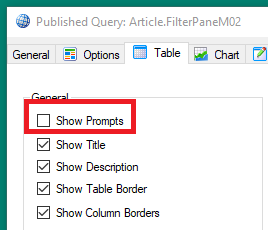
Please note that for Article.FilterPaneM02 we also in the “Table” tab disabled the “Show Prompts” option, as our intention is to pass the parameters from one query to the next.
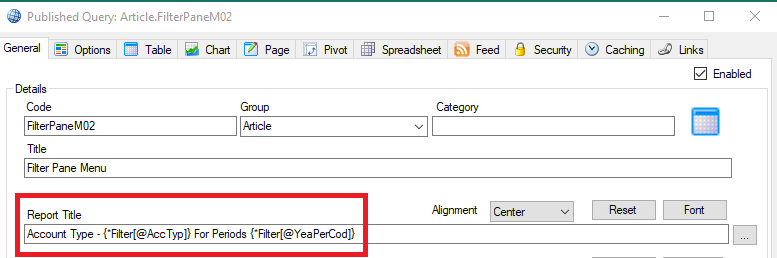
For Article.FilterPaneM02 we can also help with visual clarity by making the Report Title dynamic.
In this example I set it to reflect the Account Type and Period range being displayed:
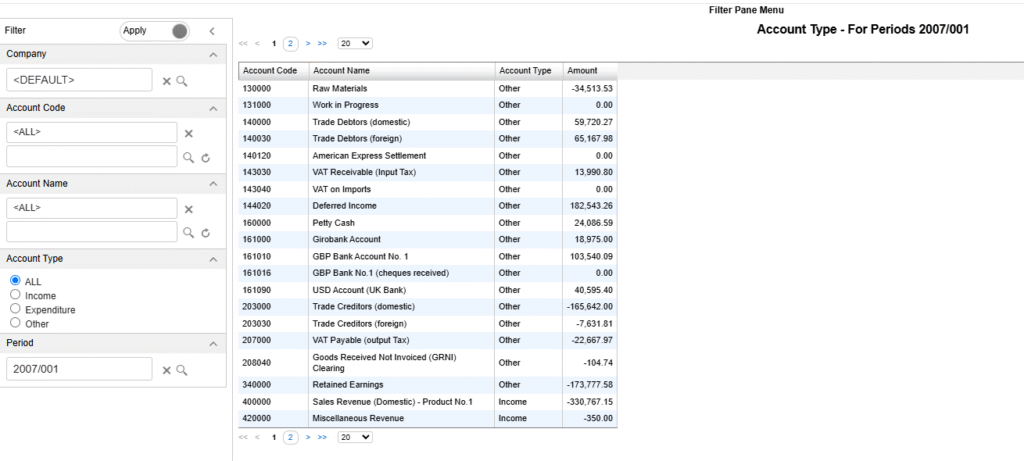
The end result is a Filter Pane report that starts from the Chart of Accounts table, but refreshes our query to the G/L Transaction table:
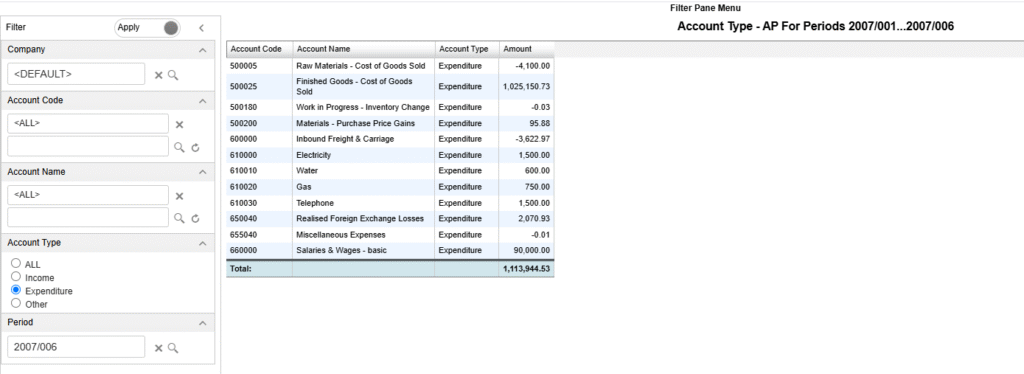
If I select an Account Type and change the Period to not be the first of the year, we’ll see the Report Title be more useful:
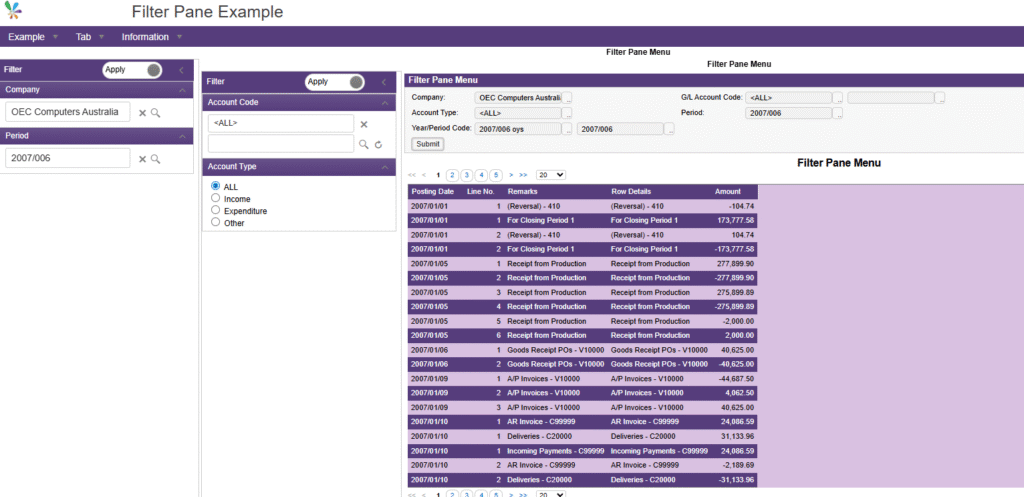
Please note that you can also nest Filter Pane reports within other Filter Pane reports, this is particularly useful if you have large datasets and many different category or classes for your data.
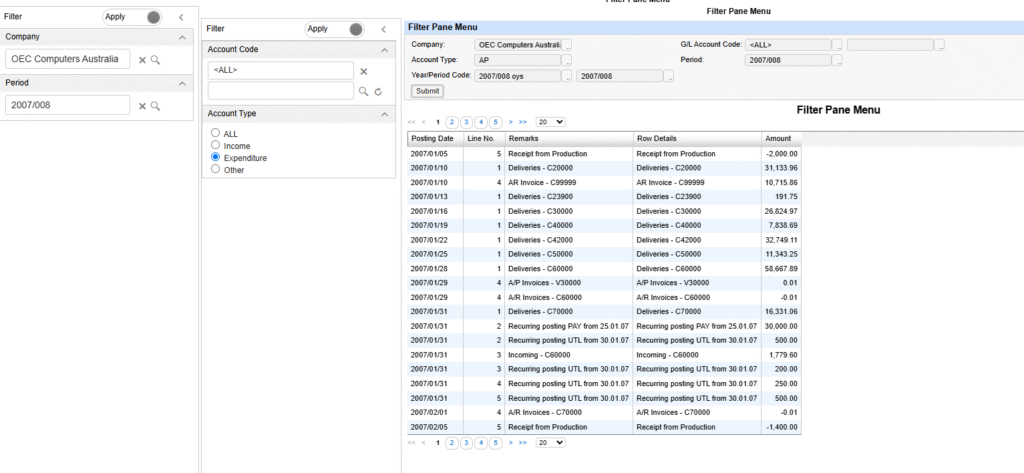
In this screenshot we have the first Filter Pane report define the Company and Period, the second Filter Pane report define the Account Code and Account Type, and the last report is a Table report showing the detailed records.
We’ve also kept in the filter prompts for the last report to show the filter parameters were correctly passed through.
You can change the colour of text using the Filter Description in the query by having the description include HTML:
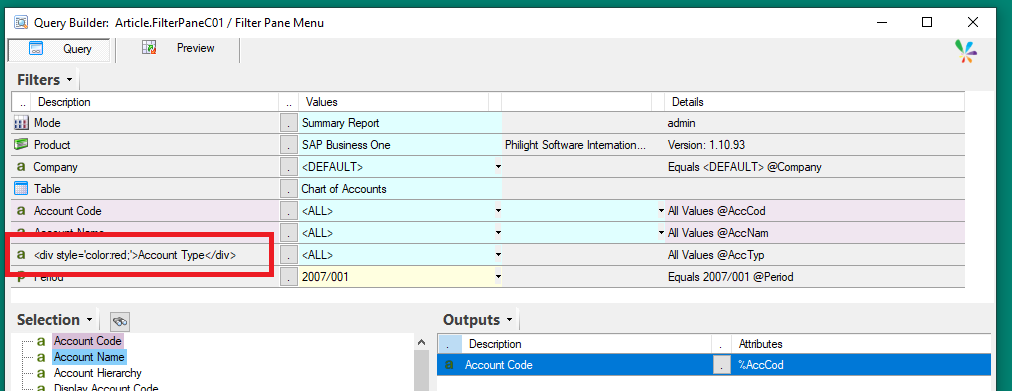
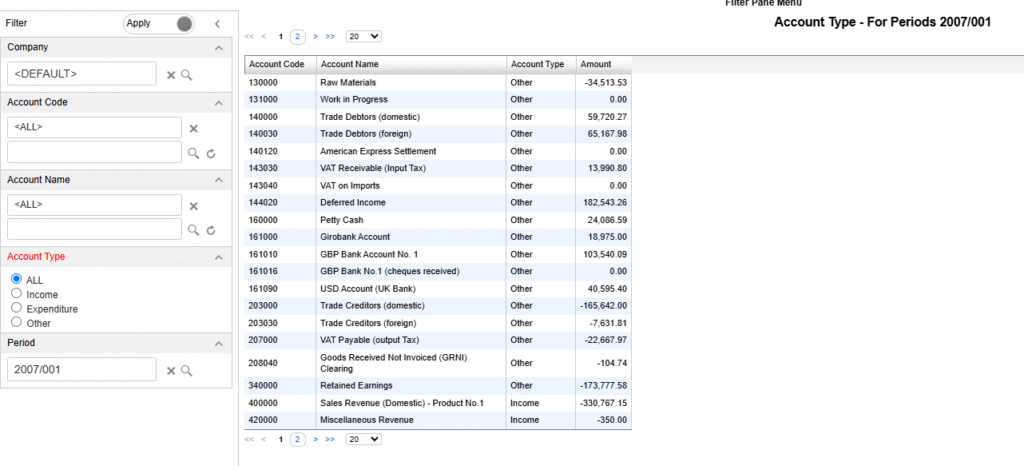
You can change the colour of the Filter Panes using the “Theme” option in Publisher:
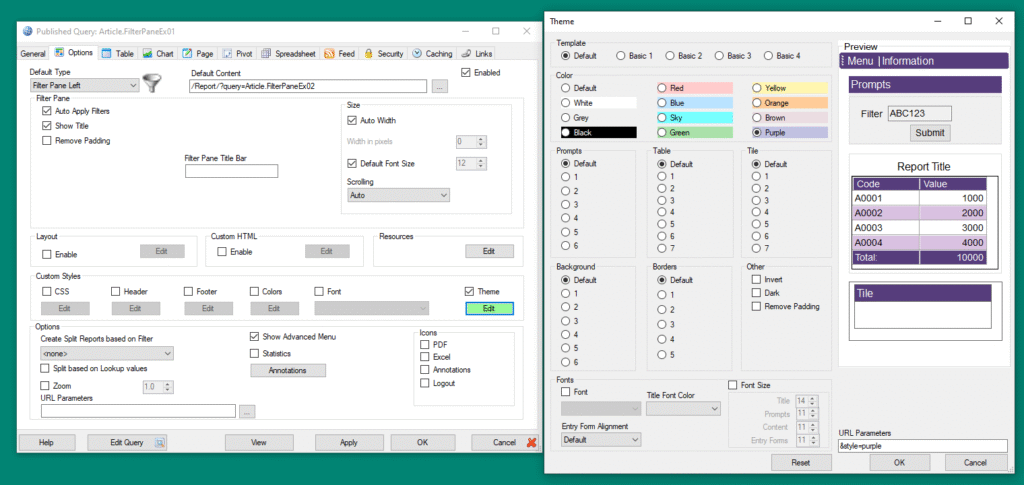
Please note that this only changes it for the individual report, and may clash with the theme passed down if the reports are under a Menu Report.
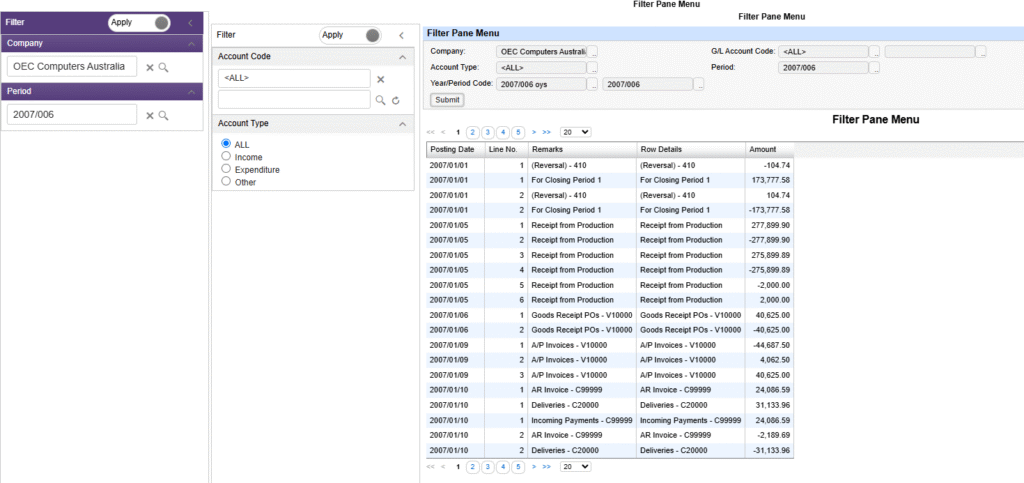
Here it is again, but from a Menu Report with a purple Theme: