Branding & Styling – Global Color Scheme
Introduction
Following our previous articles on landing page design (Branding and Styling – The Landing Page), we will now focus on setting up a global color scheme.
This approach ensures design consistency across your entire Report Pack.
Practices
With the landing page established, we will now apply a Global Color Scheme to ensure a cohesive visual identity.
Child reports inherit the custom color palette defined in the parent report, ensuring visual consistency across the dashboard.
Global Color Palette
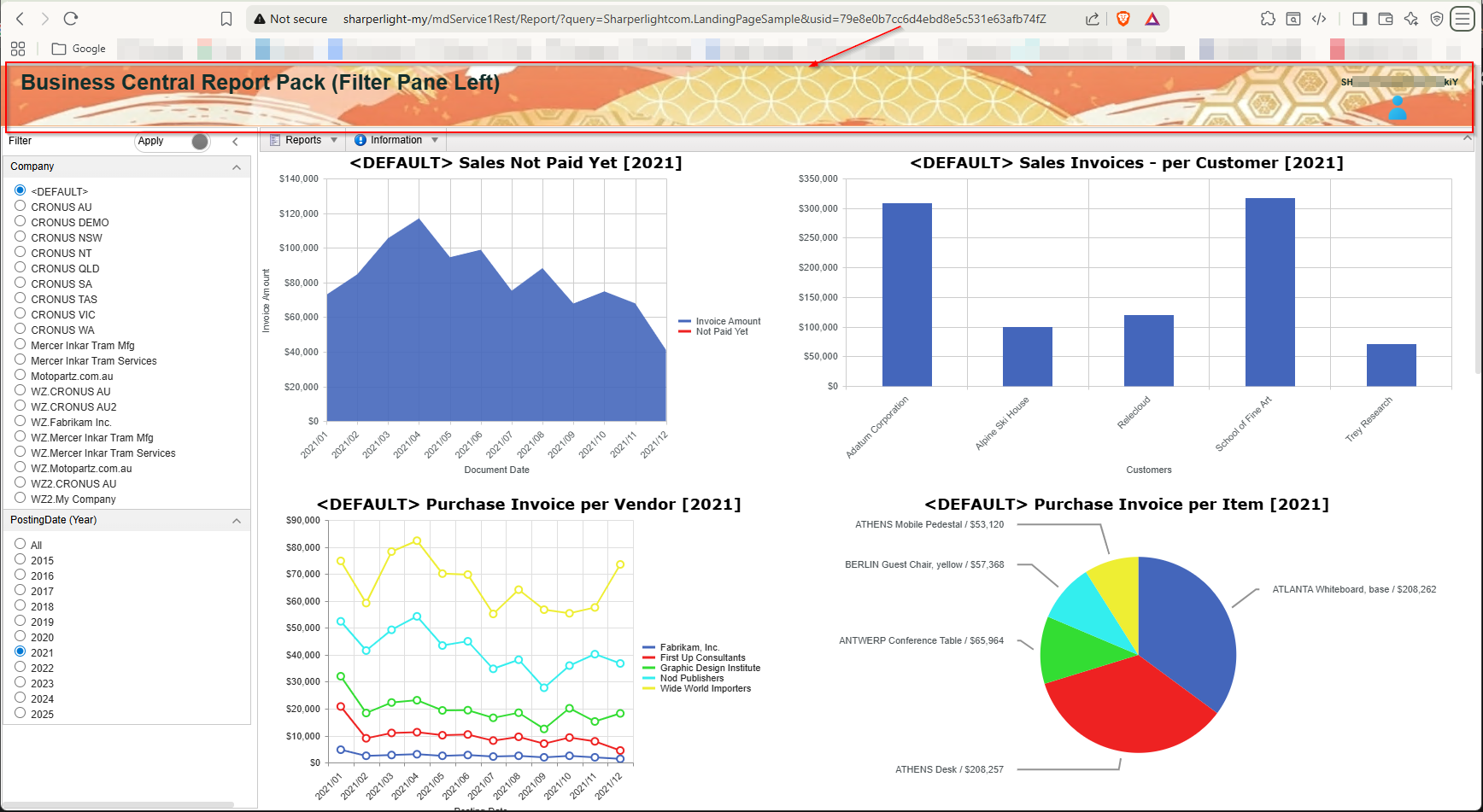
As the landing page serves as the parent report, the color palette is configured at this level to function as the Global Color Palette.
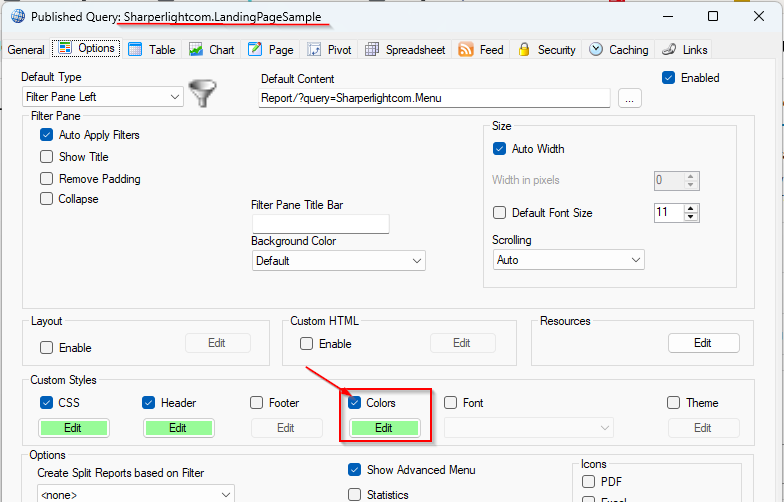
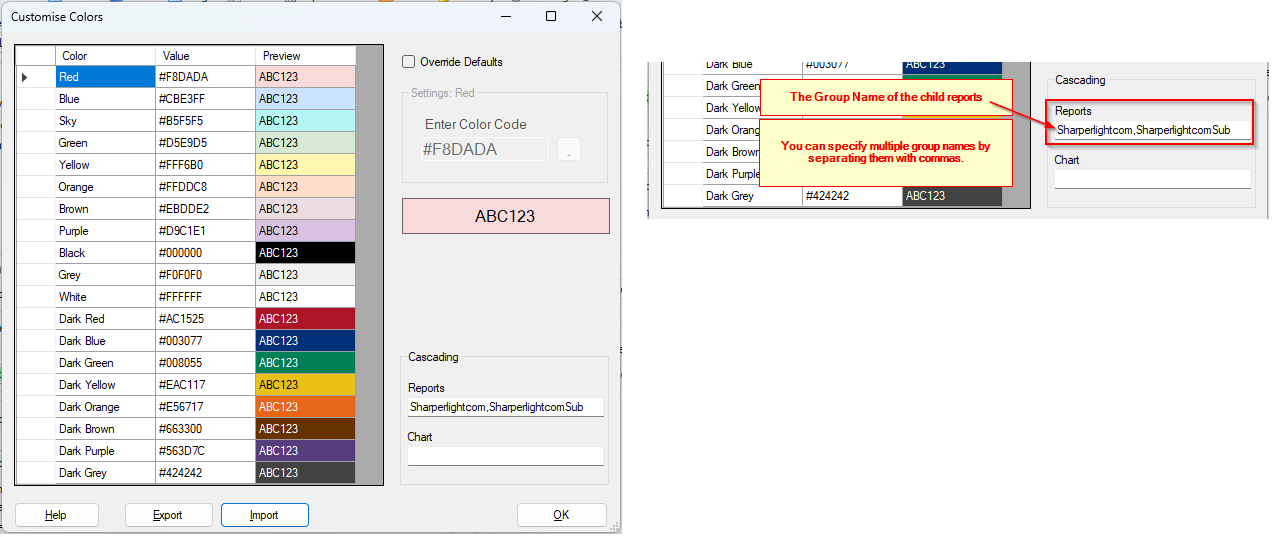
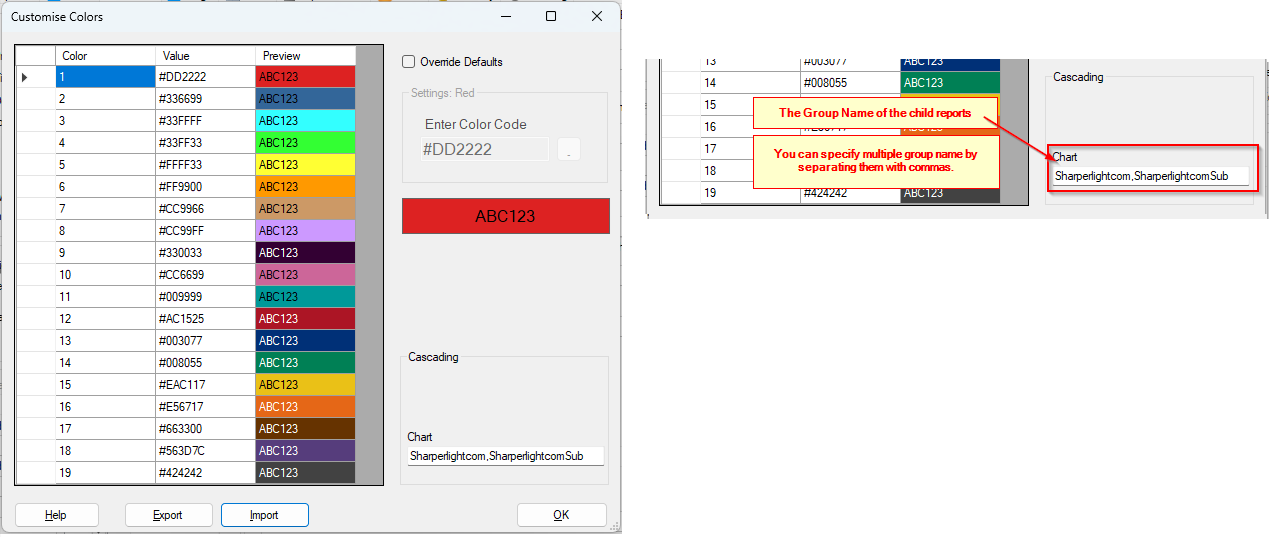
The default color palette is like this, and the Key to making this behave as a Global Color Palette is to specify the Group Name of all associated child reports here.
All child reports having the specified group name will inherit the color codes defined within the Global Color Palette.
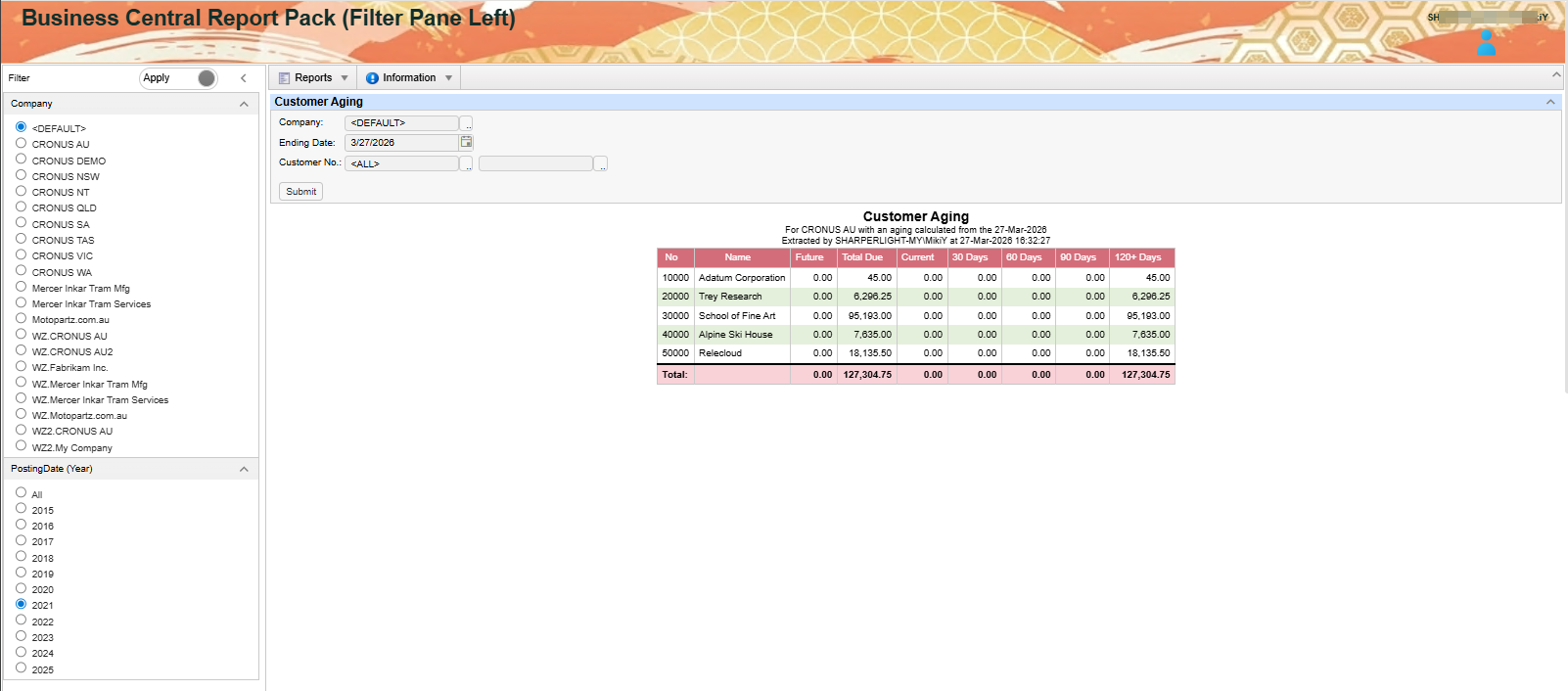
Let’s examine how the child reports appear when the default Global Color Palette is active.
This child report’s group name is set to ‘SharperlightcomSub’, so the color codes used in this report are inherited from the default Global Color Palette.
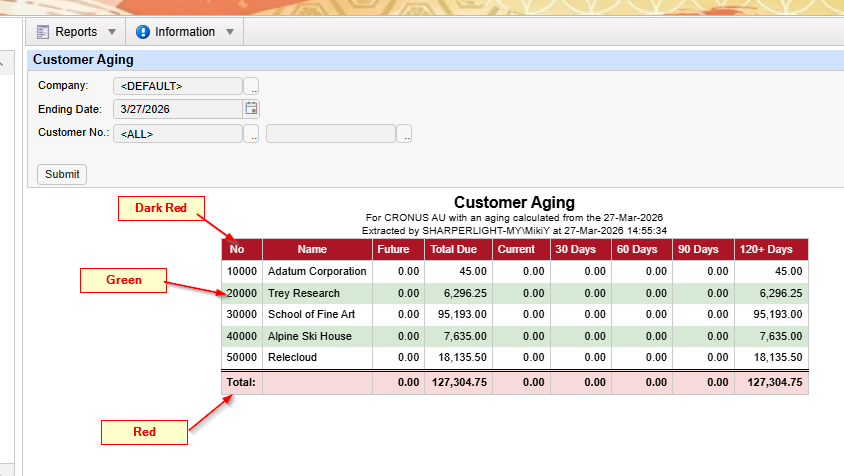
Since the Global Color Palette currently matches the default settings, we cannot yet verify whether the color codes are being inherited correctly.
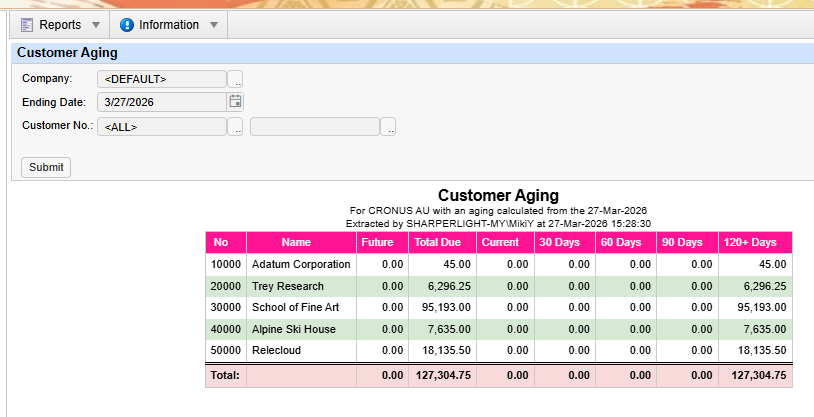
Let’s change the color code for “Dark Red” in the default Global Color Palette so that it is dark pink (#FF1493).

Anywhere the “Dark Red” color code was previously used within the child report should now appear in dark pink.
Global Color Palette for Chart
Functioning similarly to the Global Color Palette, this setting is specifically designed for Chart components.
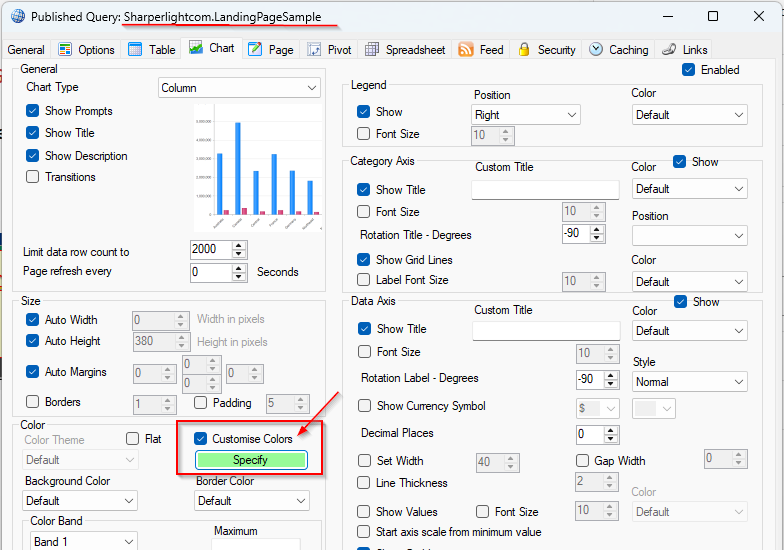
By specifying the Group Name of the child reports, the color codes in the palette are inherited by those reports. This effectively establishes the current palette as the Global Color Palette for Chart.
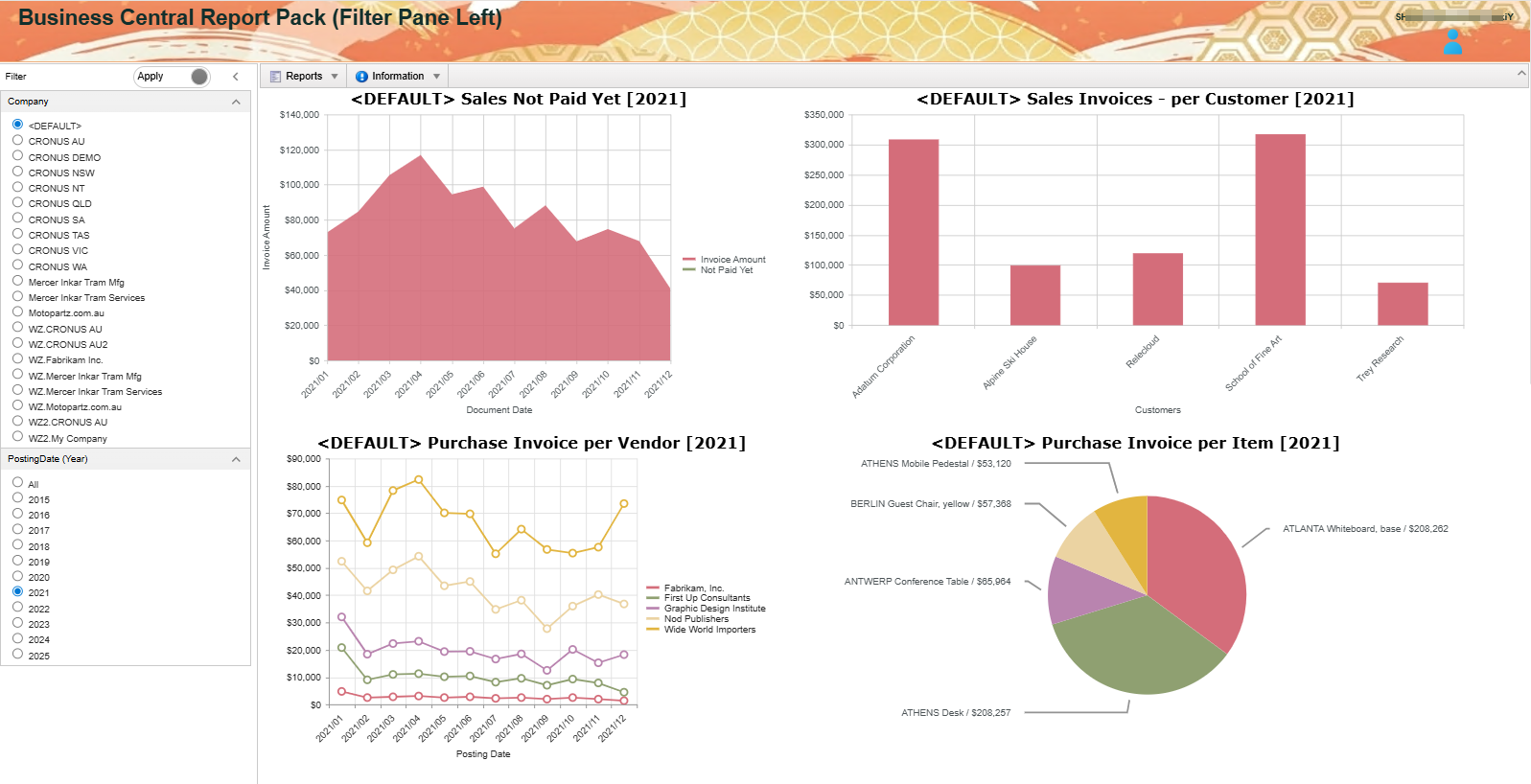
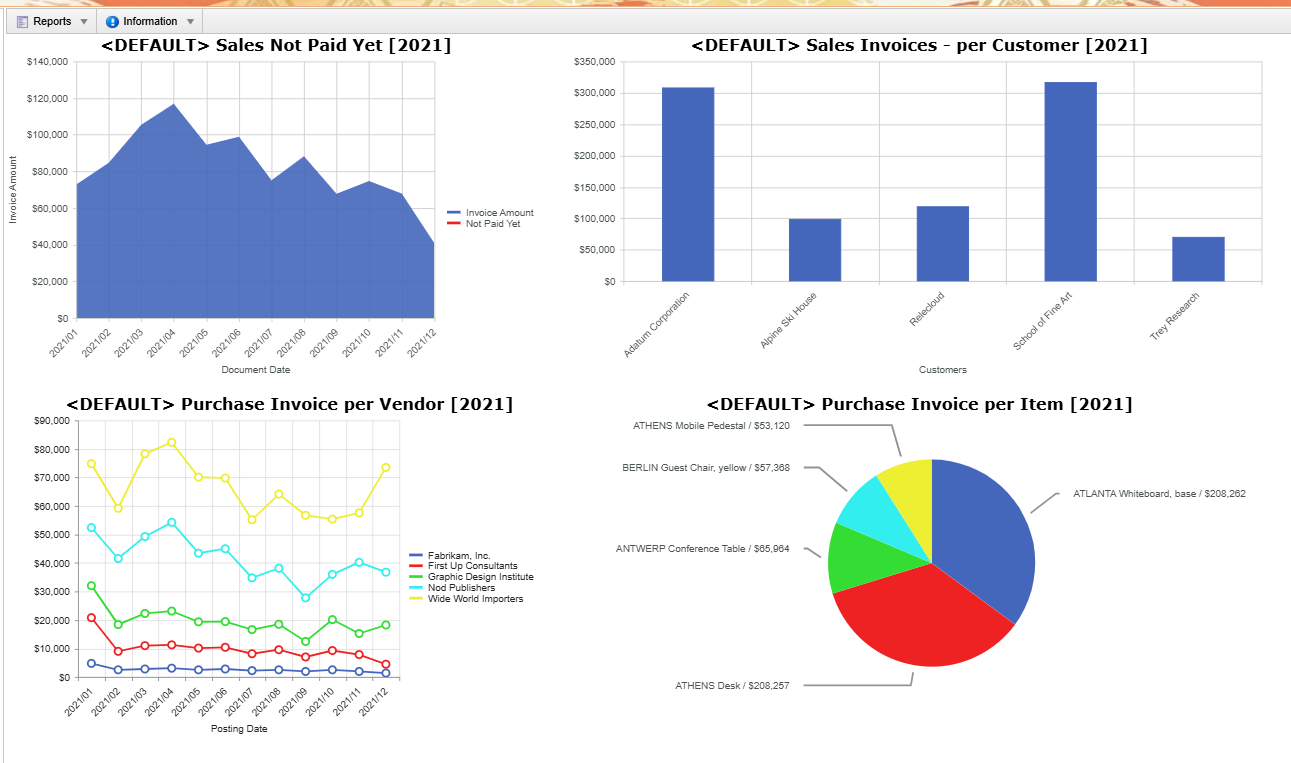
Let’s see how the charts in the child reports appear when the default Global Color Palette for Chart is active.
Since the default content of this menu report is one of the child reports of the landing page and its group name is specified, the charts on this page should inherit the color codes from the Global Default Color Palette for Chart.
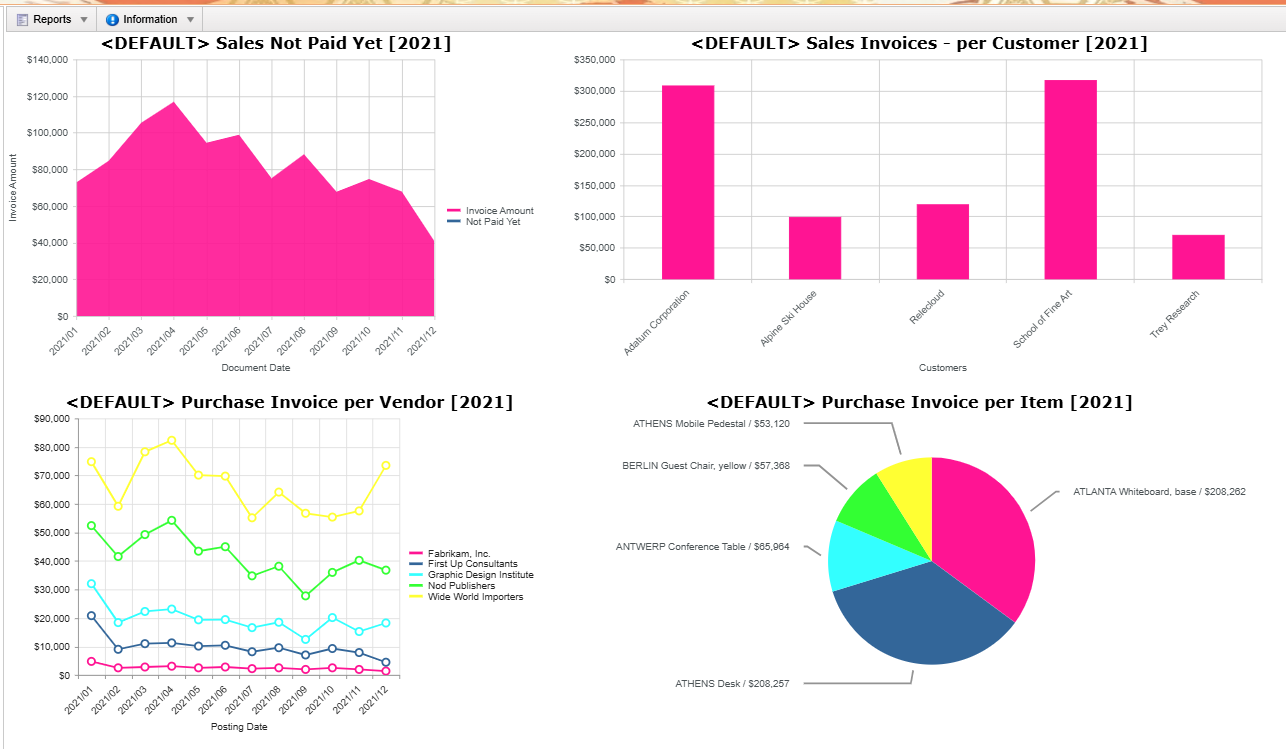
Since the Global Color Palette for Chart currently matches the default settings, we cannot yet verify whether the color codes are being inherited correctly.
Let’s change the color code at the first in the default Global Color Palette for Chart, since the chart uses the color from the first of the color palette.
Set dark pink (#FF1493) as the first color code.

Anywhere the first color code was previously used within the child report should now appear in dark pink.
Afterword
We hope this post gives you some inspiration as you design your own landing page and its child reports.
I prepared a color palette as the Global Color Palette and another color palette as Global Color Palette for Chart here and applied them.
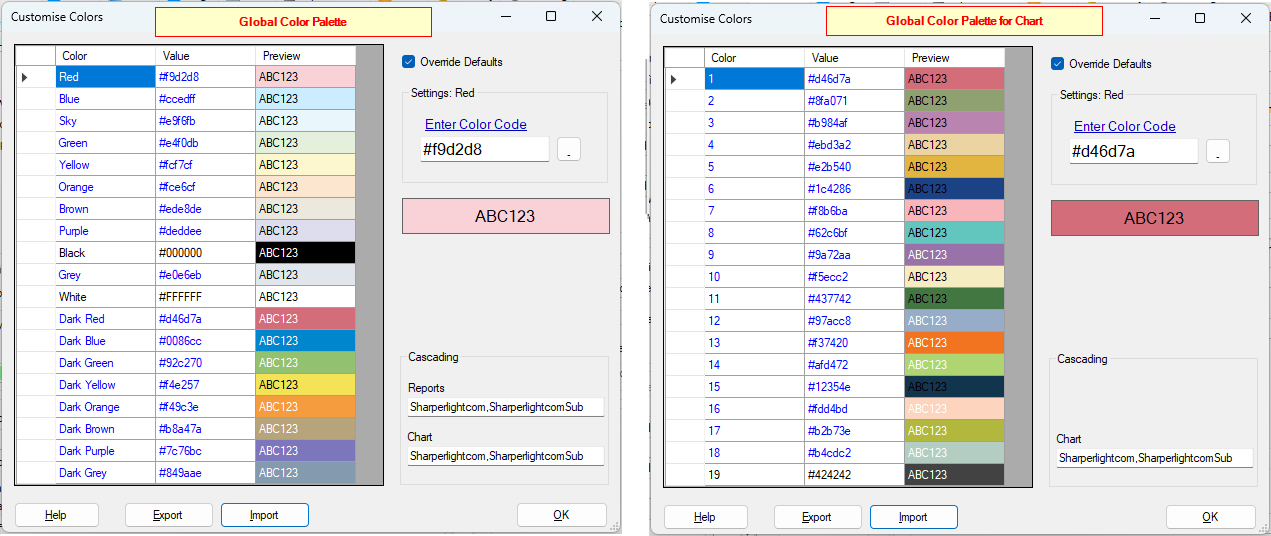
Download Sample Color Palletes here
This ensures a consistent look and feel across the entire report pack.