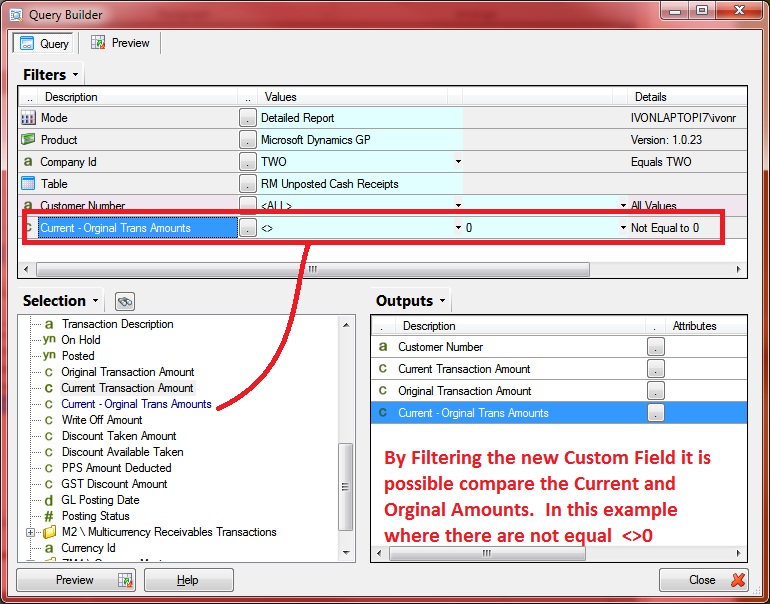
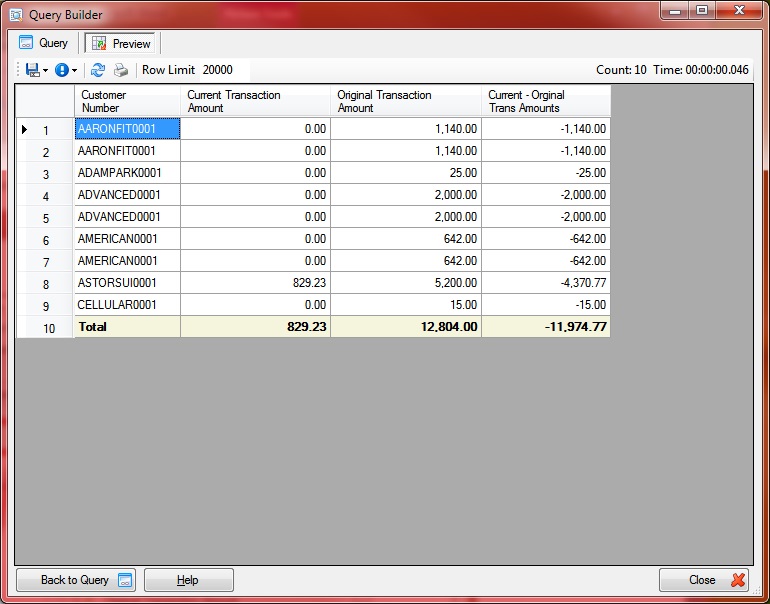
Custom Fields can be used to allow Fields to be Compared and Filtered
Custom Fields allow you to extend the DataModel with new custom SQL columns that have not been defined in the Master version. If a new version of the DataModel is installed the Custom Field that have been defined and stored in the SharperLight database will be merged with the new version on start-up
In this example we will be showing how Custom Fields can be used to compare different Fields so that they be filtered on. The example has two Fields called Current and Orginal Transactoin Amounts and we want to be able to know if these two Amounts are the same or not.
Please Note:
It is now possible to compare Fields in the Filter area by dragging and dropping a Selection Item into the two box of a Filter.
If this functionality does not appear then Install SharperLight 2.7 or later
The basic steps to create a Custom Field that compares to Fields is as follows
- Ensure you have permissions to Add Custom Joins and Fields in Site Setup
- Start Query Builder and select the root Table or Find the Target Table under a Folder
- Select a Field where you would like to anchor the new Field in the Selection List
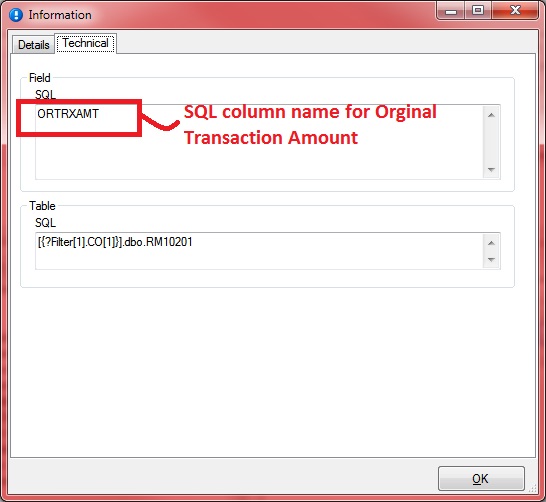
- Right click on the target Fields and select Information to get the SQL column names of the two Fields
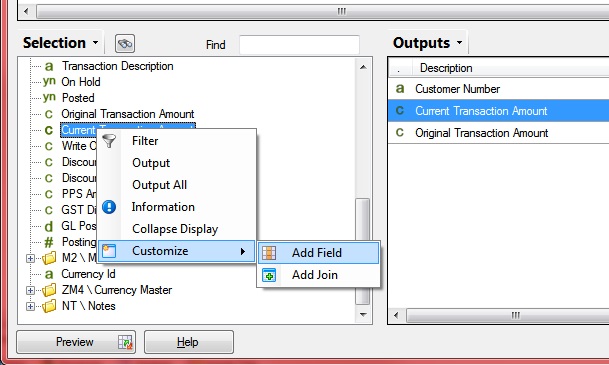
- Right Click and Select Customize – Add Field
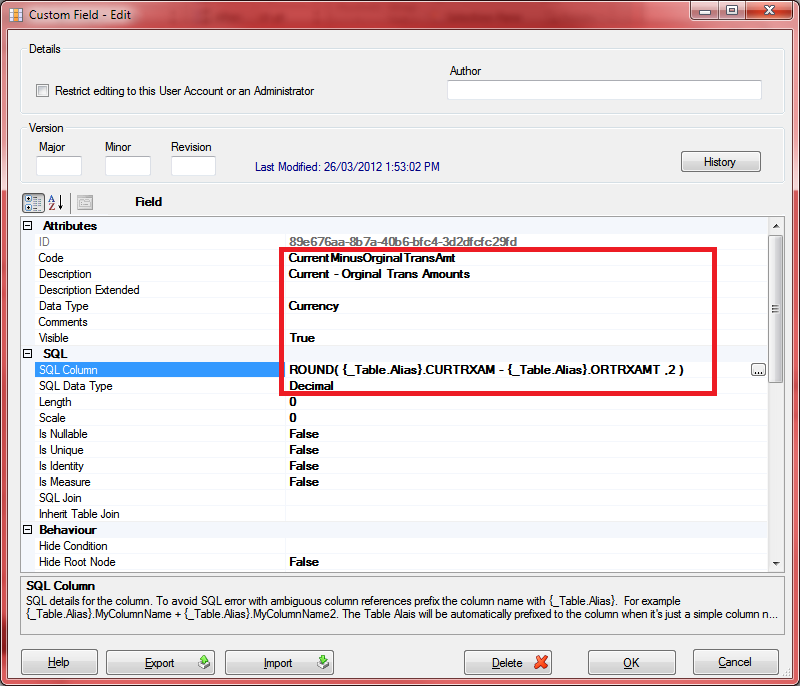
- Set the Code, Description, SQL Column, Data Type and SQL Date Type in the Property Grid
- Save
- Test the new Field in Query Builder by outputting it
- Try Filtering the new Custom Field with <> 0
Use Query Builder to Start the basis of the Query
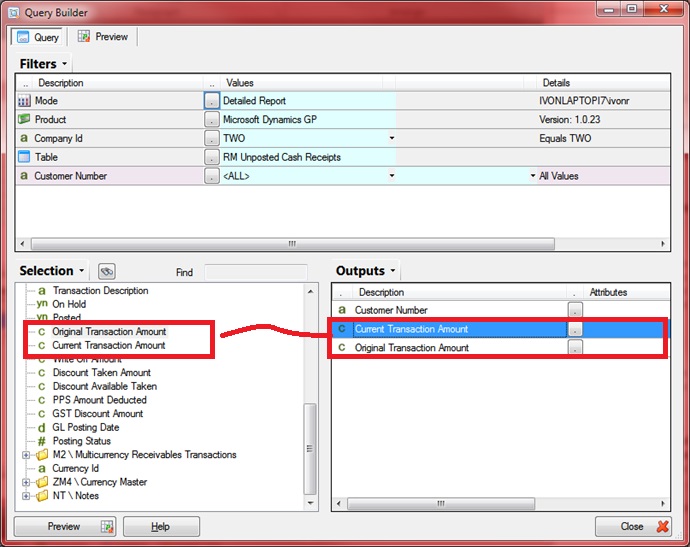
Preview the Data to view the current and Original Transaction Values
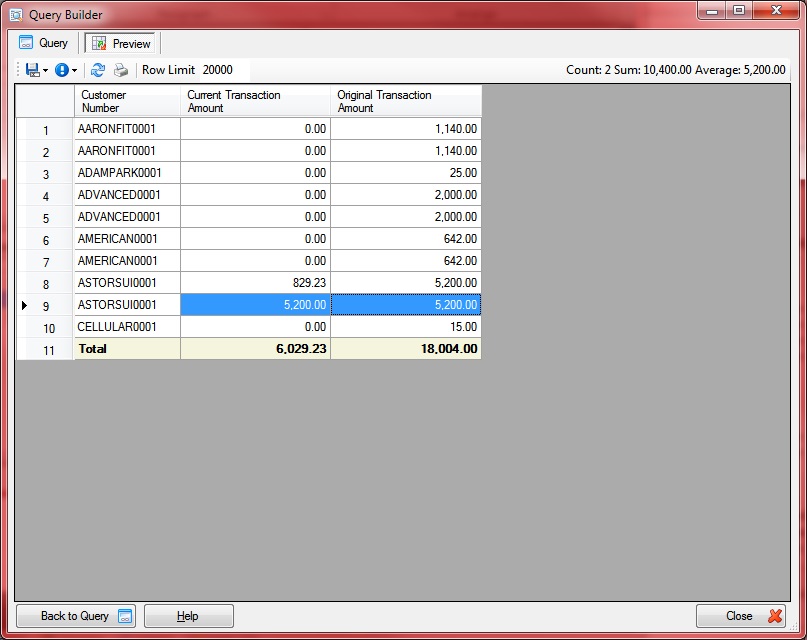
Right Click and select Information on the Fields in the Selection list. Go to the Technical tab to get the SQL column name
Original Transaction Amount is ORTRXAMT
Current Transaction Amount is CURTRXAM
Now create the Custom Field by selecting the Location you want it to appear and Right Click selecting Customize – Add Field
Set the various Property settings for the Field, such as Code, Description, Data Type, SQL Column, and SQL Data type
In this example we will subtract the Orginal Amount from the Current Transaction Amount. In this way it is possible to Filter for all the possible comparison outcomes
When 0 there are Equal
When <>0 there are not Equal
When > 0 then Current is greater than the Original
When < 0 then Current is lesser then the Original
ROUND( {_Table.Alias}.CURTRXAM – {_Table.Alias}.ORTRXAMT ,2 )
Output the new Custom Field to view the results
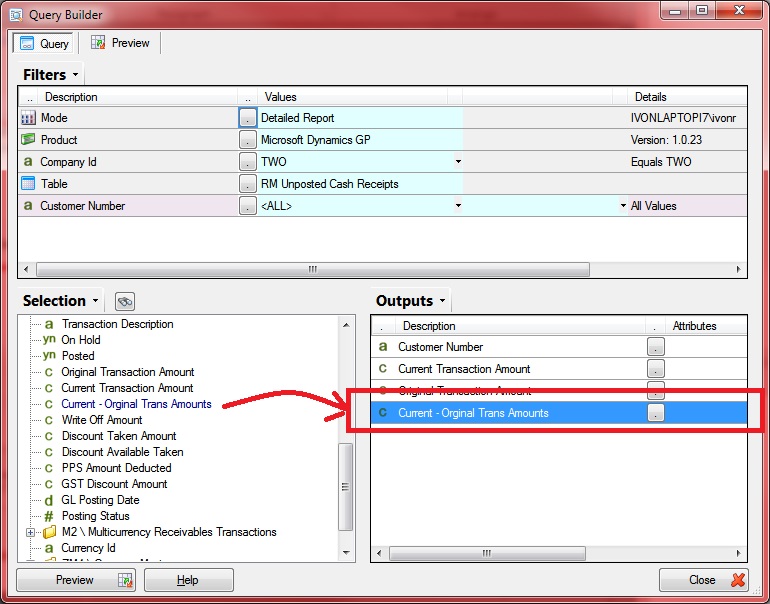
Notice that new Custom Field shows the different between the Current and Original Amounts.
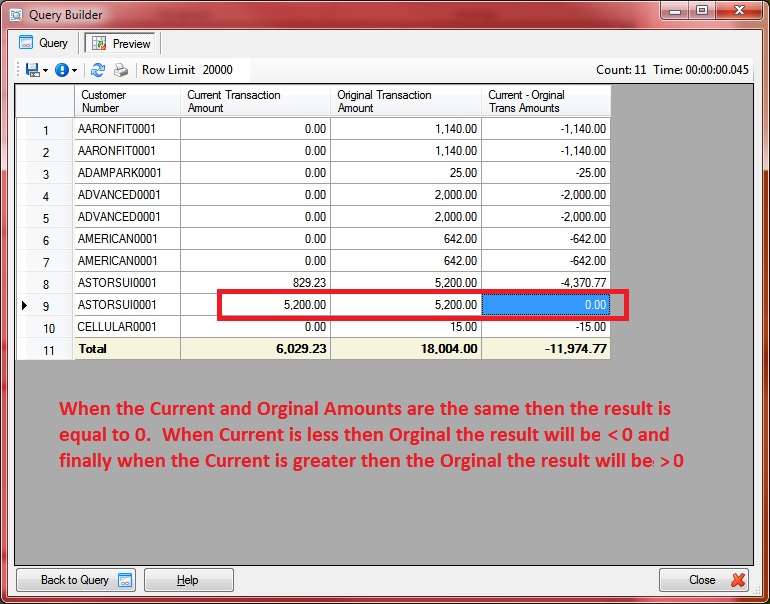
Now create a Filter on the new Custom Field and set the criteria to <> 0 to generate a Report that excludes rows where the Current and Original amounts are the same.
Try other Filter criteria to show rows where Current is less than the Original < 0 or the same = 0