
Keeping error logs on Email action
Introduction
In this post, we’ll see how to check the error log when the Email action throws an error.
A query is used to retrieve error information from the scheduler error log and save the results to an HTML file.
When using an email action, error information may not be recorded in the scheduler history log, depending on how the action is configured.
In this post, we’ll explore the specific cases where the error log is visible in the scheduler history, and the cases where it isn’t.
Practices
We prepared the following three scheduled tasks.
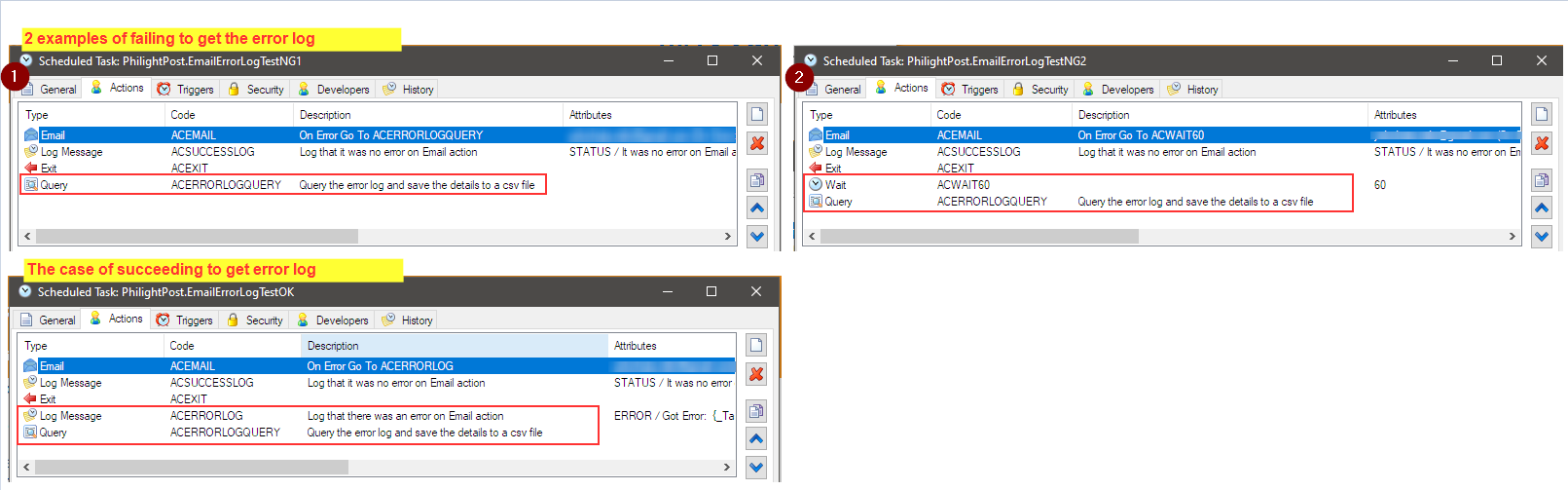
The first three actions are the same for the all three tasks and they do;
- Sending Email (Configured it makes an error)
- Log that there is no error on Email action
- Exit from the task

Case NG 1 – No error log detect
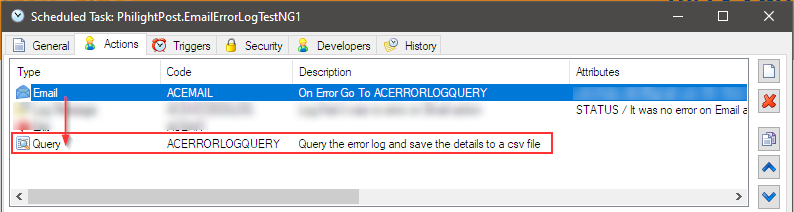
With the task, it jumps directly to ACERRORLOGQUERY action when the email action gets error.
However, the error details is not recorded in the history log so the query (ACERRORLOGQUERY) gets nothing.
Case NG 2 – No error log detect
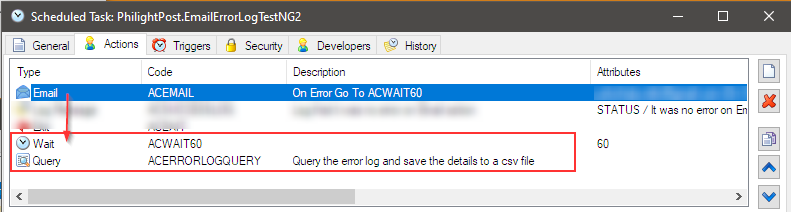
With the task, it jumps directly to ACWAIT60 action when the email action gets error.
However, even after waiting 60 seconds, the error details are not recorded in the history log, so the query (ACERRORLOGQUERY) returns no results.
Case OK – Error log can be seen
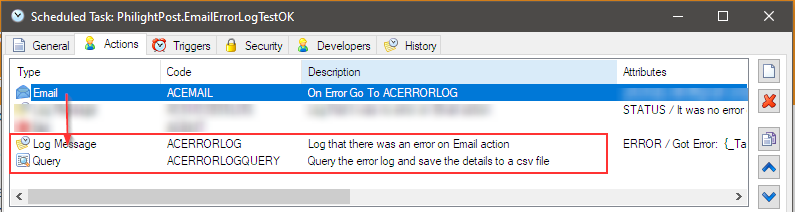
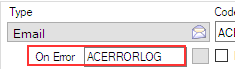
With this task, it jumps directly to ACERRORLOG action when the email action gets error.
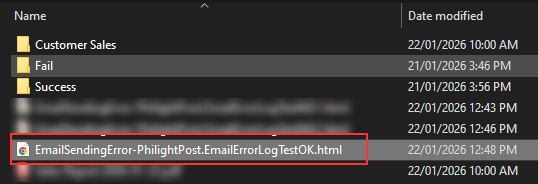
The query (ACERRORLOGQUERY) returns the error details only when “Log Message” action is run prior to it like this case.

Afterword
To ensure error details from the Email action are captured, include a “Log Message” action before it — as demonstrated in this case.