
Be aware of the varying behavior based on the email server type
Introduction
The post mentions that there is different behavior when sending emails using SMTP versus OAuth (Microsoft authentication) in the Email action within a scheduled task.
Practices
We are creating a scheduled task that queries the Sales A/R tables in SAP Business One, saves the results as a file, sends the saved file via email, and then moves the file to another folder.
- Query sales information from SAP Business One and save the results as a CSV file at C:\forScheduler\SAP Sales Information yyyy-mm-dd.csv.
- Send an email with the file attached, using OAuth (Microsoft authentication).
- If the email action succeeds, move the file to the C:\forScheduler\Success\ folder.
- If the email action fails, save the error message as a file in the C:\forScheduler\Fail\ folder.
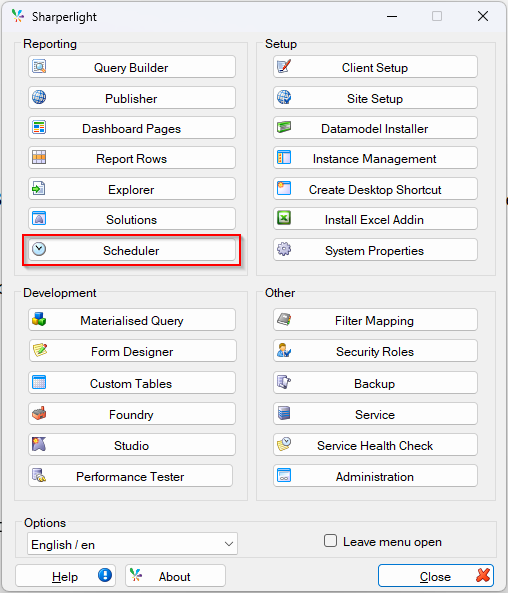
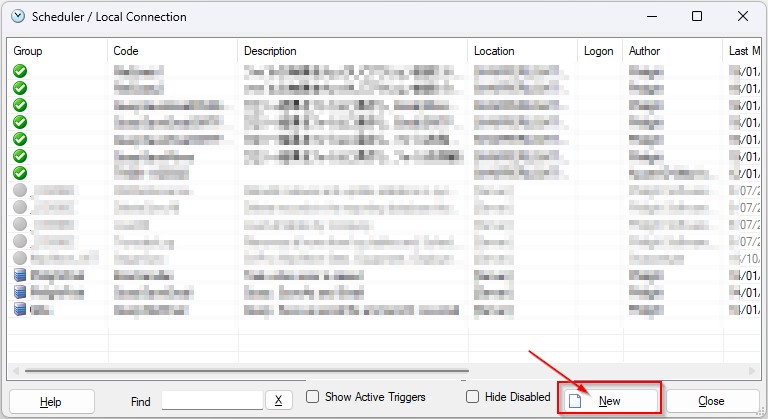
Let’s start Sharperlight Scheduler from Sharperlight application menu and click “New” to start creating a task.
Query Action
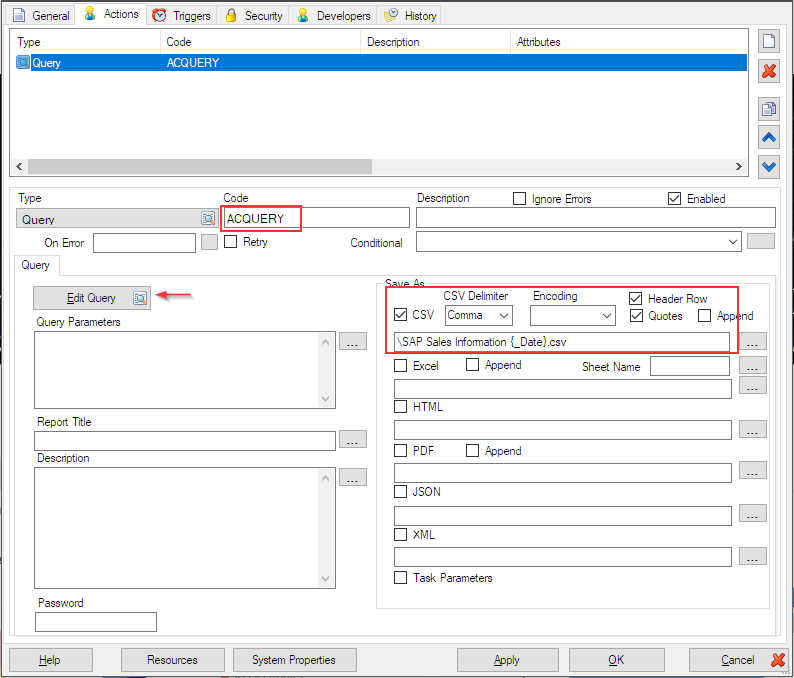
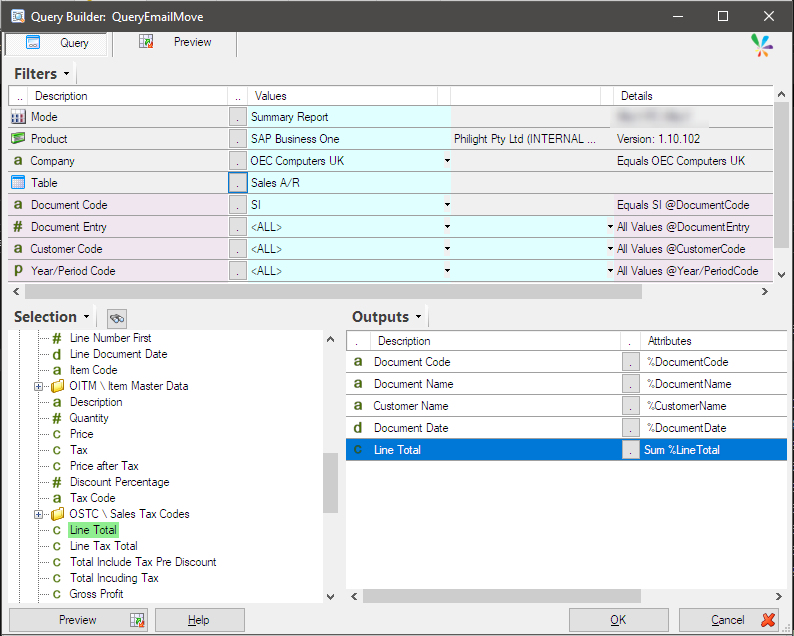
Define the Query action to return the sales information from SAP Business one, and it is saved as a csv file.
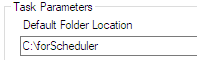
The csv file is saved under C:\forScheduler folder as default. The default location is defined as Default Folder Location in General tab.
The control tag {_Date} is resolved at runtime and replaced with the current date. For example: “SAP Sales Information 2026-01-15.csv”
The query definition is like this.
Email Action
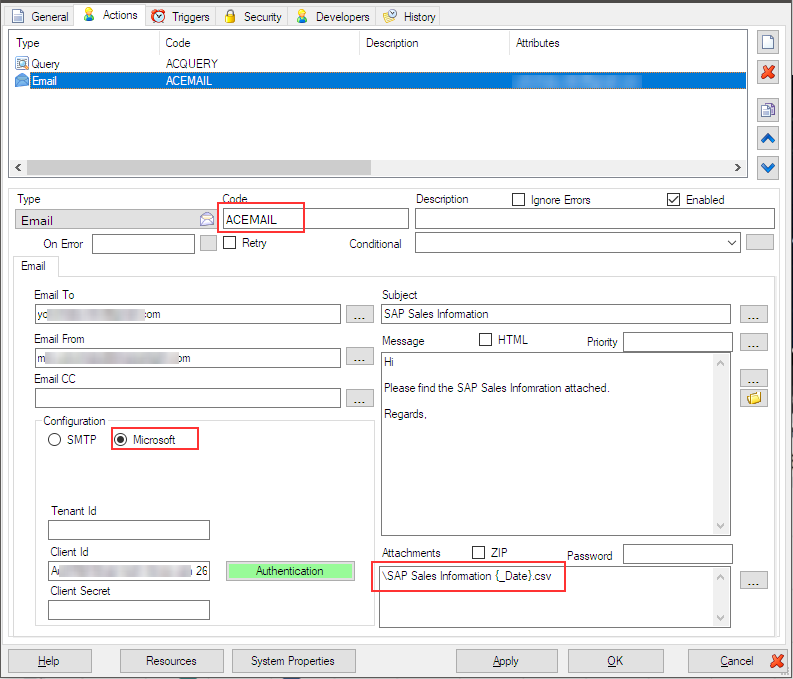
Add an Email action and configure OAuth (Microsoft authentication), and set the attachment.
File Move Action – Success
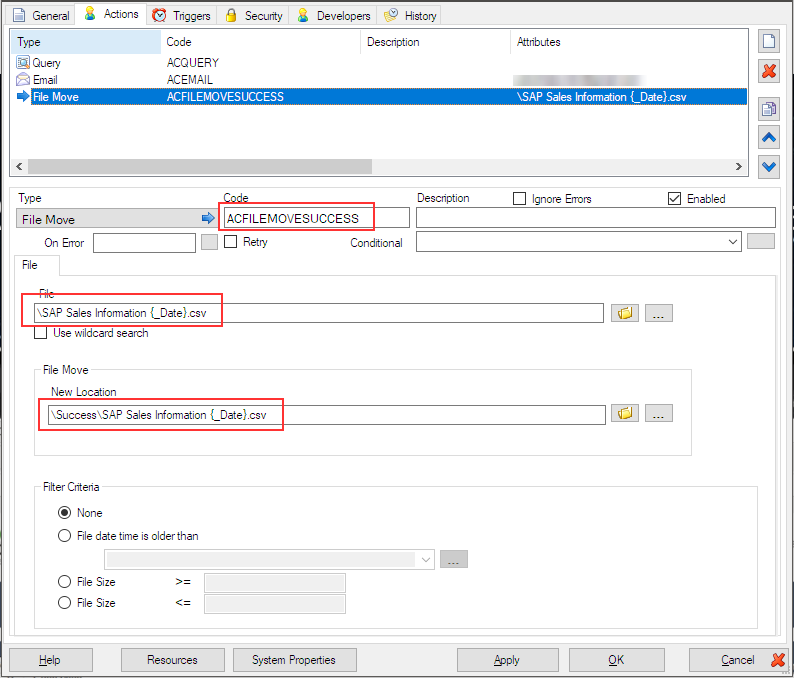
Add a File Move action and configure to move the file to C:\forScheduler\Success\ folder.
This action works when the Email action executes successfully.
Exit Action
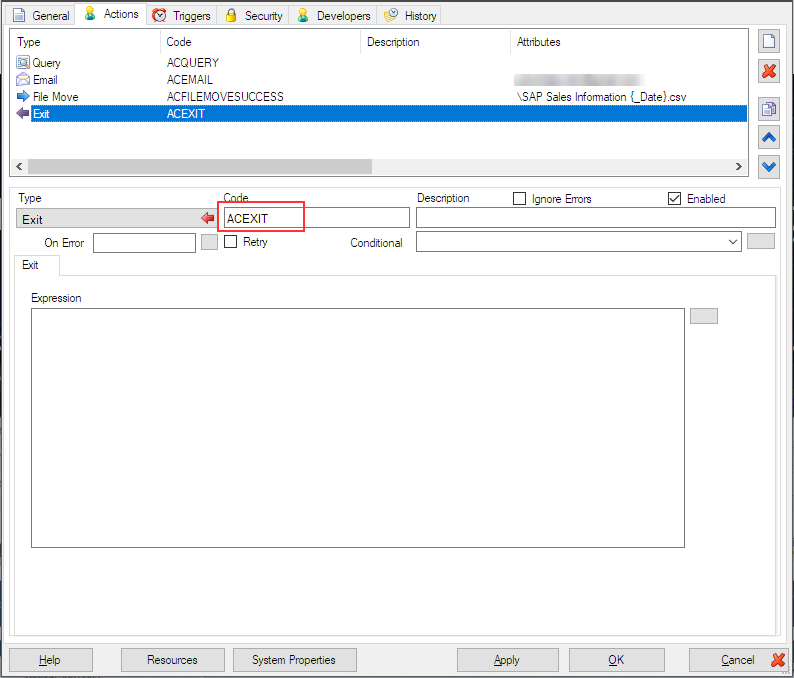
In this scenario, the task must move the saved file and complete the execution only after the Email action finishes successfully.
Therefore, we add Exit action here.
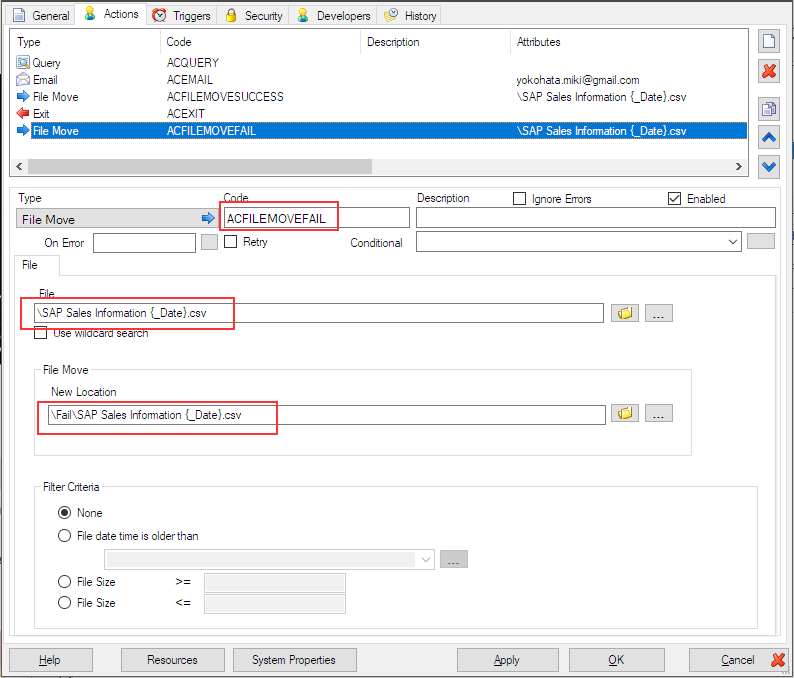
File Move Action – Fail
Add another File Move action and configure to move the file to C:\forScheduler\Fail\ folder.
This action works when the Email action fails.
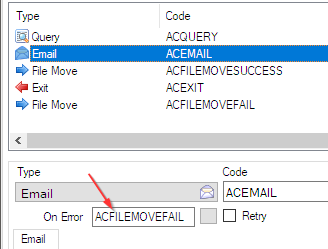
Specify the action name “ACFILEMOVEFAIL” into On Error option in the Email action.
If any error occurs in the Email action, the flow jumps to the “ACFILEMOVEFAIL” action (file move on failure).
Verification of the overall task logic
Please make sure there is no file in the C:\forScheduler\, C:\forScheduler\Success\ and C:\forScheduler\Fail\ folders.
Manually execute the task by using the popup menu in the scheduler dialog.
We can see the csv file in the C:\forScheduler\Success\ folder if the Email action finishes successfully, otherwise the csv file should be in C:\forScheduler\Fail\ folder.

If a file with the same name already exists in the destination folder, the move operation may fail and the file could become locked. In such cases, the next time the task runs, you will encounter an error stating that the file cannot be moved. To prevent this, we recommend adding a File Delete action as the very first step in the task — either by targeting the specific conflicting file name (if known) or by deleting all files in the destination folder.
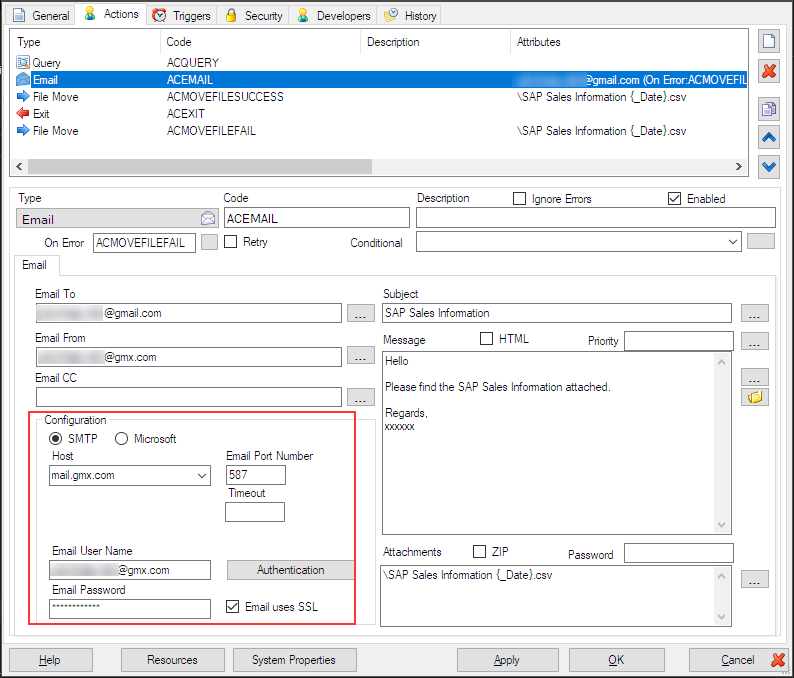
Updating the Email Action to use SMTP
Let’s have a look the difference when the Email action uses SMTP.
Go for Email action, and tick the SMTP option and configure the details.
Verification of the overall task logic again
Please make sure there is no file in the C:\forScheduler\, C:\forScheduler\Success\ and C:\forScheduler\Fail\ folders.
Manually execute the task by using the popup menu in the scheduler dialog.
We get this error this time.
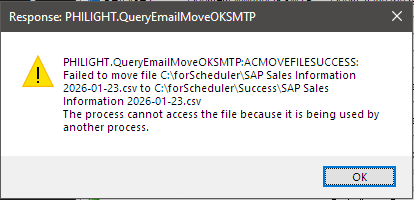
After the Send Email via SMTP action is invoked, the flow immediately proceeds to the next action (File Move) without waiting to confirm that the email has been fully sent. As a result, when the File Move action executes, the attached file is still locked by the SMTP email process — which is the root cause of this error.
This issue occurs even when the Email action fails — in that case, the flow branches to the File Move action (“ACMOVEFILEFAIL”), but the file remains locked, leading to the same error.
Afterword
So far, we have covered the key precautions to take when combining email sending and file operations in the same flow.
If you need to build such a flow, here are some practical approaches to consider:
- To prevent issues caused by duplicate file names in the destination, delete any potentially conflicting files beforehand.
- If the file remains locked (e.g., because the SMTP email process does not fully release the attachment handle), a reliable workaround is to copy the file instead of moving it.