
Synchronizing Users with a Product
In most cases Sharperlight is setup to use either Windows Domain Users or Groups, or Sharperlight named users. There is another type of user account that is based on the users defined in one of the Products Sharperlight is connecting to. These Product Synced User Accounts allow users to login into Sharperlight with the same credentials that the underlying Product Application is using. For example if Sharperlight was connecting to a Financial System and the DataModel for that system had the user names and password defined, Sharperlight would be able to sync and authenticate user accounts just as if they were logging into their Financial Application directly.
When Product Synced Users are setup, users are able to login into the Sharperlight Excel Add-in or the Web Channel with their underlying Application User name and password. If new accounts are created, deleted or passwords changed in the underlying Application Sharperlight will pick these changes up. The one limitation is that Sharperlight will not allow users to change a synced user password that is provided by the Application. These Application passwords can only be changed by the underlying Application itself. This includes deleting and creating new Accounts.
Sharperlight Site Setup is where the flag to create synced users based on a Product is done. The user account details are imported into Sharperlight and any password details are further encrypted with a one way hash with salt. The list of synced user accounts are automatically kept in sync with the underlying system so that there should be not need to manage the accounts inside Sharperlight from that point on. Most systems will encrypt user passwords using one of the standard one way encryption methods such as MD5, SHA1, SHA256, SHA384 or SHA512 in various HEX or base64 formats. If it’s one of these standard password encryption methods Sharperlight will be able find a match on the password given the correct password and user details. If the DataModel doesn’t provide a password then Sharperlight will still sync on the user names but will handle the password updating itself in it’s own shadow copy list.
In the case where the underlying system has encrypted passwords using some unsupported method then Sharperlight will need assistance to decrypting the user’s password details when syncing with the Product. This assistance comes in the form of a .NET DLL that is called when the user name and password details are synced and the password needs resolving. This .NET DLL is only required on the central Application Server. This article has a .NET example that can be modified to suit towards the end.
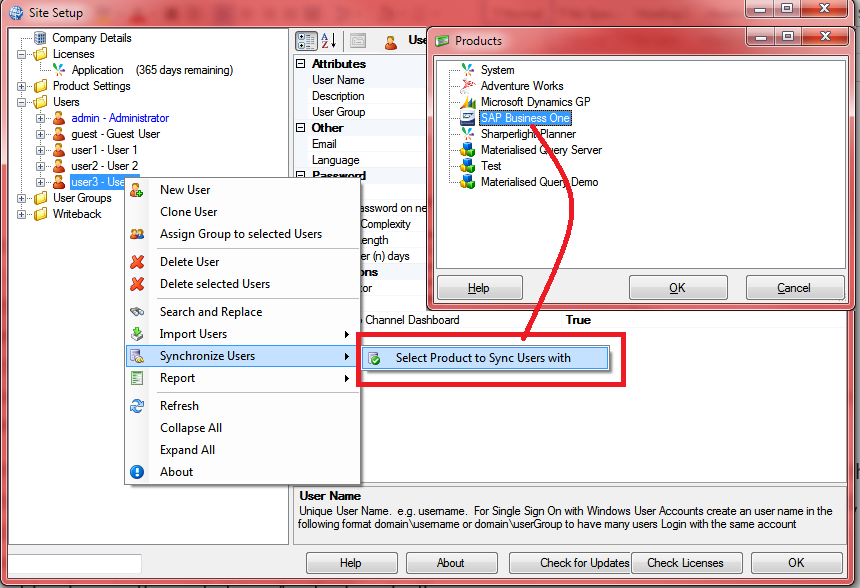
Site Setup – Synchronize Users with Product
Site Setup showing the right click menu for Synchronizing Users and then selecting the Product
Site Setup showing the Synchronized Users in the User Folder with Underlined Text
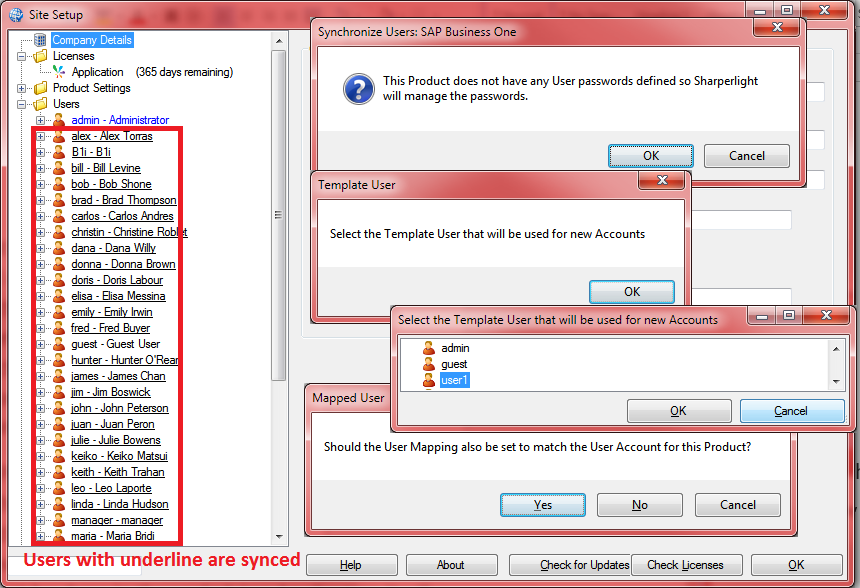
Once users are synced try logging into Sharperlight using the same User name and Password as the Product used for syncing users.
Create .NET DLL Library
The DLL file , object , class and Method name can be anything but make sure they match the registry keys in the later steps. The Method has two parameters called user and password and returns a string decrypted password. Return a “!ERROR!” if there is something invalid about the passed in user name or password.
Download Example:  MyTokenLibV2.zip
If Startup logic is required you can define a Method called Startup()
namespace MyTokenLib
{
- public class Account
- {
-
- public void Start()
- {
-
- //Optional
- }
- public void Shutdown()
- {
-
- //Optional
- }
- //decrypt the password for this account and pass password in plain form
- public string Convert(string accountName, string rawPassword)
- {
-
- try
- {
-
- return rawPassword.Replace(“[“, “”).Replace(“]”, “”).Replace(“##”, “”);
- }
- catch
- {
-
- return “!ERROR!”; //invalid password use this special tag so we know what’s a blank password
- }
- }
- }
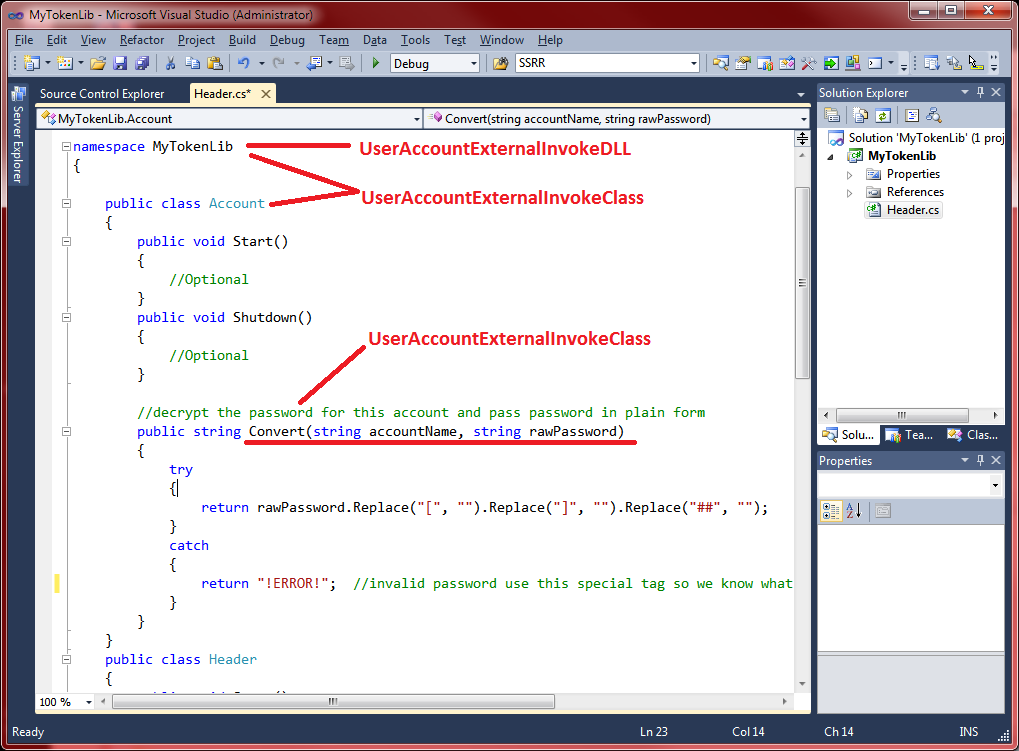
Create Registry Keys
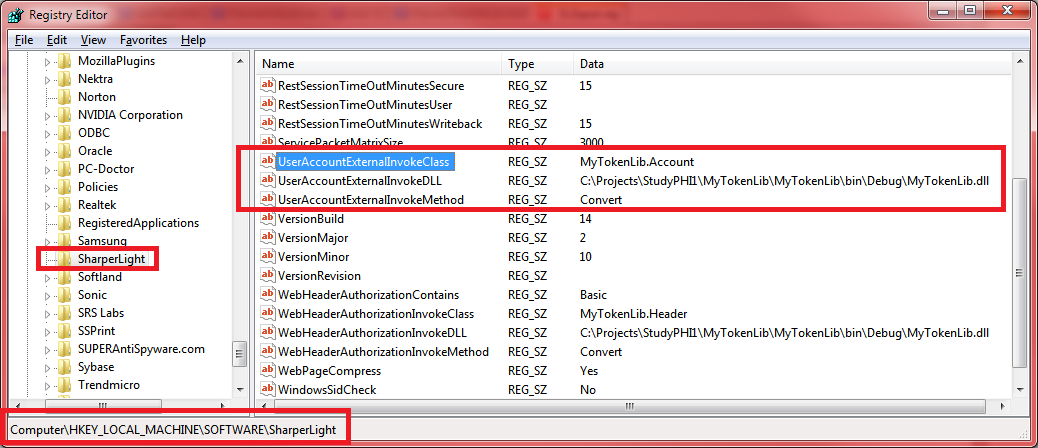
The registry keys tell Sharperlight that it should call the DLL when a Header is found with the matching keyword
- UserAccountExternalInvokeDLL
- The DLL full path name or if it is in the GAC just the file name
- UserAccountExternalInvokeClass
- The Object and Class name that Sharperlight will create For Example MyTokenLib.Account
- UserAccountExternalInvokeMethod
- The Method to invoke. Make sure it has two string parameters user and password and returns a string which is the decrypted password. If the regkey is not present or is Blank then the Default of Convert is assumed. If for whatever reason the user and password details are invalid return “!ERROR!”
Windows Registry Editor Version 5.00
[HKEY_LOCAL_MACHINESOFTWARESharperLight]
“UserAccountExternalInvokeMethod”=”Convert”
“UserAccountExternalInvokeDLL”=”C:\Projects\StudyPHI1\MyTokenLib\MyTokenLib\bin\Debug\MyTokenLib.dll”
“UserAccountExternalInvokeClass”=”MyTokenLib.Account”
Please see this related article on Web Channerl Authorization Headers
Web Channel – Single Sign On with Custom Authorization Header
Supported Synchronized Users Password Hashes
When Sharperlight synchronizes Users and then authenticates the user password, it tries various standard one way encryption methods to find a match with the password entered by the user. If you database stores user password in one of these standard formats then you will find that Sharperlight will be able to successfully sign-in users with their host application passwords.
- SHA1 as ASCII (Base64 or HEX)
- SHA1 as UTF8 (Base64 or HEX)
- SHA1 as UNICODE (Base64 or HEX)
- SHA256 as ASCII (Base64 or HEX)
- SHA256 as UTF8 (Base64 or HEX)
- SHA256 as UNICODE (Base64 or HEX)
- MD5 as ASCII (Base64 or HEX)
- MD5 as UTF8 (Base64 or HEX)
- MD5 as UNICODE (Base64 or HEX)
If the passwords have SALT added to the Hashing, you can tell Sharperlight what the SALT is by adding a RegKey entry on the Application Server called UserHashSalt and set the SALT values as HEX. Sharperlight will then use this SALT whenever comparing the password Hash values. User Hash Salt support was added from version 4.0.10+ onwards