
Whitelisting IP Addresses
Whitelisting of IP Addresses is often used in Cloud hosting to prevent access to the service from untrusted locations. The IP addresses can be based on version 4 or 6 addresses and may contain ranges and wildcards.
The risk factors become higher when users set poor passwords or do not setup Two-Factor Authentication. By setting up a whitelist in Sharperlight – Site Setup an administrator can reduce the possibly of someone accessing the system with stolen credentials.
Whitelisting works by making sure only the IP addresses listed can access the system. If one is trying to access the system from an unknown IP address you will see an error message in the Web Channel. If a Rich Client Application is not whitelisted then the User Logon will fail with a generic message with no mention of the IP address not being whitelisted.
Format
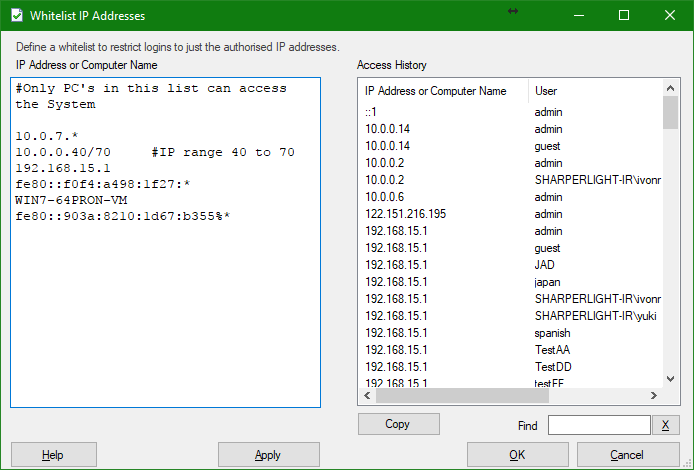
IP addresses
- Version 4 10.0.0.40 or 110.145.21.50
- Version 6 fe80::903a:8210:1d67:b355%4
IP Addresses Ranges
- Version 4 ranges are defined with a forward slash e.g. 10.0.0.40/70 #10.0.0.40 to 10.0.0.70
- Version 6 ranges are defined with a forward slash after the % e.g. fe80::903a:8210:1d67:b355%4/90
Computer Names
- These are good for intranets where a computer gets an dynamic IP address. This method is not recommended for the Internet as computers can be renamed.
IP Addresses Wildcards
- Version 4 10.0.0.* #will match any IP address starting with 10.0.0. (0 to 255 )
- Version 6 fe80::903a:8210:1d67:b355%* #will match any IP address starting up to the %
- Version 6 fe80::903a:8210:1d67:* #will match any IP address starting up to the :
Comments
- Use the # character to start a comment e.g #This is N Telsa’s IP
Notes
Whitelisted IP address changes can take about 3 minutes to be reflected by the Service due to caching.
The Server will never block it’s own IP address even when it’s not in the whitelist so that one never gets locked our of the very system that is required to change the IP addresses.
If a user has only a IP v6 address and not match is found the system will convert the IP v6 to v4 in case there is a matching v4 IP address in the whitelist
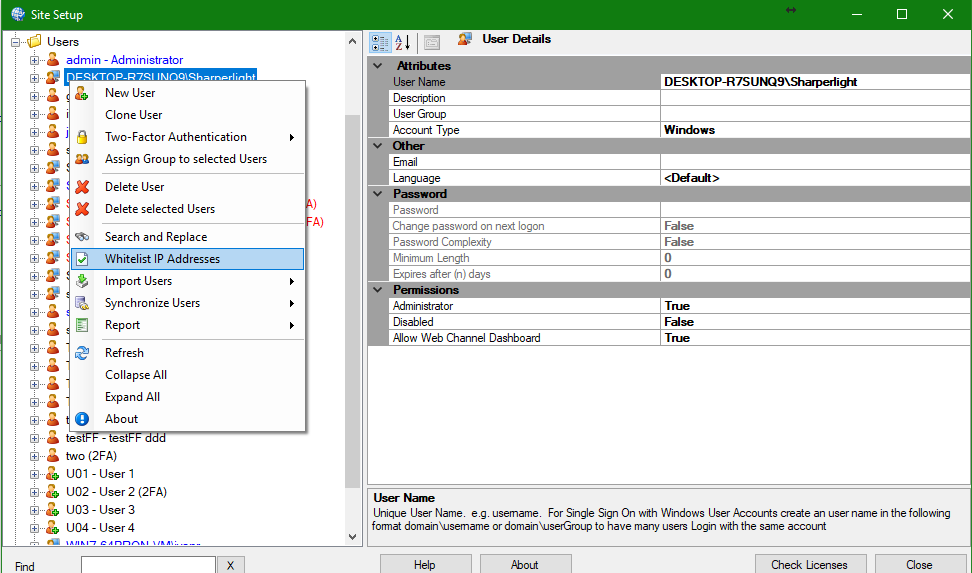
Site Setup – Use right click menu
Site Setup – Define the whilelist of IP Addresses
You can view the last years access history on the right had side of the entry window. Double click a IP address in the Access History list to add it to the whitelist.
The Web Channel will display the current IP address in use when whitelisting rejects the users location.

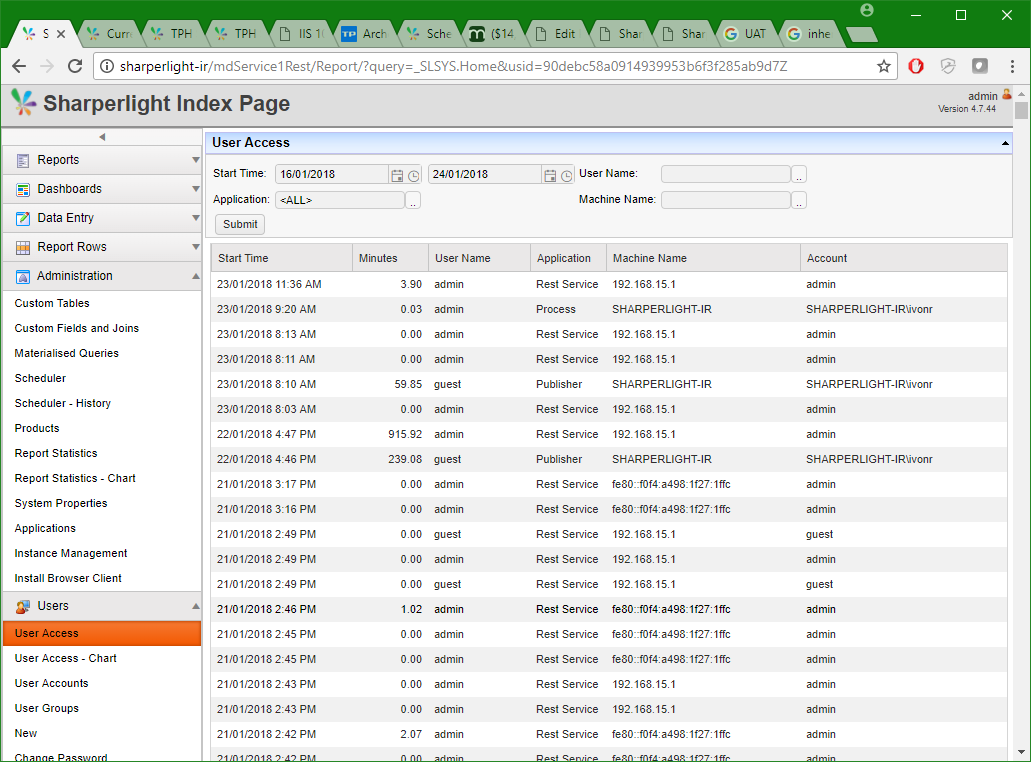
User Access Log
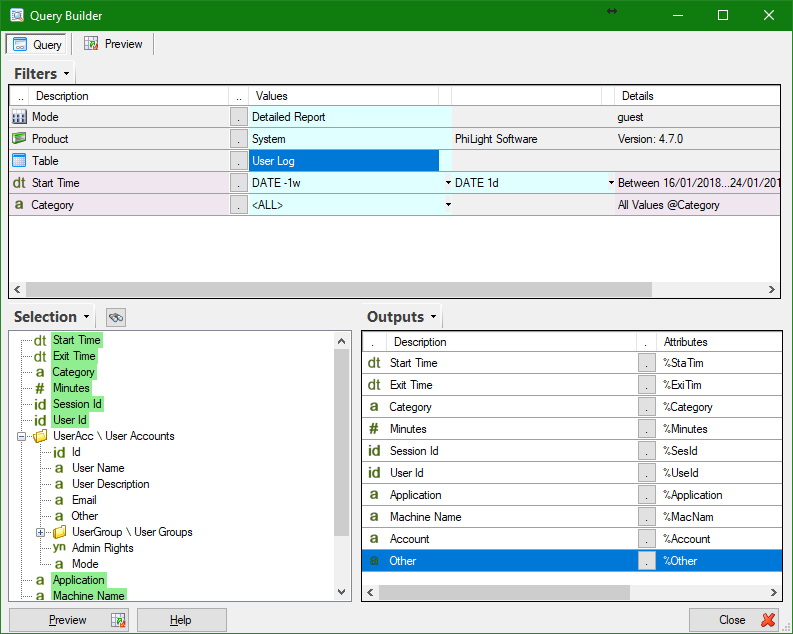
Sharperlight will keep a audit log of all user logins in the System / User Log table so that you can create your own reports over what time and applications the users are using. It also logs the computer or IP address
Query Builder showing User Log Table
Published: 16/01/2018 12:40PM