
Two-Factor Authentication (2FA)
Sharperlight can now use the Google Authenticator App for Two-Factor Authentication in combination with the existing User and Password. As it uses a time based key code one does not need to wait for a SMS message but instead one uses the code generated by the App for mobile, table or PC which changes every 30 seconds. This is part of Sharperlight complying with best practices, given that Cloud hosting is becoming more popular and one needs additional protection.
You can download the App for Android, iPhone and Windows
Download App Links
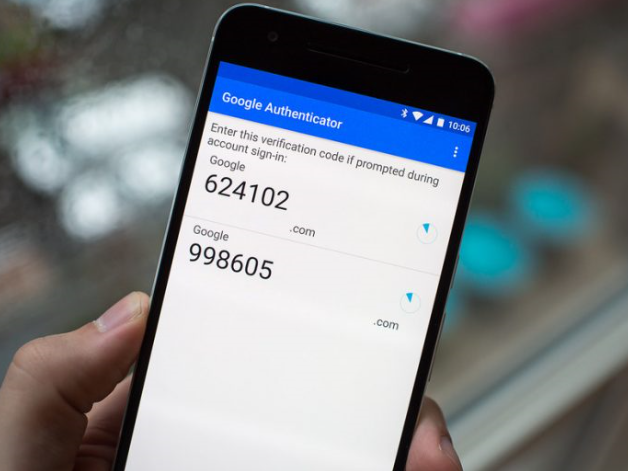
What is Two-Factor Authentication also known as “multi factor authentication”
In today’s world of increasing digital crime and internet fraud many people will be highly familiar with the importance of online security, logins, usernames and passwords but if you ask them the question “What is Two Factor Authentication?” the likelihood is they will not know what it is or how it works, even though they may use it every single day.
With standard security procedures (especially online) only requiring a simple username and password it has become increasingly easy for criminals (either in organised gangs or working alone) to gain access to a user’s private data such as personal and financial details and then use that information to commit fraudulent acts, generally of a financial nature.
Two Factor Authentication, also known as 2FA, is an extra layer of security that is known as “multi factor authentication” that requires not only a password and username but also something that only, and only, that user has on them (mobile phone).
Using a username and password together with a Two-Factor Code generated by their mobile, tablet or computer makes it harder for potential intruders to gain access and steal that person’s personal data or identity.
Limitations
Any Sharperlight account type can have 2FA attached to it including Windows Accounts and Groups
However the Web Channel only supports 2FA authentication if the Service authentication mode is set as Default not NTLM, Windows or Basic. This is because Browsers handle the authentication themselves when set to NTLM, Windows or Basic
Client Application Logon
A user can setup their own 2FA if not already active by clicking the Two-Factor Setup button. If a user already has 2FA activated and wants to deactivated or changed it in Setup, then they will first need to enter their current user, password and 2FA details.
If an user looses their 2FA App details, they can restore it back onto a device using the 2FA App and the original secret key or by re-scanning a print out of the original QR code of the secret key. If the user did not keep the secret key or QR code then an admin user will need to reset the 2FA in Site Setup.
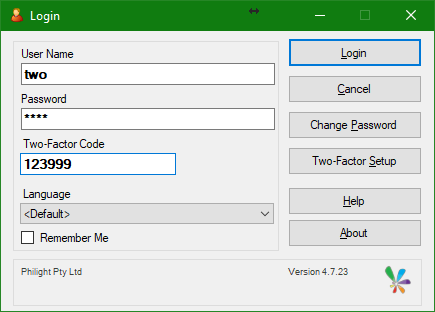
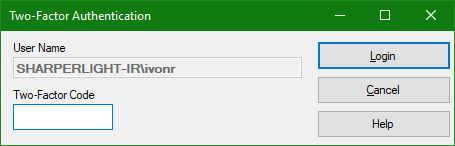
When Single Sign On with Windows Accounts or Groups is enabled combined with 2FA this Window will appear instead of the full Login Window. Select Cancel to go back to the full Login Window
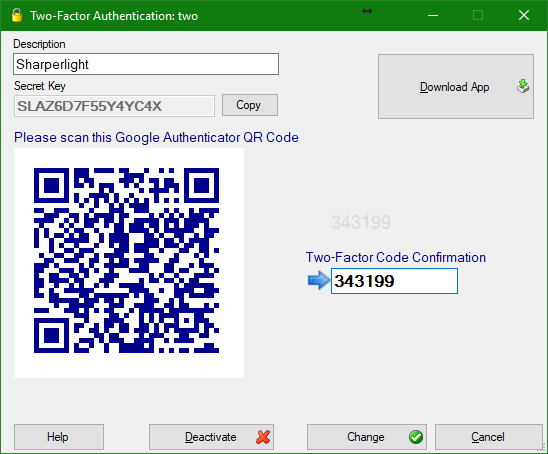
Two-Factor Authentication Setup
You can back up the Secret Key or QR image if you want to restore on a new device when the old device (mobile) is lost.
The description helps you know what Service or Report the Two-Factor Authentication to associated with.
Publisher – Securing Web Channel Reports with 2FA
Publisher Web Channel Reports can also be protected by 2FA. The idea being that one can sign in to the Web Channel and view most reports but certain reports may required additional 2FA validation or just 2FA instead of a sign-in.
Example:
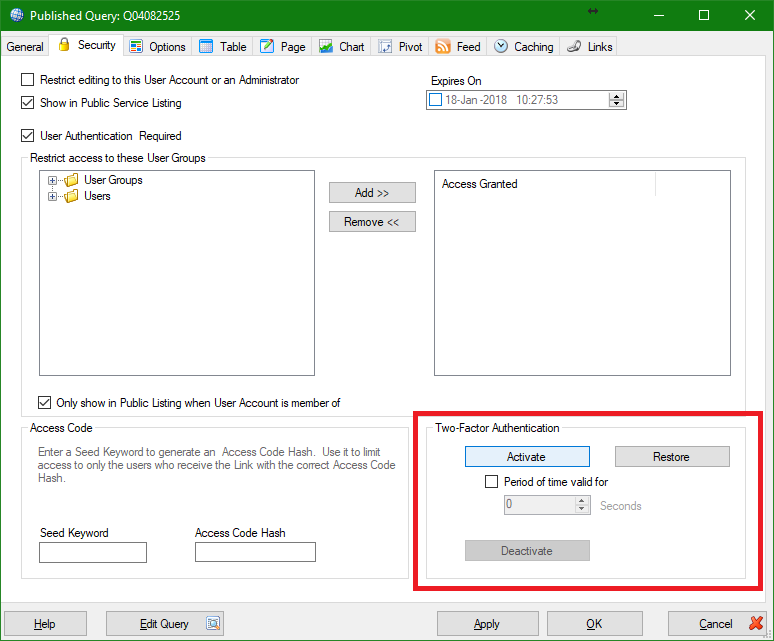
If one has created a report that is for external use by contractors who do not have a account in Sharperlight but you want them to still be able to access the report in a secure way. In this case you would uncheck User Authentication Required and enable Two-Factor Authentication on the desired report. The QR code or Secret key can be used to setup a mobile, tablet or other device the contractor has. Every time they access the report they will need to enter the 2FA code that matches the report.
Once the 2FA code is entered the report can be viewed for a default of 600 seconds which is 10 minutes. If a shorter or longer period is required set this in the Period valid for seconds section.
Use the Restore button if you want to reuse the same 2FA on multiple reports. Restore will prompt for the 2FA Secret Key .
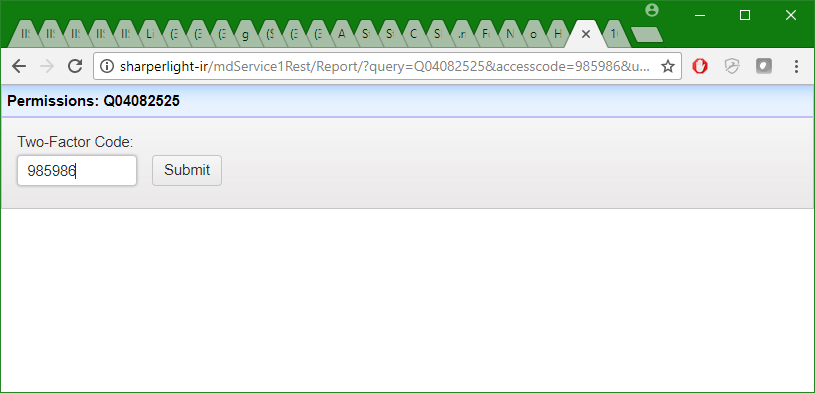
When a Published report has 2FA applied the Web Channel will request a Two-Factor Code be entered before the report is show.
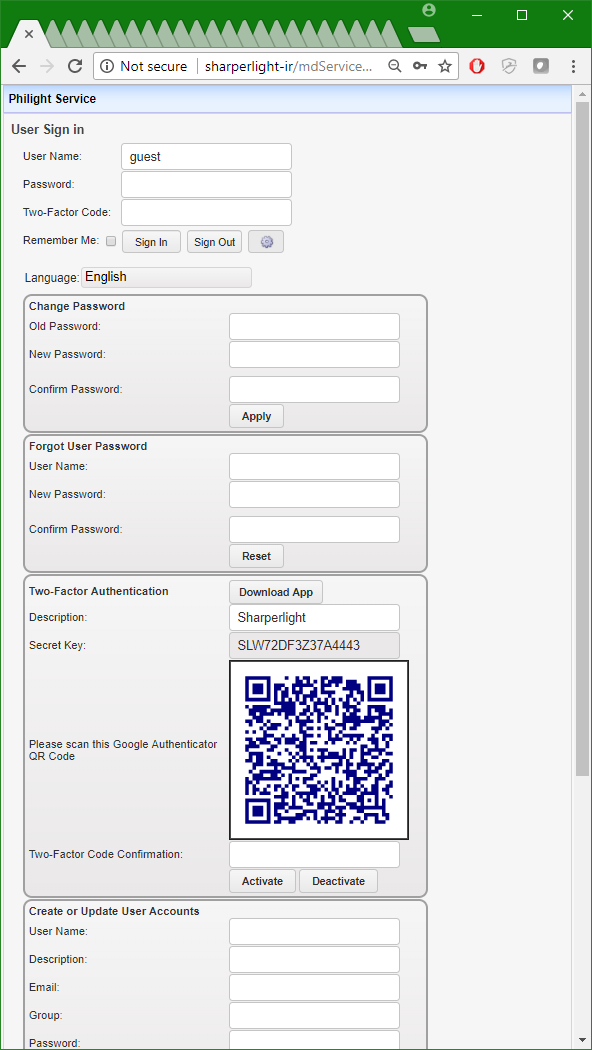
Web Channel – Entering and Changing 2FA
If the user is allowed to change passwords in the Web Channel (Service Settings in Client Setup) then they can also activate their own Two-Factor Authentication.
User Sign In showing the password and 2FA options. They clog icon button shows and hides this section.
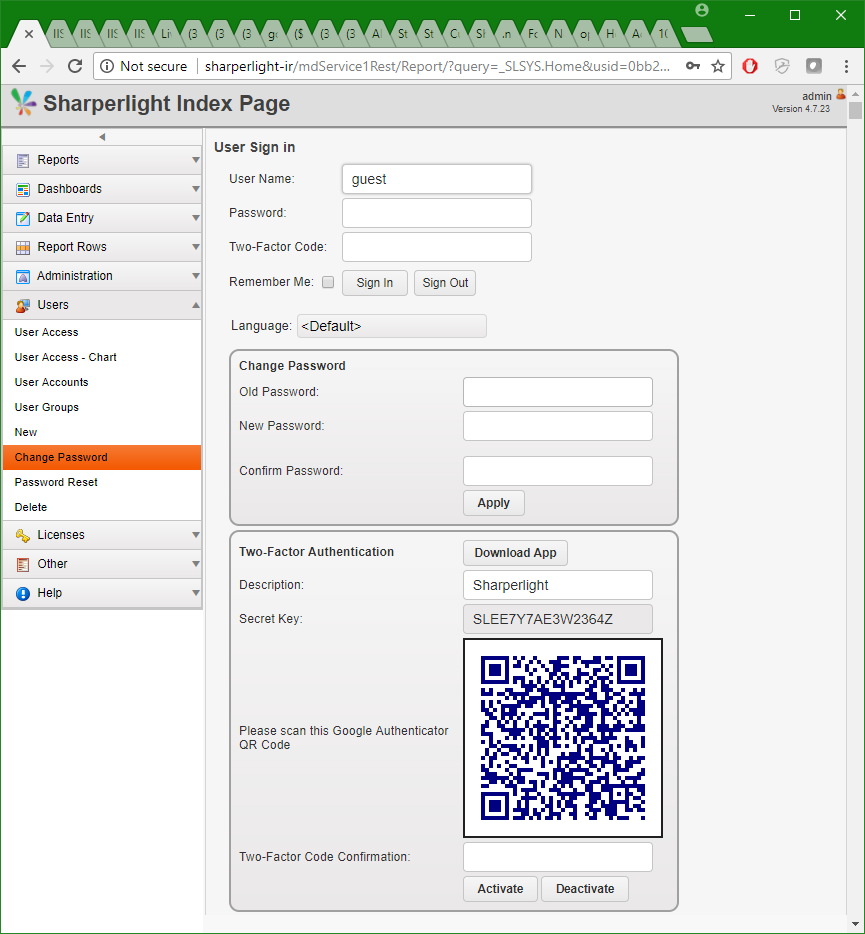
Sharperlight Index Page showing Change Password Page
Site Setup
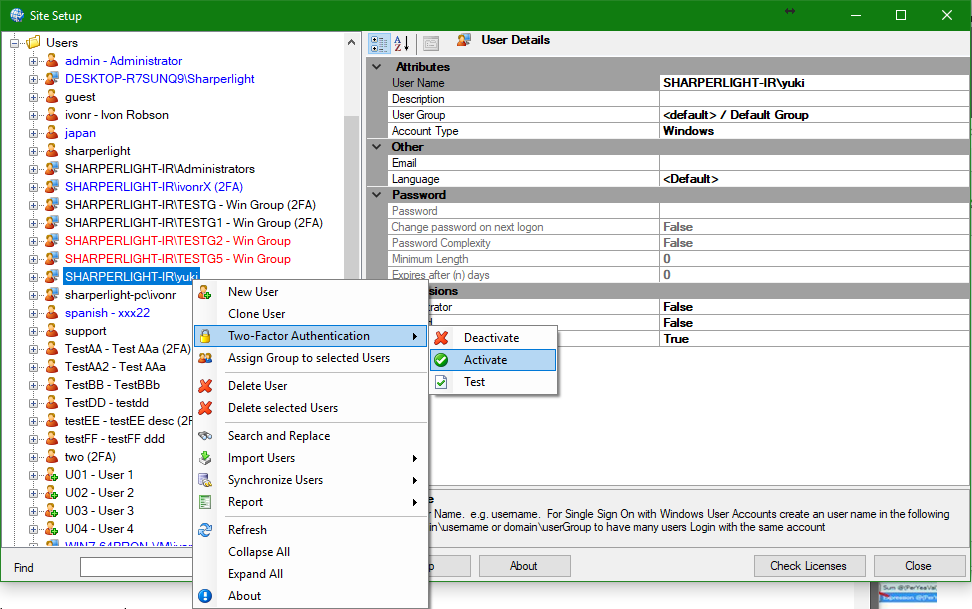
In Site Setup the admin can create, reset and deactivate 2 Factor Authentication (Notice the label (2FA) on users that have 2 Factor Authentication activated.
The admin user cannot tell someone or recover a Secret Key once the it’s been created (you need to reset it or change it).
The only way to recover one is to have a backup of the Secret Key or QR externally.
Service Settings
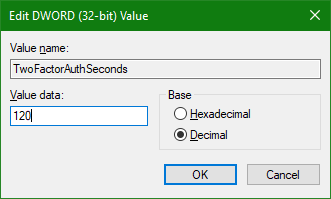
The default time window is about 60 seconds to give a little leeway as some device clock times are not in sync and will need this.
On the Sharperlight Application Server the default time window can be overridden in the Windows regkeys for Sharperlight with key.
(Check the Reg Key after a upgrade as it may disappear)
TwoFactorAuthSeconds (DWORD)
Published: 17/01/2018 12:05PM