Date Formatting and understanding Browser Defaults
SharperLight uses the regional settings communicated from the Browser to format the Filter dates and you may not be aware that your Browser is using US date formats.
Web based reports can be executed over many different regions so SharperLight will used the date format setting reported by the Browser to interpret the Date entered by users correctly Server Side. Therefore If the Browser is set to US format it will assume that 1/10/2011 will be January and if it’s UK then it will be October while 2011/10/1 is the only universal safe date format that will work anywhere returning October in the case.
In the screen shots below the same Report has 10th of November appearing as 10/11/2011 in IE and as 11/10/2011 for Chrome.
Chrome assumes we are all using American US date format MONTH/DAY/YEAR unless you download the UK version.
So if you were to manually enter 1/10/2011 into the US version of Chrome it would do a query for Jan 10th 2011 and I believe this would catch some UK users out if they did not know they using US settings.
With regard to Date formats the YYYY/MM/DD format is the only format that you can guarantee will work no matter the regional settings of the Browser.
So even if the users don’t realize they are using a US version of Chrome or FireFox the date picker returns a date format of YYYY/MM/DD to avoid any issues with Month and Day being reversed.
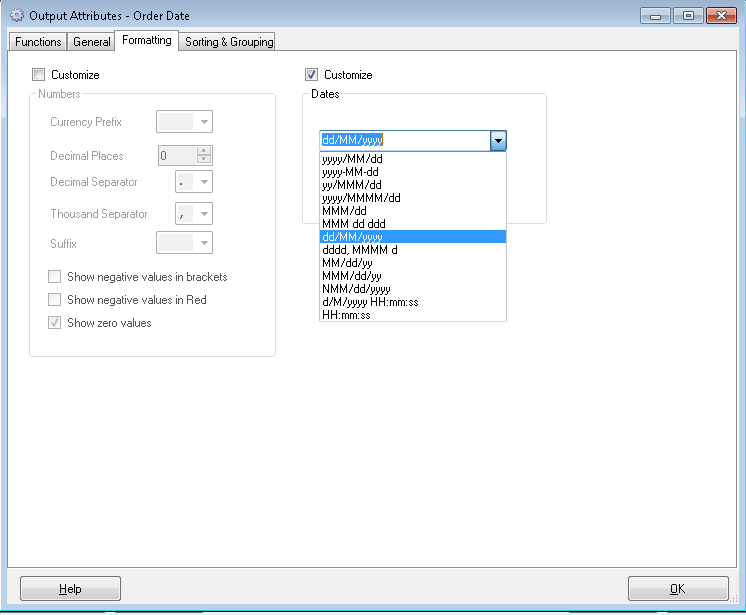
This is also the reason why the default date report format is YYYY/MM/DD unless you override the format in Output Formatting
IE uses the Windows Control Panel Settings for Date Formats in this example it is DD/MM/YYYY

By default CHROME install assumes we are all Americans so the date format is MM/DD/YYYY. You have the download the UK version to get DD/MM/YYYY as they don’t use Windows Control Panel Settings

Query Builder Showing Output Date formatting – These settings are not used in Excel