
Single Sign On with ASP.NET Cookie Tokens
On most sites the Sharperlight Service would be setup to use NTLM so that only Windows Domain accounts trusted in Site Setup would be able to access the Web Channel without signing in.
This article covers the situation where the Sharperlight Web Channel content is going to be integrated into an existing ASP.NET web page and that Web Site is using ASP.NET Form Authentication for public user account based on emails etc. You would want Sharperlight to trust the user token cookie .ASPXAUTH created by ASP.NET when the user first signs in. If Sharperlight is setup to trust these cookies then the user will not be challenged for yet another sign in when they access Sharperlight content.
To enable ASP.NET user token cookie single sign on in Sharperlight, the Sharperlight Service will need to know what encryption keys were used to generate the token so that it can decode it and get the user details. These two machine keys are set in the web.config file of the ASP.NET application. By default there are randomly generated by ASP.NET but they can be set to predetermined values which is required if Sharperlight is to know how to decode them.
Step 1: Generate know machine keys for the ASP web.config file
This tool allows you to generate random keys for validation and ecnryption/decryption of the view state. It builds a <machineKey> element which you need to include in your web.config file
http://aspnetresources.com/tools/machineKey
http://msdn.microsoft.com/en-au/library/w8h3skw9(v=vs.80).aspx
Generate the Machine Key validation key and decryption key and place the machineKey section into your ASP.NET application web.config file
<?xml version=”1.0″?>
<configuration>
<system.web>
<machineKey validationKey=”34A981AAF9538BAB0D47563E2ACE0431F2270CEC650124E193814D4EDF3059B6C41B15A8ED211C33456BFFA311C8B7F3DCCC28E4727DCA55BF5F7370BCF04108″ decryptionKey=”73BE52133572B937898633D3434E51914C291DA7C2FDDB2A14C05C970F06FDC6″ validation=”SHA1″ decryption=”AES” />
</system.web>
</configuration>
Step 2: Create regkey enteries for Sharperlight to try and decode and trust the ASP user tokens
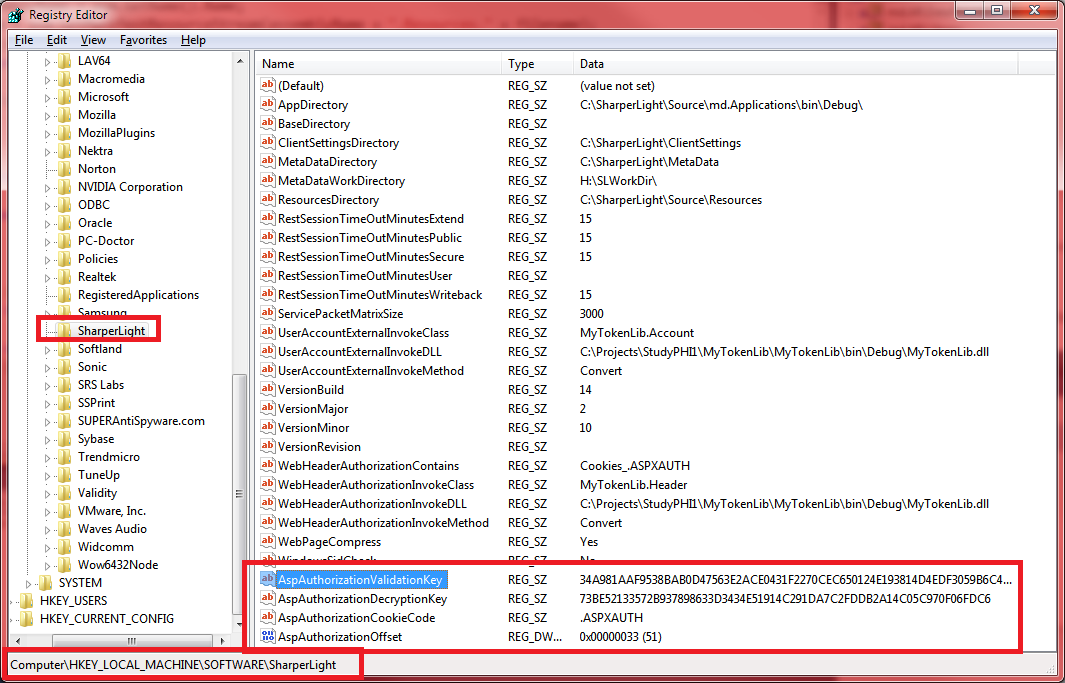
Windows Registry Editor Version 5.00
[HKEY_LOCAL_MACHINESOFTWARESharperLight]
“AspAuthorizationValidationKey”=”34A981AAF9538BAB0D47563E2ACE0431F2270CEC650124E193814D4EDF3059B6C41B15A8ED211C33456BFFA311C8B7F3DCCC28E4727DCA55BF5F7370BCF04108”
“AspAuthorizationDecryptionKey”=”73BE52133572B937898633D3434E51914C291DA7C2FDDB2A14C05C970F06FDC6”
“AspAuthorizationCookieCode”=”.ASPXAUTH”
“AspAuthorizationOffset”=dword:00000033
Make sure the AspAuthorizationValidationKey and AspAuthorizationDecryptionKey match the values in the web.config in the machinekey section. The keys AspAuthorizationCookieCode and AspAuthorizationOffset are optional and will default to .ASPAUTH and 51 decimal if not present.
Please note that Sharperlight only supports the default token settings of SHA1 and AES.
Also you will need to setup the Sharperlight Web Channel to use the same domain name e.g www.mysite.com in Client Setup otherwise it will not be able to access the cookies of the host domain.
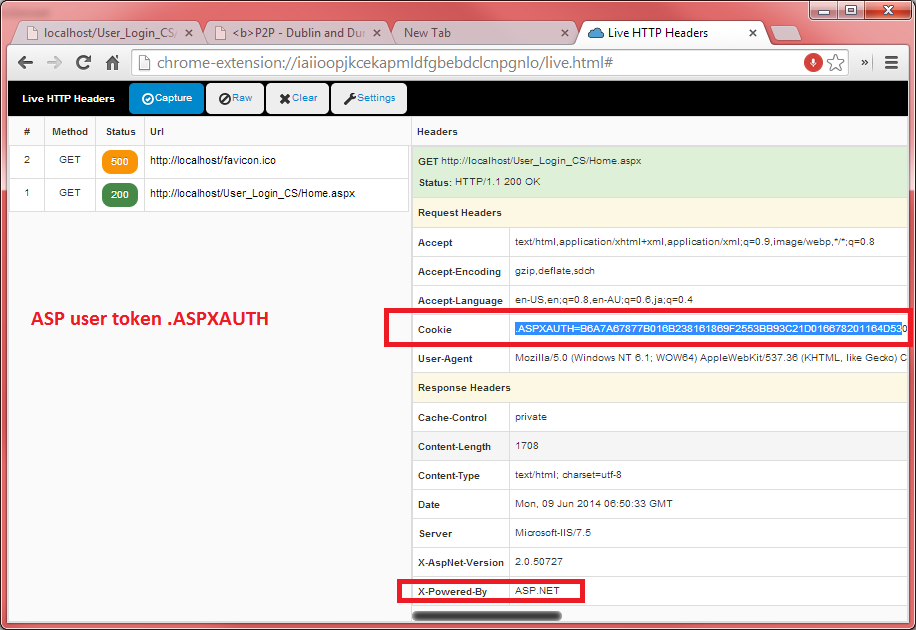
Remember to ensure that the user accounts also exist in Site Setup and Restart the Windows Sharperlight Service after making the regkey changes.
Version 2.10.6 or higher is required for this functionality