
Spreadsheet – mdSetCellFormat / mdSetCellFormatDL Formulas
Introduction
The mdSetCellFormat and mdSetCellFormatDL formulas are part of the Sharperlight Excel formulas. However, they only function when imported into the Sharperlight Web Spreadsheet. These formulas can be used to apply cell formatting on the Web Spreadsheet.
What they do
These formulas are used to apply conditional cell formatting to the specified cell(s).
The difference between mdSetCellFormat and mdSetCellFormatDL
As you can see, one of the formulas has ‘DL’ at the end and is referred to as the ‘Delayed Formula.’
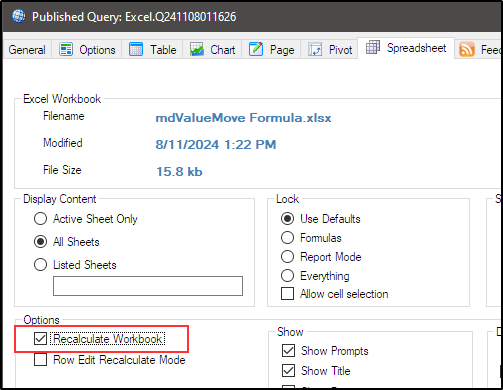
The delayed formula is triggered only when the spreadsheet is initially loaded, provided the ‘Recalculate Workbook’ option is enabled for the spreadsheet.
Once the spreadsheet is loaded, the delayed formula will not be triggered again, even if the recalculation process is forced. On the other hand, the mdSetCellFormat formula is always triggered when the workbook is initially loaded or whenever the recalculation process is initiated, either by Microsoft Excel or the user.
Parameters
They have four main parameters: ‘Driver‘, ‘TargetRange‘, ‘DefaultFormat‘, and ‘Format 1‘.
‘Format 2’ to ‘Format 9’ are optional parameters.
Driver: The specified format is applied based on the value in the driver cell: True or False, with values from 1 to 9.
TargetRange: Specify the range where the specified format will be applied.
Default Format: When the driver value is 0 or True, this format is applied to the TargetRange.
Format 1: When the driver value is 1 or False, this format is applied to the TargetRange.
Format 2: When the driver value is 2, this format is applied to the TargetRange.
Format 3: When the driver value is 3, this format is applied to the TargetRange.
Format 4: When the driver value is 4, this format is applied to the TargetRange.
Format 5: When the driver value is 5, this format is applied to the TargetRange.
Format 6: When the driver value is 6, this format is applied to the TargetRange.
Format 7: When the driver value is 7, this format is applied to the TargetRange.
Format 8: When the driver value is 8, this format is applied to the TargetRange.
Format 9: When the driver value is 9, this format is applied to the TargetRange.
Example
Let’s look at an example. An example is designed in a Microsoft Excel worksheet, which will then be imported into the Sharperlight Web Spreadsheet.
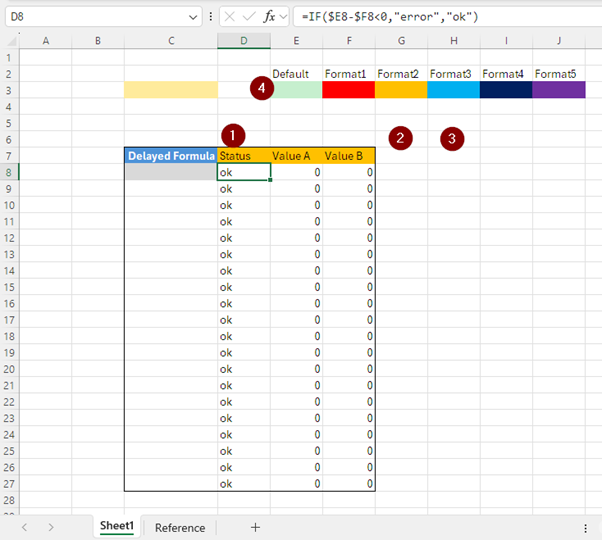
- Column D contains a formula that subtracts Value B from Value A. If the result is less than 0, it displays ‘error’; otherwise, it displays ‘ok’.
- Column G (rows 8 to 27) contains the mdSetCellFormat formula.
Formula: =mdSetCellFormat($D8=”ok”,$D8:$F8,$E$3,$F$3)
When cell $D8 displays ‘ok’, the Default format ($E$3) is applied to the range ($D8:$F8). Otherwise, Format 1 ($F$3) is applied to the range ($D8:$F8). - Column H (row 8 to 27) contains the mdSetCellFormat formula as well.
Formula: =mdSetCellFormat($E8,$H8,$E$3,$F$3,$G$3,$H$3,$I$3,$J$3)
When cell $E8 contains 0, the Default format ($E$3) is applied to cell $E8.
When cell $E8 contains 1, Format 1 ($F$3) is applied to cell $E8.
Similarly, values 2 through 9 in $E8 correspond to Format 2 through 9. - This row has the templates of the formats for the formulas.
They are standard formulas, so they are triggered when the web spreadsheet is first loaded.
They are also triggered whenever the recalculation process is initiated.
When the spreadsheet is first loaded
The Default format is applied to columns D, E, and F with the mdSetCellFormat formula in column G, provided the status column shows ‘ok.’
The Default format is also applied to column H if the Value A column contains 0.
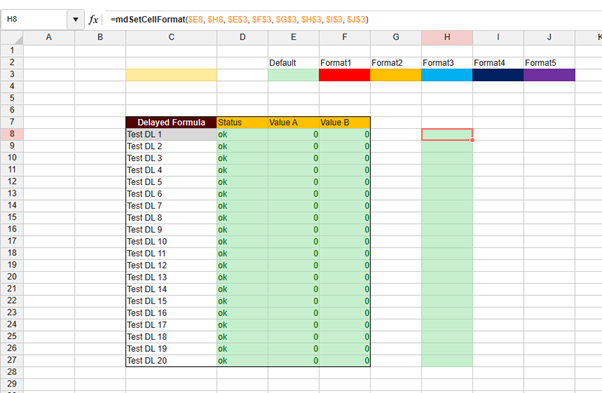
Column C, where a set of reference values will be displayed, is defined in the ‘Reference’ sheet. The values are displayed using the =mdMoveValuesDL formula.
The recalculation process is triggered
The rows in column H have the corresponding formats based on the values in column E.
Since cell $D14 displays ‘error,’ the range $D14:$F14 is assigned Format 1.
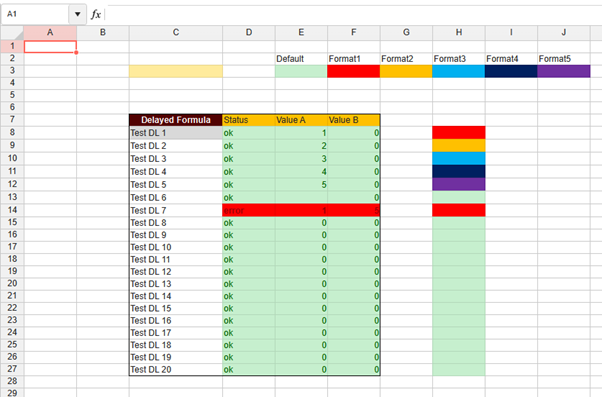
Column C, where a set of reference values will be displayed, is defined in the ‘Reference’ sheet. The values are displayed using the =mdMoveValuesDL formula.