
Expression – Creating a unique value field
Introduction
There may be a case you would like to have a unique data column in your dataset.
Yes, we can create it with the Sharperlight Expression.
Practices
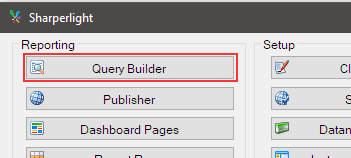
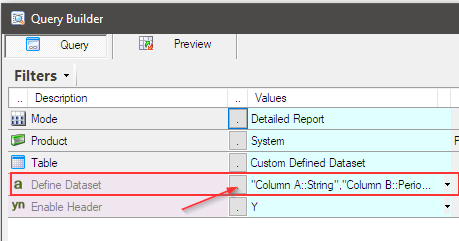
Let’s define a query with Sharperlight Query Builder. It can be find in the Sharperlight Application Menu.
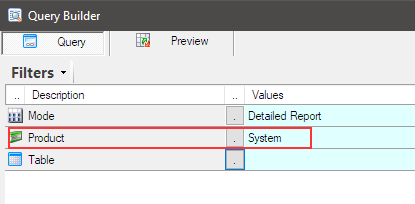
For those of you who are new to Sharperlight, let’s create a query using the default product, ‘System.’
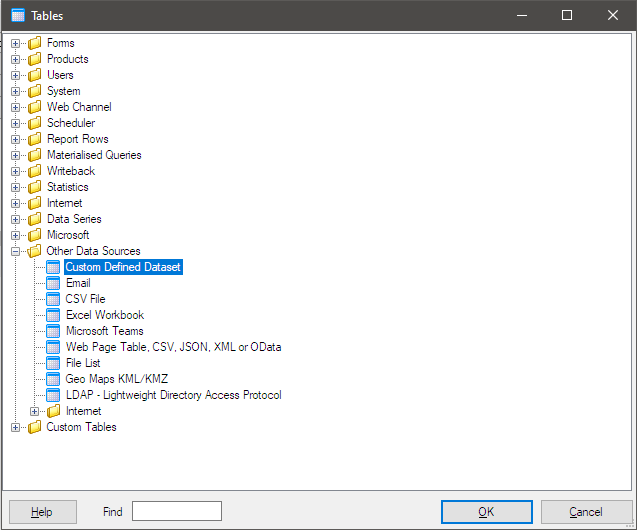
It has “Custom Defined Dataset” option so we don’t need to prepare any databases for this query.
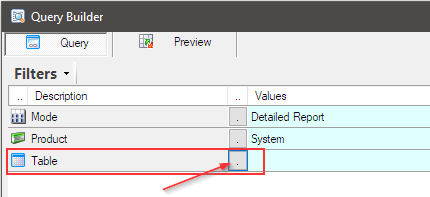
Select “Custom Defined Dataset” from the Table lookup.
Define a dataset as a comma-delimited list in the Define Dataset Editor.
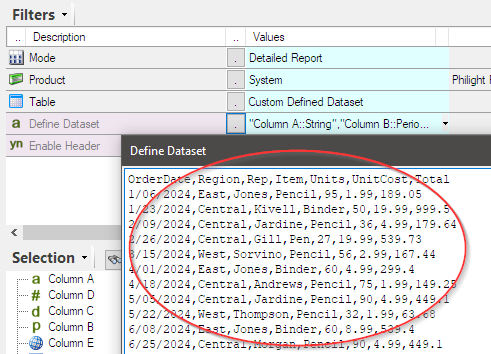
OrderDate,Region,Rep,Item,Units,UnitCost,Total
1/06/2024,East,Jones,Pencil,95,1.99,189.05
1/23/2024,Central,Kivell,Binder,50,19.99,999.5
2/09/2024,Central,Jardine,Pencil,36,4.99,179.64
2/26/2024,Central,Gill,Pen,27,19.99,539.73
3/15/2024,West,Sorvino,Pencil,56,2.99,167.44
4/01/2024,East,Jones,Binder,60,4.99,299.4
4/18/2024,Central,Andrews,Pencil,75,1.99,149.25
5/05/2024,Central,Jardine,Pencil,90,4.99,449.1
5/22/2024,West,Thompson,Pencil,32,1.99,63.68
6/08/2024,East,Jones,Binder,60,8.99,539.4
6/25/2024,Central,Morgan,Pencil,90,4.99,449.1
7/12/2024,East,Howard,Binder,29,1.99,57.71
7/29/2024,East,Parent,Binder,81,19.99,1619.19
8/15/2024,East,Jones,Pencil,35,4.99,174.65
9/01/2024,Central,Smith,Desk,2,125,250
9/18/2024,East,Jones,Pen Set,16,15.99,255.84
10/05/2024,Central,Morgan,Binder,28,8.99,251.72
10/22/2024,East,Jones,Pen,64,8.99,575.36
11/08/2024,East,Parent,Pen,15,19.99,299.85
11/25/2024,Central,Kivell,Pen Set,96,4.99,479.04
12/12/2024,Central,Smith,Pencil,67,1.29,86.43
12/29/2024,East,Parent,Pen Set,74,15.99,1183.26
1/15/2025,Central,Gill,Binder,46,8.99,413.54
2/01/2025,Central,Smith,Binder,87,15,1305
2/18/2025,East,Jones,Binder,4,4.99,19.96
3/07/2025,West,Sorvino,Binder,7,19.99,139.93
3/24/2025,Central,Jardine,Pen Set,50,4.99,249.5
4/10/2025,Central,Andrews,Pencil,66,1.99,131.34
4/27/2025,East,Howard,Pen,96,4.99,479.04
5/14/2025,Central,Gill,Pencil,53,1.29,68.37
5/31/2025,Central,Gill,Binder,80,8.99,719.2
6/17/2025,Central,Kivell,Desk,5,125,625
7/04/2025,East,Jones,Pen Set,62,4.99,309.38
7/21/2025,Central,Morgan,Pen Set,55,12.49,686.95
8/07/2025,Central,Kivell,Pen Set,42,23.95,1005.9
8/24/2025,West,Sorvino,Desk,3,275,825
9/10/2025,Central,Gill,Pencil,7,1.29,9.03
9/27/2025,West,Sorvino,Pen,76,1.99,151.24
10/14/2025,West,Thompson,Binder,57,19.99,1139.43
10/31/2025,Central,Andrews,Pencil,14,1.29,18.06
11/17/2025,Central,Jardine,Binder,11,4.99,54.89
12/04/2025,Central,Jardine,Binder,94,19.99,1879.06
12/21/2025,Central,Andrews,Binder,28,4.99,139.72
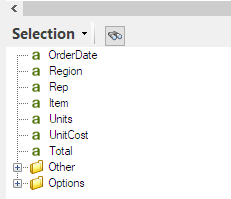
The Selection list will be populated once the dataset is defined.
Select all columns for the Outputs.
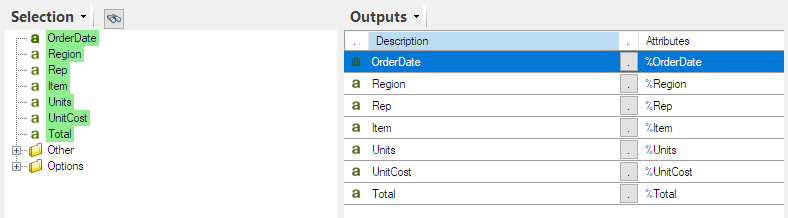
Let’s add a unique column at the top of the Outputs.
Select “Add Expression” from the right-click menu, and write code like this:
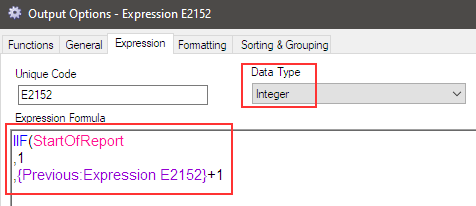
This means it returns 1 for the first row, and for subsequent rows, it adds 1 to the value of this column in the previous row.
Therefore, the first row shows 1, the second row shows the result of the calculation: 1 (the value of the previous row) + 1 = 2, the third row shows the result of 2 (the value of the previous row) + 1, and so on.
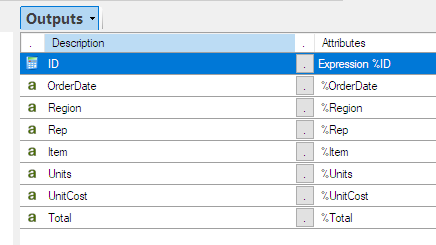
Place the expression at the top and edit its name and description to ‘ID‘. The temporally expression name ‘Expression E2152‘ will be updated to ‘ID‘.
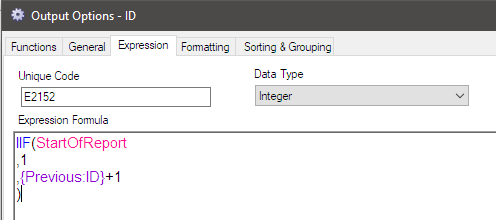
IIF(StartOfReport
,1
,{Previous:ID}+1
)
Let’s see the query result. Click Preview button to execute the query. It should work like this:
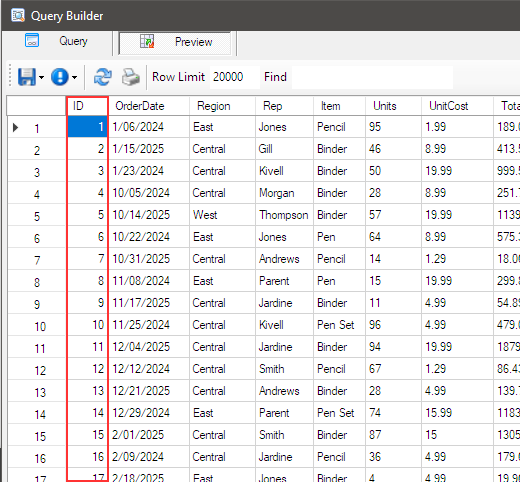
If you want to create a unique string column, you can add another formula to generate it using the values generated by the previous formula.
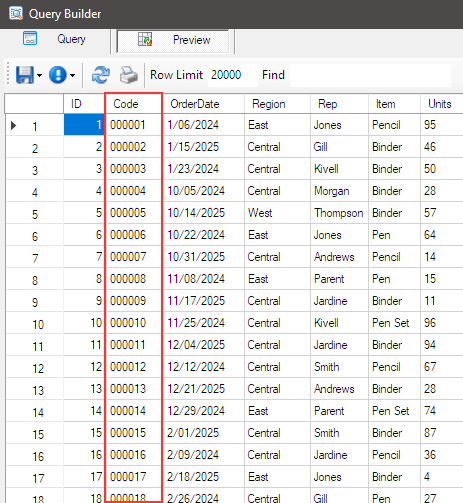
Using the generated value by ‘ID’ expression, we can generate a code with this expression.
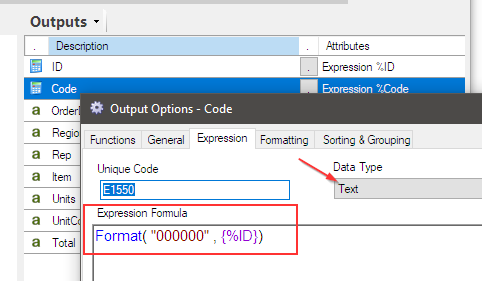
Format( "000000" , {%ID})The result is like this:
Afterword
In this post, we learned about two formulas: ‘StartOfReport‘ and ‘Format.’ These are just a few of the many expressions available. Experiment with different expressions to create your ideal dataset.