Expandable report for details
Introduction
This article shows you how to create a summary report that expands to reveal more details.
Practices
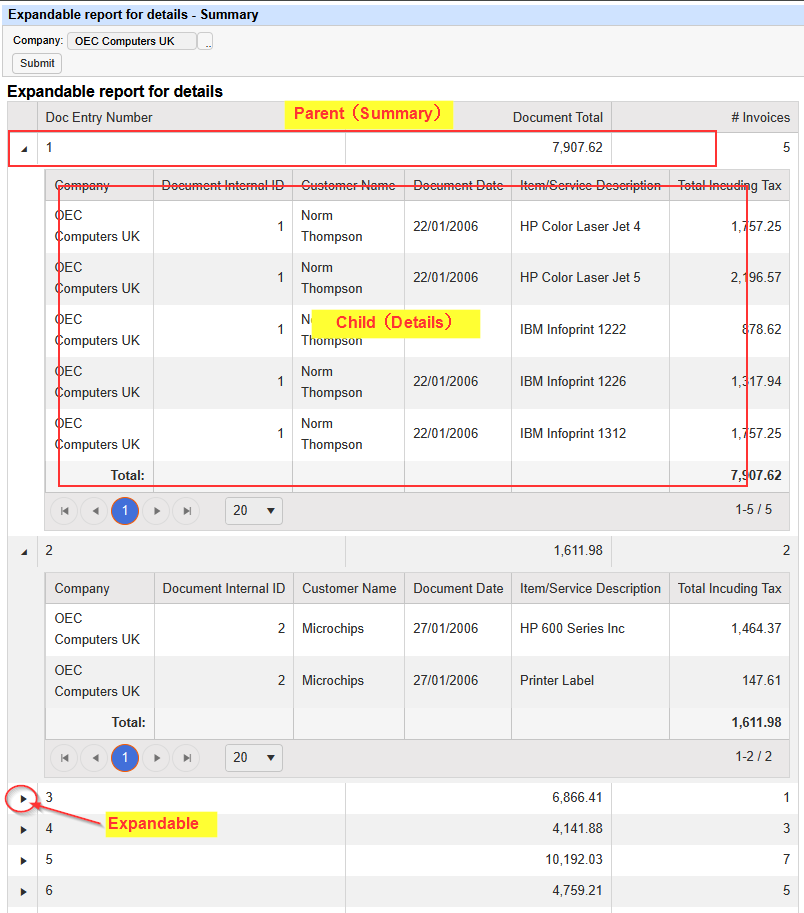
By preparing two reports — a parent report that serves as a summary and a child report that shows the detailed data for each item — and combining them, you can create an expandable report.
We use SAP Business One as the product to implement this practice.
Parent Report (Summary Report)
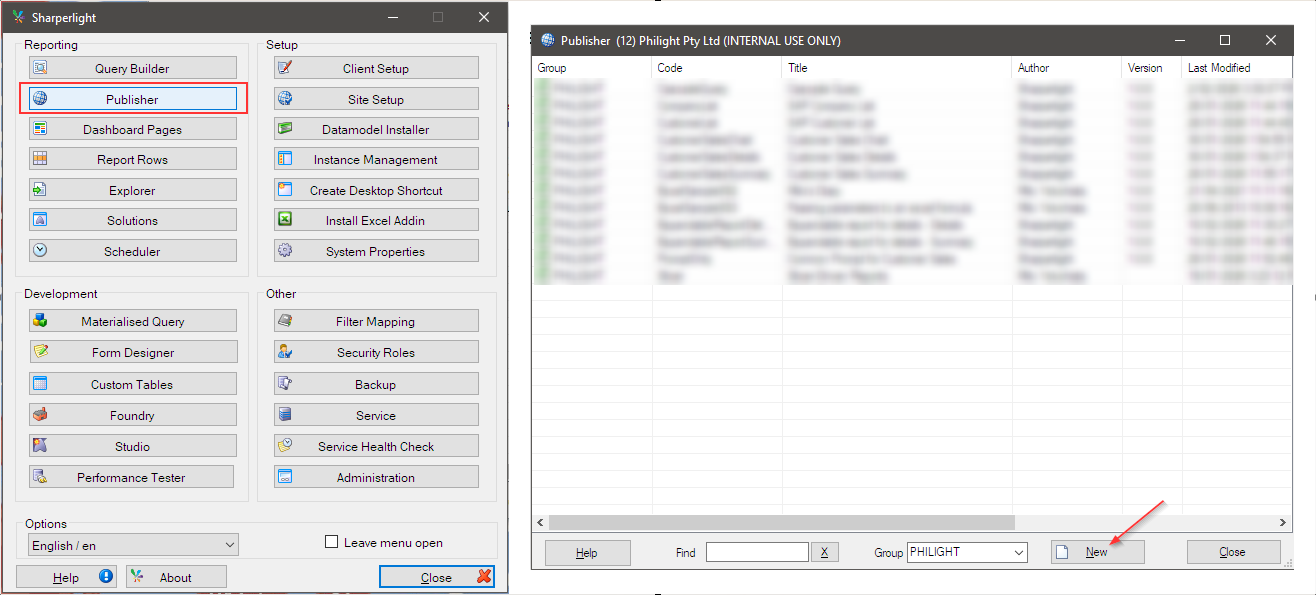
Launch Publisher from Sharperlight application menu.
Click New button to start creating a new published report.
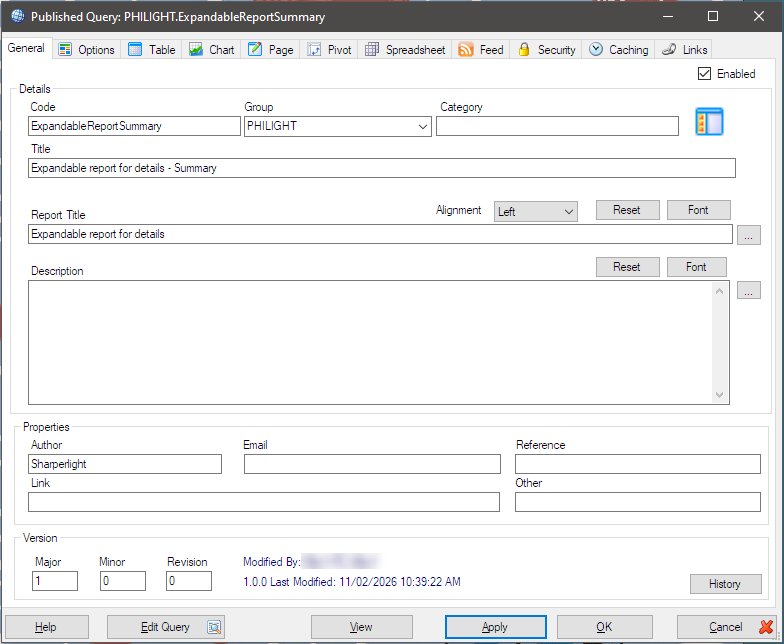
On “General” tab, enter Code, Group, Title and Report Title.
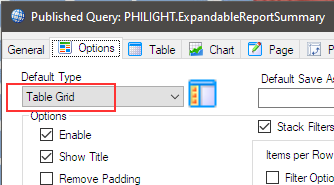
On “Options” tab, select Table Grid for its default type.
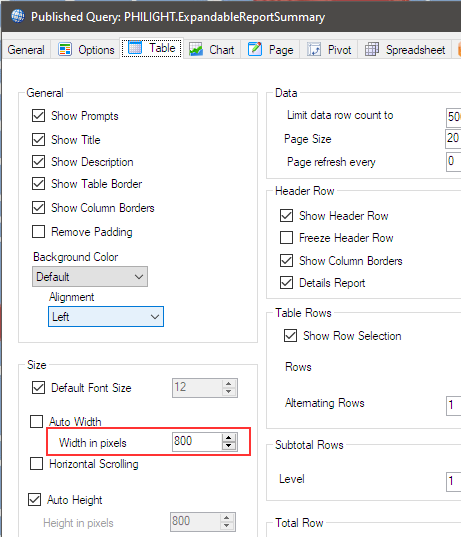
On “Table” tab, set 800px for its width. You can adjust this later after you checked the what is displayed.
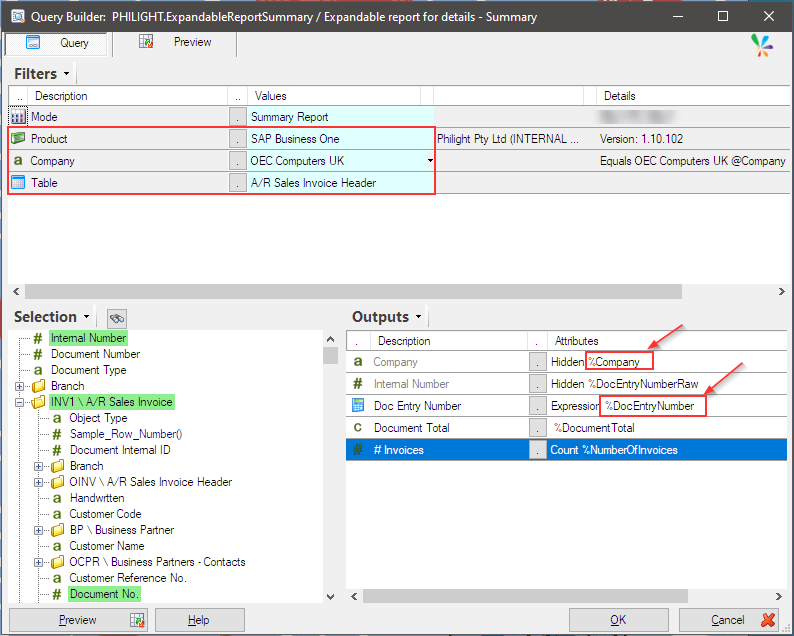
Let’s define the query by clicking “Edit Query” button at the bottom of the dialog.
The key point as the parent report for creating the expandable report is the name of the output items.
The output name must be linked with the name of the filter items in the query of the child report (Details Report) .
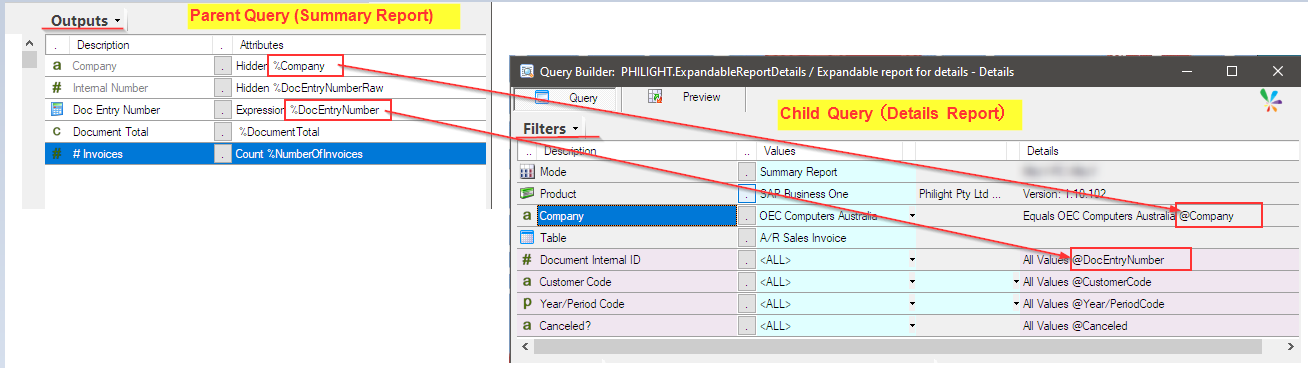
With this example, “%Company” (The name of “Company” in Outputs) and “%DocEntryNumber” (The name of “Doc Entry Number” in Outputs) will drive the child report.
It means that the child report must have the corresponding filters for them and their filter name must be “@Company” and “@DocEntryNumber“.
Child Report (Details Report)
Start creating a new report.
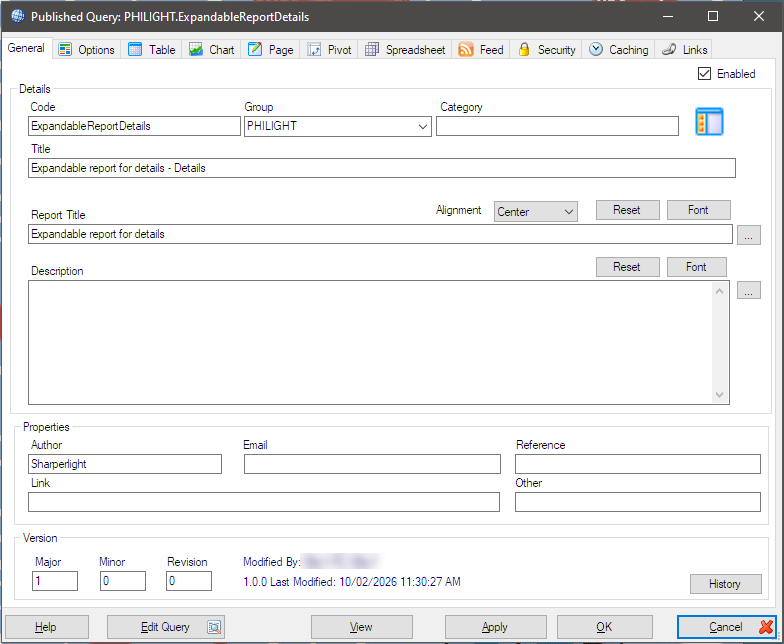
On “General” tab, enter Code, Group, Title and Report Title.
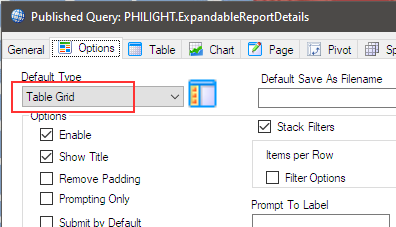
On “Options” tab, select Table Grid for its default type.
Let’s define the query by clicking “Edit Query” button at the bottom of the dialog.
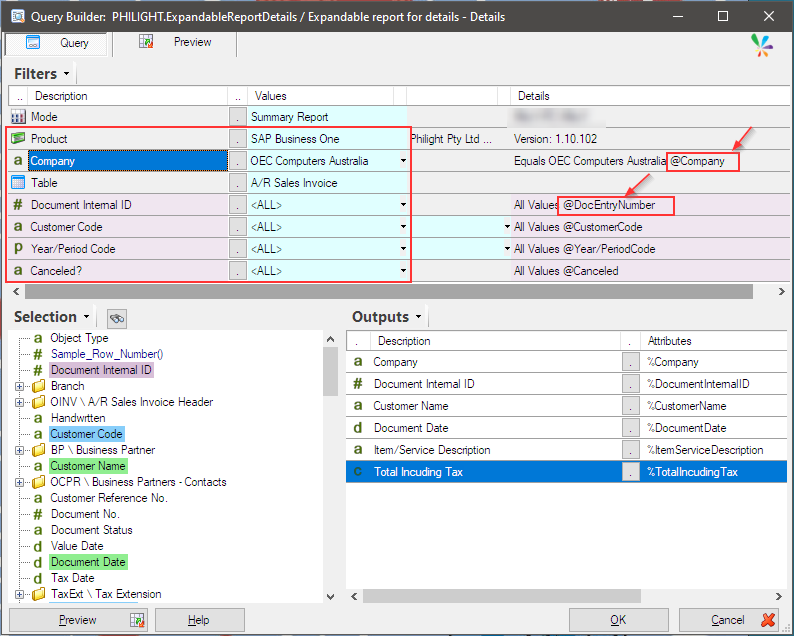
The table to display the details of the sales invoice is selected and its mandatory filters are automatically added.
The key point as the child report for creating the expandable report is the name of the filter items.
The filter name must be linked with the name of the output items in the query of the parent report (Summary Report) .
In this example, the value of the output named “%Company” and the value of the output named “%DocEntryNumber” of the parent query are passed to the filters named “@Company” and “@DocEntryNumber” of this child query.
The relation ship between the parent (summary) and the child (details) is like this.
Afterword
The key points for this expandable report are;
- The “Name” (Outputs and Filters) is used for making the join between the parent report (summary) and the child report (details).
- The report default type must be “Table Grid“.
NOTE
The output field in the parent query that is used to link to the child query must be a string-type field and this logic for creating an expandable report does not work if a numeric field is used as the linking output field in the parent query.
This software limitation has been confirmed up to Sharperlight build version 7.3.27.
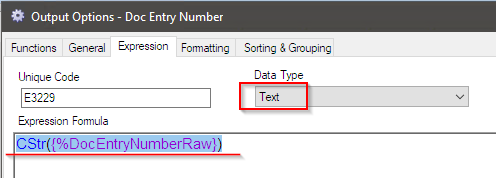
If a numeric field must be used, you can work around this limitation by using an expression, as shown in the earlier example.
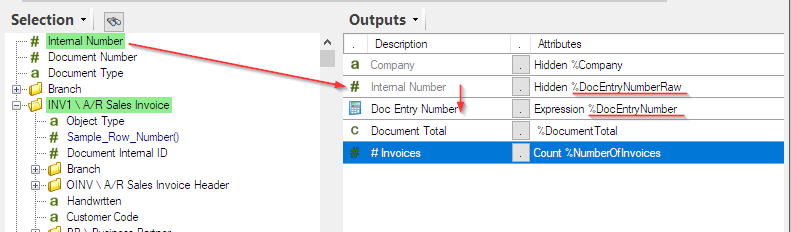
In this example, we wanted to use the “Internal Number” field, but it was numeric type field.
Therefore, we created a string-type expression “CStr({%DocEntryNumberRaw})” to convert the numeric value to a string and named the output “%DocEntryNumber”.