
Email configuration when sending email with a report
Introduction
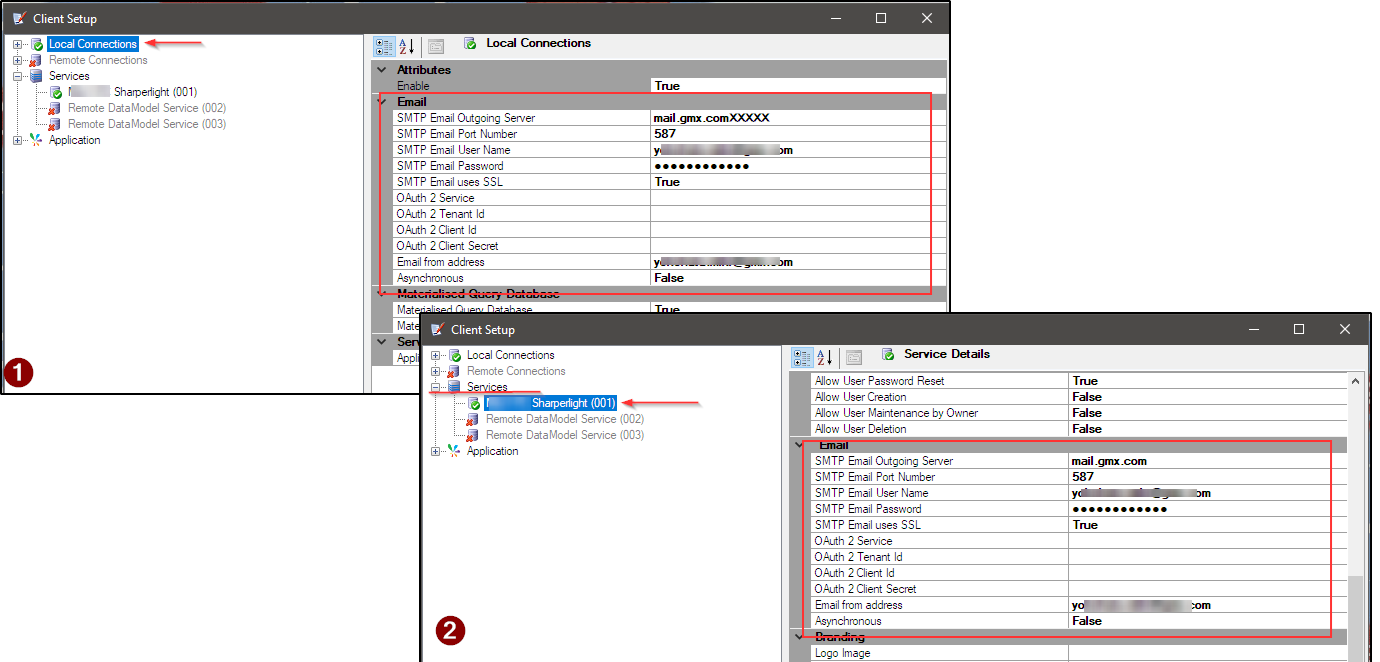
This post explains where you can configure email server details in Sharperlight products when sending emails via Published Queries (Published Report).
It can be done with Sharperlight Client Setup.
However, there are two places where you can configure the email server details, so we’ll explain when to use each one.
Practices
Query for sending email
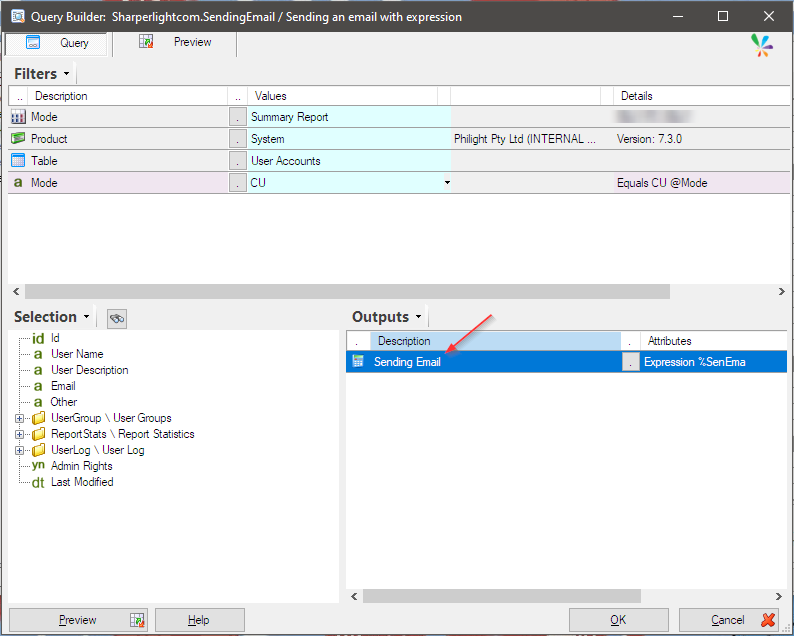
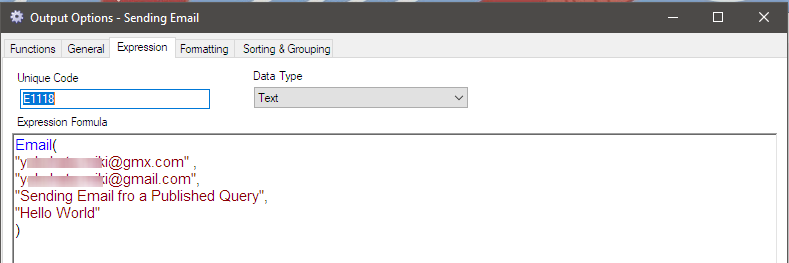
First, we prepare the query that will be used to send the email.
Start Sharperlight Publisher and define a query as shown below
Execute the query manually
Once you create the query, you would preview the result (executing the query) by clicking the Preview button.
With this case, the Sharperlight Engine uses the Email details set under the Local Connection in Client Setup.
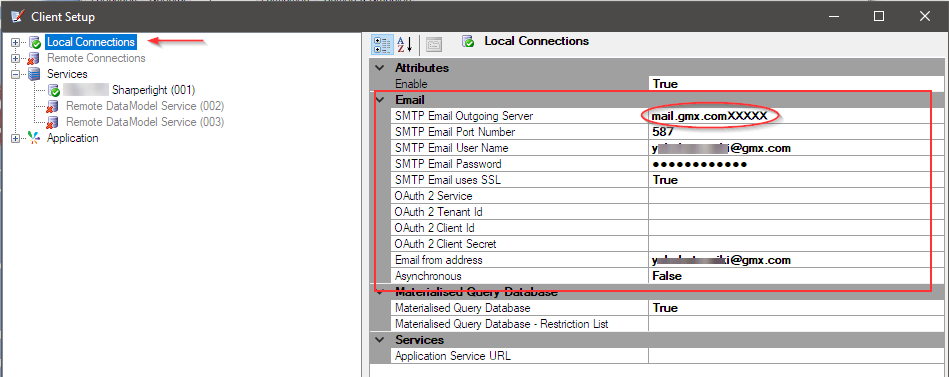
See the result when the query is executed manually, it will be failed and you may realize that the SMTP Email Outgoing Server attribute has a wrong value “mail.gmx.comXXXXX“.
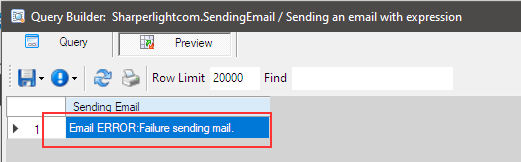
Let’s set the value to “mail.gmx.com” and check if the email is sent successfully. If it works, this confirms that the Engine is using the settings from Local Connections.
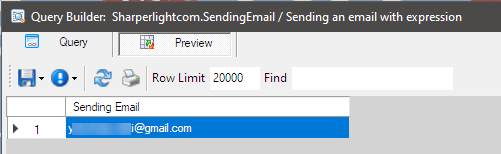
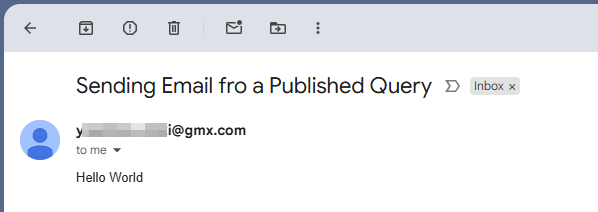
Execute the query via Sharperlight service
You already may find that the email details set under Service in Client Setup would be used when the query (published query) is shown in the browser.
Let’s set “mail.gmx.comXXXXX” to the SMTP Email Outgoing Server attribute of the email details set under Service.
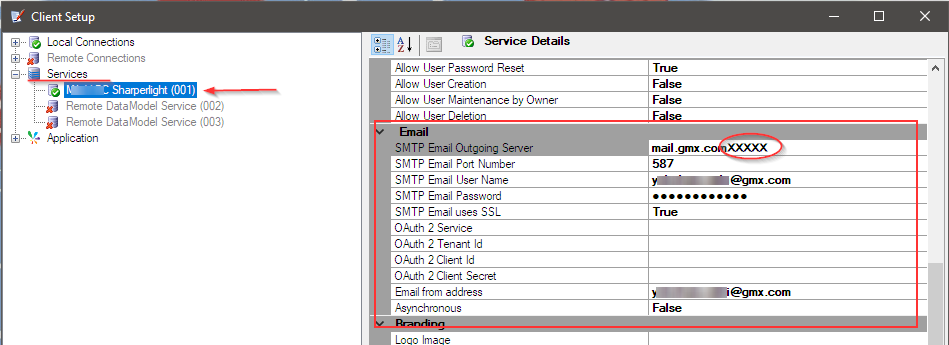
Then show the published query in your browser, please don’t forget to restart the Sharperlight service.
You would get this error and it means that the Email settings set under the Service in the Client Setup was used.

Now, you correct value for the SMTP Email Outgoing Server attribute and restart the Service, then show published query in the browser again.
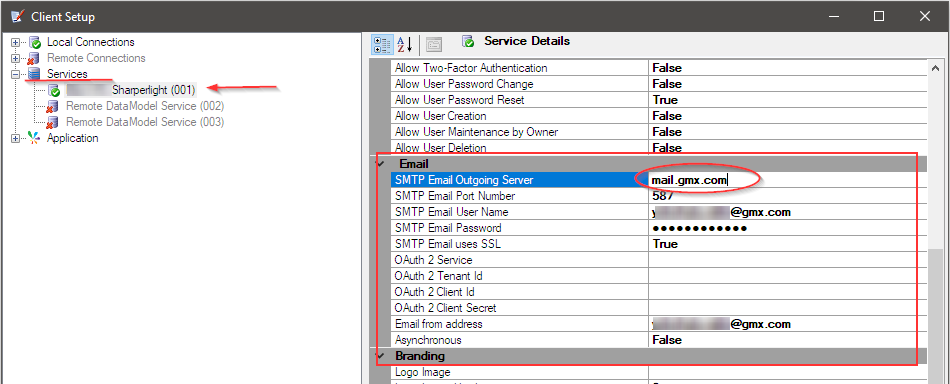
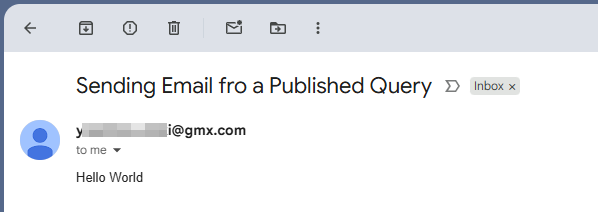
It works fine.

Afterword
As we’ve seen, if you want to run the query manually, use the email settings under Local Connections in Client Setup.
If you run the query via the Sharperlight Service (viewing with a browser), use the email settings under Services in Client Setup.