
Command Macros
Sharperlight Macros are part of the Sharperlight Add-in so if assigned to an object such as a Shape or Button they can be executed without enabling VBA Macros in the Workbook. So this means the workbook does not have to be saved as (xlsm) with macros enabled but rather can remain (xlsx). Notice all the functions start with the prefix md... and in general most of them can be assigned directly to an Object as they do not have parameters. The alternative to directly assigning Sharperlight Macros to objects is to create a Excel VBA Macro and assign that, but this will require the workbook to be saved as macro enabled format (xlsm).
Related posts Workbook Filters and Creating Recalc Buttons
Using the Sharperlight Ribbon to auto generate Objects with a Macro Assigned
The Sharperlight Ribbon menu called Buttons contains most of the macros that can be assigned to objects. By selecting the required menu item it will auto create a shape on the workbook with the required macro already assigned to the object. In this example a Recalculate Workbook shape is created so that it will recalculate the whole workbook when clicked.

Manually Assigning a Sharperlight Macro to a Object or Button
Create a Object Shape or Button and select Assign Macro. Type in the Sharperlight Macro Name into the Macro Name. Remember that one cannot normally cannot pass parameters to the macro using this method, except in a few cases like mdWriteback where the object name is the parameter. To take full control and pass many parameters you will have to create a VBA macro and use Application.Run(“macro”,arg0, arg1…arg(n))

Assigning Writeback Macros
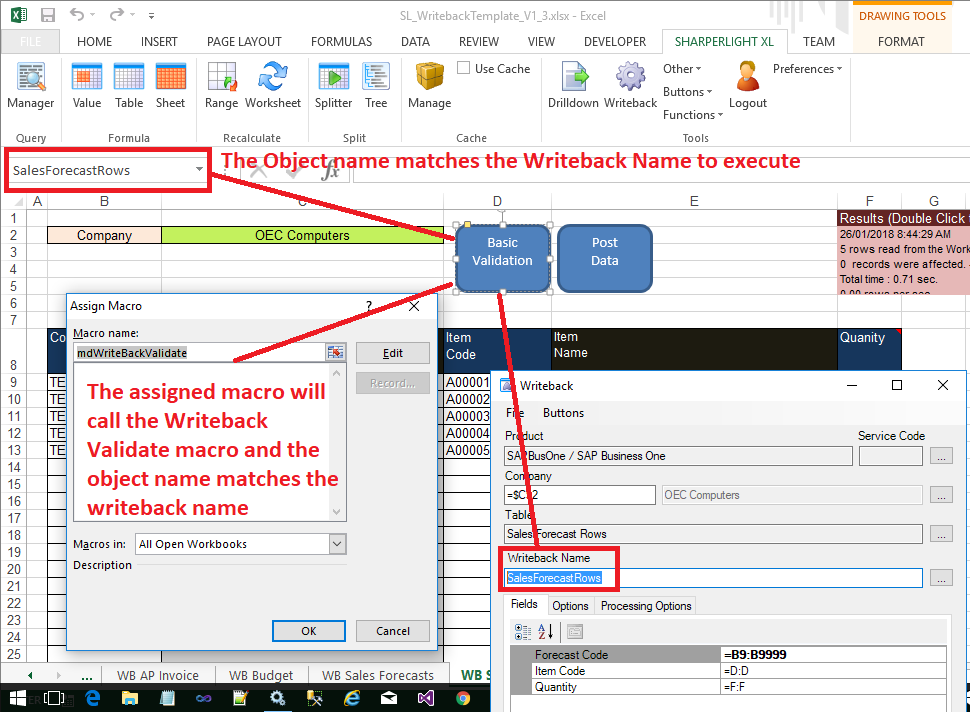
For example when assigning mdWriteback() or mdWritebackValidate() macros you would assign the macro but in addition set the object name to match the Writeback Template Name. Sharperlight will lookup the object name in the Writeback template list to find a match and run that. In this way we can use the object name to pass simple parameters to the macro.
Browsing Sharperlight Function List
All the Sharperlight Functions that can be called from a Worksheet cell can be listed in the Formula Bar by typing =md as all the functions are prefixed with md. Use the Fx button to explore the required parameters.

View all Sharperlight Macros using Excel Options
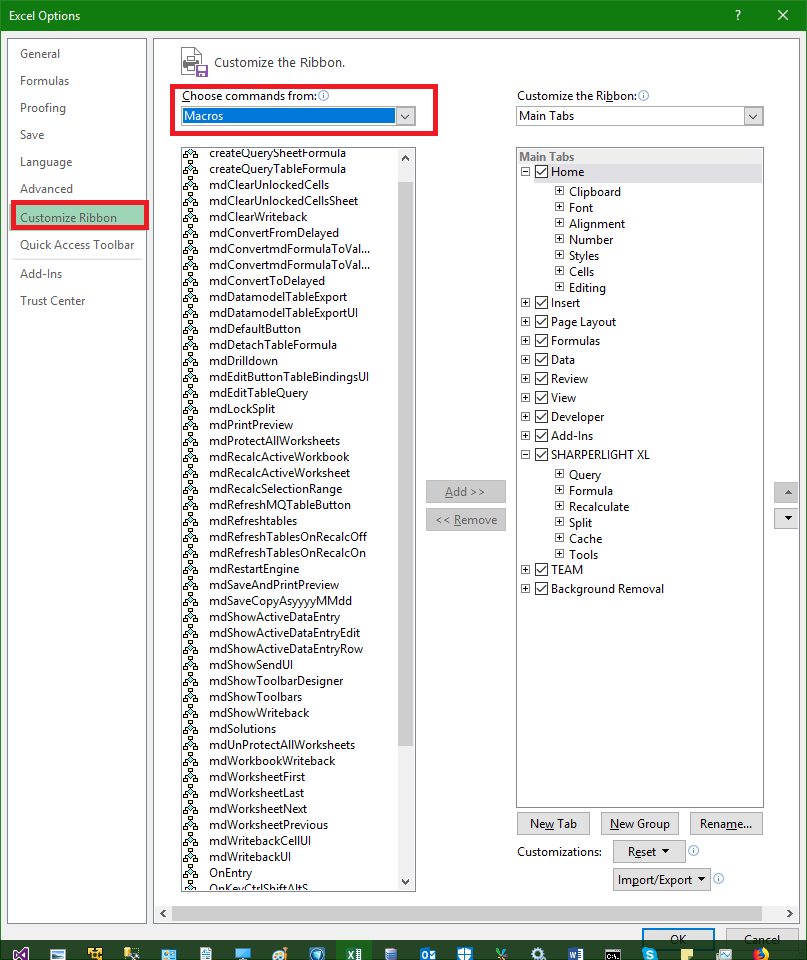
Excel Options \ Customize Ribbon \ Macros allows one to view all the Sharperlight Macros prefixed with md. It is also possible to edit the Sharperlight Ribbon here.
Sharperlight Macro List
| Macro Name | Description | Button Bind |
| mdButtonClick() | Execute a Table Query where the Button or Object name matches the Query Template name |
Yes |
| mdDetachTableFormula() | Detach All Sharperlight Formulas and leave values | |
| mdDrilldown() | Show Menu with drilldown – details, drilldown – summary , Drillthrough Options, Drill Actions |
Yes |
| mdDrilldownDetail() | Yes | |
| mdDrilldownSummary() | Yes | |
| mdDrillonTableRowDetail() | Drilldown on the Active Cell in Detail Mode |
Yes |
| mdDrillonTableRowSummary() | Drilldown on the Active Cell in Summary Mode | Yes |
| mdDrillThrough(object index) |
Drilldown on the Menu item index | |
| mdEditTableQuery() | Edit the Query of the Active Cell |
Yes |
| mdLock(object obj, object lockvalue) |
Wrapper function to lock a function value | |
| mdRecalcActiveWorkbook() | Recalculate the Active Workbook |
Yes |
| mdRecalcActiveWorksheet() | Recalculate the Active Worksheet | Yes |
| mdRecalcSelectionRange() | Yes | |
| mdRefreshtables() | Yes | |
| mdRestartEngine() | Restart Sharperlight Addin, can be used to force logoff |
|
| mdSetShapePicture(string QueryName , string ShapeName, object arg0,…) |
||
| mdSolutions() | Show the Solutions Window |
Yes |
| mdTable(string QueryName, string TableName , object arg0,…) |
returns the results of the Query into the target table name | |
| mdTableNow(string DestinationRef, string TableName, string QueryName, object arg0,..) |
||
| mdValue(string QueryName, object arg0,..) |
returns the query result or results | |
| mdVolatile(object obj) | Wrapper function to make the wrapped functions volitile |
|
| mdWriteback() | Execute a Writeback Template where the name of the object/button matches is the Template Name |
Yes |
| mdWriteBackNamed(string name) | Execute a Writeback Template that matches the name Provided |
|
| mdWritebackUI() | Show Writeback UI Windows | |
| mdWriteBackValidate() | Execute a Writeback Template in validation mode where the name of the object/button matches is the Template Name |
Yes |
| mdWriteBackValidateNamed(string name) |
Execute a Writeback Template that matches the name Provided in validation mode |
Creating Excel VBA Macros
To execute a Sharperlight macro from VBA code use the Application.Run( “functionName”) command. In the example below it clears the Sharperlight cache to ensure new data is picked up and then recalculates two worksheets and leaves other worksheets unchanged.
Note: If you copy the code sample below you will need to fix the single and double quotes to normal ones as the browser changes them
Sub MyReCalcOrder()
‘Clear Sharperlight Excel Cache so we always get new data
Application.Run “mdCacheClearWorkbook”
‘Refresh a Table in the Sharperlight Materialised Database
Application.Run “mdRefreshMQTable”, ”MQDBCODE”, ”MQTABLECODE”
Worksheets(“Profit&LossEurope”).Activate
Application.Run “mdRecalcActiveWorksheet”
Worksheets(“Profit&LossUSA”).Activate
Application.Run “mdRecalcActiveWorksheet”
End Sub
