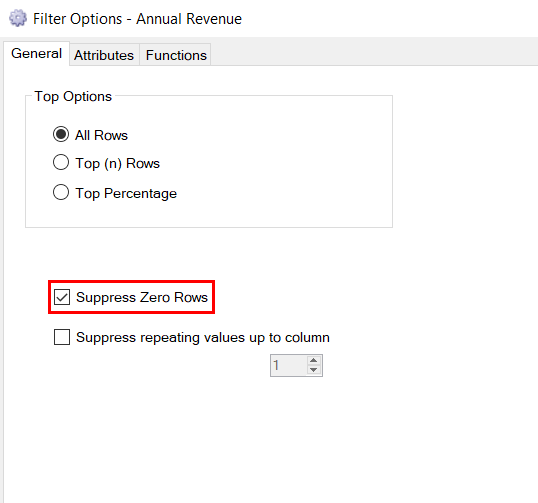
Suppress Zero Rows
- Use the Suppress Zero Rows checkbox.
- Creating an Expression and using the Row Skip function (allows for the most flexibility).
- Defining a non 0 filter value on the selected field.
Suppress Zero Rows checkbox
The Suppress Zero Rows checkbox can be found by double clicking on Table or one of the filters and navigating to the General tab. By selecting the Suppress Zero Rows checkbox, Sharperlight will automatically remove rows where all the numeric fields have a value of 0.
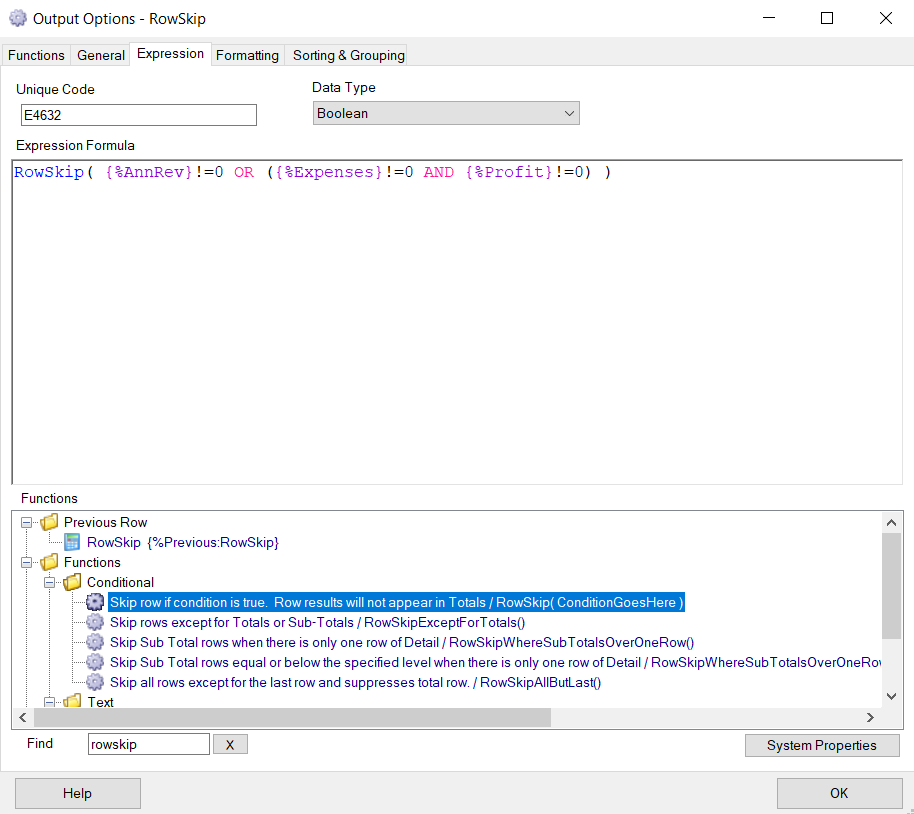
Row Skip Function in an Expression
The Row Skip function allows the most flexibility out of the 3 options. Firstly, an expression needs to be created and then the Row Skip function can be selected. The function allows users to provide a condition for its activation (i.e. if the condition is true, the row will be skipped/removed). This allows users to select which columns/fields to consider, and with the use of logical operators (i.e. AND/OR) and brackets, any combination can be selected and checked. This function also expands to other areas, as the condition is not limited to just checking if a value is 0, for example, users are also able to check if a field equals another field or if it is greater than a certain value.
Defining a non zero value in a filter
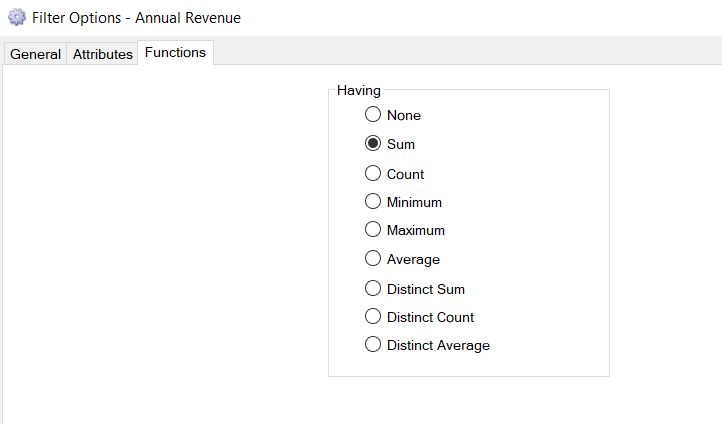
Double Click or Right Click the Filter and select Options, and then select the Functions Tab.
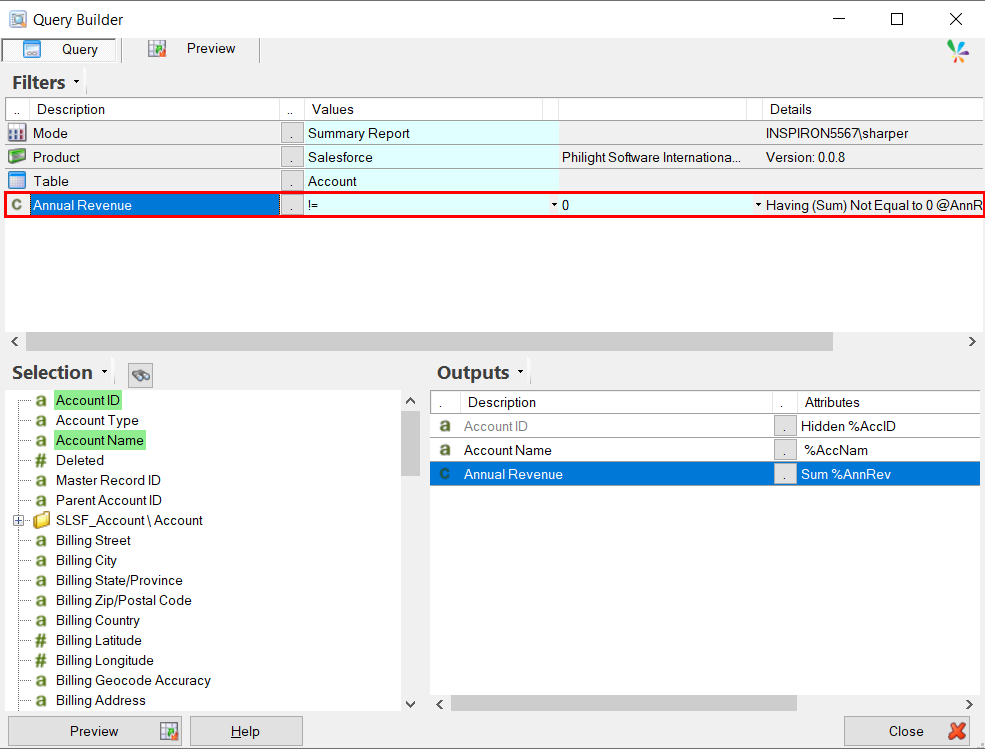
In this example, we will be looking at the Total Annual Revenue for each Account Code, which means that we will need to select Sum in the functions tab under the Having options. This will allow us to filter out the summed zero values instead of the zero values at the transactional level. However, if you were trying to filter out the zero values at the transactional level, then leave the Having options unchecked.
If there is more than one column involved, this process can be repeated. By using the logical operators in the Attributes tab and the filter operators, users will be able to identify the instances where rows will be skipped (i.e. if OR is used, then if either one of the chosen fields are 0, the row will be skipped, where AND will ensure that the row is only skipped if all the chosen fields equal 0).
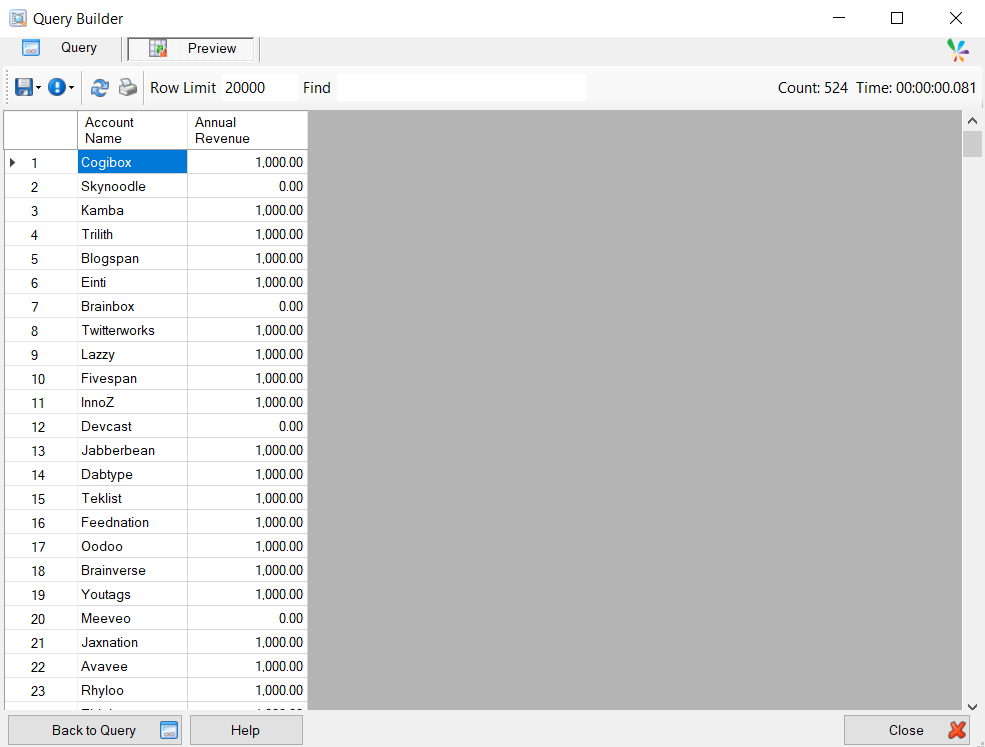
Before Suppress Zero value logic has been applied
Filter Options and Using the Having function
Set the Filter values to <> 0 or != 0
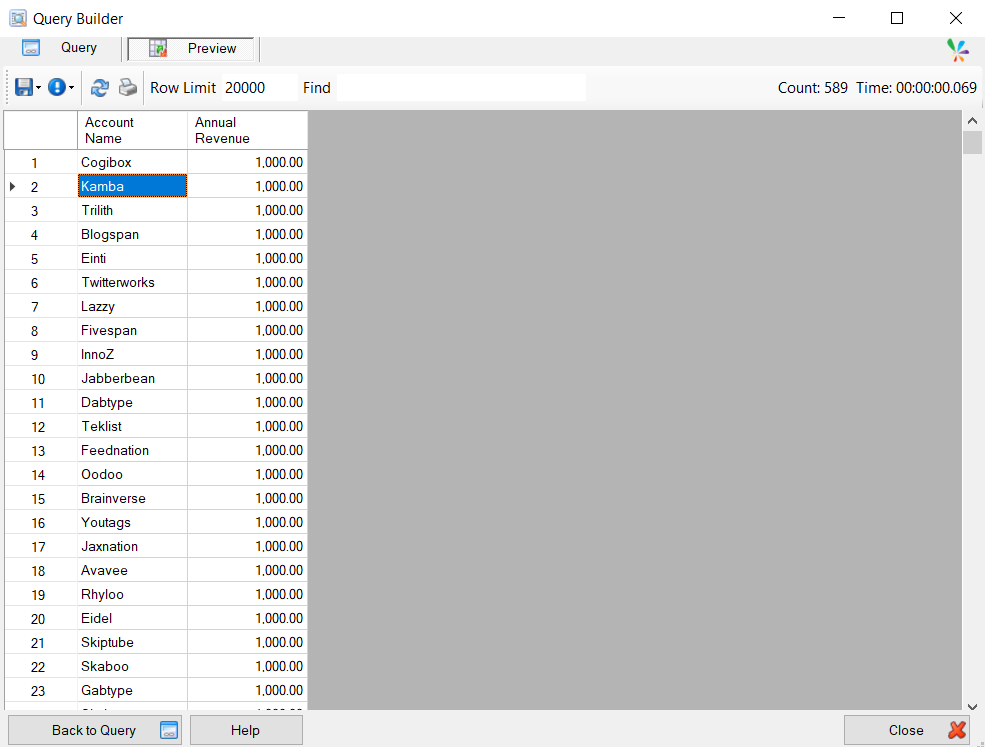
End Result, Preview of Data